How to Adjust Your Images and Resize for Any Platform (2026 Guide)
Table of Contents
To adjust your images and resize effectively in 2026, use free browser-based tools like CapCut or BIRME for instant results. For quick offline adjustments, built-in apps like Mac Preview (Tools > Adjust Size) or Windows Photos work well. Always lock the Aspect Ratio to prevent stretching, and export as WebP or JPG to maintain fast website performance.
How to Adjust Your Images and Resize: A Step-by-Step Framework
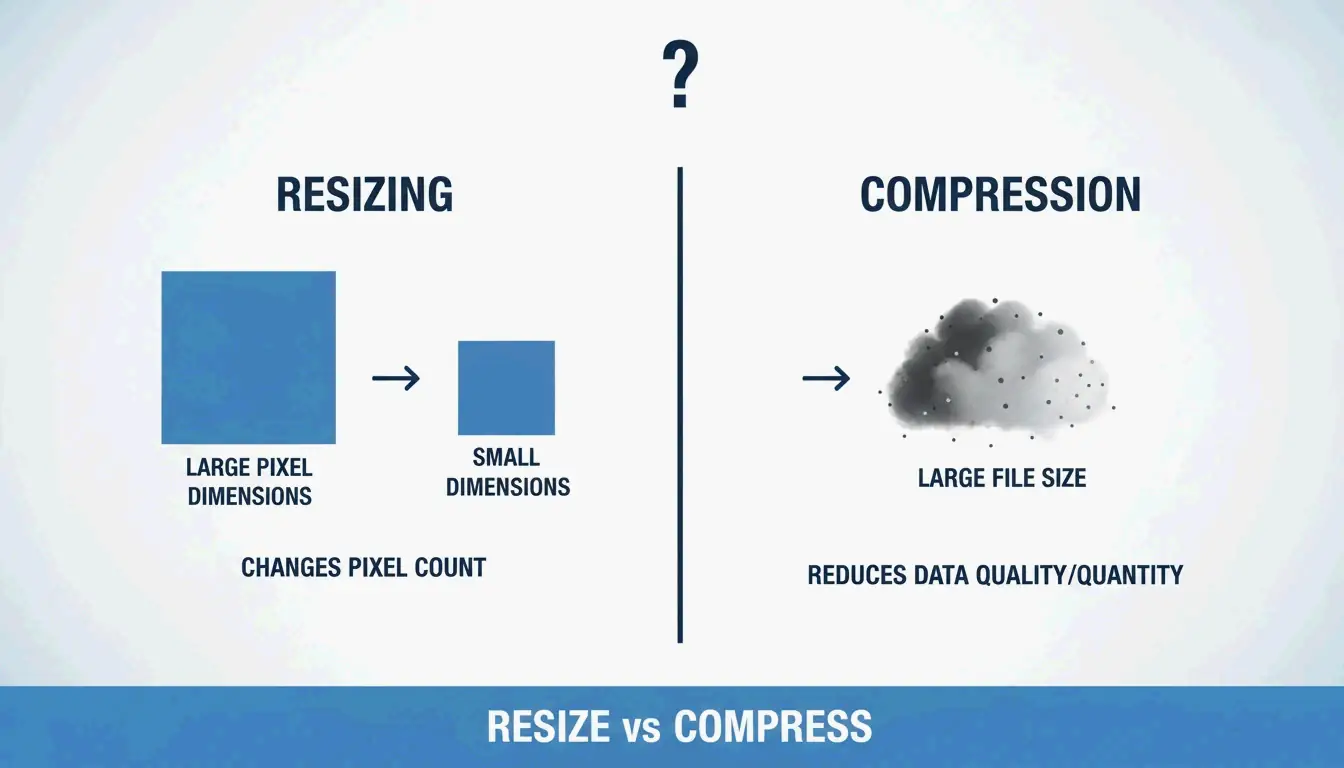
Understanding what happens when you modify a file is essential before starting. “Resizing” changes the actual pixel dimensions — width and height. This is distinct from “compression,” which reduces file size (MB/KB) by removing redundant data without changing the image’s physical dimensions.
As noted by Private Convert, resizing a high-resolution 4000x3000px photo (approximately 6MB) to 1200px wide can reduce the file size to 300-700KB — ideal for web use without compromising page load performance.
Locking the Aspect Ratio: The Golden Rule
The most common mistake when resizing is ignoring the Aspect Ratio — the relationship between width and height. Forcing a wide 16:9 photo into a 1:1 square without cropping will squash or unnaturally elongate your subject. Most tools display a small “lock” or “chain” icon. Keep this active so the software automatically calculates the height when you change the width (or vice versa).
Quick Resize on Windows and macOS (No App Required)
| Platform | Method | Steps |
|---|---|---|
| Windows | Photos App | Open image > three-dot menu > “Resize image” |
| macOS | Preview | Open file > Tools > Adjust Size > check “Scale proportionally” |
Private Convert recommends selecting multiple photos in Finder and opening them simultaneously in Preview to apply batch resizing to an entire group.
Beyond Stretching: Using AI Image Expansion to Fit New Dimensions
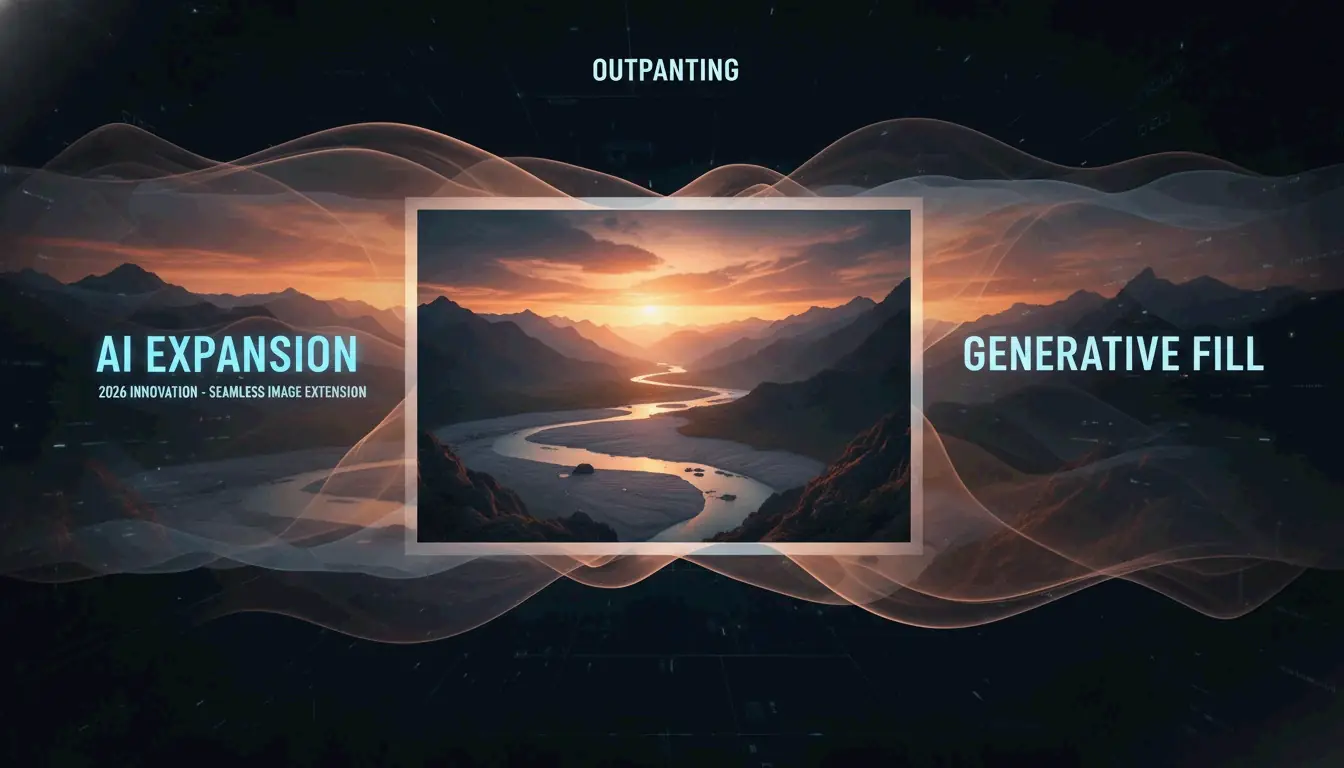
By 2026, AI Image Expansion (also called Generative Expand or Outpainting) has solved the long-standing problem of fitting images into mismatched dimensions. Instead of choosing between distortion and cropping, tools like Adobe Express or CapCut use AI to generate new pixels at the edges.
For example, if you have a vertical portrait but need a horizontal website banner, the AI analyzes the background and extends the scene naturally. Smart Cropping identifies the focal point to keep the main subject centered and intact.
Which Online Image Resizer Should You Choose for Batch Processing?
For handling multiple files, a dedicated Online Image Resizer is significantly faster than processing images individually.
| Tool | Key Strength | Privacy | Pricing |
|---|---|---|---|
| BIRME | Speed, privacy-focused | Client-side processing | Free |
| CapCut | Filters, AI layouts | Cloud-based | Free tier available |
The BIRME Founder explains: “Buying Photoshop just to resize images in bulk didn’t seem like the smartest option.” BIRME processes everything in your browser, keeping files on your device.
How to Batch Resize for Free in Seconds
According to BIRME, which handles over 50,000 users monthly, the optimal workflow is:
- Drag and drop your folder of images into the site.
- Set your target width and height.
- The 80% Rule: Set image quality to 80% — the sweet spot where images look sharp but file sizes remain small.
- Download everything as a single ZIP file.
Choosing the Right Format: JPEG vs. PNG vs. WebP
The format you select after resizing directly affects web performance.
| Format | Best For | Key Characteristic |
|---|---|---|
| WebP | SEO and web performance | Superior compression vs. JPEG |
| JPEG/JPG | Detailed photography | Small file size, universal support |
| PNG | Transparent backgrounds, sharp text | Lossless quality, larger files |
Also consider DPI/PPI settings. For screens, 72 DPI is sufficient — higher values do not improve display quality on monitors. For print, Spin Numbers recommends a minimum of 300 DPI to maintain print clarity.
Developer Corner: Object-fit and Command-Line Resizing
For developers, resizing happens in code as well as in the file. The Object-fit CSS property controls how an image fills its container. MDN Web Docs notes that cover is the most popular setting for responsive sites — it maintains aspect ratio by clipping edges to fit. Use contain when the entire image must be visible without any cropping.
For command-line workflows on macOS, the built-in Sips tool handles batch operations. For cross-platform automation, ImageMagick is the standard:
magick mogrify -resize 1200x *.jpg
This command resizes every JPEG in the current folder to 1200px wide.
Conclusion
Adjusting and resizing images requires balancing correct proportions, modern formats like WebP, and the right tool for your workload. In 2026, AI has made it practical to expand images rather than stretch them, preserving quality across different aspect ratios.
Quick start: Identify your platform’s required dimensions, use BIRME for bulk uploads, or Adobe Express when AI-powered aspect ratio changes are needed.
FAQ
What is the difference between resizing and compressing an image?
Resizing changes the pixel dimensions (width and height). Compressing reduces the file size (MB or KB) by removing redundant data or lowering the quality setting. Most web optimization requires both: resize to correct dimensions, then compress for fast loading.
How can I resize multiple images at once (batch resize) for free?
Use online tools like BIRME.net or BulkResizePhotos. Upload your folder of images, set target dimensions, and download the resized set as a ZIP file. On macOS, Finder’s “Quick Actions” feature provides basic batch resizing without opening additional software.
Will resizing an image reduce its quality or resolution?
Downscaling (making an image smaller) typically maintains sharpness but reduces the total pixel count. Upscaling (making an image larger) usually produces blurriness or pixelation because the software must create new pixels. For best results, always start with a high-resolution original and resize downward.
About the Author
Indie Hacker & DeveloperI'm an indie hacker building iOS and web applications, with a focus on creating practical SaaS products. I specialize in AI SEO, constantly exploring how intelligent technologies can drive sustainable growth and efficiency.
Last reviewed May 16, 2026. This article is reviewed for accuracy and updated when tooling or platform behavior changes.