Как корректировать изображения и изменять их размер для любой платформы (руководство 2026)
Содержание
Чтобы в 2026 году эффективно корректировать изображения и изменять их размер, используйте бесплатные браузерные инструменты, такие как CapCut или BIRME, для мгновенного результата. Для быстрой офлайн-корректировки подойдут встроенные приложения — Mac Preview (Tools > Adjust Size) или Windows Photos. Всегда блокируйте соотношение сторон, чтобы избежать растяжения, и экспортируйте в WebP или JPG для быстрой загрузки сайта.
Как корректировать изображения и изменять их размер: пошаговая схема
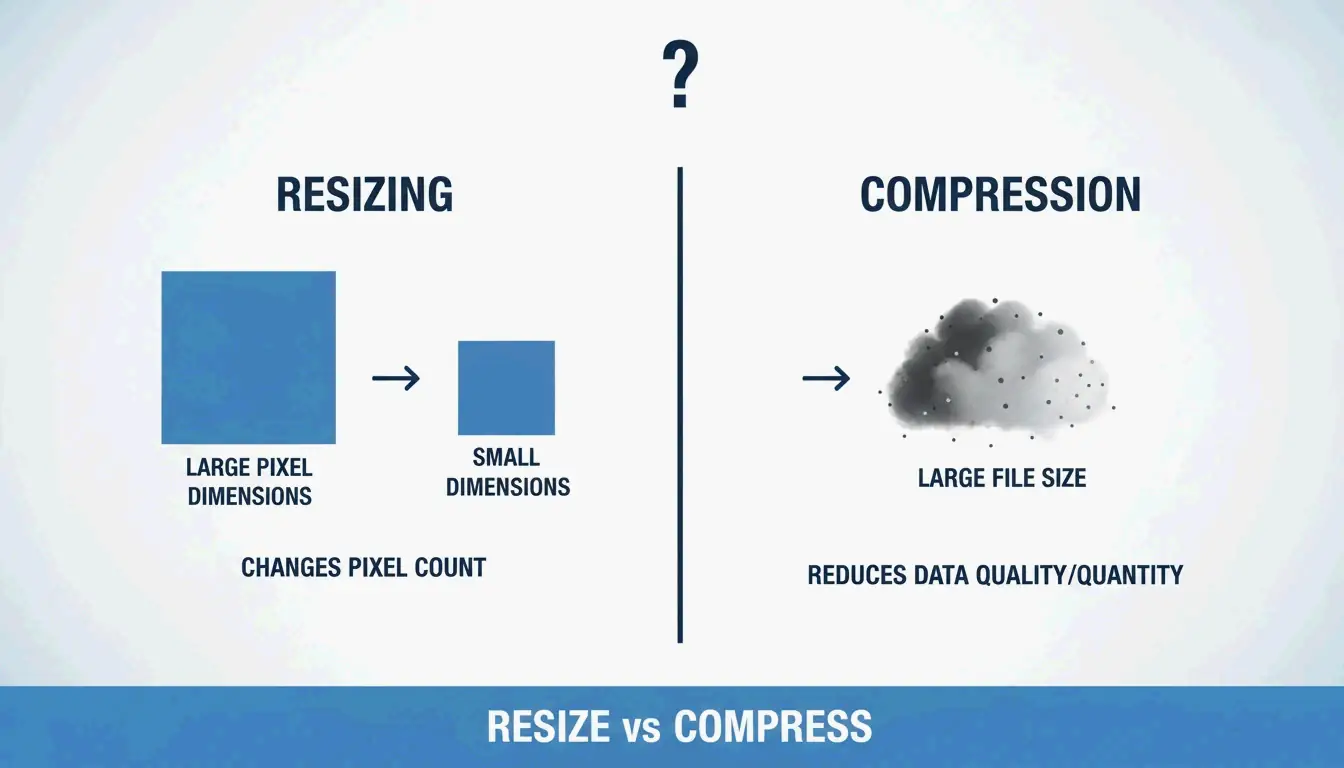
Прежде чем начать, важно понимать, что происходит при изменении файла. «Изменение размера» меняет реальные размеры в пикселях — ширину и высоту. Это отличается от «сжатия», которое уменьшает размер файла (MB/KB) за счёт удаления избыточных данных, не меняя физические размеры изображения.
Как отмечает Private Convert, изменение размера фотографии высокого разрешения 4000x3000px (около 6MB) до 1200px в ширину может уменьшить размер файла до 300-700KB — идеально для веб-использования без ущерба для скорости загрузки страницы.
Блокировка соотношения сторон: золотое правило
Самая частая ошибка при изменении размера — игнорирование соотношения сторон, то есть связи между шириной и высотой. Если без обрезки втиснуть широкое фото 16:9 в квадрат 1:1, объект будет сплющен или неестественно вытянут. В большинстве инструментов есть небольшой значок «замка» или «цепи». Держите его активным, чтобы при изменении ширины программа автоматически вычисляла высоту (и наоборот).
Быстрое изменение размера в Windows и macOS (без установки приложений)
| Платформа | Метод | Шаги |
|---|---|---|
| Windows | Photos App | Открыть изображение > меню из трёх точек > «Resize image» |
| macOS | Preview | Открыть файл > Tools > Adjust Size > отметить «Scale proportionally» |
Private Convert рекомендует выбрать в Finder несколько фотографий и открыть их одновременно в Preview, чтобы применить пакетное изменение размера ко всей группе.
Дальше растяжения: используем AI Image Expansion для новых размеров
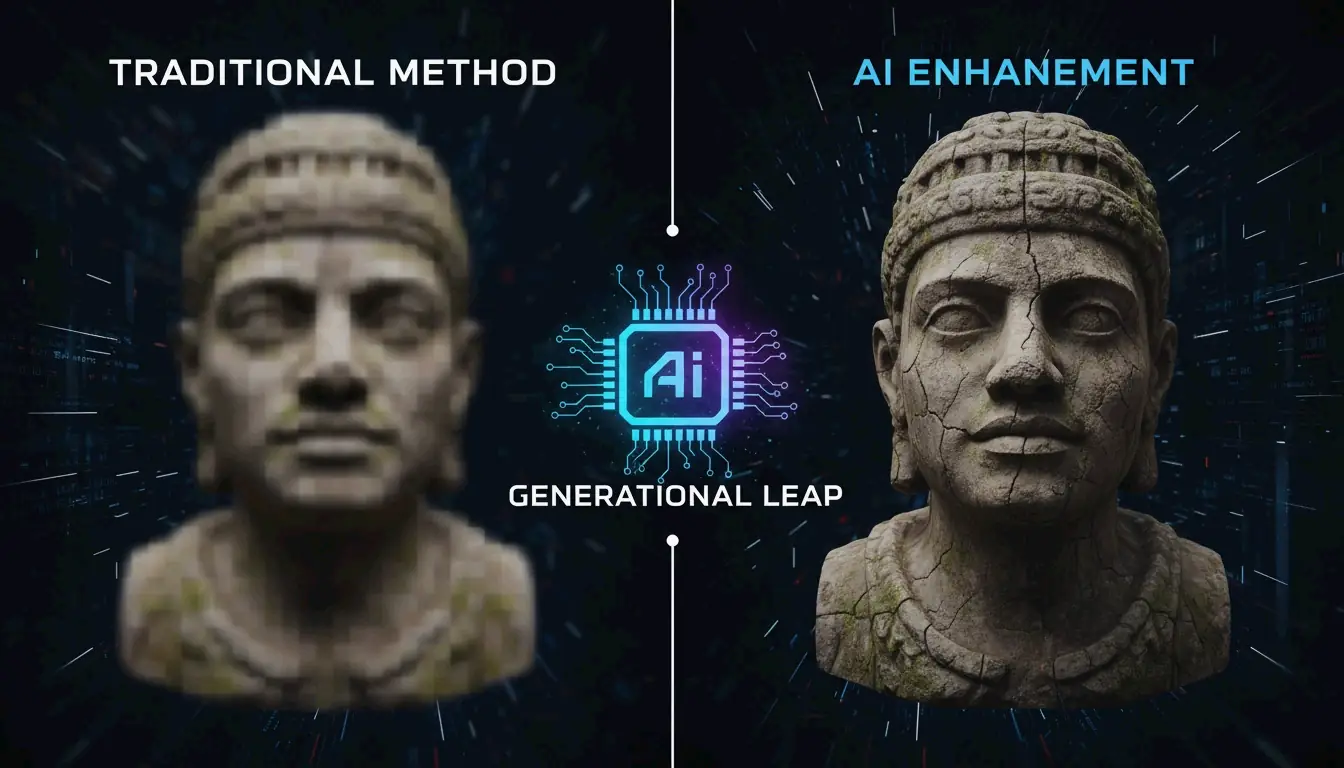
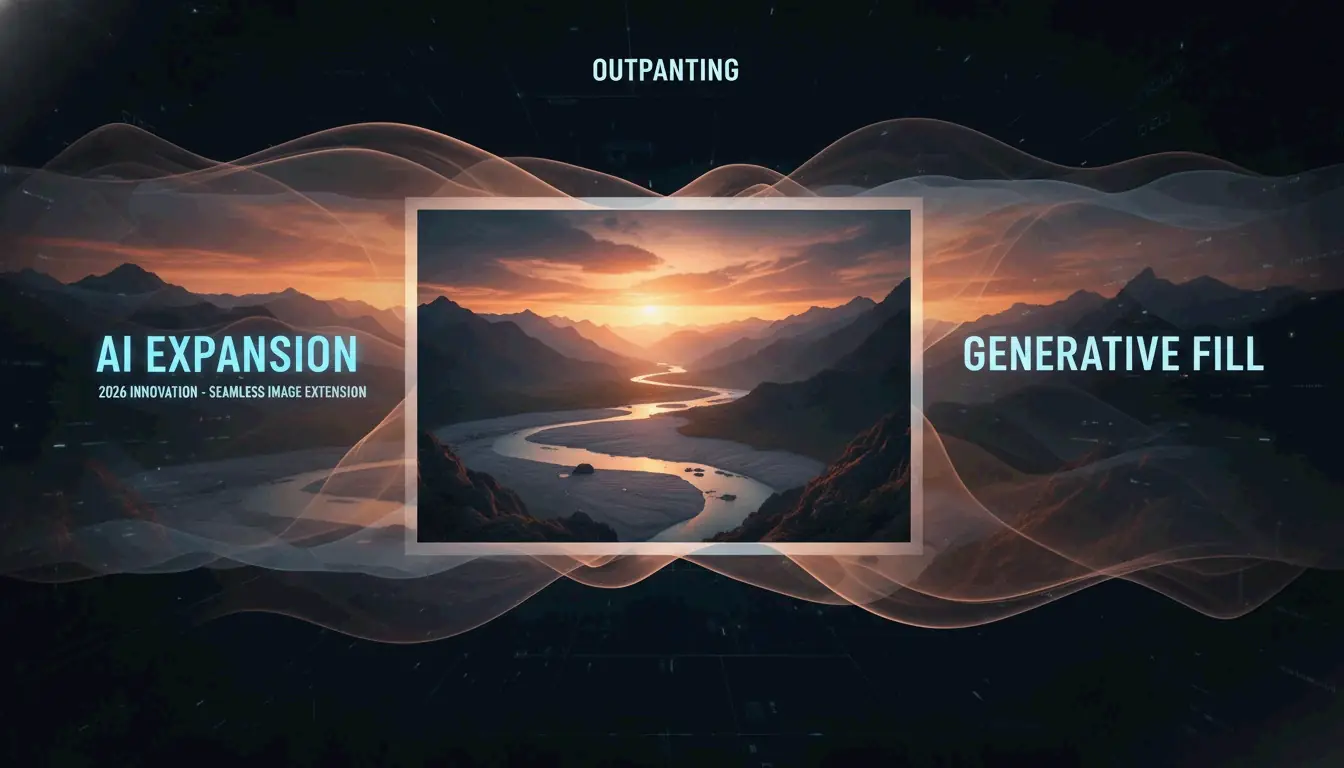
К 2026 году AI Image Expansion (также называемое Generative Expand или Outpainting) решило давнюю проблему подгонки изображений под несовпадающие размеры. Вместо выбора между искажением и обрезкой такие инструменты, как Adobe Express или CapCut, используют AI для генерации новых пикселей по краям.
Например, если у вас вертикальный портрет, а нужен горизонтальный баннер для сайта, AI анализирует фон и естественно расширяет сцену. Smart Cropping определяет точку фокуса, удерживая главный объект по центру и сохраняя его целостность.
Какой онлайн-ресайзер изображений выбрать для пакетной обработки?
Для работы с несколькими файлами специализированный онлайн-ресайзер изображений значительно быстрее, чем обрабатывать каждое изображение по отдельности.
| Инструмент | Главное преимущество | Конфиденциальность | Цена |
|---|---|---|---|
| BIRME | Скорость, упор на приватность | Обработка на стороне клиента | Бесплатно |
| CapCut | Фильтры, AI-раскладки | На основе облака | Есть бесплатный тариф |
Основатель BIRME объясняет: «Покупать Photoshop только для того, чтобы массово изменять размер изображений, не казалось самым разумным вариантом». BIRME выполняет всю обработку в вашем браузере, оставляя файлы на вашем устройстве.
Как бесплатно изменить размер пакета за секунды
По данным BIRME, обслуживающего более 50,000 пользователей ежемесячно, оптимальный рабочий процесс таков:
- Перетащите папку с изображениями на сайт.
- Задайте целевую ширину и высоту.
- Правило 80% : установите качество изображения на 80% — это «золотая середина», при которой изображения выглядят чёткими, а размер файла остаётся небольшим.
- Скачайте всё как один ZIP-файл.
Выбор правильного формата: JPEG vs. PNG vs. WebP
Формат, выбранный после изменения размера, напрямую влияет на производительность сайта.
| Формат | Для чего лучше | Ключевая характеристика |
|---|---|---|
| WebP | SEO и производительность сайта | Лучшее сжатие по сравнению с JPEG |
| JPEG/JPG | Детализированная фотография | Малый размер файла, универсальная поддержка |
| PNG | Прозрачный фон, чёткий текст | Качество без потерь, файлы большего размера |
Также учитывайте настройки DPI/PPI. Для экранов достаточно 72 DPI — более высокие значения не улучшают качество отображения на мониторах. Для печати Spin Numbers рекомендует минимум 300 DPI для сохранения чёткости печати.
Уголок разработчика: Object-fit и изменение размера из командной строки
Для разработчиков изменение размера происходит как в коде, так и в файле. CSS-свойство Object-fit управляет тем, как изображение заполняет свой контейнер. MDN Web Docs отмечает, что cover — самая популярная настройка для адаптивных сайтов: она сохраняет соотношение сторон, обрезая края для подгонки. Используйте contain, когда всё изображение должно быть полностью видно без какой-либо обрезки.
Для рабочих процессов в командной строке на macOS встроенный инструмент Sips поддерживает пакетные операции. Для кроссплатформенной автоматизации стандартом является ImageMagick:
magick mogrify -resize 1200x *.jpg
Эта команда изменяет размер каждого JPEG в текущей папке до 1200px в ширину.
Заключение
Корректировка и изменение размера изображений требует баланса между правильными пропорциями, современными форматами вроде WebP и подходящим для вашей нагрузки инструментом. В 2026 году AI сделал возможным расширять изображения вместо их растяжения, сохраняя качество при разных соотношениях сторон.
Быстрый старт: Определите требуемые размеры для вашей платформы, используйте BIRME для массовой загрузки или Adobe Express, когда нужны изменения соотношения сторон на базе AI.
Часто задаваемые вопросы
В чём разница между изменением размера и сжатием изображения?
Изменение размера меняет размеры в пикселях (ширину и высоту). Сжатие уменьшает размер файла (MB или KB) за счёт удаления избыточных данных или снижения качества. Большая часть веб-оптимизации требует и того, и другого: сначала измените размер до нужных размеров, затем сожмите для быстрой загрузки.
Как бесплатно изменить размер нескольких изображений сразу (пакетно)?
Используйте онлайн-инструменты вроде BIRME.net или BulkResizePhotos. Загрузите папку с изображениями, задайте целевые размеры и скачайте изменённый набор как ZIP-файл. На macOS функция «Быстрые действия» в Finder обеспечивает базовое пакетное изменение размера без открытия дополнительных программ.
Уменьшит ли изменение размера качество или разрешение изображения?
Уменьшение размера (когда изображение становится меньше) обычно сохраняет резкость, но сокращает общее число пикселей. Увеличение размера (когда изображение становится больше) обычно приводит к размытию или пикселизации, поскольку программа должна создавать новые пиксели. Для лучшего результата всегда начинайте с оригинала высокого разрешения и уменьшайте размер.
Об авторе
Независимый разработчикЯ независимый разработчик, создающий приложения для iOS и веб-приложения с фокусом на практичные SaaS-продукты. Специализируюсь на AI SEO, постоянно изучая, как интеллектуальные технологии могут обеспечить устойчивый рост и эффективность.
Последняя проверка 1 июля 2026 г.. Эта статья проверяется на точность и обновляется при изменении инструментов или поведения платформы.
Редакционная политика
Как ImageLean исследует, тестирует и обновляет опубликованные руководства.
Раскрытие рекламы
Как мы обрабатываем рекламу, спонсорство и монетизацию на сайте.
Подход к конфиденциальности
Почему наши инструменты ставят конфиденциальность на первое место и как работает обработка в браузере.