How to Shrink My Pictures: 2026 Guide to Resizing Without Quality Loss
To shrink your pictures in 2026, use online tools like […]
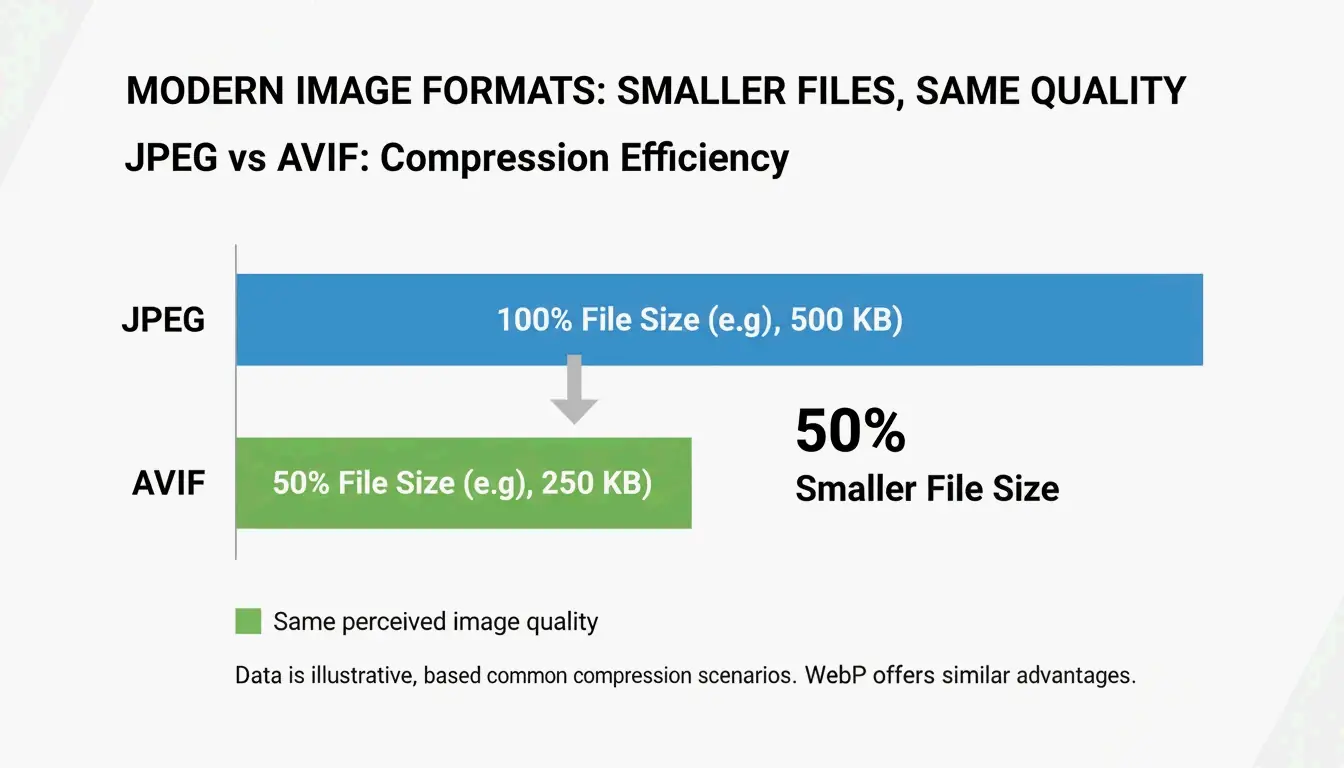
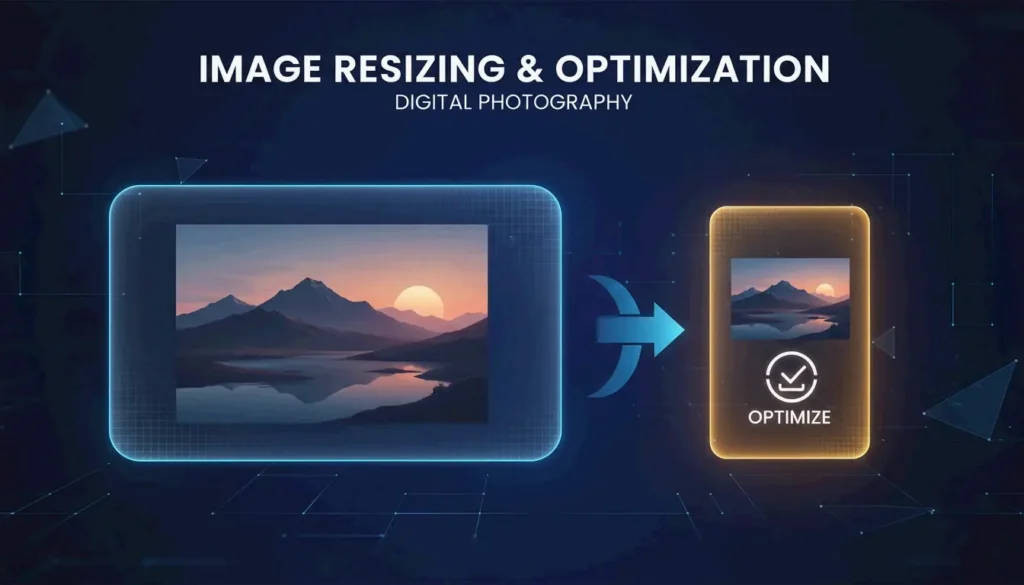
To shrink your pictures in 2026, use online tools like BIRME for bulk resizing, or built-in apps like Preview (Mac) and Photos (Windows). For mobile, enable HEIC/High Efficiency settings. To save maximum space without losing quality, convert files to AVIF or WebP, which offer 50% better compression than standard JPEGs.
The Fastest Ways to Shrink My Pictures Today
When you need to shrink your pictures, the best method depends on your goal: are you trying to change the physical dimensions or just reduce the file size? In 2026, the standard is finding a balance between crystal-clear quality and storage space. According to BIRME, keeping your JPEG quality between 80-85% is the “sweet spot” for most websites—it keeps the image sharp while cutting down the “weight” of the file significantly.
By shrinking a typical 6MB smartphone photo down to a web-friendly size (like 1200px wide), you can usually get it down to 300-700KB without seeing any blurry pixels.
Using Built-in Tools (Windows Photos & Mac Preview)
You don’t need to download extra software to shrink your pictures. On a Mac, just open the image in Preview, go to Tools > Adjust Size, and make sure “Scale proportionally” is checked so your image doesn’t look stretched. On Windows, the Photos app has a three-dot menu in the top-right corner with a “Resize image” option where you can pick a preset or type in your own dimensions. If you prefer the classic way, Microsoft Paint still works; just click “Resize” on the Home tab and switch to “Pixels” to set your new width.
Why Pixels Matter: Understanding Width and Height
Shrinking an image is really about changing its Pixels (px)—those tiny dots of color that form the picture. A photo from a high-end camera might be 4000px wide, but most website images don’t need to be wider than 1600px. It’s also helpful to know the difference between JPEG / JPG (the old reliable format) and newer ones like WebP / AVIF. While JPEG works everywhere, it isn’t as efficient as these 2026 formats when it comes to keeping file sizes small at high resolutions.

How to Bulk / Batch Resize Multiple Images at Once?
If you have hundreds of photos, doing them one by one isn’t practical. Tools like BIRME and Private Convert let you Bulk / Batch Resize everything right in your browser. A big plus for these tools is that they process images locally using JavaScript. This means your photos never actually leave your computer, which is great for privacy.
For power users, Private Convert suggests using command-line tools like ImageMagick or the macOS sips utility. Running a simple command like sips -Z 1200 *.jpg will instantly shrink every image in a folder to a maximum width of 1200px.
Maintaining Aspect Ratio to Avoid Distortion
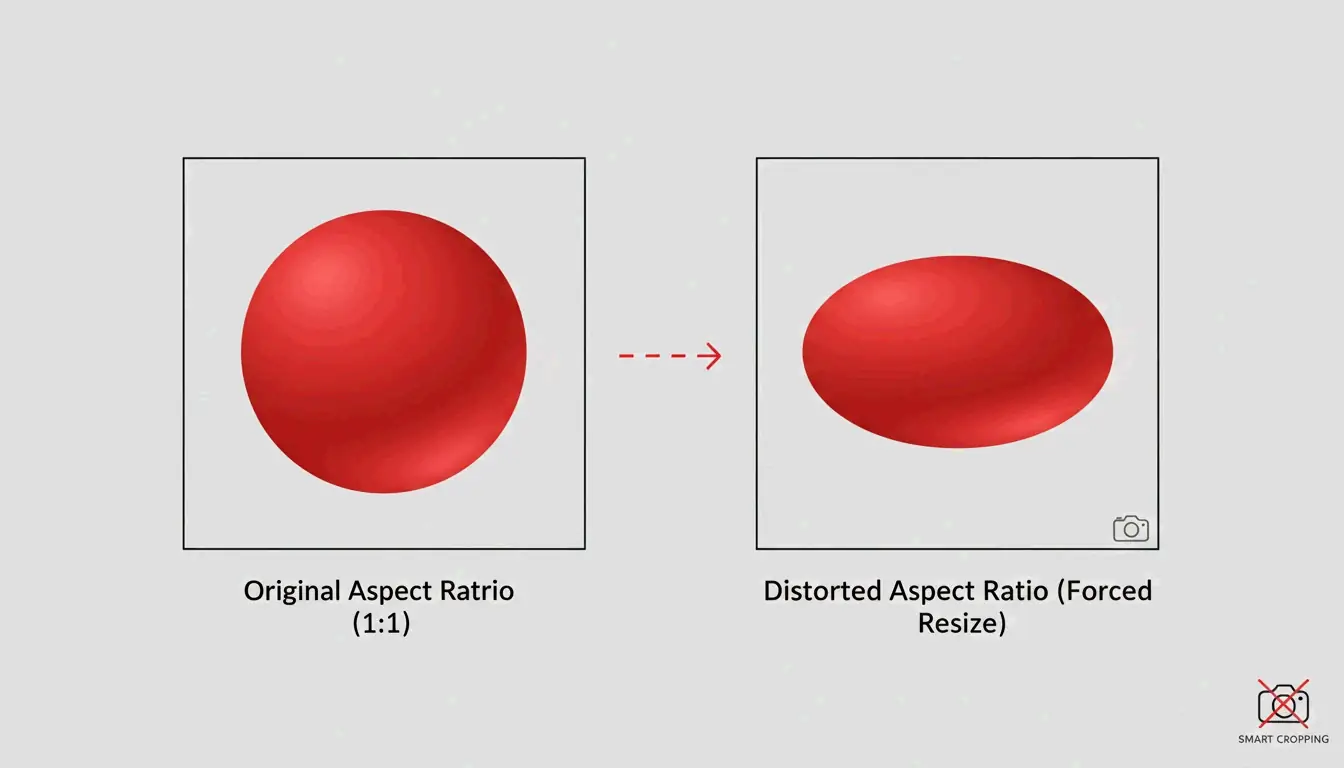
The biggest mistake people make when shrinking pictures is ignoring the Aspect Ratio—the relationship between width and height. If you force a rectangular photo into a square without cropping it, the image will look “squashed.” To avoid this, use Smart Cropping. Tools like BIRME use AI to detect the “focal point” (the most important part of the photo) and keep it centered while trimming the edges to fit your new size.

Future-Proofing Your Files: Is HEIC or AVIF Better?
In 2026, picking the right file format is the easiest way to shrink a picture’s footprint. HEIC / High Efficiency is the standard for Apple users. As noted by Wondershare UniConverter, if you go into your iPhone camera settings and switch from “Most Compatible” to “High Efficiency,” your phone will automatically save images as HEIC files. These take up much less space than JeneGs, which is a lifesaver for iCloud Photos storage.
However, for the web, AVIF is the 2026 leader. According to Private Convert, AVIF offers 50% better compression than JPG while looking exactly the same to the human eye.
Quick Decision Guide:
- Storing on iPhone/Mac? Use HEIC to save the most phone storage.
- Uploading to a Website? Convert to AVIF or WebP so the page loads faster.
- Sending to an older PC? Stick with JPEG (at 80% quality) so anyone can open it.
Social Media Optimization: Stop the Auto-Shrink Blur
A common mistake is thinking that uploading the biggest file possible will result in the best quality. Actually, platforms like Instagram and TikTok use aggressive “auto-shrink” tools that can make a 4K file look grainy.
A study within the TikTok Creator Community found that 1080p uploads often look sharper than 4K uploads. This happens because when you upload 4K, the app’s compression engine has to work harder to shrink the file, often creating ugly digital artifacts.
Best Dimensions for 2026:
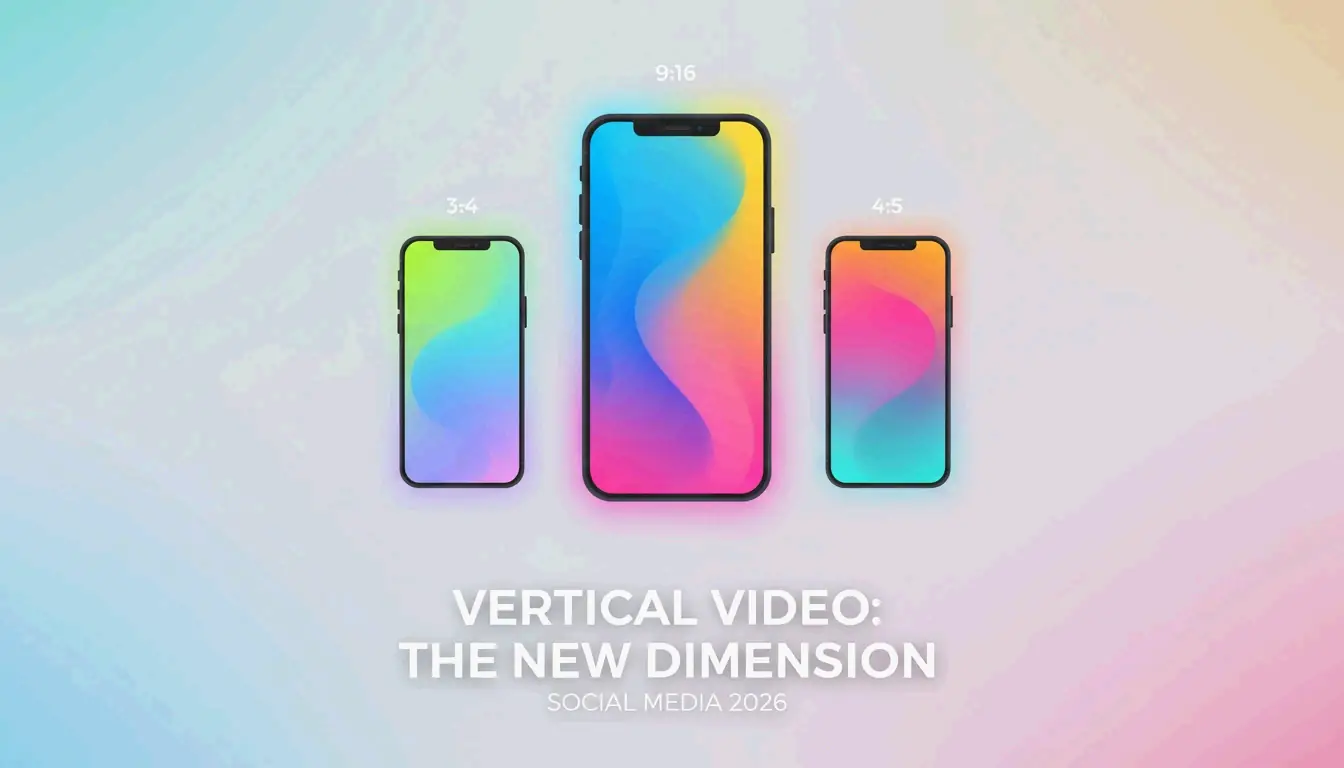
- Instagram/TikTok Reels: 1080 x 1920 px
- Instagram Square Posts: 1080 x 1080 px
- YouTube Thumbnails: 1280 x 720 px
Conclusion
Shrinking pictures isn’t just about making them smaller anymore; it’s about choosing a modern format like AVIF and keeping the right proportions for where you’re posting. Whether you’re cleaning out your iPhone or building a professional website, you want to reduce the file size without losing the clear details. Start by checking if your phone is set to “High Efficiency” (HEIC) to save local space. For web projects, use a batch tool like BIRME or Private Convert to turn your JPEGs into WebP or AVIF at 80% quality. Your images will stay crisp and load almost instantly.
FAQ
What is the difference between resizing and compressing an image?
Resizing changes the physical pixel dimensions—the actual width and height of the image. For example, taking a 4000px wide image and making it 1080px. Compressing reduces the file size (MB/KB) by organizing the data more efficiently, often without changing the dimensions at all.
Why do my pictures look blurry or pixelated after I shrink them?
Blurriness usually happens because shrinking removes pixels. If you try to stretch that small image back out later, the computer has to “guess” what the missing pixels looked like, resulting in a soft look. Pixelation happens when you compress a file too much—setting the quality below 60% usually creates blocky, “noisy” spots.
How can I resize images on my phone without downloading a third-party app?
On an iPhone, you can use the built-in “Shortcuts” app to create a “Resize Image” tool that works directly from your photos. On Android, while the Google Photos “Edit” tool is mostly for cropping, you can use a browser-based tool like Private Convert in Chrome to change pixel dimensions without needing to install a new app.
作者
SectoJoy
獨立開發者我是一名獨立開發者,專注於構建 iOS 和 Web 應用程序,致力於打造實用的 SaaS 產品。我擅長 AI SEO,不斷探索智能技術如何推動可持續增長和效率提升。