如何缩小图片而不损失画质:2026 缩放指南
目录
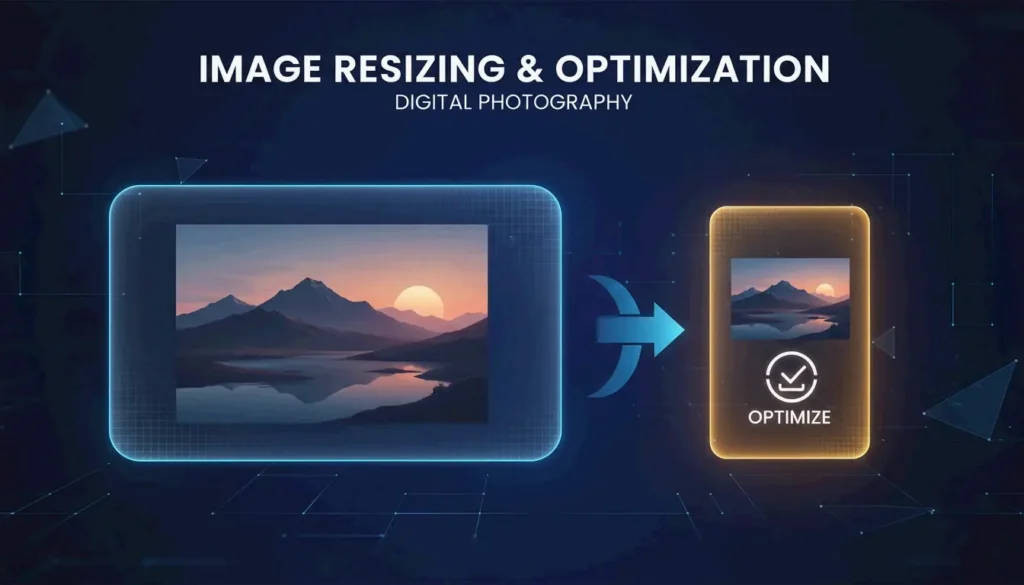
把一张 6MB 的手机照片缩小到 300-700KB,方法是将宽度缩放到 1200px 并以 80-85% 的 JPEG 质量保存。若要获得最大压缩率,可转换为 AVIF 或 WebP。内置工具(预览、照片)处理单张文件;BIRME 或 ImageMagick 处理批量。
内置工具:Mac、Windows 与移动端
Mac:预览
- 在 预览(Preview) 中打开图像。
- 工具(Tools) → 调整大小(Adjust Size)。
- 确保“按比例缩放(Scale proportionally)”已勾选。
- 设置目标宽度(例如 1200px)。高度会自动调整。
Windows:照片应用
- 在 照片(Photos) 中打开图像。
- 点击三点菜单(…) → 调整图像大小(Resize image)。
- 选择一个预设,或输入自定义尺寸。
Microsoft 画图(Paint) 替代方案:主页(Home) → 调整大小(Resize) → 切换到“像素(Pixels)”→ 设置宽度。
iPhone:HEIC 高效模式
切换到 设置 → 相机 → 格式 → 高效(Settings → Camera → Formats → High Efficiency)。照片会保存为 HEIC 格式——比 JPEG 小约 50%,且无画质损失。据 Wondershare UniConverter 介绍,这是 iCloud 照片最大的省空间利器。
缩放与压缩:有什么区别?
| 操作 | 改变的内容 | 示例 |
|---|---|---|
| 缩放(Resizing) | 像素尺寸(宽 × 高) | 4000px → 1200px |
| 压缩(Compressing) | 文件体积(MB/KB) | 6MB → 400KB |
缩放会移除像素。压缩则是更高效地重新编码数据。两者都能减小文件体积,但缩放带来的节省最大。
批量 / 批处理缩放工具
要处理数百张照片,可使用基于浏览器或命令行的工具:
| 工具 | 平台 | 批量支持 | 隐私 | 命令 |
|---|---|---|---|---|
| BIRME | 浏览器 | 支持 | 本地(JS) | 拖放式图形界面 |
| Private Convert | 浏览器 | 支持 | 本地(JS) | 上传界面 |
| ImageMagick | 命令行 | 支持 | 完全离线 | magick mogrify -resize 1200x *.jpg |
| sips(macOS) | 命令行 | 支持 | 完全离线 | sips -Z 1200 *.jpg |
BIRME 还提供 智能裁剪(Smart Cropping) 功能——AI 会检测焦点,在裁剪边缘以适应新尺寸的同时保持焦点居中。
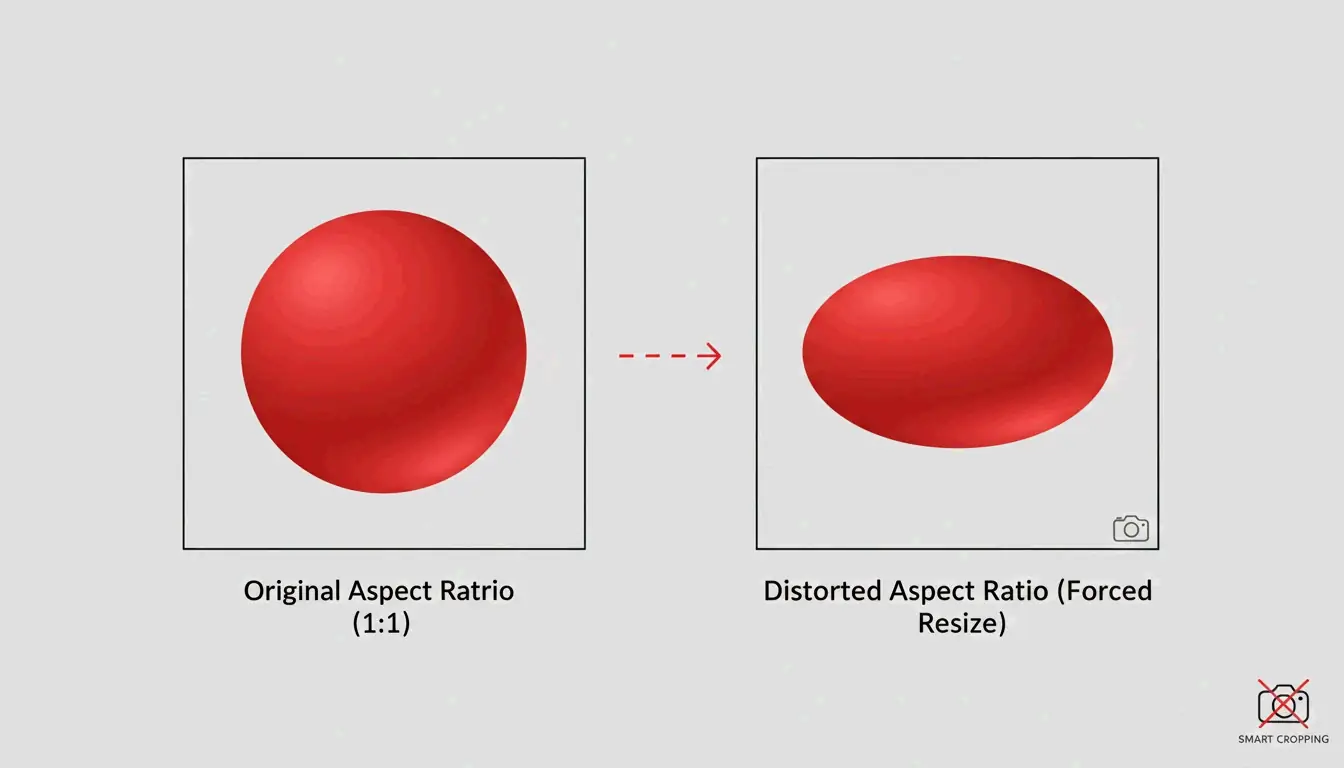
保持宽高比
务必按比例缩放。在不裁剪的情况下强行把一张矩形图像塞进正方形会导致明显的拉伸。请锁定宽高比,或使用能自动检测并保持宽高比的工具。
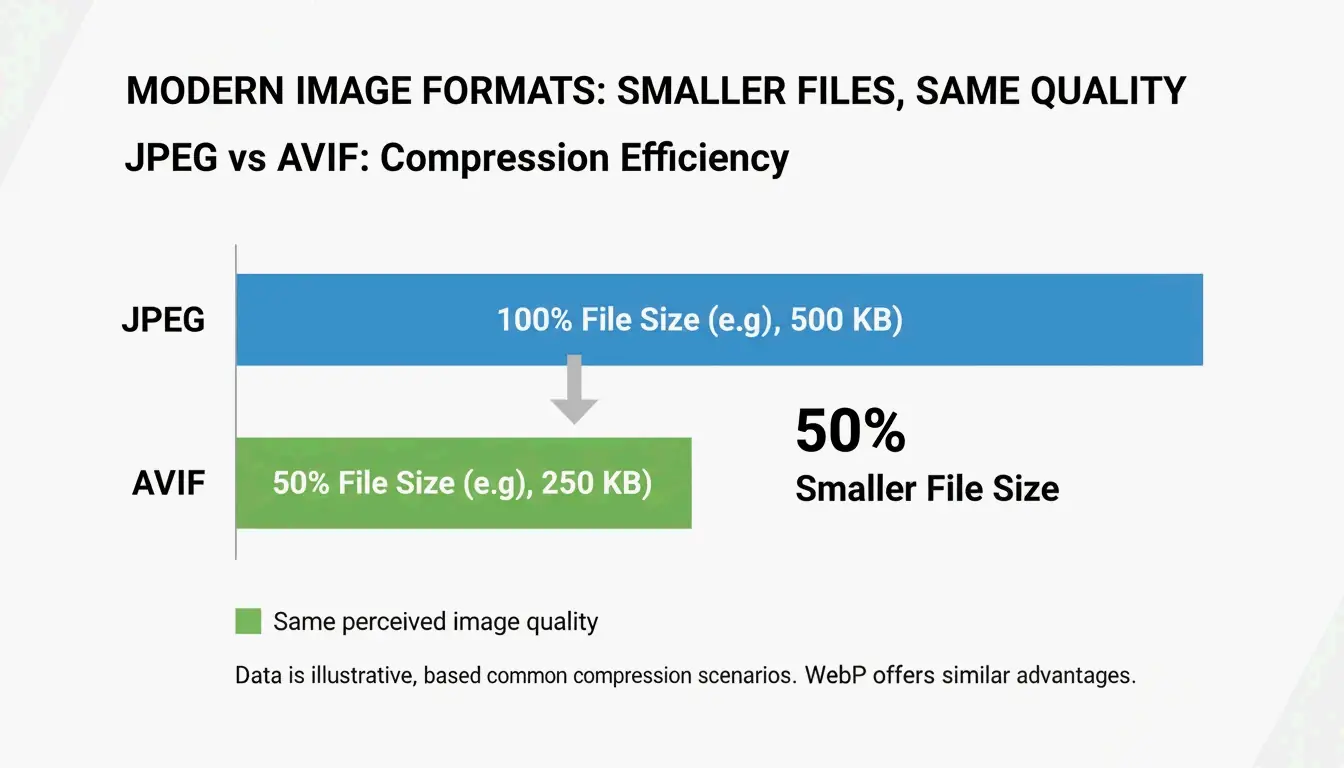
2026 格式选择指南
| 目标 | 格式 | 原因 |
|---|---|---|
| iPhone/Mac 本地存储 | HEIC | 比 JPEG 小 50%,Apple 原生支持 |
| 网站性能 | AVIF 或 WebP | 比 JPEG 小达 50%,浏览器支持率 97%+ |
| 最大兼容性 | JPEG(80%) | 任何设备、任何系统都能打开 |
据 Private Convert,在同等视觉画质下,AVIF 的压缩率比 JPEG 高 50%。
社交媒体尺寸:预缩放以避免自动压缩导致的模糊
Instagram 和 TikTok 等平台会施加激进的自动压缩。上传 4K 文件往往比上传平台原生分辨率的文件效果更差。
| 平台 | 推荐尺寸 | 格式 |
|---|---|---|
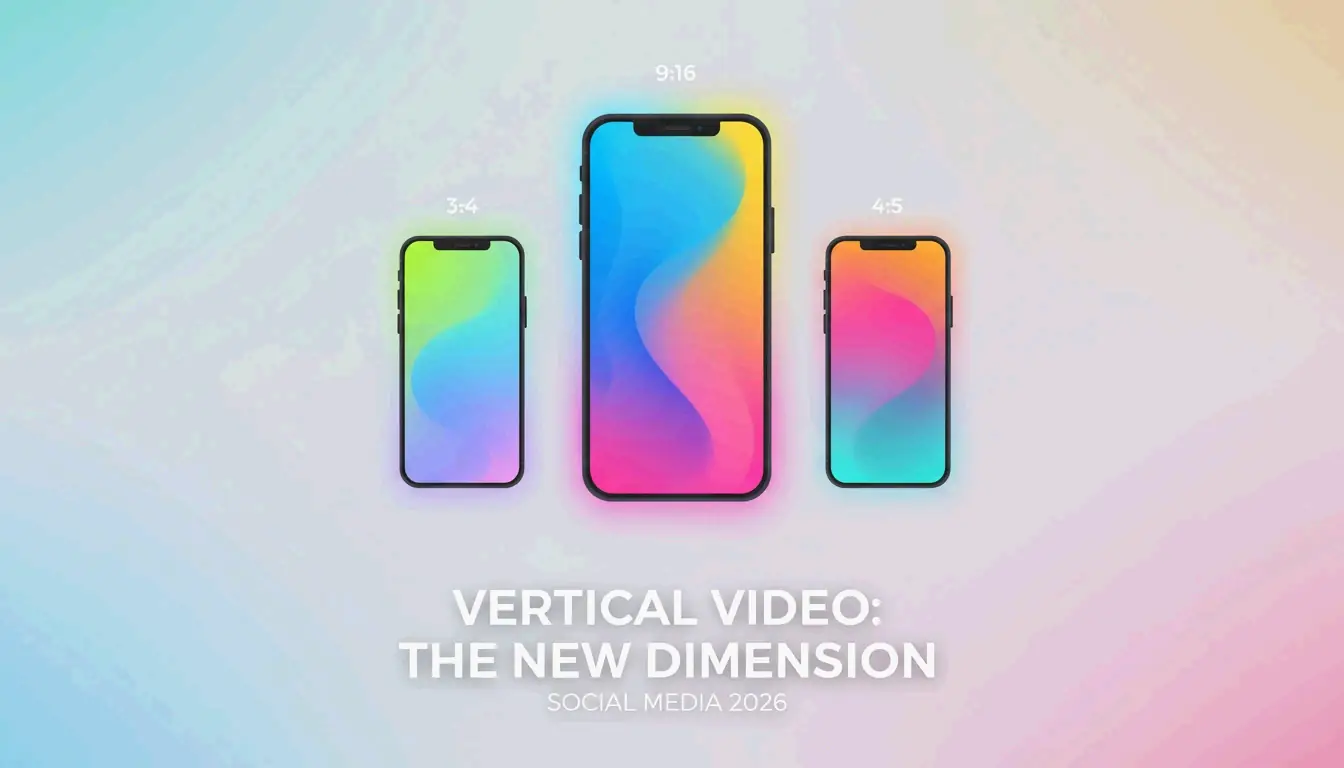
| Instagram/TikTok Reels | 1080 × 1920 px | JPEG 或 WebP |
| Instagram 方形帖子 | 1080 × 1080 px | JPEG 或 WebP |
| YouTube 缩略图 | 1280 × 720 px | JPEG |
据 TikTok 创作者社区,1080p 上传往往比 4K 看起来更清晰,因为平台的压缩引擎处理较小文件时更干净。
结论
分三步缩小图片:使用内置工具或批处理器把尺寸缩放到目标值,保持宽高比,并以现代格式保存。iPhone 存储请切换到 HEIC;网页请以 80% 质量转换为 AVIF 或 WebP;社交媒体请预缩放到平台原生尺寸,以避免自动压缩产生的伪影。
常见问题
缩放和压缩有什么区别?
缩放改变像素尺寸(4000px → 1200px)。压缩通过重新编码数据来减小文件体积,通常不改变尺寸。两者都能减小文件体积,但缩放带来的缩减最大。
为什么图片缩小后看起来模糊?
缩小会移除像素。如果你之后再把图像放大,电脑必须插值补全缺失的像素,从而产生柔化感。压缩导致的模糊则发生在画质低于 60% 时,会产生块状伪影。
不安装 App,如何在手机上缩放图像?
iPhone:使用 快捷指令(Shortcuts) 应用创建一个“缩放图像(Resize Image)”快捷指令,可从照片的分享菜单调用。Android:在 Chrome 中打开 Private Convert 这类基于浏览器的工具——在浏览器中缩放,无需安装任何东西。