How to Shrink Pictures Without Quality Loss: 2026 Resizing Guide
Table of Contents
Shrink a 6MB smartphone photo to 300-700KB by resizing to 1200px width and saving at 80-85% JPEG quality. For maximum compression, convert to AVIF or WebP. Built-in tools (Preview, Photos) handle single files; BIRME or ImageMagick handle bulk batches.
Built-in Tools: Mac, Windows, and Mobile
Mac: Preview
- Open image in Preview.
- Tools → Adjust Size.
- Ensure “Scale proportionally” is checked.
- Set target width (e.g., 1200px). Height adjusts automatically.
Windows: Photos App
- Open image in Photos.
- Click three-dot menu (…) → Resize image.
- Select a preset or enter custom dimensions.
Microsoft Paint alternative: Home → Resize → switch to “Pixels” → set width.
iPhone: HEIC High Efficiency Mode
Switch to Settings → Camera → Formats → High Efficiency. Photos save as HEIC — roughly 50% smaller than JPEG with no quality loss. Per Wondershare UniConverter, this is the single biggest space saver for iCloud Photos.
Resizing vs. Compressing: What’s the Difference?
| Action | What Changes | Example |
|---|---|---|
| Resizing | Pixel dimensions (width × height) | 4000px → 1200px |
| Compressing | File size (MB/KB) | 6MB → 400KB |
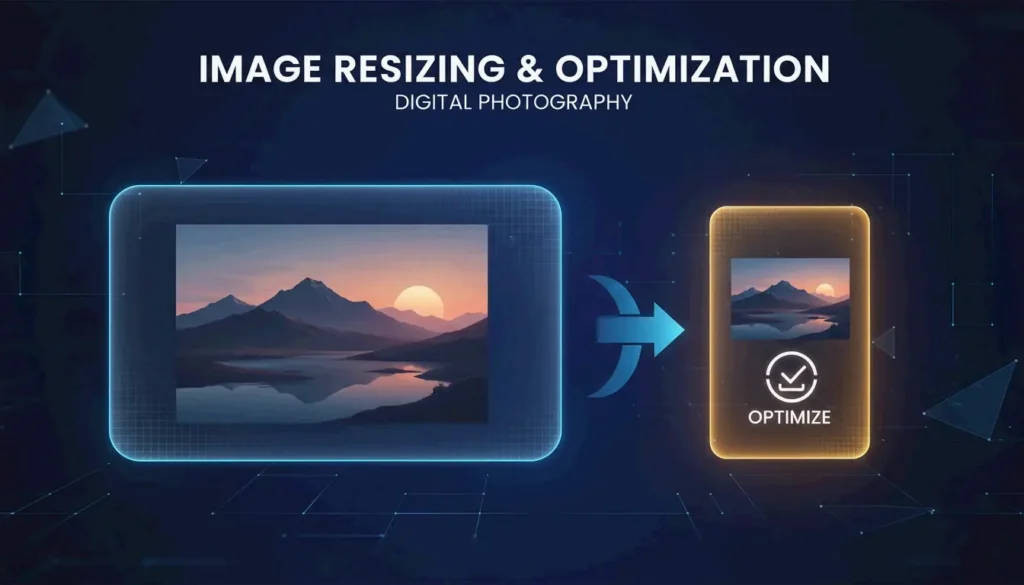
Resizing removes pixels. Compressing re-encodes data more efficiently. Both reduce file size, but resizing delivers the largest savings.
Bulk / Batch Resize Tools
For hundreds of photos, use browser-based or command-line tools:
| Tool | Platform | Batch Support | Privacy | Command |
|---|---|---|---|---|
| BIRME | Browser | Yes | Local (JS) | Drag-and-drop GUI |
| Private Convert | Browser | Yes | Local (JS) | Upload interface |
| ImageMagick | CLI | Yes | Full offline | magick mogrify -resize 1200x *.jpg |
| sips (macOS) | CLI | Yes | Full offline | sips -Z 1200 *.jpg |
BIRME also offers Smart Cropping — AI detects the focal point and keeps it centered while trimming edges to fit new dimensions.
Maintaining Aspect Ratio
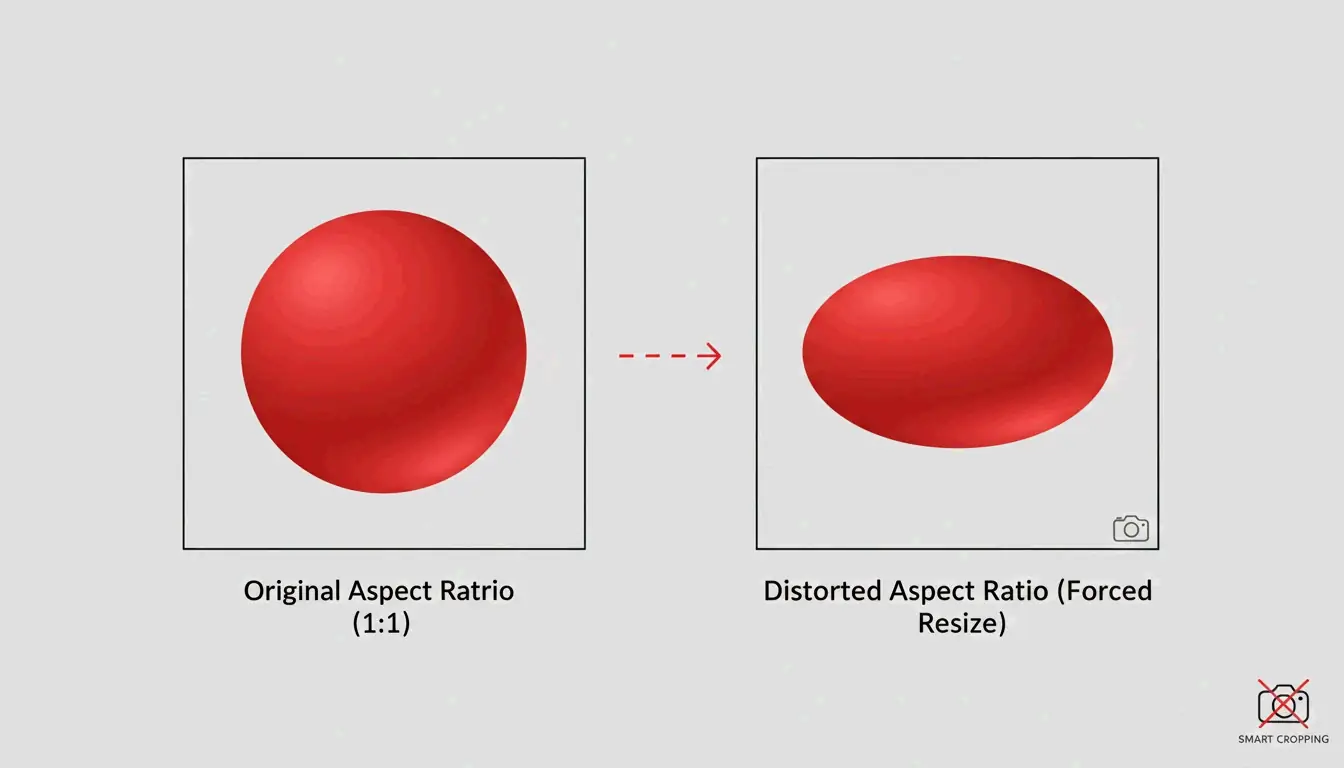
Always resize proportionally. Forcing a rectangular image into a square without cropping causes visible stretching. Lock the aspect ratio, or use tools that auto-detect and preserve it.
Format Decision Guide for 2026
| Goal | Format | Why |
|---|---|---|
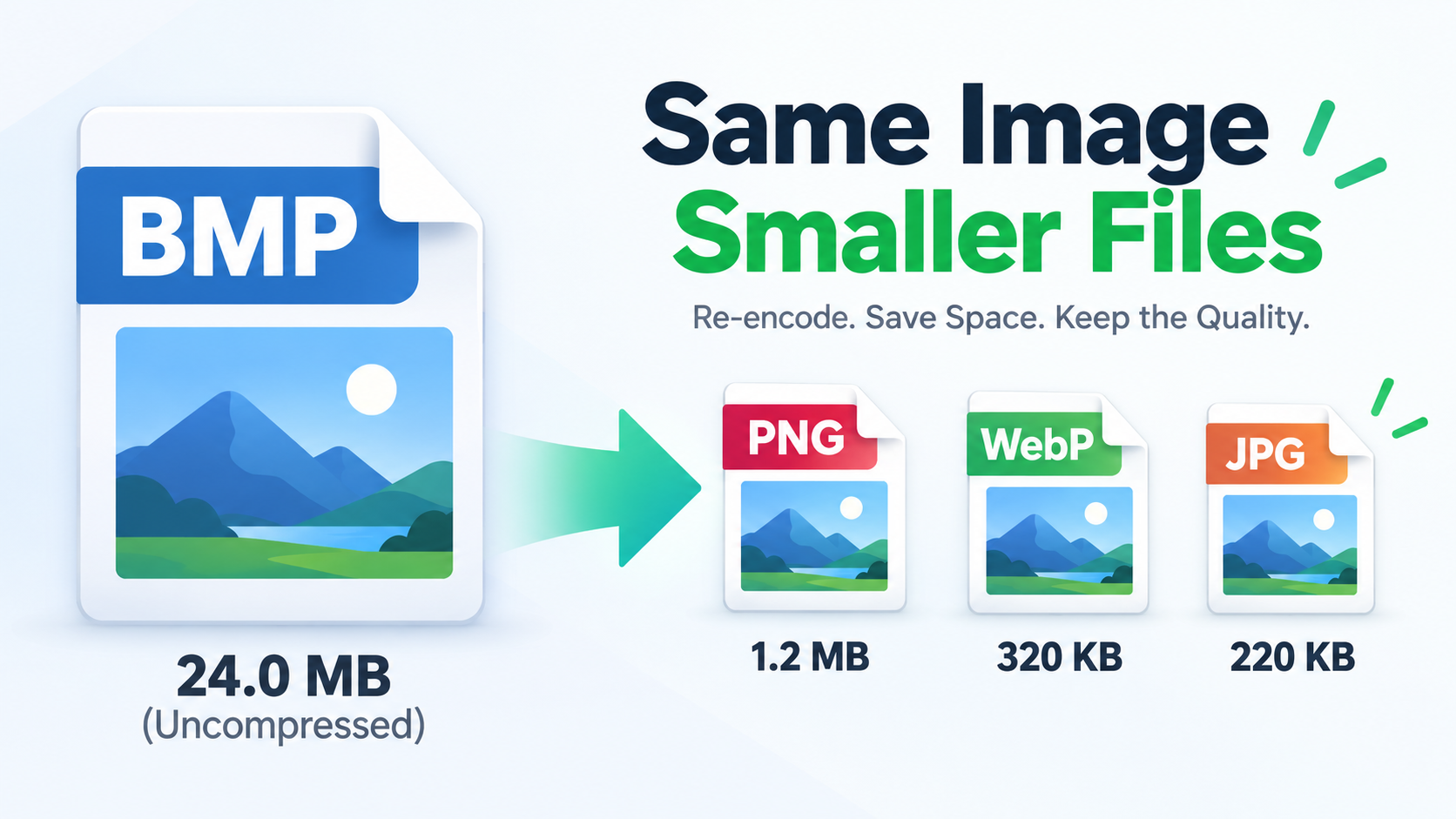
| iPhone/Mac local storage | HEIC | 50% smaller than JPEG, native Apple support |
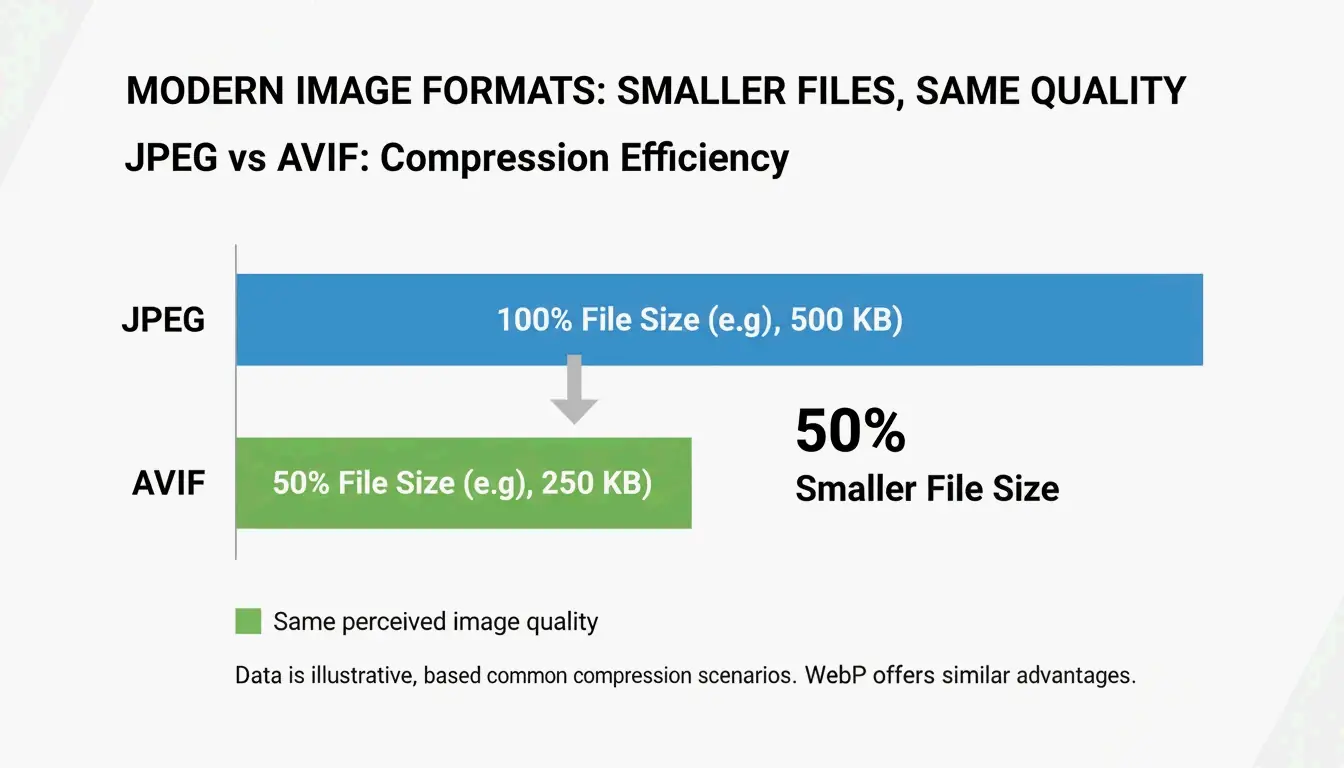
| Website performance | AVIF or WebP | Up to 50% smaller than JPEG, 97%+ browser support |
| Maximum compatibility | JPEG (80%) | Opens on any device, any OS |
Per Private Convert, AVIF offers 50% better compression than JPEG at equivalent visual quality.
Social Media Dimensions: Pre-Resize to Avoid Auto-Shrink Blur
Platforms like Instagram and TikTok apply aggressive auto-compression. Uploading 4K files often produces worse results than uploading at the platform’s native resolution.
| Platform | Recommended Size | Format |
|---|---|---|
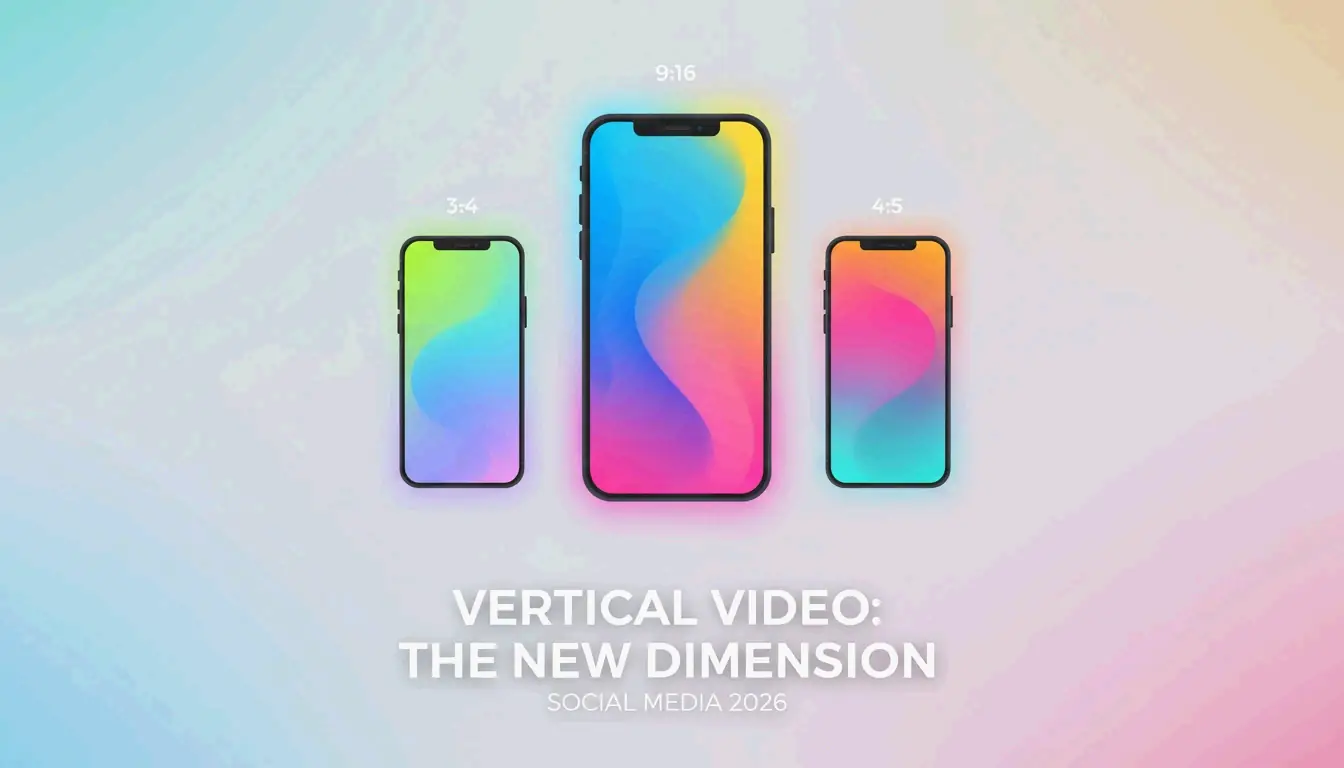
| Instagram/TikTok Reels | 1080 × 1920 px | JPEG or WebP |
| Instagram Square Posts | 1080 × 1080 px | JPEG or WebP |
| YouTube Thumbnails | 1280 × 720 px | JPEG |
Per the TikTok Creator Community, 1080p uploads often look sharper than 4K because the platform’s compression engine handles smaller files more cleanly.
Conclusion
Shrink pictures in three steps: resize to target dimensions using built-in tools or batch processors, maintain aspect ratio, and save in a modern format. For iPhone storage, switch to HEIC. For web, convert to AVIF or WebP at 80% quality. For social media, pre-resize to platform-native dimensions to avoid auto-shrink artifacts.
FAQ
What is the difference between resizing and compressing?
Resizing changes pixel dimensions (4000px → 1200px). Compressing reduces file size by re-encoding data, often without changing dimensions. Both reduce file size, but resizing provides the largest reduction.
Why do pictures look blurry after shrinking?
Shrinking removes pixels. If you later enlarge the image, the computer must interpolate missing pixels, producing softness. Blurriness from compression occurs when quality drops below 60%, creating blocky artifacts.
How do I resize images on my phone without installing an app?
iPhone: Use the Shortcuts app to create a “Resize Image” shortcut that works from the Photos share sheet. Android: Open a browser-based tool like Private Convert in Chrome — resize in the browser without installing anything.
About the Author
Indie Hacker & DeveloperI'm an indie hacker building iOS and web applications, with a focus on creating practical SaaS products. I specialize in AI SEO, constantly exploring how intelligent technologies can drive sustainable growth and efficiency.
Last reviewed May 16, 2026. This article is reviewed for accuracy and updated when tooling or platform behavior changes.