How to Resize Images for Social Media: 2026 Guide to Perfect Dimensions
Table of Contents
To resize images for social media in 2026, focus on vertical formats: use 1080x1350px (4:5) for standard feeds and 1080x1920px (9:16) for Reels and TikTok. For Instagram grids, the new 1080x1440px (3:4) ratio is now standard. Always use the sRGB color profile and include C2PA metadata for any AI-generated content to ensure your reach is not restricted.
The 2026 Vertical-First Framework: Master Aspect Ratio and Dimensions
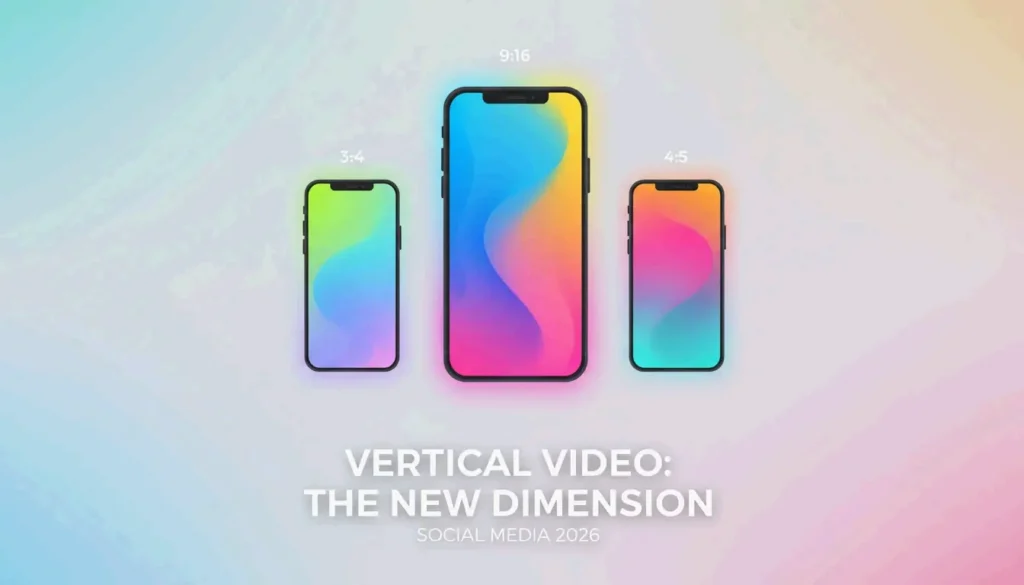
By 2026, the shift away from horizontal formats is complete. Data from Digital Applied 2026 shows that vertical content earns approximately twice the engagement of landscape posts. This aligns with mobile-first browsing behavior — most users do not rotate their phones.
When resizing, think “fill,” not “stretch.” Stretching causes distortion. Instead, set your canvas to 1080px wide and crop your content to the correct height. This prevents the platform’s automatic compression from blurring your main subject.
Complete 2026 Social Media Dimension Reference
| Platform | Format | Dimensions (px) | Aspect Ratio |
|---|---|---|---|
| Instagram Feed Post | Portrait | 1080 x 1350 | 4:5 |
| Instagram Square Post | Square | 1080 x 1080 | 1:1 |
| Instagram Story / Reels | Full-screen vertical | 1080 x 1920 | 9:16 |
| Instagram Profile Grid | Portrait thumbnail | 1080 x 1440 | 3:4 |
| TikTok Cover | Full-screen vertical | 1080 x 1920 | 9:16 |
| Facebook Shared Post | Landscape | 1200 x 630 | 1.91:1 |
| YouTube Thumbnail | Landscape | 1280 x 720 | 16:9 |
| LinkedIn Banner | Wide landscape | 1584 x 396 | 4:1 |
| X (Twitter) Post | Landscape | 1200 x 675 | 16:9 |
Why Portrait Mode (4:5) Is the New Default for Feed Engagement
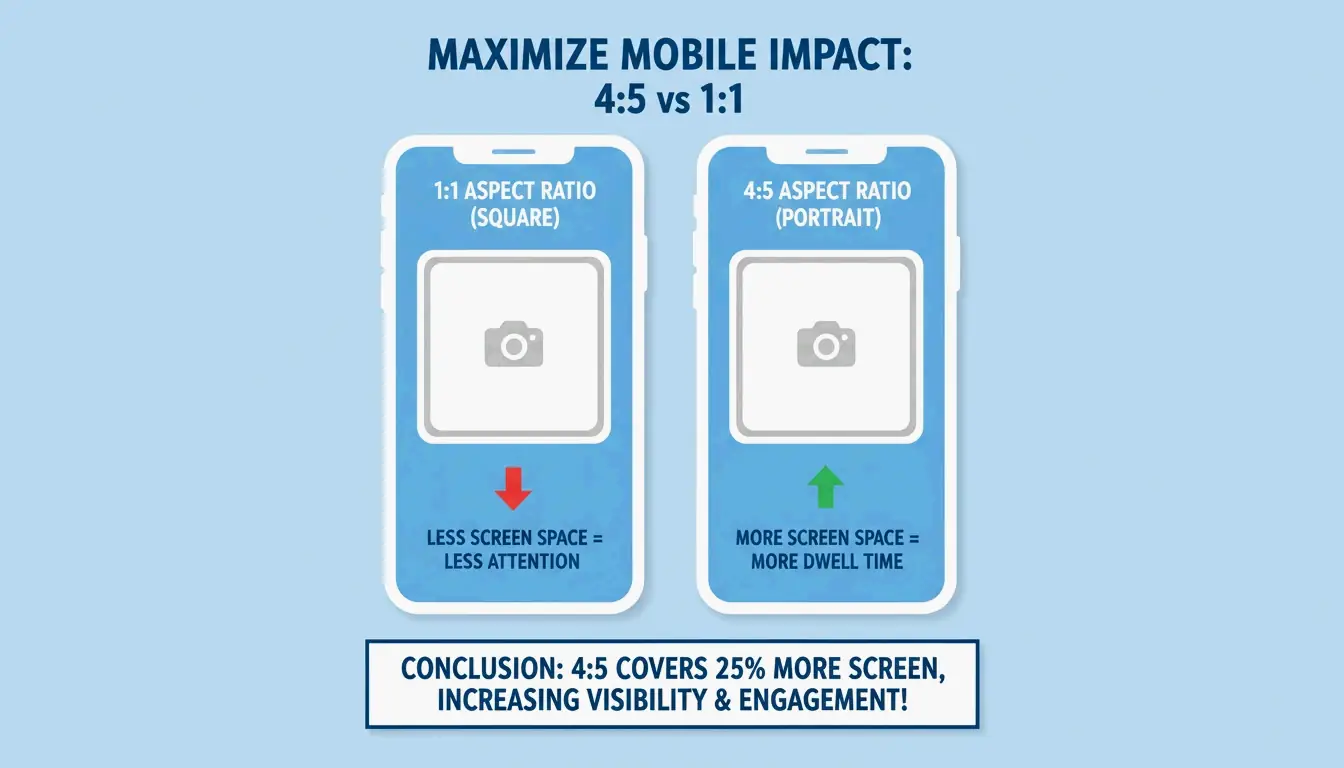
The Portrait Mode (4:5) ratio at 1080x1350px has officially replaced the 1:1 square as the best choice for feed posts. It occupies approximately 33% more screen space on a smartphone. According to SocialBee, this extra height causes users to scroll for a fraction of a second longer, boosting dwell time and signaling the algorithm that your content is worth promoting.
Adapting to the New 3:4 Instagram Profile Grid
A significant change rolled out through late 2025 and 2026 is Instagram’s move toward a 3:4 Grid Ratio. While feed posts display at 4:5, your profile grid now shows a taller 1080x1440px crop. If you are still designing for square thumbnails, your profile will look misaligned or awkwardly cropped. The best approach is to keep your main subject centered within the 1080x1440px area so it looks correct in both the feed and the profile grid.
Platform-Specific Safe Zones: Avoiding UI Overlap in 2026
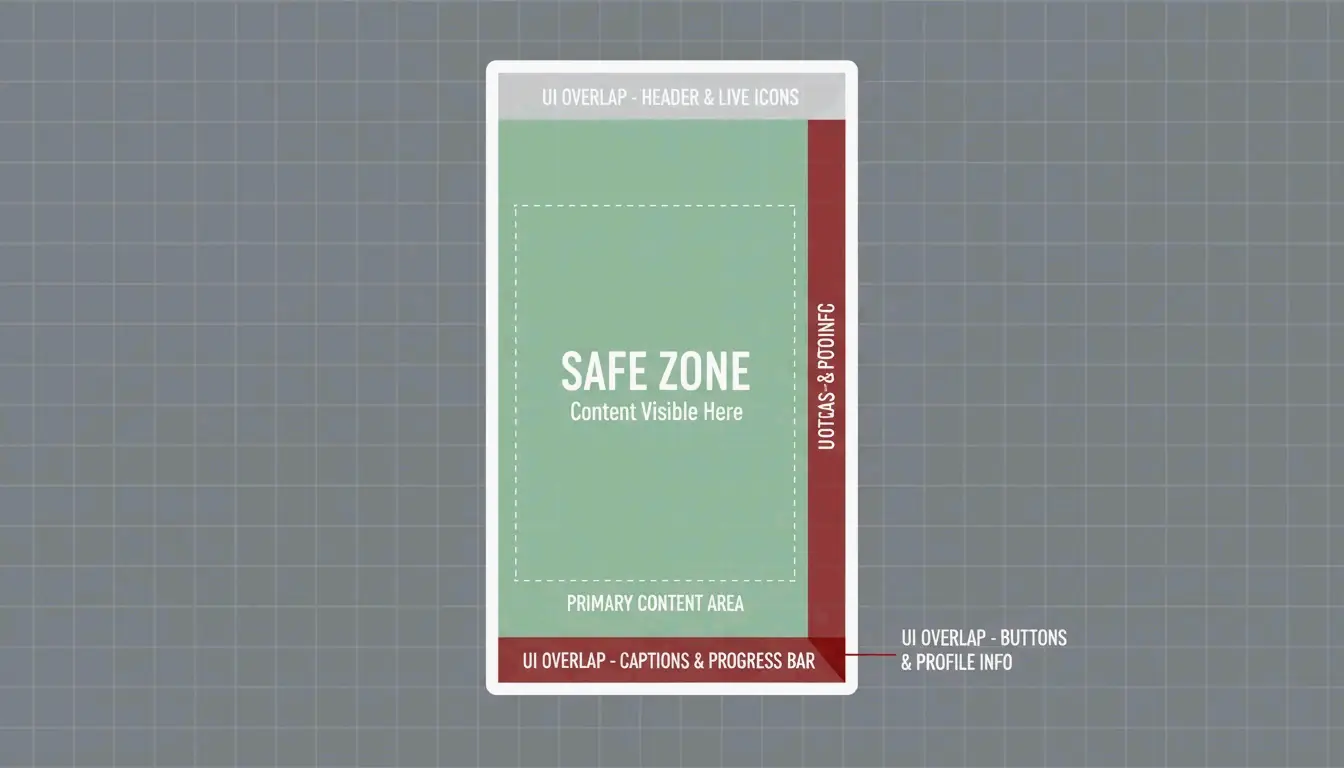
Resizing is not just about outer dimensions — you must also account for Safe Zones. Even a perfectly sized 1080x1920px image is compromised if text is hidden under a “Like” button or account name. This is especially important given that Instagram Reels publishing has grown by 33% as of 2026.
How to Resize for Instagram Reels and TikTok (1080x1920px)
For full-screen vertical content (9:16), the standard resolution is 1080x1920px. However, your active display area is significantly smaller.
| Zone | Area | What to Avoid Placing Here |
|---|---|---|
| Top 14% | Camera icon, timer | Text, logos |
| Bottom 20-35% | Captions, music info, interaction icons | Text, watermarks, calls to action |
| Right column | Like, comment, share buttons | Important visual elements |
To resize properly:
- Set the Canvas to 1080x1920px.
- Define the Safe Zone — keep text and logos inside a central 1080x1350px box.
- Check the Edges — Hootsuite suggests leaving about 14% of the top and 20-35% of the bottom clear of important elements.
AI Compliance and Metadata: The New Rules for 2026 Content
As of 2026, resizing for social media includes a new technical requirement: AI disclosure. Meta, TikTok, and YouTube use automated tools to detect synthetic content. If you use AI to “Generative Expand” a photo from square to portrait, you must follow transparency rules or risk the algorithm suppressing your post.
Disclosing AI-Generated Content to Avoid Penalties
If a photo looks real but was made or modified by AI, it needs an “AI info” label. Platforms use C2PA Metadata — essentially a digital nutrition label embedded in the file — to trigger these labels automatically. Digital Applied 2026 reports that failing to disclose AI content can cut your reach by up to 50%. When exporting resized images, ensure your software preserves this metadata, or manually select the AI label during upload.
| Platform | AI Label Required? | Penalty for Non-Disclosure |
|---|---|---|
| Meta (Instagram/Facebook) | Yes, for photorealistic AI | Up to 50% reach reduction |
| TikTok | Yes, for AI-modified content | Content flagged or hidden |
| YouTube | Yes, for synthetic media | Label applied; repeated violations risk demonetization |
Technical Optimization: sRGB, WebP, and Compression Hacks
The final step is selecting the right file format and color profile.
Preventing Blurry Uploads: The sRGB and Compression Secret
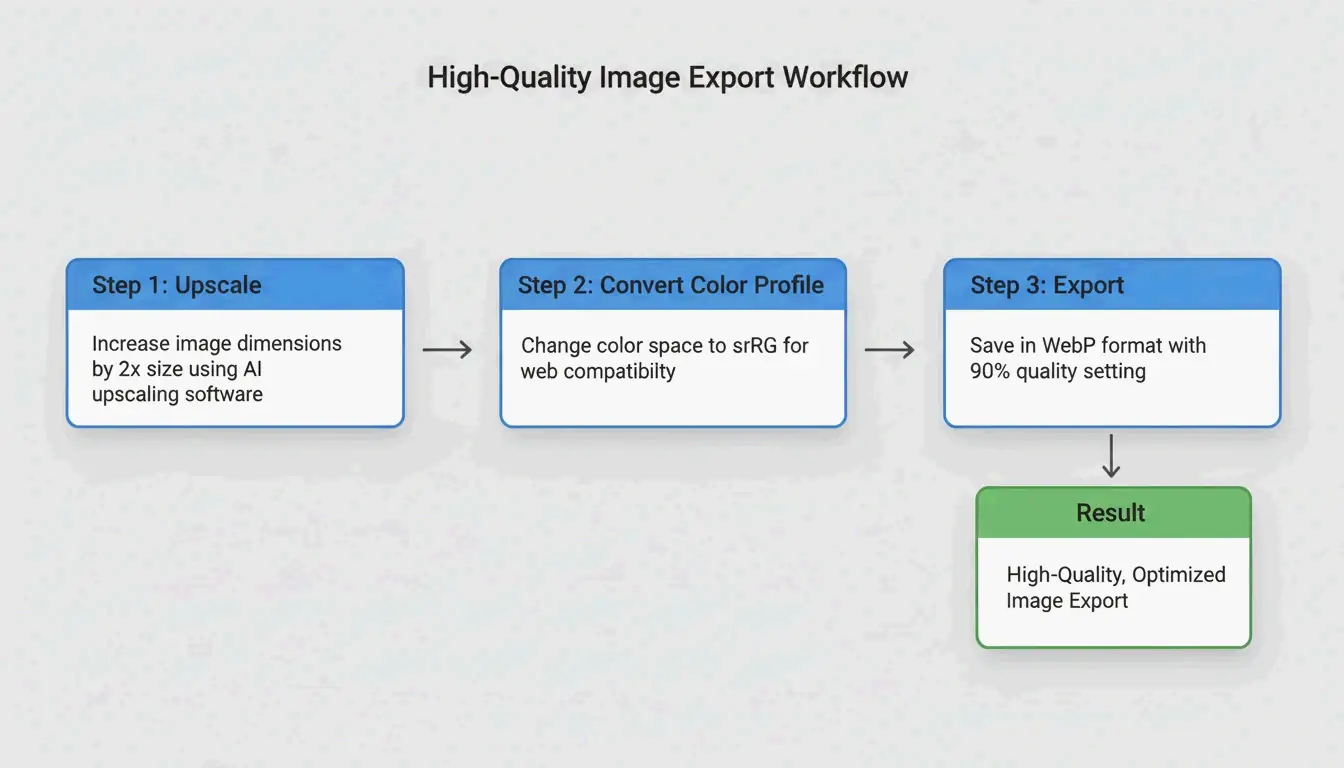
Social media apps compress files heavily to save bandwidth. To survive this second compression pass with quality intact:
| Setting | Recommended Value | Reason |
|---|---|---|
| Color Profile | sRGB | Platforms convert to sRGB; other profiles cause washed-out colors |
| Export Size | 2x target (e.g., 2160x2700px for 4:5) | Gives the platform data to compress from |
| File Size Limit | Under 30 MB (per Hootsuite 2026) | Maximum allowed before platform rejection |
| Format | WebP | Best quality-to-size ratio for social platforms |
| Upload Quality | “Upload at highest quality” toggle ON | Prevents aggressive app-side compression |
Best Tools for Automated Resizing in 2026
| Tool | Strength | Best For |
|---|---|---|
| Meta Business Suite | Cross-platform crop from one upload | Facebook + Instagram simultaneously |
| Canva Magic Switch | Quick template format changes | Non-technical users, rapid iteration |
| Photoshop Generative Expand | AI background fill for horizontal-to-vertical conversion | Professional creators |
| Landscape by Sprout Social | Generate every crop for different networks in one click | High-volume social media managers |
| BIRME | Client-side batch resize with privacy | Bulk processing without server uploads |
Conclusion
Resizing for social media in 2026 goes beyond pixel counts. To succeed, embrace the vertical-first world with 4:5 and 3:4 ratios for feeds and 9:16 for full-screen content. Account for Safe Zones so your message does not get buried under app UI, and stay compliant with AI disclosure requirements using C2PA metadata.
Actionable Advice: Review your current brand templates. Replace any old 1:1 square defaults with 1080x1350px portrait versions, and verify that export settings are locked to sRGB so colors stay accurate on every screen.
FAQ
What happens if I use the wrong image size on social media in 2026?
If your dimensions are incorrect, platforms will crop the image automatically, which often cuts off faces or brand logos. Posts with letterboxing (black bars on the sides) are frequently deprioritized by algorithms, resulting in lower visibility and a less professional appearance.
Why does Instagram compress my high-quality images and make them blurry?
This typically occurs when an image is wider than 1080px or uses the wrong color profile. Instagram downscales large files, which introduces blurriness. To fix this, upload in sRGB, keep the file under 30MB, and enable the “Upload at highest quality” setting in your Instagram preferences.
Do I need to disclose if my social media images are AI-generated in 2026?
Yes. Meta, TikTok, and YouTube now require “AI info” labels for photorealistic AI content. Failure to disclose can result in content being flagged or hidden, and your account may lose monetization capabilities. Tools that include C2PA metadata handle this automatically during the export process.
About the Author
Indie Hacker & DeveloperI'm an indie hacker building iOS and web applications, with a focus on creating practical SaaS products. I specialize in AI SEO, constantly exploring how intelligent technologies can drive sustainable growth and efficiency.
Last reviewed May 16, 2026. This article is reviewed for accuracy and updated when tooling or platform behavior changes.