How to Remove EXIF Metadata Before Sharing Photos: Privacy Guide (2026)
Table of Contents
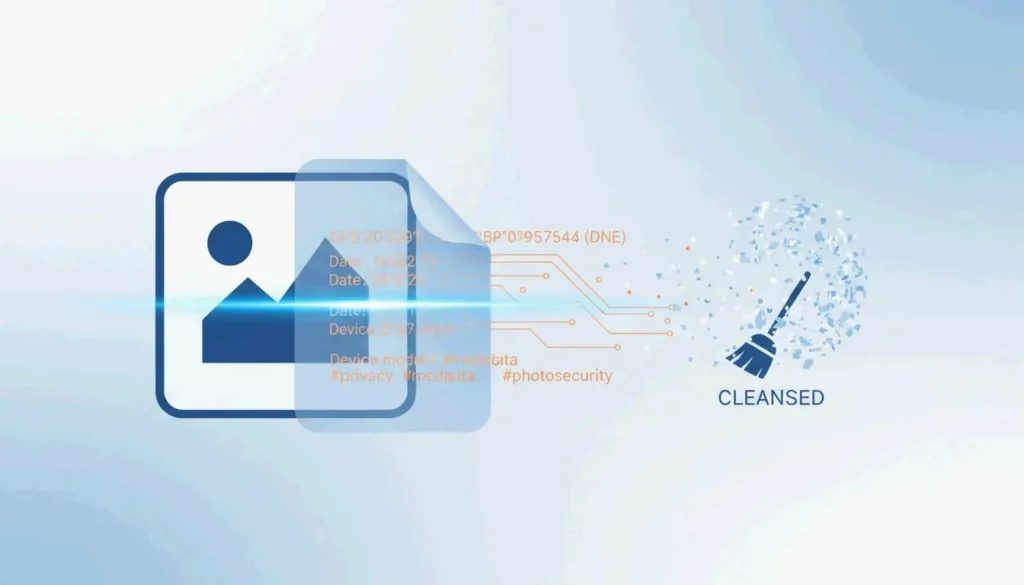
Every digital photo contains 80-120 hidden metadata fields including GPS coordinates, camera serial numbers, and editing history. Remove EXIF metadata before sharing using built-in OS tools (Windows Properties, Mac Preview), mobile options (iOS share sheet, Scrambled Exif for Android), or batch tools (ExifTool). In 2026, also strip C2PA AI credentials and MakerNotes for complete privacy.
Quick Reference: EXIF Removal by Platform
| Platform | Method | What It Removes | Limitation |
|---|---|---|---|
| Windows 10/11 | Right-click → Properties → Details → “Remove Properties” | All standard EXIF fields | Creates a copy, original untouched |
| macOS | Preview → Tools → Show Inspector → GPS → “Remove Location Info” | GPS coordinates only | Leaves color profiles, device tags |
| macOS (full) | ImageOptim or ExifTool | All EXIF, XMP, IPTC, MakerNotes | Requires third-party tool |
| iOS | Share sheet → Options → toggle off “Location” | GPS only per-share | Must repeat each time |
| Android | Scrambled Exif (F-Droid) or Samsung Gallery toggle | All EXIF fields | Requires app install |
Why Photo Metadata Is a Security Threat
A single smartphone photo holds 80-120 metadata fields revealing exact altitude, camera lens serial number, and GPS coordinates. Fast.io cites the 2012 John McAfee case — his Guatemala location was leaked when Vice published a photo with GPS data still attached.
Per MetaClean, 89% of documented OSINT cases used image metadata as critical evidence — data not visible in the photo itself.
Beyond GPS, XMP & IPTC tags can reveal your full name, editing software, and OS version — useful for social engineering and phishing.
2026 Platform Privacy Matrix
| Platform | Strips EXIF on Upload? | Key Exception |
|---|---|---|
| Instagram / Facebook | Yes | “Made with AI” tags may persist |
| Yes | “Document Mode” preserves all data | |
| Telegram | Yes | “File Mode” leaks full EXIF |
| iMessage | No | Transmits original with full GPS |
| Discord | No | Preserves EXIF including GPS |
| Signal | Yes | Removes all metadata by default |
The Document Mode Trap: Sending photos as “documents” in WhatsApp/Telegram to preserve quality skips automatic cleaning — GPS coordinates go straight to the recipient.
Advanced Stripping: MakerNotes and C2PA
MakerNotes: The Hidden Thumbnails
Camera manufacturers embed proprietary “MakerNotes” that can include unique device identifiers and hidden thumbnails of the original uncropped photo. The Thumbnail Trap occurs when you crop an image but the embedded EXIF thumbnail remains unchanged — Konvrt reports cases where people accidentally shared the full uncensored version through this oversight.
C2PA Content Credentials (2026)
AI-generated or edited images now carry C2PA Content Credentials. Platforms like Pinterest and Instagram use these to label content as “Made with AI.” Removing these requires an AI Metadata Cleaner — standard EXIF tools don’t touch C2PA signatures.
ExifTool: Batch Command-Line Stripping
For bulk operations, ExifTool removes everything in one command:
exiftool -all= -overwrite_original *.jpg
This strips all EXIF, XMP, IPTC, and MakerNotes — the file contains nothing but visible pixels. Recommended by Compresto for batch uploads.
Conclusion
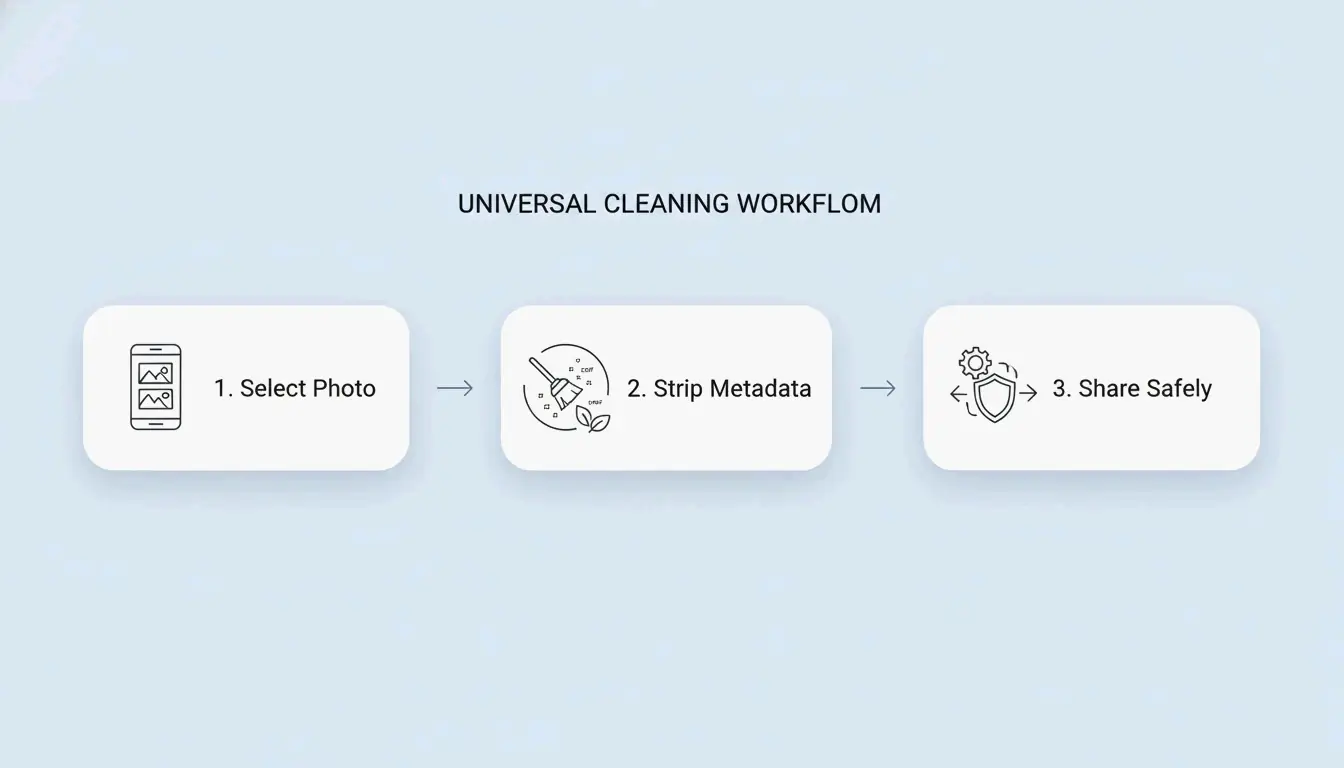
Strip EXIF metadata before sharing any photo. Use built-in OS tools for quick single-file cleaning, Scrambled Exif on mobile, and ExifTool for batch operations. Always avoid sending photos as “documents” in messaging apps — this bypasses automatic cleaning. Make metadata stripping a default step in your sharing workflow.
FAQ
Does removing EXIF metadata reduce image quality?
No. Metadata is text stored in the file header — the actual pixels are unchanged. Most EXIF strippers only delete data tags, leaving resolution and visual quality intact.
Can I recover deleted EXIF data?
Generally, no. Once stripped and saved, metadata is gone from that copy. Even forensic tools cannot reconstruct deleted GPS coordinates. Always keep an original “master copy” in a private archive before stripping for sharing.
Do screenshots contain the same metadata as photos?
No. Screenshots typically only capture basic info (date, dimensions). They do not inherit GPS or lens data from the original image. Taking a screenshot is a quick way to strip metadata, though at a potential cost in resolution.
About the Author
Indie Hacker & DeveloperI'm an indie hacker building iOS and web applications, with a focus on creating practical SaaS products. I specialize in AI SEO, constantly exploring how intelligent technologies can drive sustainable growth and efficiency.
Last reviewed May 16, 2026. This article is reviewed for accuracy and updated when tooling or platform behavior changes.