How to Compress a Picture: The 2026 Guide to Fast Loading & High Quality
Table of Contents
How to Compress a Picture: The 2026 Guide to Fast Loading & High Quality

To compress a picture effectively in 2026, use online tools like ImageLean for quick, browser-based compression or Adobe Photoshop’s “Export As” feature for precise manual control. For the best results, convert files to WebP or AVIF to cut size by up to 80%. Aim for a 70-80% quality balance to boost page speed without losing visual clarity.
The 2026 Standard: How to Compress a Picture for Web & Mobile
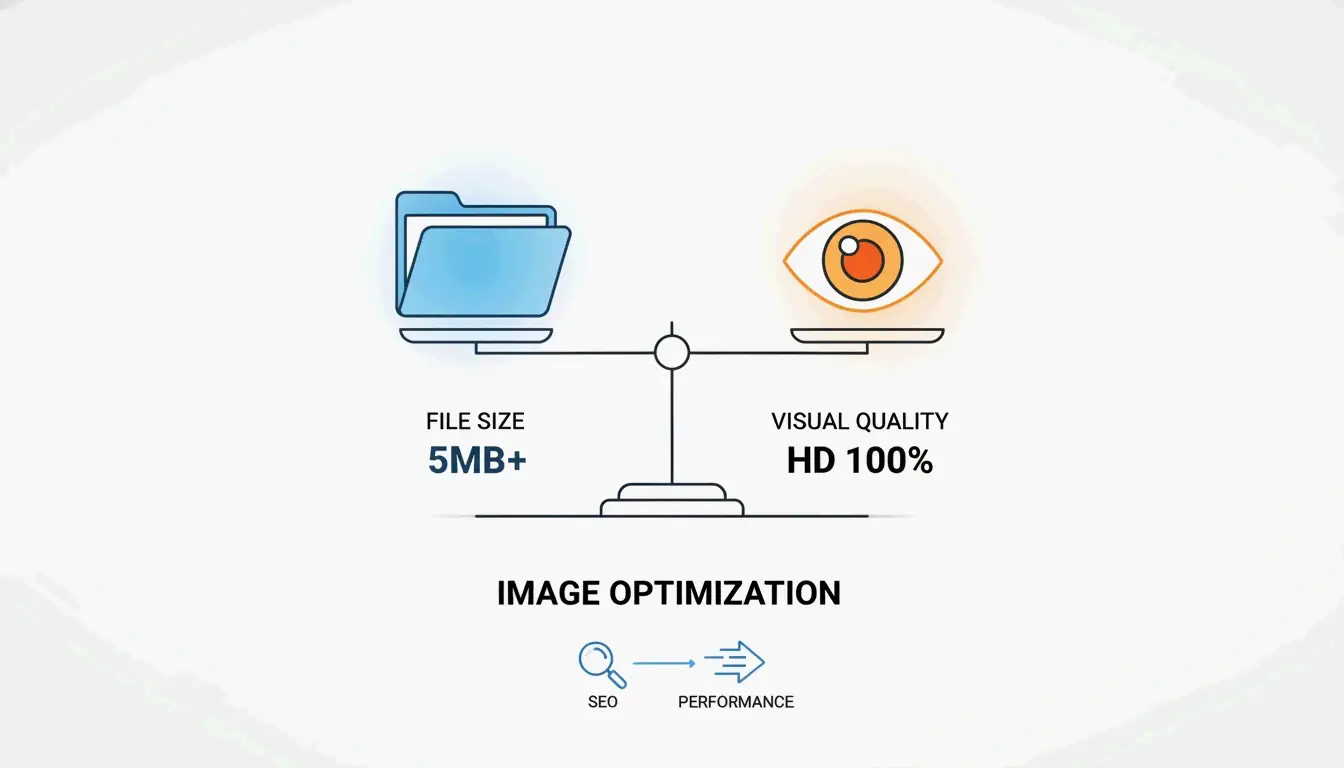
In 2026, image optimization is about more than just making files smaller—it’s a strategic move for site performance. To compress a picture like a pro, you need to find the right middle ground between a sharp image and a fast loading time. Data from Business.com suggests that setting your compression quality to 70-80 (on a 100-point scale) is the “sweet spot.” This reduces the file size significantly while staying almost indistinguishable to the human eye.
This balance is a big deal for technical SEO. Google’s Core Web Vitals, specifically the Largest Contentful Paint (LCP), often flags unoptimized images as the main reason for slow sites. According to Illustrate Digital (2023), a one-second load time on a B2B website can lead to conversion rates five times higher than sites taking 10 seconds to load. By applying the 70-80% quality rule to JPEG / JPG files, you can typically shave off 40-60% of the file size, which directly helps your LCP scores and keeps users from leaving.
Setting Your Targets: Resolution (DPI) and Dimensions
Before you even touch a compression slider, you need to set the right dimensions. For web use, the 2026 standard for Resolution (DPI) is 72 to 96 DPI. Higher settings, like 300 DPI, are meant for printing and just make web files unnecessarily bulky. Your first step should always be resizing the actual pixels. For example, a smartphone photo that is 4000px wide should be scaled down to 1200px for blog content or 1080px for social media. This gives the compression algorithm a much more manageable base to work with.
Why WebP is the ‘Pro Move’ for Image Compression in 2026?
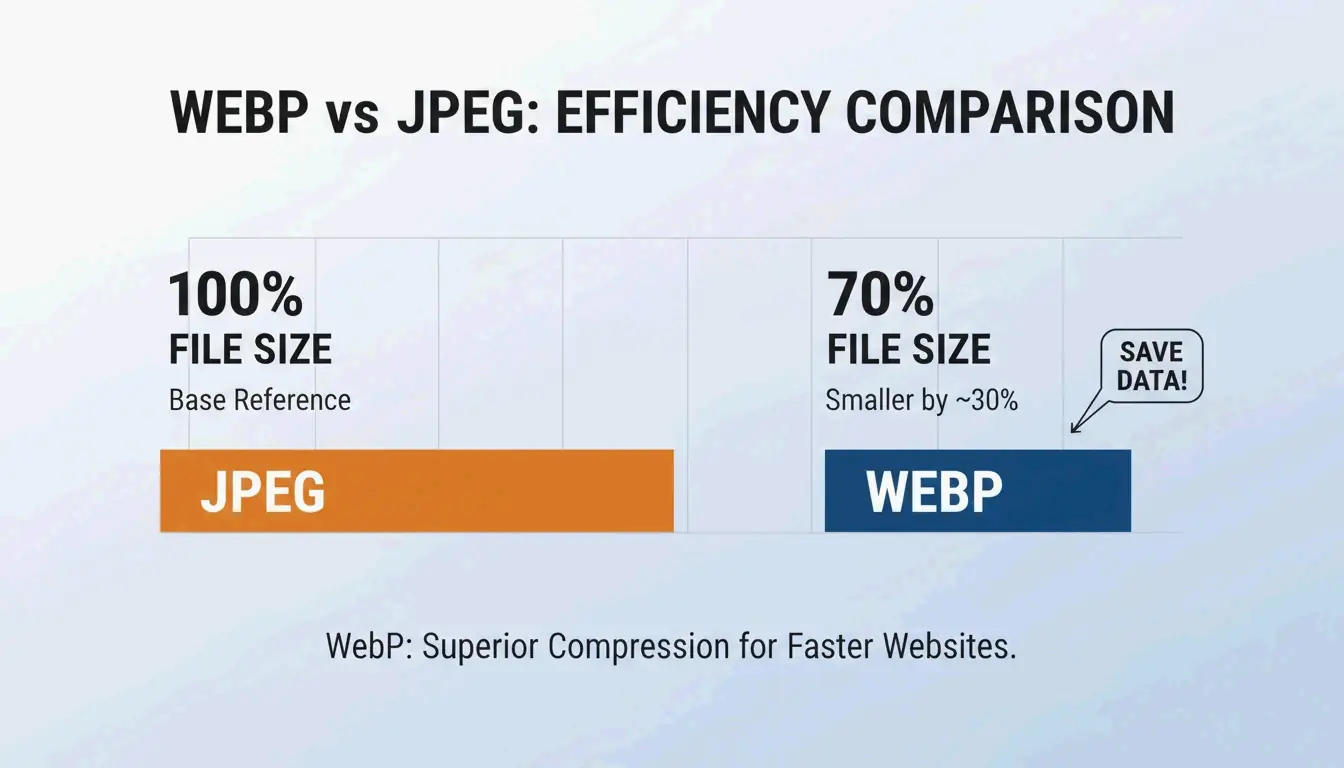
While JPEG / JPG is still everywhere, WebP has become the go-to format for high-performance websites. WebP uses smarter compression that beats older formats by 25-35% at the exact same quality level.
You can see the difference in a SkyToolz Benchmark, where a standard 8.2MB smartphone JPEG was converted and compressed into a tiny 420KB WebP file at 80% quality. That is a 95% size reduction with almost no visible change in quality. For any business with a large image gallery, switching to WebP is a must to keep page speeds fast and storage costs low.
Best Tools to Compress Pictures: Free vs. Professional
The right tool depends on whether you need to tweak one image perfectly or handle hundreds at once. Quality matters here; Salsify’s 2025 Consumer Research Report found that 42% of shoppers will walk away from a purchase if product images are missing or look low-quality.
- ImageLean: A free, browser-based tool that supports compressing JPG, PNG, and BMP files without uploading to a server. It also offers a “Compress Image to Target Size” feature, letting you specify an exact file size target—ideal for government portals and email attachments with strict limits.
- Adobe Photoshop: This is the industry standard for choosing between Lossy vs. Lossless Compression. It lets you preview exactly how the quality slider affects the image before you hit save.
- TinyPNG / TinyJPG: This is a top choice for fast, automated optimization. It uses “smart lossy compression” to shrink PNG and JPEG files by 60-80% while keeping them looking sharp.
Adobe Photoshop ‘Export As’ Workflow
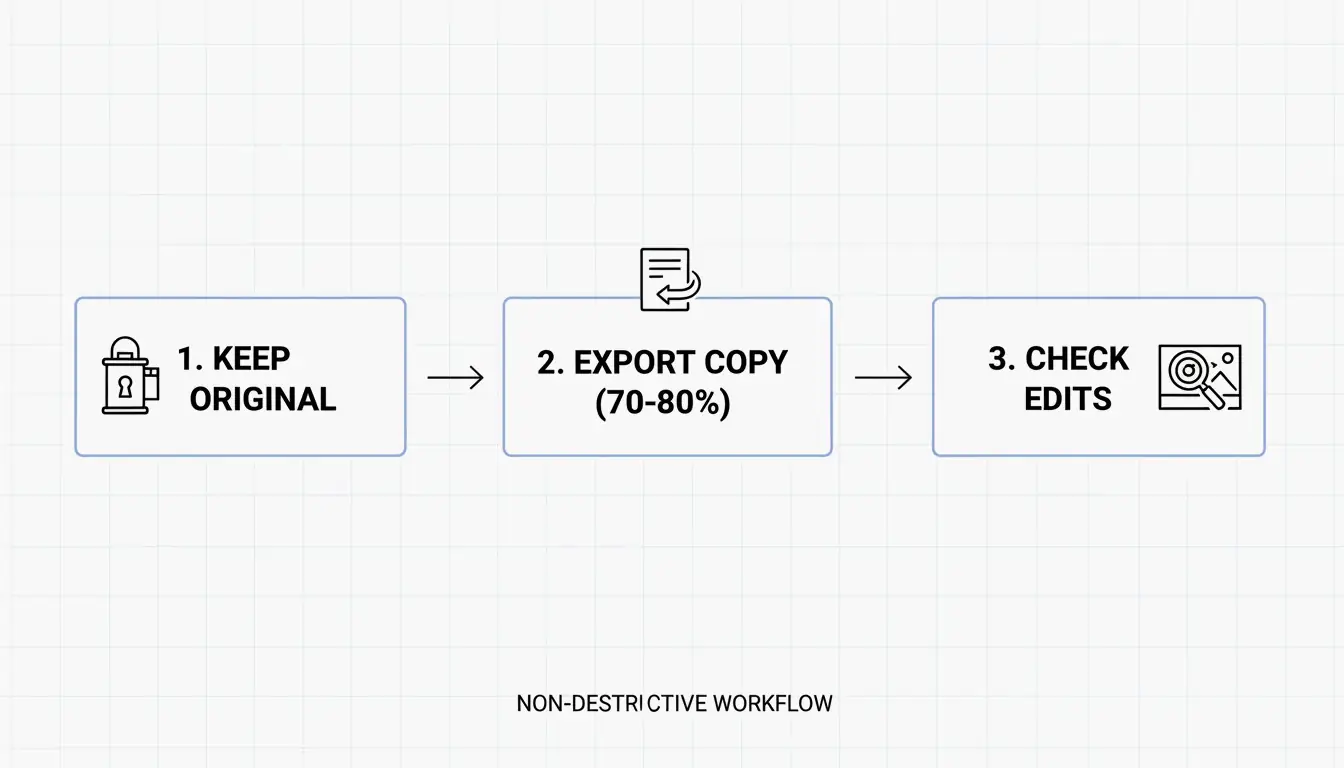
To compress an image in Photoshop, go to File > Export > Export As. Pick JPG or WebP as your format. Move the “Quality” slider to the 70-80 range and keep an eye on the estimated file size in the preview window. This gives you the most control over the final look.
Bulk Compression with TinyPNG
If you have a lot of images to deal with, TinyPNG supports batch processing. You can drag and drop up to 20 images at a time. The tool analyzes each one and applies the best compression rate automatically, which is a huge time-saver for social media managers and developers.
Target Specifications: Where are You Uploading?
By 2026, most platforms have strict rules for uploads that will determine how you compress your files.
- Government Portals (e.g., IRCC): These sites often have hard limits, sometimes as low as 500KB or 2MB. As IRCC points out, you should save these documents at 96 Resolution (DPI) and use “Minimum size” settings in Word or Acrobat to make sure they are accepted. Tools like ImageLean’s “Compress to Target Size” function make hitting these limits straightforward.
- Social Media vs. Email: Platforms like Instagram use their own compression anyway. If you pre-compress your image to 1080px wide, you stay in control of the quality rather than letting an algorithm decide for you. For email, try to keep attachments under 1MB so they don’t bounce back or slow down the recipient’s inbox.
| Platform/Use Case | Recommended Format | Target File Size | Max Width |
|---|---|---|---|
| Web Blog Post | WebP | < 200 KB | 1200px |
| Government Upload | JPG / PDF | < 2 MB | Variable |
| Email Attachment | JPG | < 1 MB | 1000px |
| Social Media | JPG / PNG | < 500 KB | 1080px |
Conclusion
Compressing pictures isn’t just about saving hard drive space anymore; it’s a core part of SEO and user experience in 2026. By balancing your resolution, using modern formats like WebP, and sticking to the 70-80% quality rule, you can get the lightning-fast load times that both users and search engines expect. High-quality visuals that load instantly are key to protecting your brand’s reputation and your conversion rates. Start by checking your website’s current LCP score. If heavy images are slowing things down, use a tool like ImageLean to compress JPG, PNG, or BMP files in seconds, or switch those bulky JPEGs to WebP to start seeing better performance right away.
FAQ
How do I compress an image without losing any quality?
To avoid any quality loss, you must use “Lossless” compression. Formats like PNG-24 or specialized tools like OptiPNG remove unnecessary metadata without altering pixels. Alternatively, modern formats like WebP maintain extremely high visual fidelity at much lower file sizes than traditional JPEGs, often appearing “lossless” to the naked eye even when using lossy settings.
What is the best JPEG quality setting for website performance?
A setting between 70 and 80 (out of 100) is considered the “sweet spot” for 2026 web standards. This range offers the best balance between significant file size reduction and visual clarity. Going below a setting of 50 often introduces visible pixelation and “artifacts” that can hurt user trust and brand perception.
How can I batch compress multiple photos at once on Windows 10/11?
For small batches, you can use the built-in Photos app “Resize” feature. For professional or high-volume needs, Adobe Photoshop’s “Batch Action” is the standard. Users looking for free alternatives often use PowerToys Image Resizer or online tools like TinyPNG, which allow you to upload and process up to 20 images simultaneously.
Why is my compressed image still too large for government portal uploads (e.g., IRCC)?
This usually happens because the physical dimensions (pixels) are too high. If an image is 4000px wide, compression alone may not bring it under a 500KB or 2MB limit. According to IRCC guidelines, you should first resize the image width to 1200px-1500px and lower the resolution to 96 DPI before applying final compression.
About the Author
Indie Hacker & DeveloperI'm an indie hacker building iOS and web applications, with a focus on creating practical SaaS products. I specialize in AI SEO, constantly exploring how intelligent technologies can drive sustainable growth and efficiency.
Last reviewed May 8, 2026. This article is reviewed for accuracy and updated when tooling or platform behavior changes.