A clean, modern visual representing image optimization and web speed

How to Compress PNG Files: 2026 Guide to Faster Web Performance

發佈於 2026年4月18日 更新於 2026年5月16日 5 分鐘閱讀

目錄

To compress PNG files effectively in 2026, use browser-based tools to apply lossless recompression or lossy quantization. By stripping metadata and optimizing the color palette via tools like pngquant, you can reduce file sizes by 40-80% while maintaining transparency and visual fidelity for web and mobile applications.

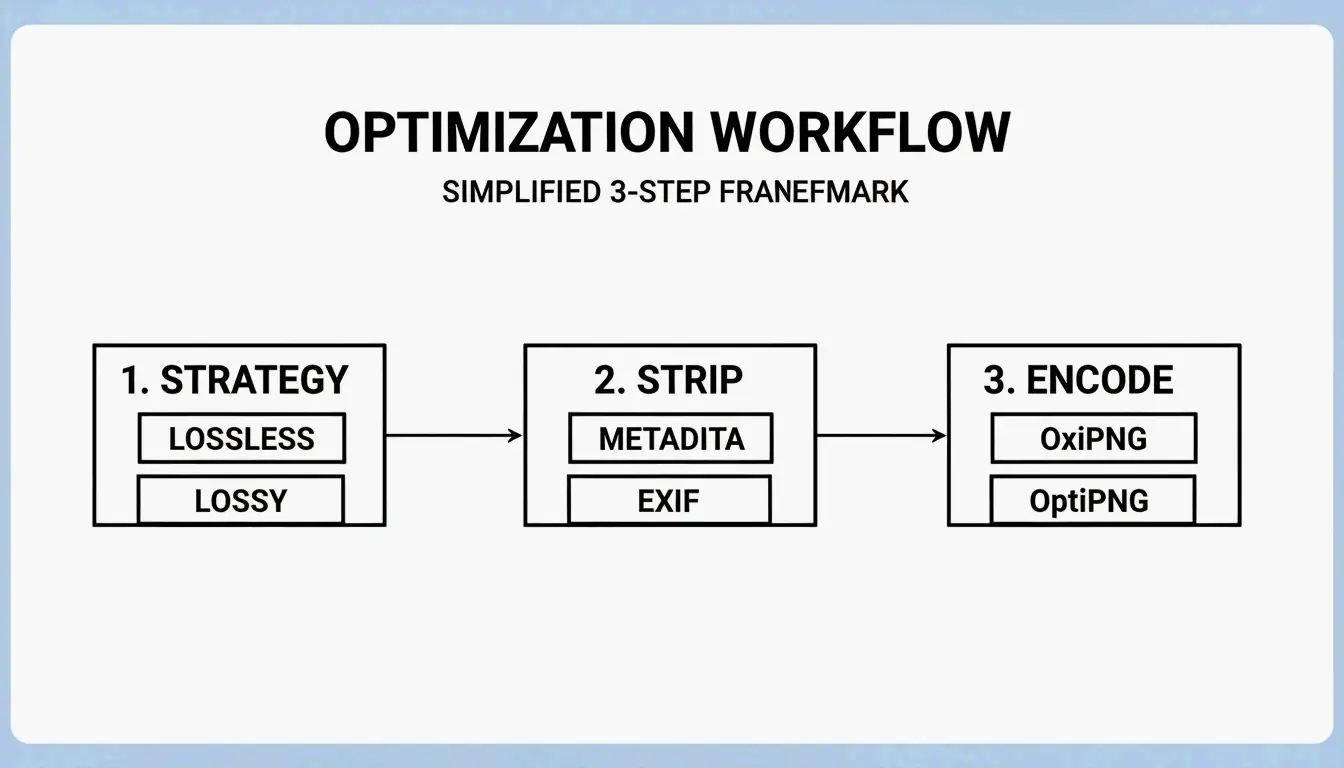
How to Compress PNG Without Quality Loss: A 3-Step Framework

Optimizing PNGs for the modern web means finding the balance between mathematical precision and perceptual quality. According to Pixotter, PNG files often carry “hidden weight” — embedded ICC profiles and EXIF data that can add 50-500KB to a single image without improving its appearance.

Step-by-Step Process

  1. Choose Your Compression Strategy
  2. Lossless recompression: Preserves every pixel exactly; ideal for brand assets like logos.
  3. Lossy quantization: Reduces the color palette for significantly larger savings; best for screenshots or complex web graphics.

  4. Strip Unnecessary Metadata
    Remove non-essential “chunks” within the file. Deleting EXIF data and ICC profiles cuts file size without touching actual pixel data.

  5. Export Using Modern Algorithms
    Use high-performance encoders like OxiPNG (Rust-based, faster and more efficient) or OptiPNG. These test multiple filtering strategies to find the smallest possible lossless encoding.

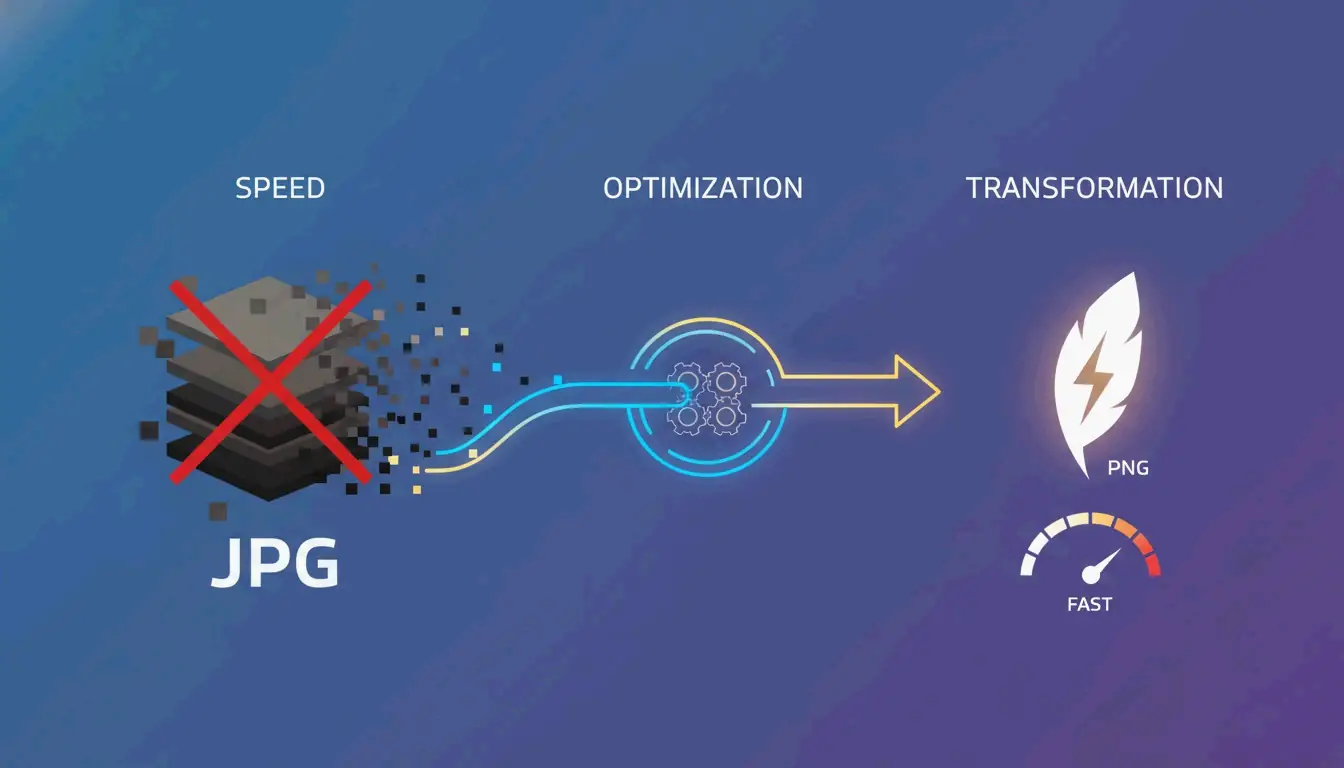
3-step PNG optimization workflow

Lossless vs. Lossy: Which Compression Method to Choose?

Method Tool Example Size Reduction Quality Impact Best For
Lossless OxiPNG, OptiPNG 10-30% Zero pixel change Logos, brand assets
Lossy (Quantization) pngquant 60-80% Color palette reduction Screenshots, complex graphics

According to ToolTea, lossless compression typically shrinks a file by 10-30% without changing the image at all. Lossy compression via quantization reduces color depth from 24-bit or 32-bit to 8-bit (256 colors), which can shrink files by 60-80% while keeping the alpha channel (transparency) intact.

The 2026 PNG Standard: What’s New in the W3C 3rd Edition

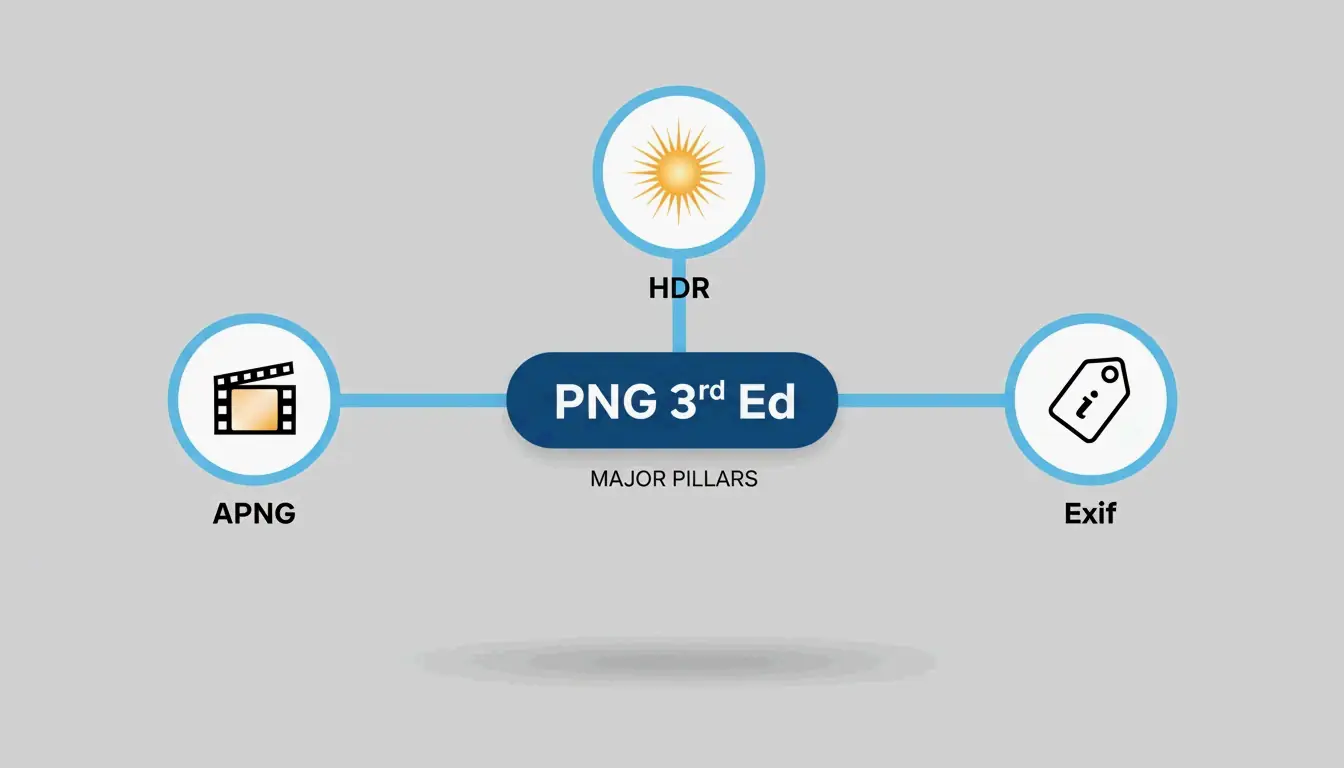
As of April 2026, the PNG format has received its first major update in years. The PNG 3rd Edition, which became a W3C Recommendation on June 24, 2025, modernized the format for the contemporary web. According to Wikipedia, this update formalized popular but previously “unofficial” extensions.

Feature Before 3rd Edition After 3rd Edition
APNG (Animated PNG) Third-party add-on Core spec component
HDR Support Limited Native support for modern monitors
EXIF Metadata Unofficial handling Native support via chunk structure

Key features of the PNG 3rd Edition update

Why APNG Is Now a Native Standard for Web Animation

With the 2025 W3C Recommendation, APNG has become the preferred format for high-quality transparent animations. Unlike GIF, which is limited to 256 colors and binary transparency, APNG supports full 24-bit color and smooth 8-bit alpha channels. As a native part of the PNG 3rd Edition, browsers render APNG animations more efficiently, reducing CPU overhead.

Advanced PNG Optimization: pngquant and PNG-8 Strategy

For professional workflows, pngquant remains the most effective tool for lossy PNG optimization. It converts 24-bit or 32-bit PNGs into significantly smaller 8-bit indexed images (PNG-8). According to Pixotter, this can shrink UI screenshots by up to 60% with negligible visual difference.

A real-world case study from iCompressImg demonstrates the potential: a text-based logo was reduced from 156KB to 24KB — an 85% reduction in file weight.

Feature PNG-24 (Truecolor) PNG-8 (Indexed)
Colors 16.7 million Up to 256
Transparency Full alpha channel Alpha or binary
File Size Large Small (60-80% reduction)
Best For Complex gradients Logos, icons, UI elements

Developer Tip: Automating Compression in CI/CD Pipelines

For scalable web projects, automated image compression prevents unoptimized assets from reaching production. The Sharp library in Node.js, powered by libvips, handles high-speed PNG processing. By integrating a compression script into your CI/CD pipeline, every PNG asset is automatically optimized and metadata-stripped before deployment.

Should You Convert PNG to WebP for Better Performance?

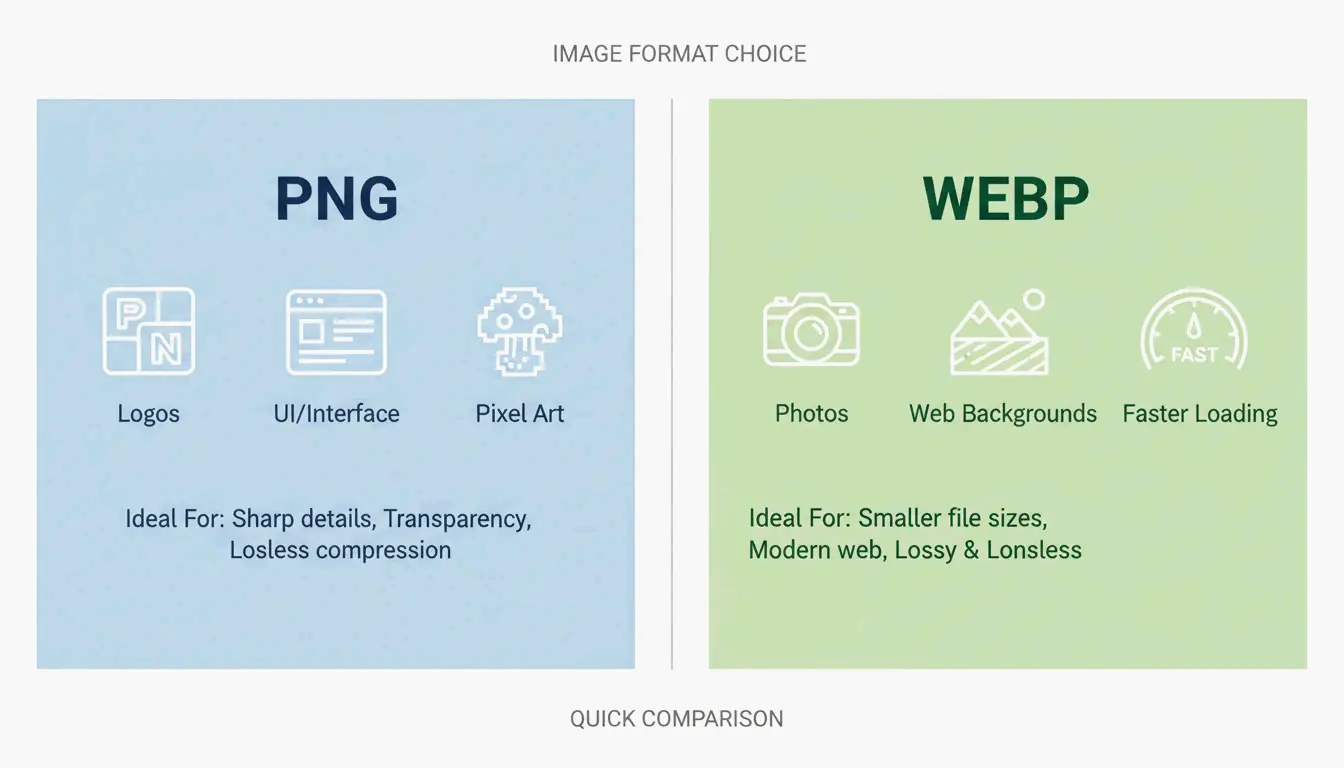
For photographic content, WebP often delivers superior results. WebP handles both lossy and lossless compression and supports transparency like PNG. According to 2026 benchmarks from Pixotter, a WebP file at 80% quality is typically 20-35% smaller than a lossy-quantized PNG at equivalent quality.

Comparison of PNG vs. WebP for different use cases

However, PNG remains the better choice in these scenarios:

  • Pixel art or sharp edges: PNG’s DEFLATE algorithm handles high-contrast, flat-color edges better than WebP.
  • High-fidelity source assets: If further editing is planned, keep the image as a lossless PNG to avoid generation loss.
  • Maximum compatibility: Some legacy email clients and enterprise tools still require standard PNGs.

Conclusion

Compressing PNGs effectively requires matching the right tool to the task. Using the 2025/2026 W3C standards and tools like pngquant, you can achieve significant page load improvements without sacrificing visual quality.

Recommended workflow:

  1. Start with OxiPNG for lossless metadata stripping and structural optimization.
  2. If the file remains too large, apply pngquant for 8-bit quantization.
  3. For non-critical photographic content, convert to WebP for the 60-85% reduction needed for modern Core Web Vitals compliance.

FAQ

Does PNG compression lose image transparency?

No. Standard lossless compression preserves the alpha channel perfectly. Even lossy tools like pngquant are designed to maintain transparency boundaries, though they may slightly reduce the number of colors within semi-transparent areas to achieve a smaller file size.

What is the difference between lossless and lossy PNG compression?

Lossless compression (e.g., OxiPNG, OptiPNG) optimizes the file’s internal structure and removes metadata without changing any pixels. Lossy compression (e.g., pngquant) reduces the total number of colors in the image, which significantly shrinks file size but technically alters the original pixel data.

Can I compress a PNG to a specific file size like 100KB?

Directly targeting a specific file size is difficult for PNG because compression efficiency depends on image complexity. However, you can approach a target size by iteratively reducing the color palette (quantization) or by resizing the image dimensions to reduce the total pixel count.

Why is my PNG file still large after compression?

The file may contain significant hidden metadata such as large ICC color profiles or EXIF data that some tools do not remove by default. Additionally, images with complex gradients or “noise” compress poorly with the DEFLATE algorithm because there are fewer repeating patterns to exploit.

SJ

關於作者

獨立開發者

我是一名獨立開發者,專注於構建 iOS 和 Web 應用程序,致力於打造實用的 SaaS 產品。我擅長 AI SEO,不斷探索智能技術如何推動可持續增長和效率提升。

最後審閱 2026年5月16日. 本文經過準確性審閱,並在工具或平台行為變更時更新。

分享文章