How to Compress PNG Files: 2026 Guide to Faster Web Performance

How to Compress PNG Files: 2026 Guide to Faster Web Performance

6 min read

To compress PNG files in 2026, use browser-based tools […]

To compress PNG files in 2026, use browser-based tools to apply lossless recompression or lossy quantization. By stripping metadata and optimizing the color palette via tools like pngquant, you can reduce file sizes by 40-80% while maintaining transparency and professional visual fidelity for web and mobile applications.

How to Compress PNG Without Quality Loss: A 3-Step Framework

Optimizing PNGs for the modern web is about finding the sweet spot between mathematical perfection and what the human eye actually sees. According to Pixotter, PNG files often carry “hidden weight”—things like embedded ICC profiles and Exif data. This extra data can add 50-500KB to a single image without making it look any better to your users.

To get the best results, follow this three-step process:

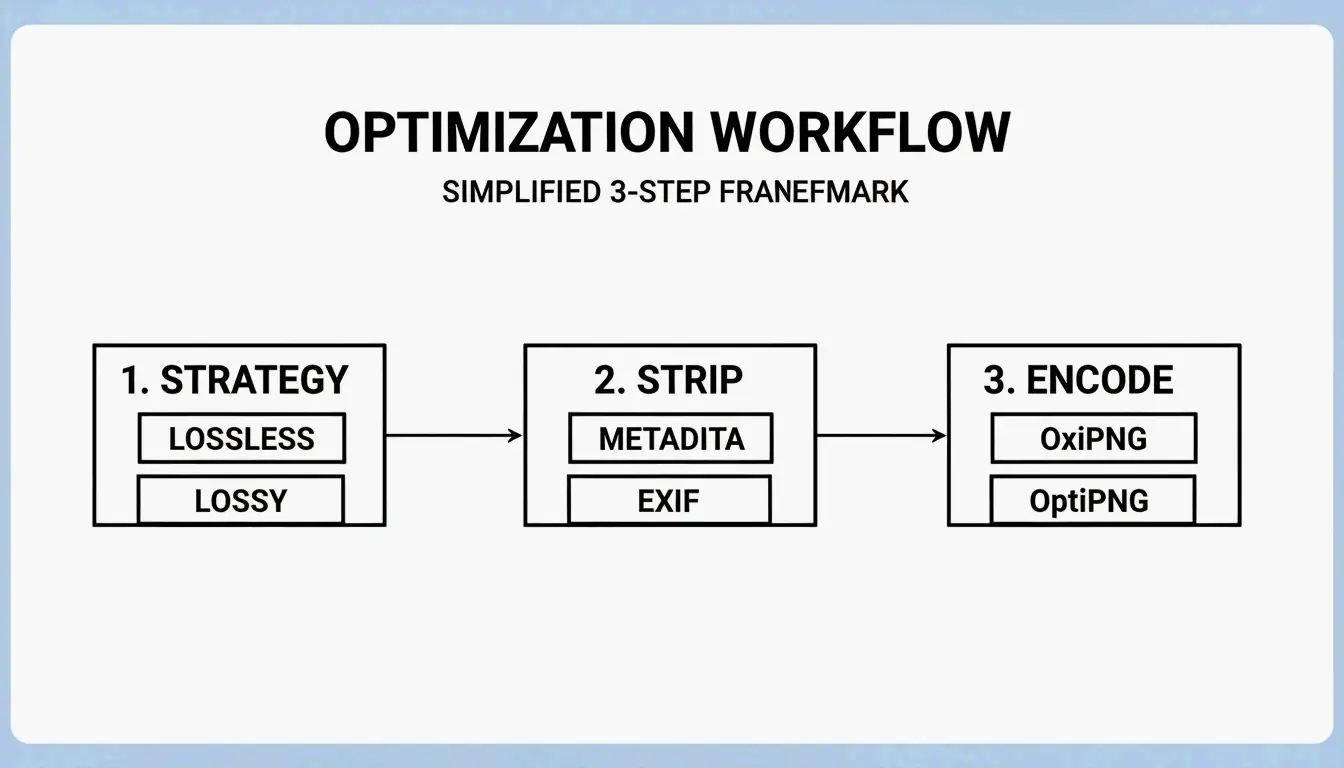
  1. Choose Your Compression Strategy: You have two main options. Lossless recompression keeps every single pixel identical to the original; it’s best for brand assets like logos. Lossy quantization reduces the color palette and offers much bigger savings, making it ideal for screenshots or complex web graphics.
  2. Strip Unnecessary Metadata: Use a tool to wipe out non-essential “chunks” within the file. Removing EXIF data and ICC profiles is an easy way to cut size without touching the actual pixels.
  3. Export Using Modern Algorithms: Use high-performance encoders like OxiPNG or OptiPNG. OxiPNG is a Rust-based optimizer that is generally faster and more efficient. It tests multiple filtering strategies to find the smallest possible lossless encoding for your file.

3-step PNG optimization workflow

Lossless vs Lossy: Which Compression Method to Choose?

The right choice depends on how much detail you need to keep. Lossless compression (using tools like OptiPNG) simply tidies up the internal data structure and applies maximum DEFLATE compression. According to ToolTea, this usually shrinks a file by 10-30% without changing the image at all.

On the other hand, Lossy compression (via quantization) cuts down the color depth. It often moves an image from a massive 24-bit or 32-bit palette down to an 8-bit (256 color) palette. This is the most effective way to boost web performance, as it can shrink files by 60-80% while keeping the alpha channel (transparency) intact.

The 2026 PNG Standard: What’s New in the W3C 3rd Edition?

As of April 2026, the PNG format has received its first major update in years. The PNG 3rd Edition, which became a W3C Recommendation on June 24, 2025, modernized the format for today’s web. According to Wikipedia, this update was necessary to turn popular but “unofficial” extensions into official standards.

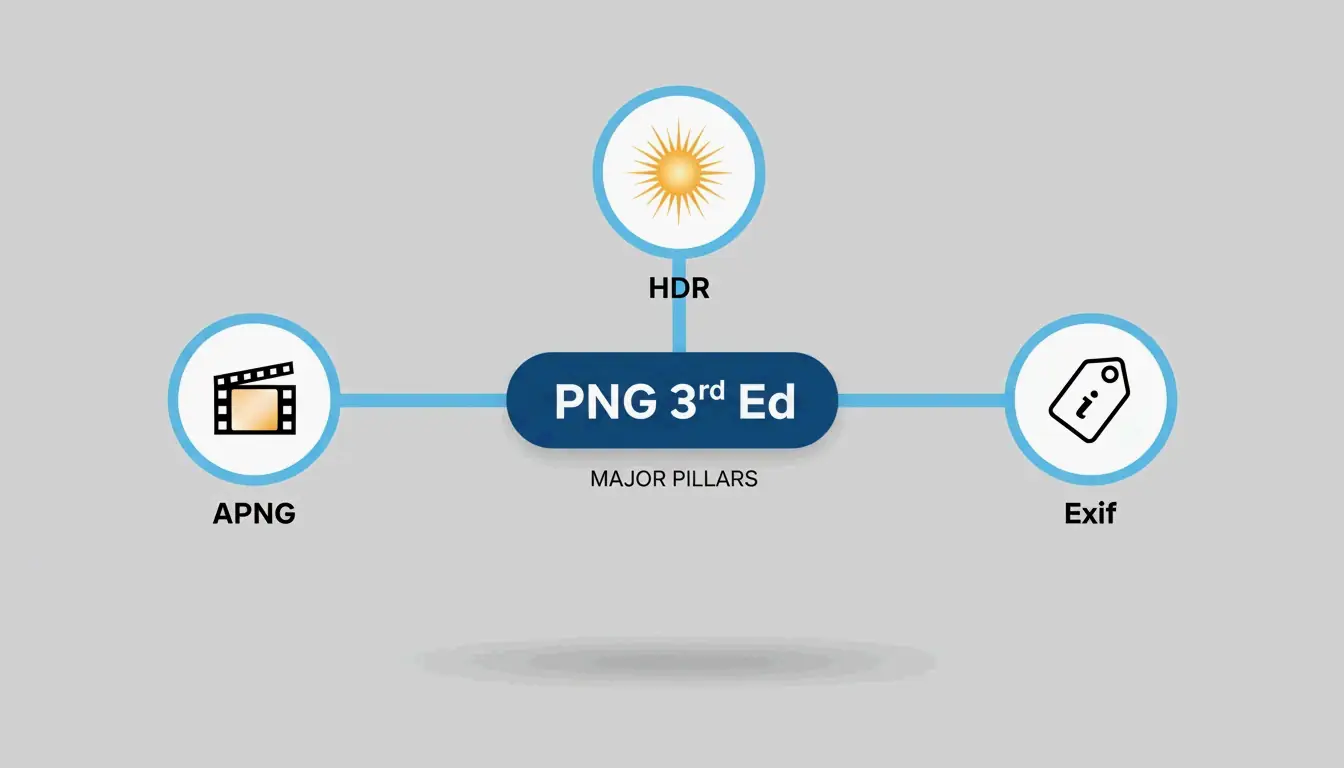
The 3rd Edition now officially includes:

  • APNG (Animated PNG): This is now a core part of the spec, not just a third-party add-on.
  • High Dynamic Range (HDR): Better support for modern monitors that handle higher brightness and wider color ranges.
  • Native Exif Support: Improved handling of metadata within the file’s “chunk” structure.

Key features of the PNG 3rd Edition update

As noted by the W3C, PNG was first built as a free replacement for GIF. These 2025/2026 updates ensure it stays competitive as an open standard for high-quality web graphics.

Why APNG is Now a Native Standard for Web Animation

With the 2025 W3C Recommendation, APNG has become the go-to for high-quality, transparent animations. Unlike the old GIF format, which is stuck with 256 colors and “all-or-nothing” transparency, APNG supports full 24-bit color and smooth 8-bit alpha channels. Since it’s now a native part of the PNG 3rd Edition, browsers can render these animations more efficiently, which saves on CPU power.

Advanced PNG Optimization: pngquant and PNG-8 Strategy

For pros, the most effective tool for “lossy” PNG optimization is still pngquant. It uses a smart algorithm to turn 24-bit or 32-bit PNGs into much smaller 8-bit indexed images (PNG-8). According to Pixotter, this can shrink UI screenshots by up to 60% with almost no visible difference to the eye.

A real-world case study from iCompressImg shows what’s possible: a logo containing text was reduced from 156KB down to 24KB—an 85% reduction in file weight.

Feature PNG-24 (Truecolor) PNG-8 (Indexed)
Colors 16.7 Million Up to 256
Transparency Full Alpha Channel Alpha or Binary
File Size Large Small (60-80% reduction)
Best For Complex gradients Logos, Icons, UI Elements

Developer Tip: Integrating Compression into CI/CD Pipelines

To keep a site fast as it grows, you should automate your image compression. Using the Sharp library in Node.js is the standard approach in 2026. Sharp uses the libvips library for high-speed processing. By adding a script to your CI/CD pipeline, every PNG asset is automatically optimized and stripped of metadata before it ever goes live, preventing heavy, unoptimized files from slowing down your production server.

Should I Convert PNG to WebP for Better Performance?

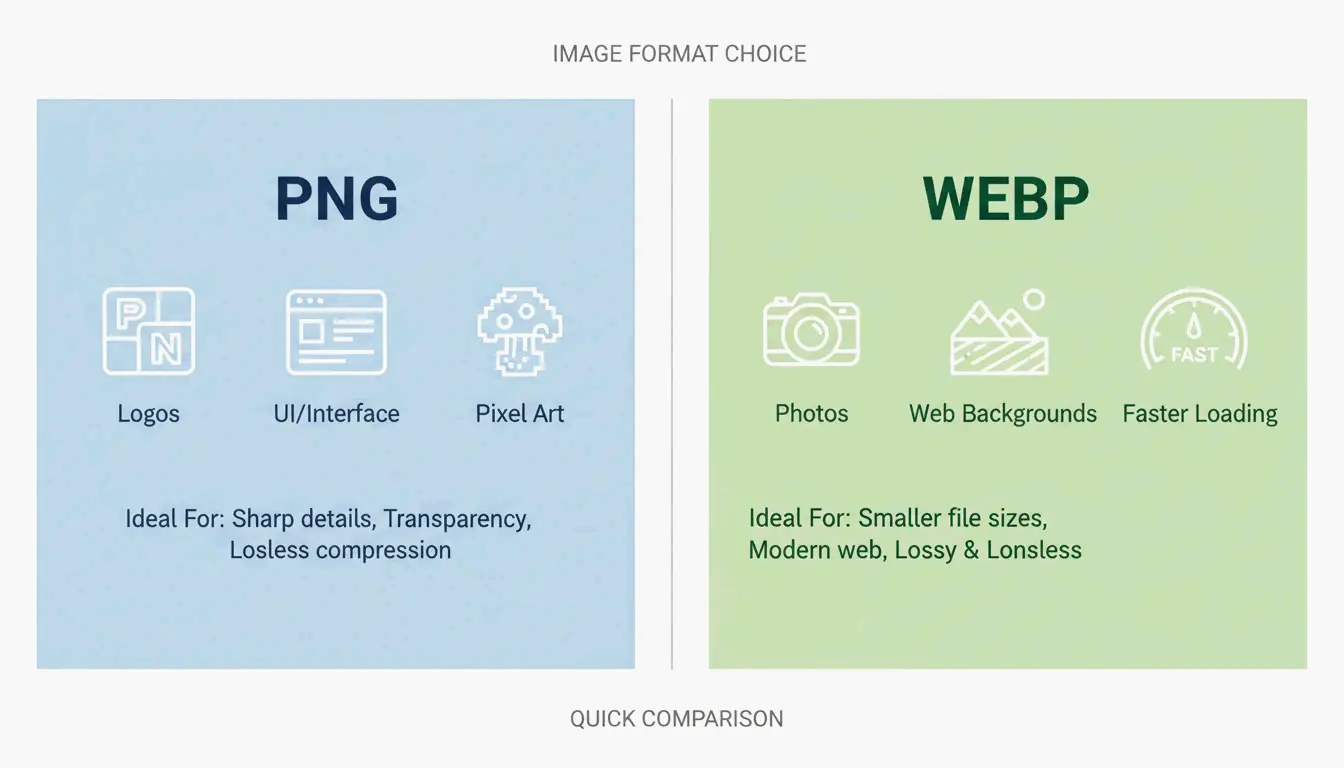
Compressing PNGs works well, but for photographic content, WebP is often the better choice. WebP handles both lossy and lossless compression and supports transparency just like PNG. According to 2026 benchmarks from Pixotter, a WebP file at 80% quality is usually 20-35% smaller than a lossy-quantized PNG of the same quality.

Comparison of PNG vs WebP for different use cases

However, stick with PNG in these cases:

  • Pixel Art or Sharp Edges: PNG’s DEFLATE algorithm is better at handling high-contrast, flat-color edges than WebP.
  • High-Fidelity Source Assets: If you need to edit the image again later, keep it as a lossless PNG to avoid “generation loss” (quality dropping every time you save).
  • Maximum Compatibility: Almost all modern browsers support WebP, but some old email clients or specific enterprise tools still need standard PNGs.

Conclusion

Compressing PNGs isn’t just about making files smaller; it’s about choosing the right tool for the job. By using the 2025/2026 W3C standards and tools like pngquant, you can speed up your page loads significantly without losing visual quality.

Actionable Advice: Start with a lossless tool like OxiPNG to clear out metadata. If the file is still too big, use pngquant for 8-bit quantization. For photos that aren’t “mission-critical,” consider converting to WebP to get that 60-85% reduction needed for modern Core Web Vitals.

FAQ

Does PNG compression lose image transparency?

No, standard lossless compression preserves the alpha channel perfectly. Even lossy tools like pngquant are designed to maintain transparency boundaries, though they may slightly reduce the number of colors within the semi-transparent areas to achieve a smaller file size.

What is the difference between lossless and lossy PNG compression?

Lossless compression (e.g., OxiPNG, OptiPNG) optimizes the file’s internal structure and removes metadata without changing a single pixel. Lossy compression (e.g., pngquant) reduces the total number of colors in the image, which significantly shrinks the file size but technically alters the original pixel data.

Can I compress a PNG to a specific file size like 100KB?

Directly targeting a specific file size is difficult for PNG because its compression depends on image complexity. However, you can achieve a target size by iteratively reducing the color palette (quantization) or by resizing the image dimensions to reduce the total pixel count.

Why is my PNG file still large after compression?

Your file may contain significant amounts of hidden metadata, such as large ICC color profiles or EXIF data, which some tools do not remove by default. Additionally, images with complex gradients or “noise” do not compress well with the DEFLATE algorithm, as there are fewer repeating patterns to exploit.

作者

SJ

SectoJoy

独立开发者

我是一名独立开发者,专注于构建 iOS 和 Web 应用程序,致力于打造实用的 SaaS 产品。我擅长 AI SEO,不断探索智能技术如何推动可持续增长和效率提升。

Table of Contents