How to Compress JPG Files: The 2026 Guide to Faster Loading and High Quality
As of April 2026, the most effective way to compress JP […]
As of April 2026, the most effective way to compress JPG files is by using online tools like TinyIMG or native apps like Mac Preview. For the best web performance, aim for a quality setting of 75-85%; this usually cuts file size by 40-70% while keeping the image looking just as sharp as the original.
The ‘Double-Punch’ Workflow: How to Compress JPG for Maximum Results
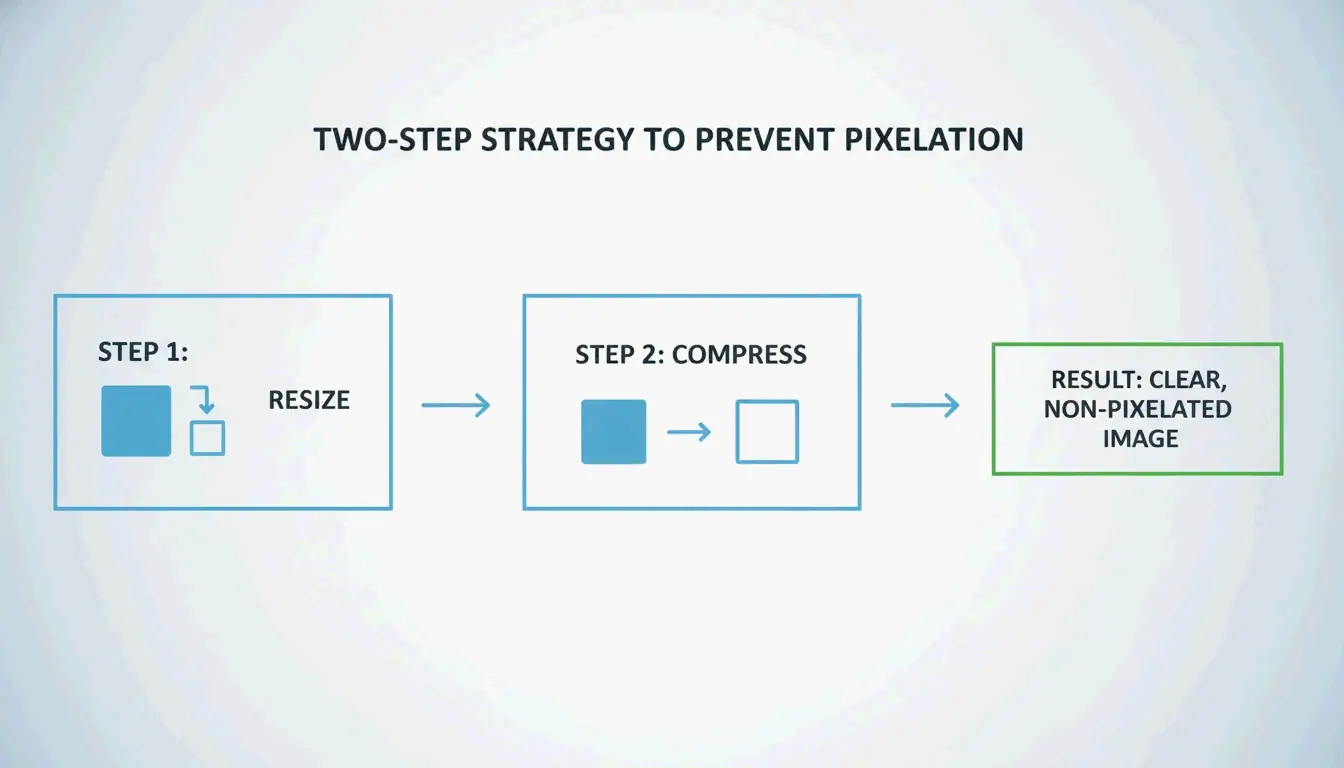
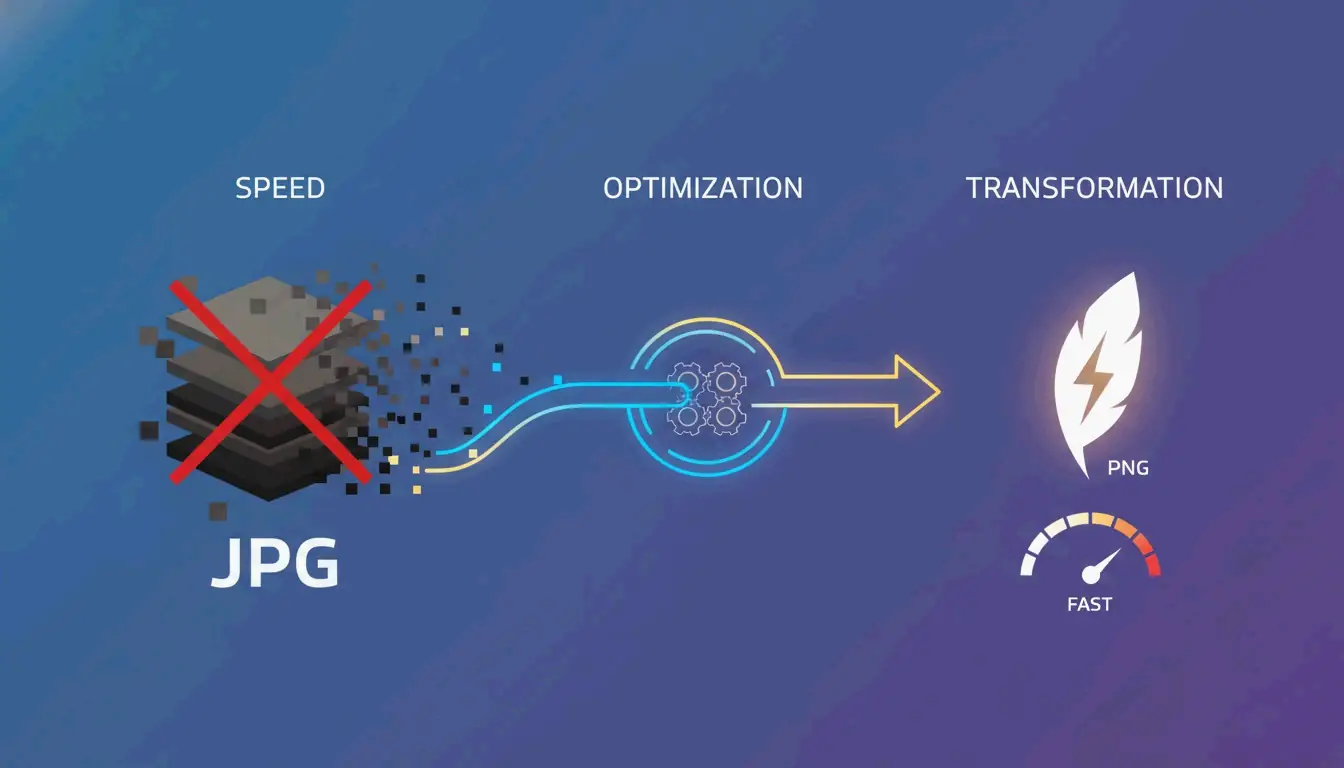
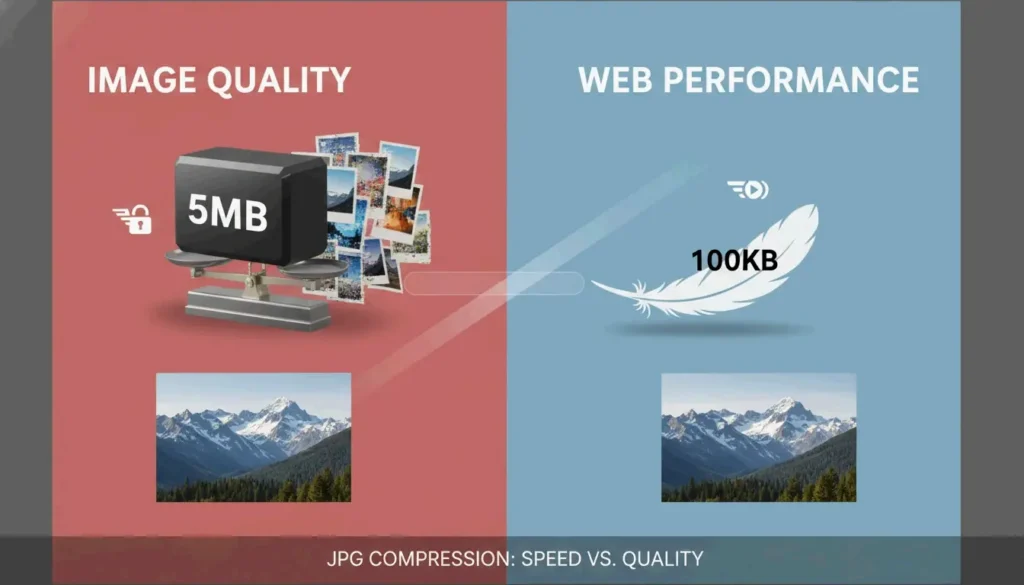
High-resolution photos from modern smartphones or pro cameras often land between 5MB and 10MB. Simply hitting “compress” on these giant files usually isn’t enough for the web. To get down to a target size like 100KB without making the image look blurry or “muddy,” you need a two-step strategy.
According to ShortPixel, forcing a 2000px wide image into a 100KB file without resizing first results in pixelated visuals. The “Double-Punch” method fixes this by handling the dimensions before the data.

Step 1: Resize to Display Dimensions
Before you compress, change the pixel dimensions to match how the image actually appears on your site. For most blog hero images, a width of 1200px to 2000px is plenty. For thumbnails or profile pictures, you rarely need more than 500px to 800px. Shrinking the dimensions is the fastest way to drop the bulk of a file’s “weight.”
Step 2: Apply Lossy Compression
Once the image is the right size, use lossy compression to strip out unnecessary data. This process tweaks the image’s underlying code to remove details the human eye can’t actually see. ShortPixel shows that by combining a resize (down to 1200px) with smart compression, a 5MB photo can shrink to under 100KB—a 98% reduction—while staying crisp.
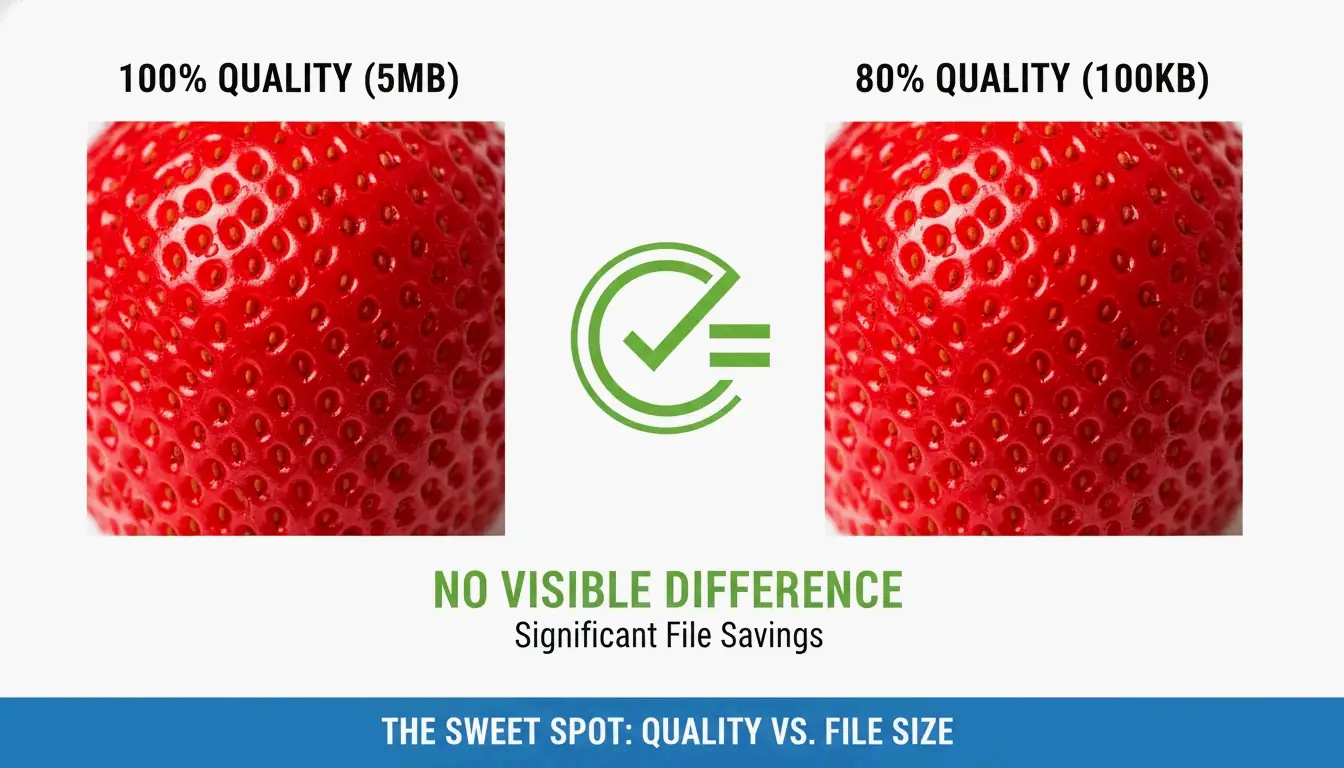
Finding the ‘Sweet Spot’: 75-85% Quality Rule
The secret to professional optimization is staying within the 75-85% quality range. Technical guides from GWAA call this the “sweet spot.” It’s where you get the biggest file savings (40-70%) without anyone being able to tell the difference between the compressed version and the original in a side-by-side test.

Best Tools to Compress JPG Online: Is TinyIMG or TinyJPG Better?
The right tool depends on what you value most: privacy, speed, or how many images you have to process at once.
TinyIMG / TinyJPG and Web Optimizers
Tools like TinyIMG and TinyJPG are industry standards because they use smart algorithms to find the best compression level automatically. TinyIMG is a go-to for Shopify and E-commerce owners who need to bulk-optimize product catalogs to boost site speed and SEO.
Browser-side vs. Server-side Compression
In 2026, it matters where your image is processed.
- Server-side Tools: Sites like GWAA process images on secure servers and then delete them.
- Browser-side (Client-side) Tools: Tools like CodeItBro and FreeToolio use HTML5 Canvas to compress images directly on your device. This is better for privacy since your photos never actually leave your computer.
Adobe Express
If you need total control over a single image, Adobe Express has a great interface for manual adjustments, though it isn’t quite as fast for bulk SEO work as dedicated tools.
How to Compress JPG on Windows and Mac (No Software Needed)
You don’t always need an internet connection or extra software to shrink your files. Both Windows and macOS have solid tools built right in.
Using Windows Photos
- Open your JPG in the Windows Photos app.
- Click the three dots (…) and select Resize image.
- Adjust the Quality slider. As TinyIMG points out, lowering this slider directly reduces the file size.
- Save the new version. You can also use Windows Paint to resize by percentage or pixels via the “Resize” button.
Using Mac Preview
- Open the image in Mac Preview.
- Go to Tools > Adjust Size to change the dimensions.
- To compress, go to File > Export.
- Move the Quality slider to see the predicted file size change in real-time.
Stripping EXIF Metadata
A surprising amount of a JPG’s size comes from EXIF metadata—hidden info like camera settings, GPS location, and timestamps. Tools like ImageOptim for Mac or the settings within ShortPixel let you strip this data. You can save extra kilobytes without changing a single pixel of the actual image.
Beyond JPEG: Should You Use WebP or AVIF in 2026?
JPG is still the universal standard, but newer formats are much more efficient for the modern web.
The Rise of AVIF
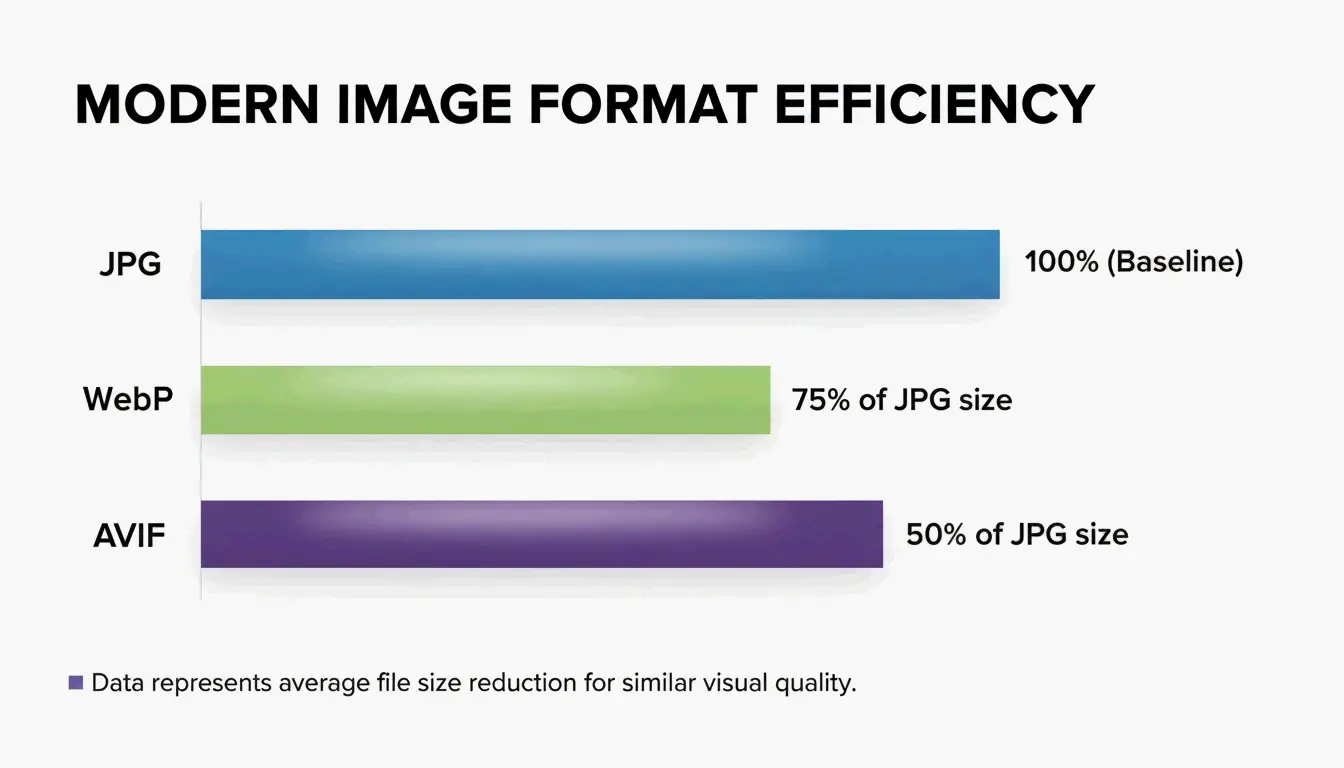
According to Graviton (2026), AVIF is currently the most efficient format available. Tests show that AVIF files are usually 50-60% smaller than JPEGs at the same visual quality. It also supports HDR and transparency, making it a strong successor to both JPG and PNG.

WebP and Compatibility
WebP is a highly compatible alternative that offers roughly 25-34% smaller sizes than JPEG, based on Google Developers research cited by TinyIMG.
Impact on Core Web Vitals
Switching to these formats helps your Core Web Vitals, specifically the Largest Contentful Paint (LCP) score. To keep things 100% compatible in 2026, developers often use the <picture> element to serve AVIF to modern browsers while keeping a JPG fallback for older ones.
The Science of Lossy Compression and Generation Loss
Understanding how compression works can help you get better results. JPEG uses a process called Discrete Cosine Transform (DCT).
Understanding DCT and Quantization
The DCT process breaks image data down into frequency components. The “lossy” part happens during quantization, where the algorithm throws away high-frequency details that our eyes aren’t good at seeing. GWAA notes that your quality setting (1-100) is what controls these quantization tables.
The Danger of Generation Loss
Try to avoid compressing a file that has already been compressed. This causes “Generation Loss”—a downward spiral where every save adds new blurry artifacts and muddy textures. For the best look, always start with your original, uncompressed source file.
Conclusion
Mastering JPG compression in 2026 is all about balancing dimensions with modern lossy algorithms. By sticking to the 75-85% quality range, resizing for your specific display needs, and stripping out hidden EXIF metadata, you can keep your site fast without sacrificing quality.
For the best results, resize your image first, then use a tool like TinyIMG or ShortPixel to handle the final compression and format conversion before you upload.
FAQ
Is 50 KB considered a small image file size for web use?
Yes, 50 KB is an excellent target for standard blog images, thumbnails, or UI elements. While hero images can safely range between 150-200 KB, keeping smaller assets at 50 KB ensures rapid loading and optimal Core Web Vitals performance for mobile users.
Does compressing a JPG file multiple times destroy the image quality?
Yes, this is a phenomenon known as “Generation Loss.” Because JPEG uses lossy compression, every time you save the file, the Discrete Cosine Transform (DCT) algorithm discards more data. Repeatedly compressing the same file will eventually lead to visible artifacts, blurring, and color distortion.
Can I compress a 5MB high-resolution photo to under 100KB without it looking blurry?
You can, but only if you resize the dimensions first. A 4000px image forced into a 100KB limit will look extremely blurry due to aggressive data stripping. However, if you first resize that image to 1200px wide, a 100KB file will remain crisp and clear for web viewing.
作者
SectoJoy
獨立開發者我是一名獨立開發者,專注於構建 iOS 和 Web 應用程序,致力於打造實用的 SaaS 產品。我擅長 AI SEO,不斷探索智能技術如何推動可持續增長和效率提升。