How to Compress and Resize Images for Web and Social Media (2026 Guide)
目录
To compress and resize images effectively in 2026, use tools like Adobe Photoshop, Microsoft PowerToys, or browser-based platforms like Imgresizer.io. Adjust pixel dimensions for your target platform and set JPEG quality to 70-80%, or switch to the AVIF format to reduce file weight without losing visual clarity.
Mastering the Balance: How to Compress and Resize Images Without Quality Loss
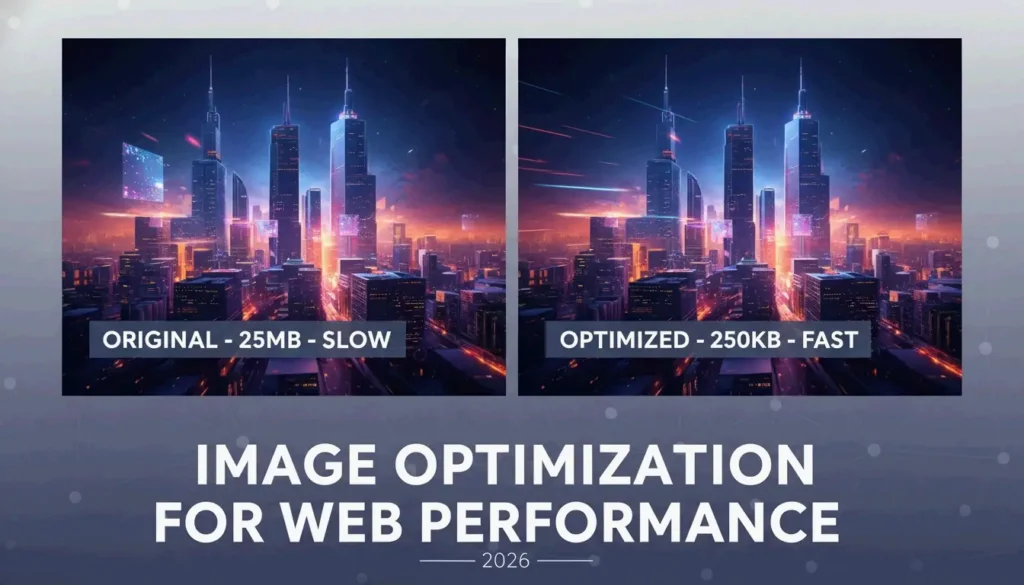
Optimizing visuals for today’s web is a two-step process: first, you adjust the physical dimensions (resizing), and then you reduce the data density (compression). According to Business.com, standard JPEG compression usually cuts file size by 40% to 60%. This hits a sweet spot, keeping the quality high enough for professional use while making the file much lighter.
Step 1: Adjusting Pixel Dimensions (Resizing)
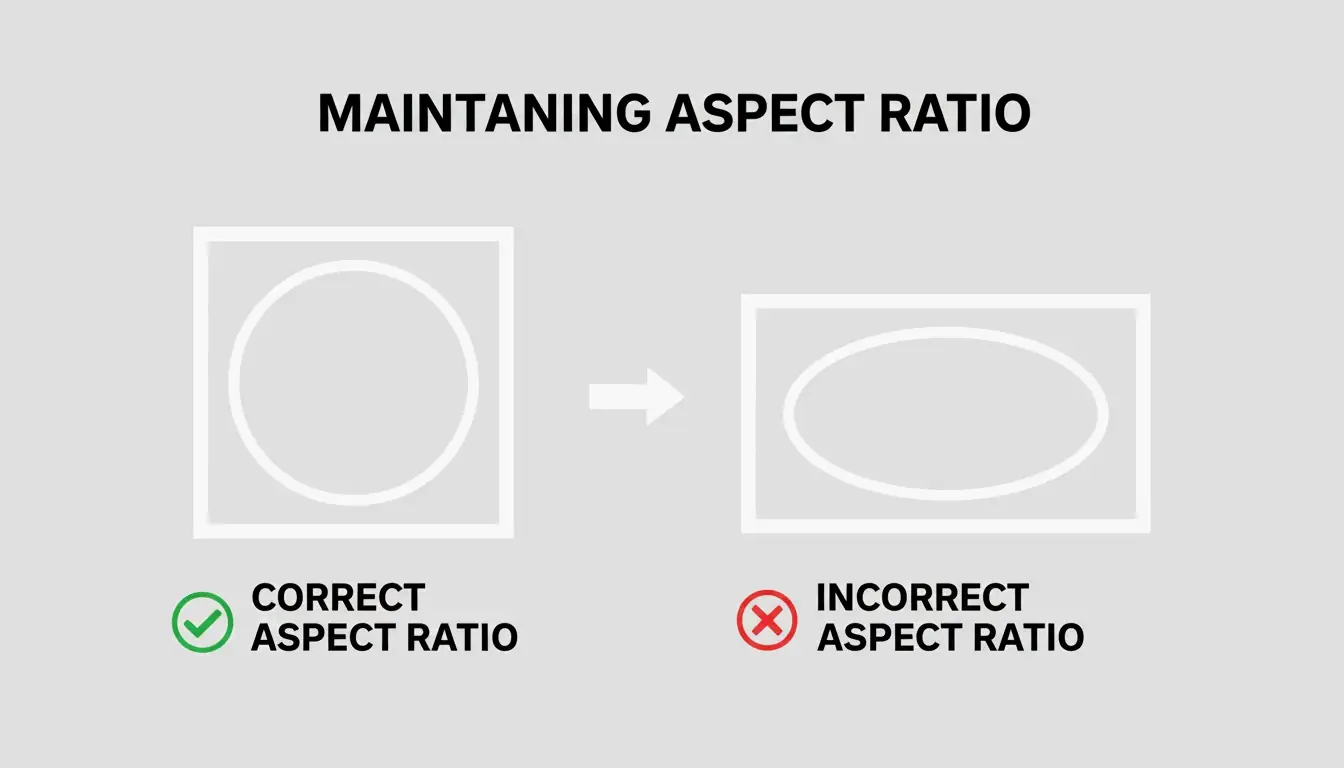
Resizing is about changing the total number of pixels to fit where the image will actually live. For example, if your website’s hero banner is 1200px wide, uploading a 4000px original is just a waste of bandwidth. When you resize, always lock the Aspect Ratio. If you don’t, your image will end up looking stretched or squashed. Tools like EverydayTools make this easy by letting you set the width while it automatically handles the height to keep your design looking right.

Step 2: Applying Compression Algorithms
Once your dimensions are set, compression shrinks the file size even further. In 2026, the standard for JPEG / JPG files is still a quality setting between 70% and 80%. This uses Lossy compression to strip out “high-frequency” data—fine details the human eye can’t really see anyway—without creating ugly blurs or artifacts. If you need to keep every single detail for an archive, use Lossless compression, though these files are usually too heavy for fast-loading web pages.
Why Image Optimization is Critical for Core Web Vitals (LCP)?
In the 2026 digital market, optimizing images is a basic requirement for Search Engine Optimization (SEO). Google’s Core Web Vitals use a metric called Largest Contentful Paint (LCP) to measure how long it takes for the biggest visual on your page—like a hero image—to show up. Large, unoptimized images are the biggest reason for slow LCP scores, which can drag down your search rankings.
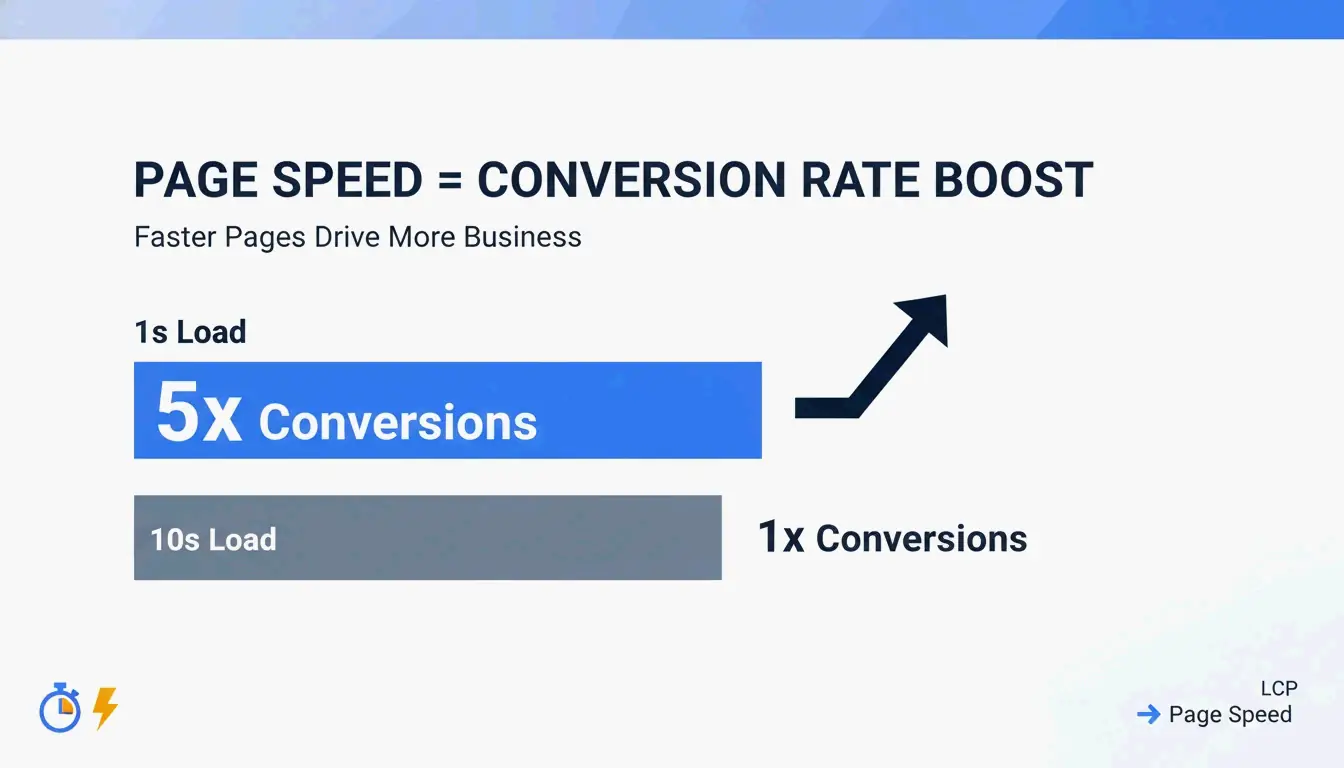
The impact on your bottom line is real. Research from Illustrate Digital shows that a B2B site that loads in one second has a conversion rate five times higher than a site taking 10 seconds. Even so, a 2026 report from the Baymard Institute found that 62% of e-commerce sites still struggle with slow visuals, leading to frustrated users and high bounce rates.

AVIF vs. WebP: Which Format Should You Choose in 2026?
WebP was the go-to for years, but AVIF has become the preferred next-gen format for SEO in 2026. AVIF is about 25-30% more efficient than WebP and does a much better job of keeping high-detail areas sharp. Most modern browsers support AVIF now, but many developers still use a “fallback” system—serving AVIF when possible and switching to WebP or JPEG for older browsers to keep the experience smooth for everyone.
Best Tools to Compress and Resize Images: From Pro to Privacy-First
The right tool depends on how many images you have and how much you care about privacy. Quality is a major factor; Salsify’s 2025 Consumer Research Report found that 42% of shoppers will walk away from a purchase if product images are missing or look low-quality.
Offline & Bulk Processing for Windows/Mac
For professional work, Adobe Photoshop is still the top choice because it gives you total control over color profiles and batch exports. However, if you’re on Windows and need to move fast, Microsoft PowerToys is a lifesaver. It adds a shortcut to your File Explorer so you can right-click and resize hundreds of images at once using “Fit,” “Fill,” or “Stretch” presets.
Zero-Upload Web Tools for Maximum Privacy
If you’re working with sensitive client assets, privacy is the priority. Tools like Imgresizer.io and EverydayTools use the HTML Canvas API. This means the image is processed entirely inside your browser’s memory. Since nothing is uploaded to a server, these “Zero-Upload” tools are the safest way to handle compression and format changes without your data ever leaving your computer.
Automation & AI: Using MCP and Code for Image Processing
Image optimization is moving toward automation. Developers can now build custom resizers using HTML Canvas and JavaScript. By drawing an image onto a canvas at specific sizes and using toDataURL or toBlob methods, you can script exactly how you want the quality and format to turn out.
The AI Workflow: Resizing via Chat Prompts
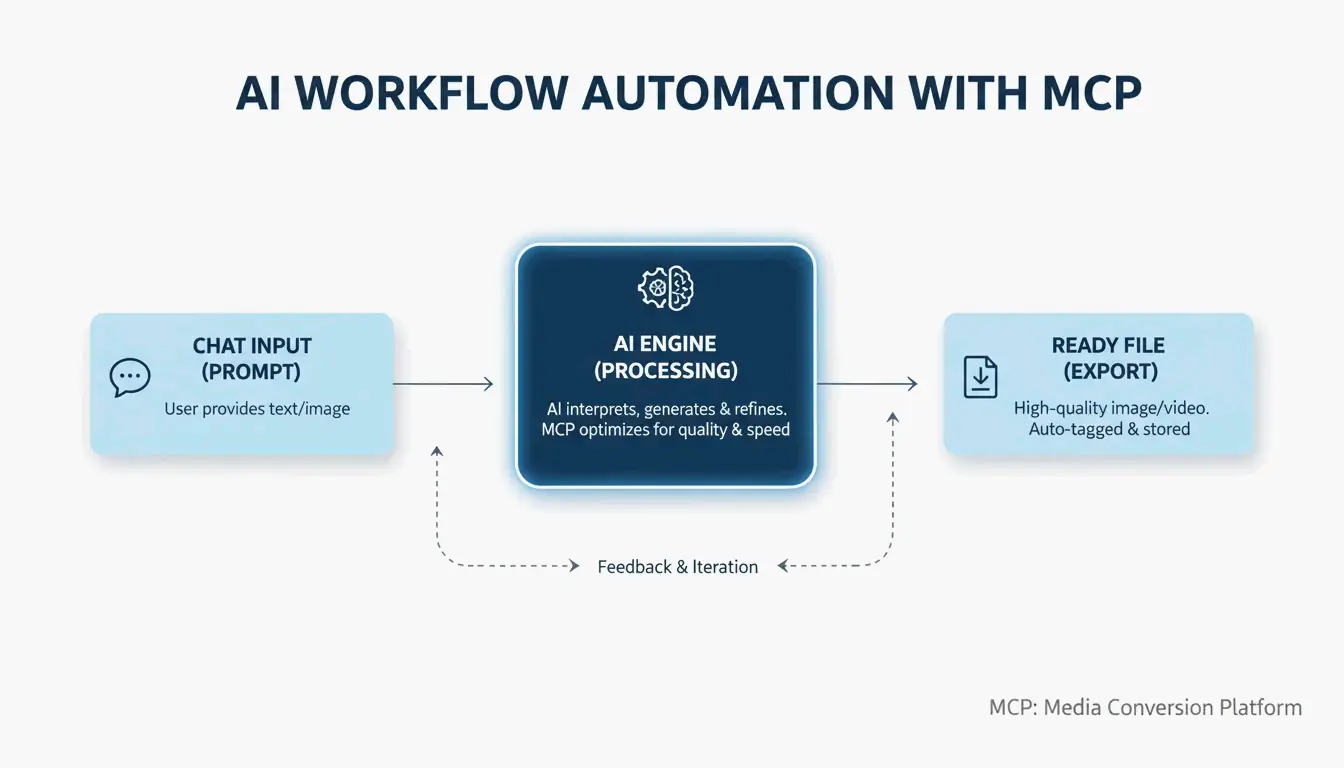
A big trend in 2026 is using the Model Context Protocol (MCP). As noted by Iteration Layer, MCP lets AI assistants like Claude or Cursor connect directly to image tools. Instead of opening a separate app, you can just tell the AI: “Resize this PNG to 800×600, convert it to WebP, and keep it under 200KB.” The AI does the math and the conversion for you, so you never have to leave your code editor.

Conclusion
Optimizing images is a two-part job: resizing the dimensions and compressing the data. In 2026, using next-gen formats like AVIF and local-processing tools is the best way to protect user privacy and boost SEO. To stay ahead, check your site’s LCP on PageSpeed Insights, then use a bulk tool like Microsoft PowerToys or an AI-driven MCP workflow to swap out heavy JPEGs for lean, fast AVIF files.
FAQ
How can I resize an image without uploading it to a server for privacy?
To maintain maximum privacy, use browser-based tools that utilize the HTML Canvas API, such as Imgresizer.io. These tools process the image locally in your browser’s memory, meaning the file never leaves your device. Alternatively, use offline software like Microsoft PowerToys or Adobe Photoshop to handle all processing on your local hard drive.
What is the difference between Lossy and Lossless compression for JPEGs?
Lossy compression permanently removes subtle data to significantly reduce the file size, which is ideal for web performance where speed is a priority; a 75% quality setting is generally the “sweet spot.” Lossless compression reduces size without removing any data, allowing the image to be restored to its original state, which is better for professional archiving but results in larger files.
What are the recommended dimensions for social media in 2026?
Standard dimensions for 2026 include: Instagram feed posts at 1080x1080px (Square) or 1080x1350px (Portrait); Facebook Cover photos at 820x312px; and LinkedIn Company Pages at 1128x191px. For high-DPI or Retina displays, it is recommended to export images at 2x these dimensions (e.g., 2160x2160px for Instagram) to ensure the visuals remain sharp on modern mobile screens.