Bilder für Web und Social Media komprimieren und skalieren (2026-Leitfaden)
Inhaltsverzeichnis
Bilder im Jahr 2026 effizient zu komprimieren und zu skalieren, erfordert Werkzeuge wie Adobe Photoshop, Microsoft PowerToys oder browserbasierte Plattformen wie Imgresizer.io. Passen Sie die Pixelmaße an Ihre Zielplattform an und setzen Sie die JPEG-Qualität auf 70-80 %, oder wechseln Sie zum AVIF-Format, um das Dateigewicht ohne sichtbaren Qualitätsverlust zu reduzieren.
Die Balance meistern: Bilder verlustfrei komprimieren und skalieren
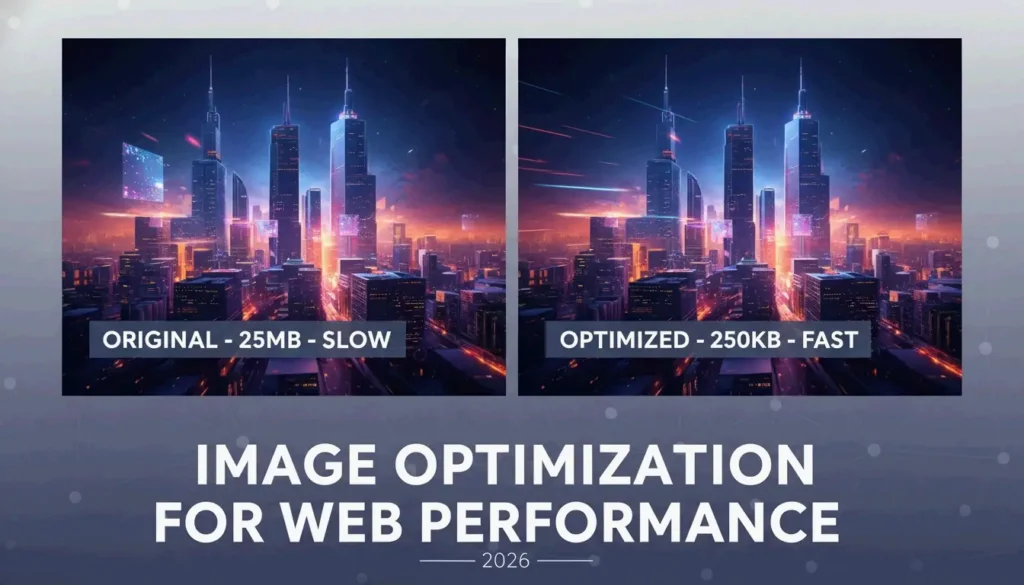
Das Optimieren von Bildmaterial für das Web ist ein zweistufiger Prozess: Zuerst die physischen Maße anpassen (Skalieren), dann die Datendichte reduzieren (Komprimieren). Laut Business.com reduziert eine Standard-JPEG-Komprimierung die Dateigröße typischerweise um 40-60 % und schafft so eine Balance zwischen professioneller Qualität und leichter Datei.
Schritt 1: Pixelmaße anpassen (Skalieren)
Das Skalieren verändert die Gesamtzahl der Pixel, damit sie zu dem Ort passen, an dem das Bild angezeigt wird. Wenn Ihr Hero-Banner auf der Website 1200px breit ist, ist das Hochladen eines 4000px-Originals reine Bandbreitenverschwendung.
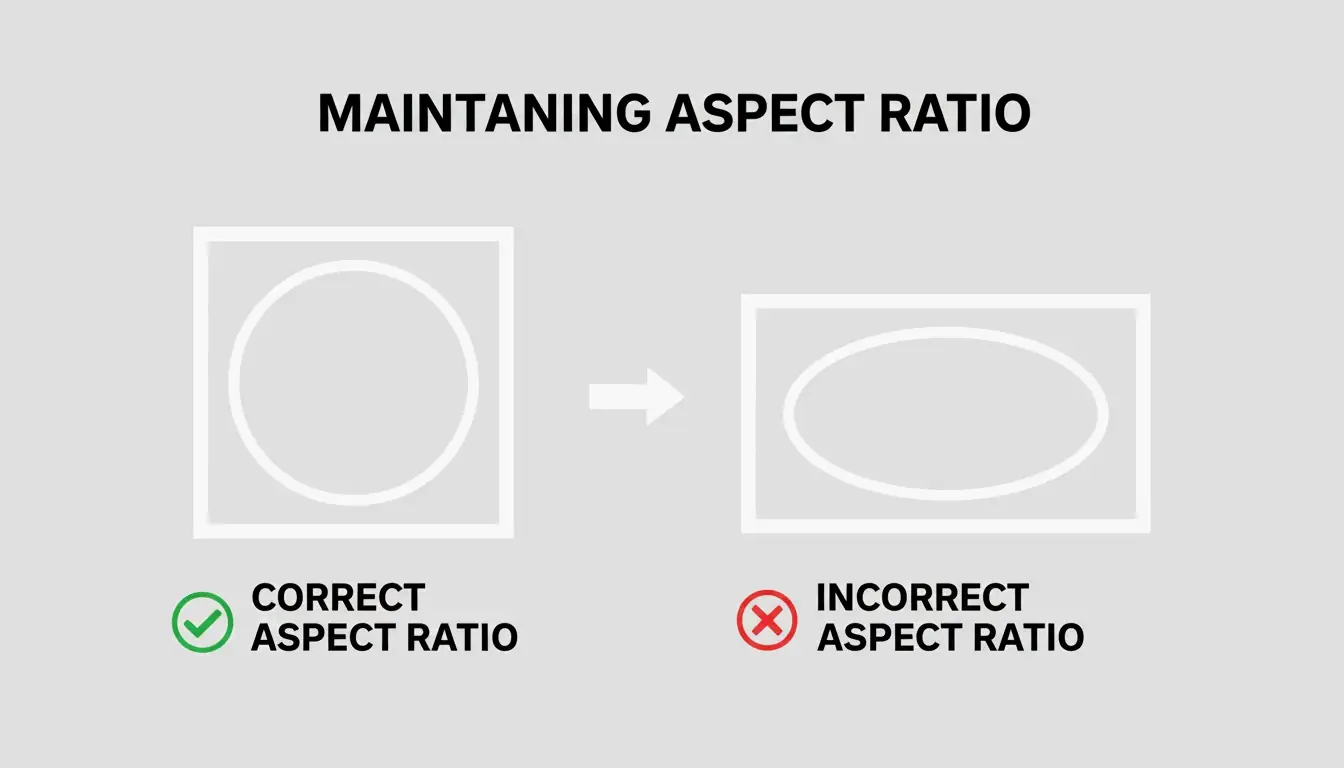
Sperren Sie immer das Seitenverhältnis. Ohne diese Sperre wirken Bilder gestreckt oder gestaucht. Werkzeuge wie EverydayTools erlauben es Ihnen, die Breite festzulegen, während die Höhe automatisch berechnet wird, um die korrekten Proportionen zu wahren.
Schritt 2: Kompressionsalgorithmen anwenden
Sobald die Maße feststehen, reduziert die Komprimierung die Dateigröße weiter.
| Kompressionstyp | Funktionsweise | Auswirkung auf Dateigröße | Am besten für |
|---|---|---|---|
| Verlustbehaftet (JPEG 70-80%) | Entfernt für das Auge unsichtbare Hochfrequenzdaten | 50-70% kleiner | Web, Social Media |
| Verlustfrei (PNG, WebP verlustfrei) | Entfernt Redundanz ohne Datenverlust | 20-40% kleiner | Logos, Textgrafiken, Archivierung |
Im Jahr 2026 liegt die Standardeinstellung für die JPEG / JPG-Qualität bei 70-80%. Dadurch werden feine Details entfernt, die das menschliche Auge nicht unterscheiden kann, ohne sichtbare Artefakte zu erzeugen.
Warum Bildoptimierung für Core Web Vitals (LCP) entscheidend ist
Bildoptimierung ist im Jahr 2026 eine grundlegende SEO-Anforderung. Googles Core Web Vitals nutzen den Largest Contentful Paint (LCP), um zu messen, wie schnell das größte visuelle Element (typischerweise ein Hero-Bild) lädt. Große, unoptimierte Bilder sind die Hauptursache für langsame LCP-Werte, was die Suchrankings direkt beeinträchtigt.
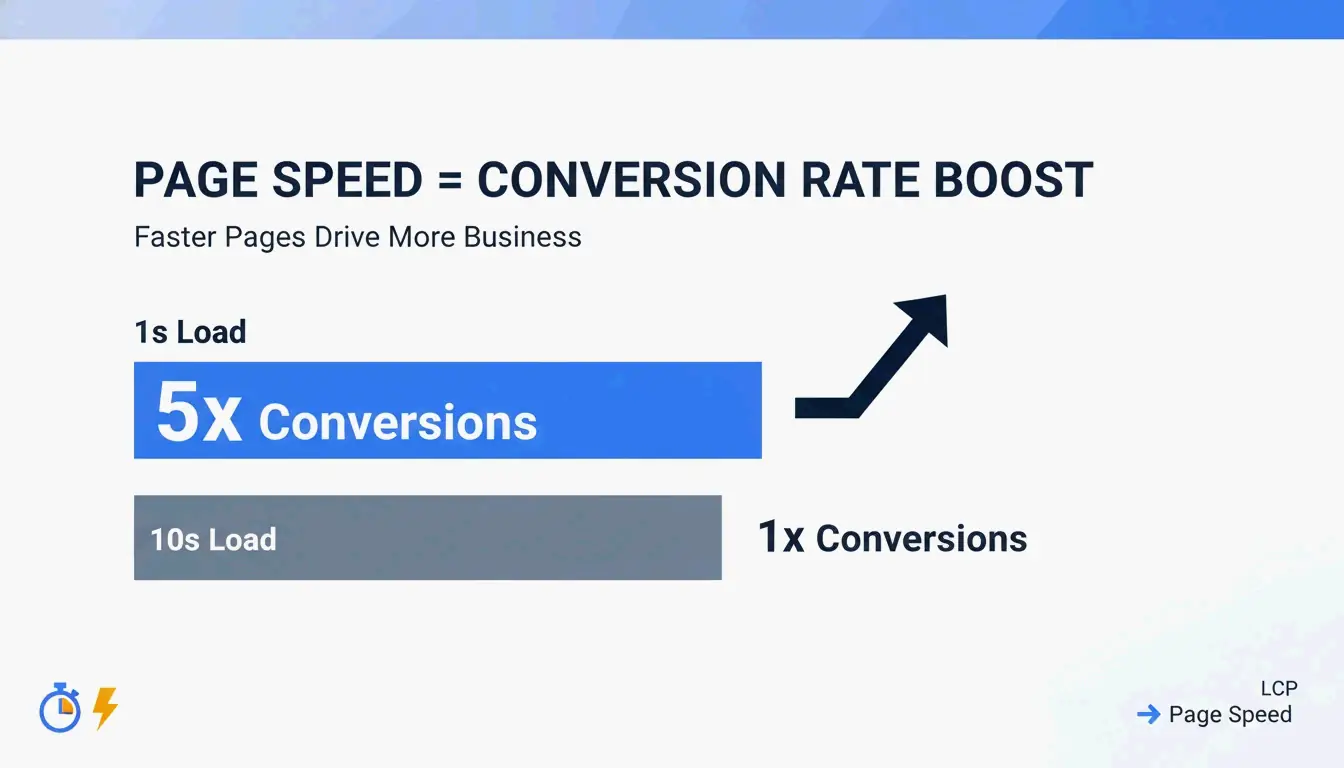
Die geschäftlichen Auswirkungen sind messbar:
| Ladezeit | Conversion-Auswirkung | Quelle |
|---|---|---|
| 1 Sekunde | 5x höhere Conversion als 10s-Seiten | Illustrate Digital |
| 3+ Sekunden | 53% der mobilen Nutzer brechen ab | Branchen-Benchmark |
| 10 Sekunden | Niedrigste Conversion-Raten | Illustrate Digital |
Ein 2026er-Bericht des Baymard Institute ergab, dass 62% der E-Commerce-Weiten weiterhin mit langsamen visuellen Inhalten kämpfen, was zu frustrierten Nutzern und hohen Absprungraten führt.
AVIF vs. WebP: Welches Format sollten Sie 2026 wählen?
| Format | Effizienz vs. JPEG | Detailerhaltung | Browser-Unterstützung (2026) |
|---|---|---|---|
| WebP | 25-30% kleiner | Gut | Breit |
| AVIF | 30-50% kleiner | Besser (bei detailreichen Flächen) | Wächst, moderne Browser |
| JPEG | Basiswert | Standard | Universell |
AVIF ist im Jahr 2026 zum bevorzugten Next-Gen-Format für SEO geworden. Es ist etwa 25-30% effizienter als WebP und bewahrt detailreiche Flächen effektiver. Der empfohlene Ansatz ist ein „Fallback“-System: AVIF ausliefern, wenn unterstützt, und für ältere Browser auf WebP oder JPEG zurückfallen.
Die besten Werkzeuge zum Komprimieren und Skalieren von Bildern: Vom Profi- bis zum Datenschutz-First-Ansatz
Qualität wirkt sich direkt auf den Umsatz aus. Der Salsify 2025 Consumer Research Report ergab, dass 42% der Käufer einen Kauf abbrechen, wenn Produktbilder fehlen oder minderwertig wirken.
Offline- und Massenverarbeitung für Windows/Mac
| Werkzeug | Plattform | Hauptfunktion | Am besten für |
|---|---|---|---|
| Adobe Photoshop | Win/Mac | Farbprofile, Stapel-Exporte, volle Kontrolle | Professionelle Arbeit |
| Microsoft PowerToys | Windows | Rechtsklick-Skalierung im Datei-Explorer, Massen-Presets | Schnelle Stapelverarbeitung |
Microsoft PowerToys fügt dem Datei-Explorer eine Verknüpfung hinzu, mit der Sie per Rechtsklick Hunderte von Bildern mithilfe der Presets „Fit“, „Fill“ oder „Stretch“ in einem Schritt skalieren können.
Zero-Upload-Web-Tools für maximalen Datenschutz
Bei sensiblen Kundendaten ist Datenschutz oberstes Gebot. Werkzeuge wie Imgresizer.io und EverydayTools nutzen die HTML Canvas-API und verarbeiten Bilder vollständig im Arbeitsspeicher Ihres Browsers. Da nichts auf einen Server hochgeladen wird, sind diese „Zero-Upload“-Werkzeuge die sicherste Option für Komprimierung und Formatkonvertierung.
Automatisierung und KI: Bildverarbeitung mit MCP und Code
Die Bildoptimierung bewegt sich in Richtung Automatisierung. Entwickler können eigene Skalierungs-Tools mit HTML Canvas und JavaScript bauen:
| Methode | API-Aufruf | Anwendungsfall |
|---|---|---|
| Auf Canvas zeichnen | drawImage() bei bestimmten Maßen |
Skalieren |
| Als Data URL exportieren | toDataURL() |
Schnelle Formatkonvertierung |
| Als Blob exportieren | toBlob() |
Qualitätskontrollierter Datei-Export |
Der KI-Workflow: Skalieren per Chat-Prompt
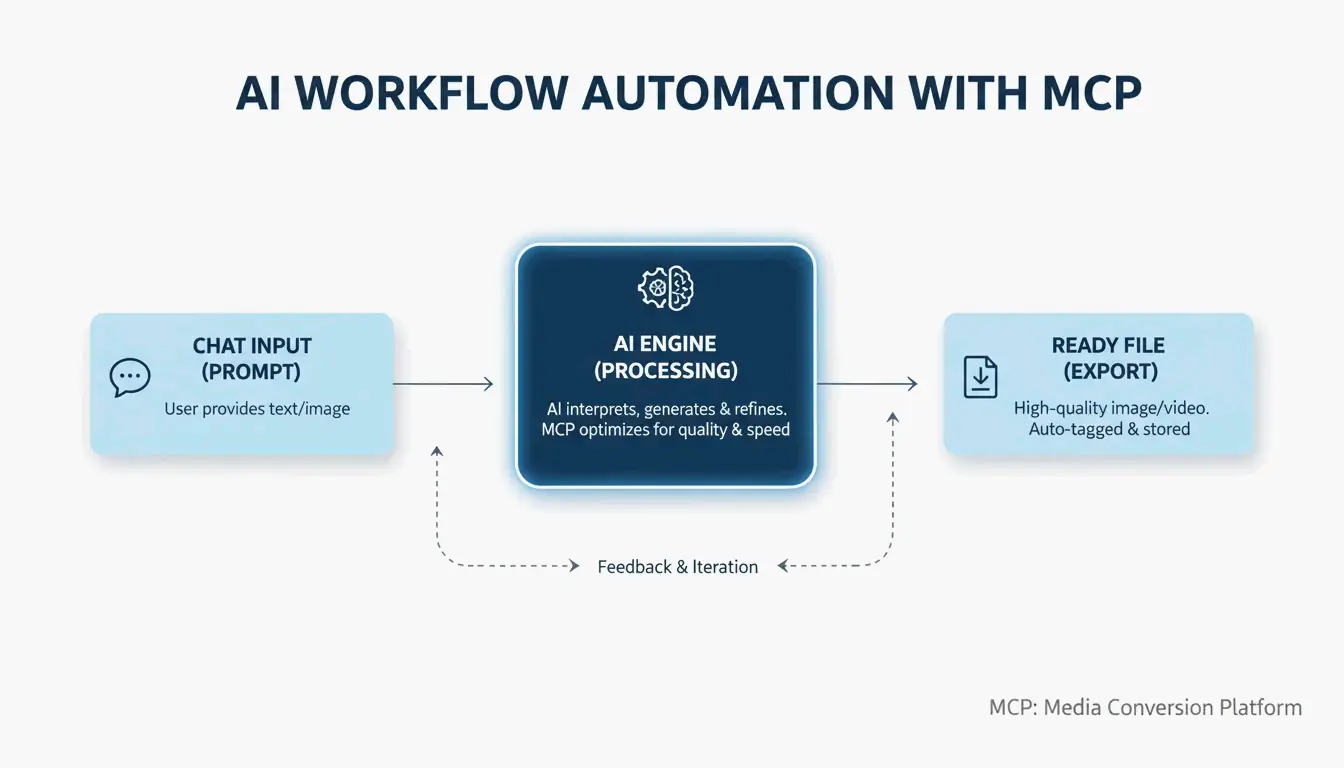
Ein wichtiger Trend 2026 ist das Model Context Protocol (MCP). Wie von Iteration Layer beschrieben, ermöglicht MCP es KI-Assistenten wie Claude oder Cursor, sich direkt mit Bildwerkzeugen zu verbinden. Anstatt eine separate App zu öffnen, können Sie der KI anweisen: „Skaliere dieses PNG auf 800×600, konvertiere es zu WebP und halte es unter 200KB.“ Die KI übernimmt Berechnung und Konvertierung, ohne dass Sie Ihren Code-Editor verlassen.
Fazit
Bildoptimierung ist eine zweiteilige Aufgabe: Maße skalieren und Daten komprimieren. Im Jahr 2026 ist die Nutzung von Next-Gen-Formaten wie AVIF und lokalen Verarbeitungswerkzeugen der beste Ansatz für Datenschutz und SEO zugleich. Prüfen Sie den LCP Ihrer Website in PageSpeed Insights, und verwenden Sie dann ein Massen-Werkzeug wie Microsoft PowerToys oder einen KI-gesteuerten MCP-Workflow, um schwere JPEGs durch schlanke, schnelle AVIF-Dateien zu ersetzen.
FAQ
Wie kann ich ein Bild skalieren, ohne es für den Datenschutz auf einen Server hochzuladen?
Verwenden Sie browserbasierte Werkzeuge, die die HTML Canvas API nutzen, wie etwa Imgresizer.io. Diese Tools verarbeiten Bilder lokal im Arbeitsspeicher Ihres Browsers — die Datei verlässt niemals Ihr Gerät. Alternativ nutzen Sie Offline-Software wie Microsoft PowerToys oder Adobe Photoshop, um die gesamte Verarbeitung auf Ihrer lokalen Festplatte durchzuführen.
Was ist der Unterschied zwischen verlustbehafteter und verlustfreier Komprimierung bei JPEGs?
Verlustbehaftete Komprimierung entfernt dauerhaft subtile Daten, um die Dateigröße erheblich zu reduzieren. Eine Qualitätseinstellung von 75% ist der „Sweet Spot“ für die Web-Performance. Verlustfreie Komprimierung reduziert die Größe, ohne Daten zu entfernen, und ermöglicht eine vollständige Wiederherstellung des Originalzustands. Verlustfreie Komprimierung eignet sich besser für die professionelle Archivierung, führt jedoch zu größeren Dateien.
Welche Maße werden 2026 für Social Media empfohlen?
| Plattform | Inhaltstyp | Maße | Hinweise |
|---|---|---|---|
| Quadratische Beiträge | 1080x1080px | Standard-Feed | |
| Hochformat-Beiträge | 1080x1350px | Maximale Interaktion | |
| Titelbilder | 820x312px | Desktop und Mobil | |
| Unternehmensseiten | 1128x191px | Bannerformat |
Für High-DPI- oder Retina-Displays exportieren Sie mit 2x dieser Maße (z. B. 2160x2160px für Instagram-Quadrat), um die Schärfe auf modernen Mobilbildschirmen sicherzustellen.
Über den Autor
Indie-Hacker & EntwicklerIch bin ein Indie-Hacker, der iOS- und Webanwendungen entwickelt, mit Fokus auf die Erstellung praktischer SaaS-Produkte. Ich spezialisiere mich auf AI SEO und erkunde ständig, wie intelligente Technologien nachhaltiges Wachstum und Effizienz fördern können.
Zuletzt geprüft 1. Juli 2026. Dieser Artikel wird auf Richtigkeit geprüft und aktualisiert, wenn sich Tooling oder Plattformverhalten ändern.
Redaktionsrichtlinien
Wie ImageLean veröffentlichte Leitfäden recherchiert, testet und aktualisiert.
Werbeoffenlegung
Wie wir Werbung, Sponsoring und Monetarisierung auf der Website handhaben.
Datenschutzansatz
Warum unsere Tools datenschutzfirst sind und wie browserbasierte Verarbeitung funktioniert.