Auto Resize – Free: The Best Browser-Based Tools for Instant Image & Video Optimization

Auto Resize – Free: The Best Browser-Based Tools for Instant Image & Video Optimization

5 min read

As of April 2026, you can auto resize – free usin […]

As of April 2026, you can auto resize – free using browser-based tools like Birme or FastTool. These platforms leverage Client-side Processing (WASM) to ensure 100% privacy and zero quality loss. Process images locally without sign-ups, watermarks, or server uploads for instant, secure results.

How to Auto Resize – Free Using Client-side Processing

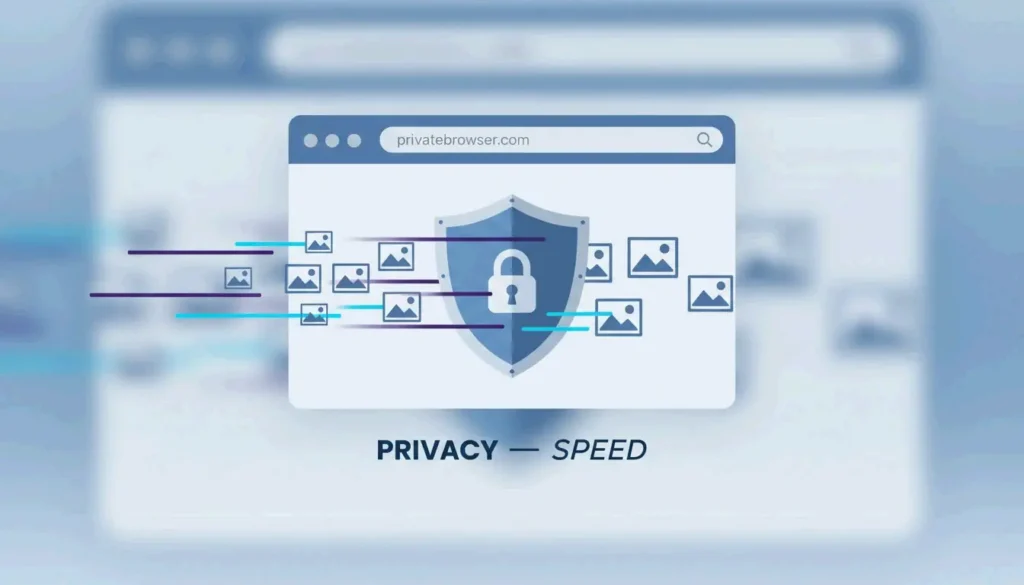
By 2026, the way we handle image processing has changed. We no longer need to upload private files to distant servers. Instead, modern tools use Client-side Processing, which means the work happens right in your browser’s memory. According to BIRME, this privacy-first approach supports over 50,000 monthly users as of April 2026, keeping images safely on the user’s own device.

This speed and security come from WebAssembly (WASM). As FastTool explains, WASM lets web tools perform as fast as desktop software. It uses optimized libraries to handle heavy lifting—like high-quality resampling or bulk editing—instantly on everything from powerful PCs to basic smartphones, without the lag common in older web apps.

The 3-Step Execution Framework

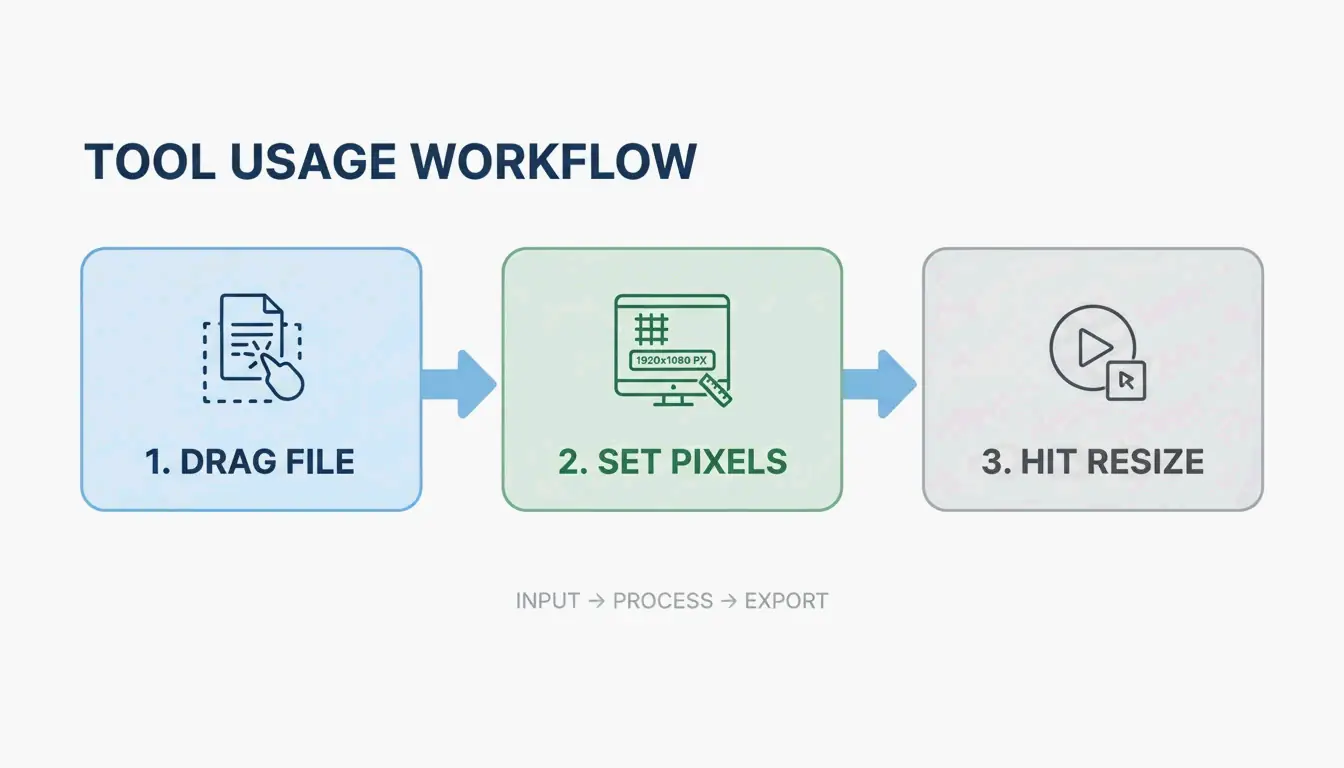
You can get professional results by following this simple workflow:

  1. Input: Drag your files (JPG, PNG, WebP, AVIF, or MP4) straight into the browser window.
  2. Configuration: Enter your desired pixel dimensions or choose a percentage. Make sure the “Aspect Ratio Lock” is on so your images don’t look stretched or squashed.
  3. Export: Hit “Resize” to start the WASM engine. Your files will be ready to download immediately, usually in a ZIP folder if you’re processing a batch.

Simple 3-step workflow: Input, Configure, Export

Why Modern SEO in 2026 Requires AVIF and WebP Formats?

For anyone publishing online, resizing isn’t just about making an image fit a box; it’s about site speed. In 2026, SEO standards focus heavily on Core Web Vitals. This means moving away from old formats like JPG and PNG in favor of AVIF and WebP. AVIF is particularly effective because it keeps images looking sharp while significantly shrinking the file size.

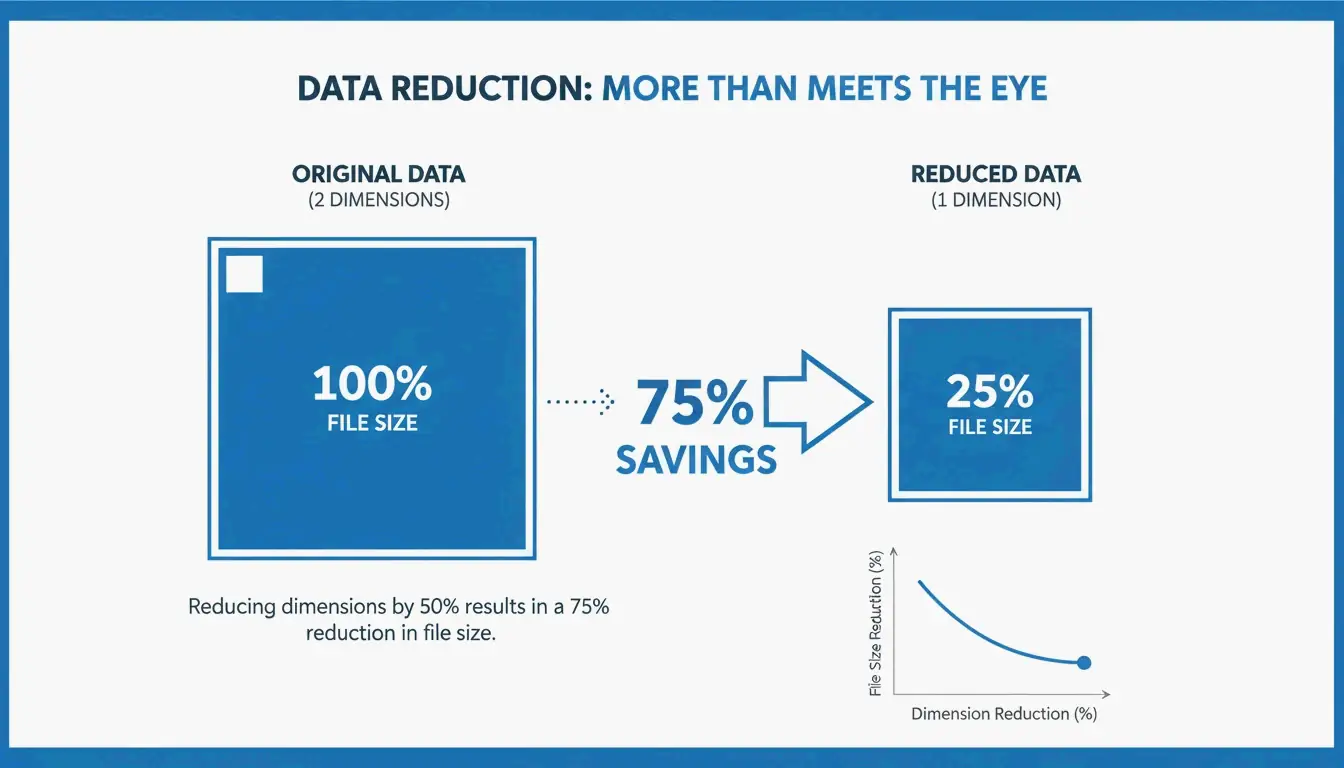
It’s also worth noting that dimensions impact file size more than you might think. According to Utilko, cutting an image’s dimensions in half (for example, going from 4000×3000 down to 2000×1500) can reduce the file size by about 75%. Because you are shrinking both width and height at the same time, the total data drops fast, which helps mobile pages load much quicker.

Visual comparison of file size reduction when dimensions are halved

Social Media Presets: One-Click Optimization for Every Platform

Keeping your brand looking consistent across different apps means following specific Social Media Presets. Instagram, TikTok, and YouTube have strict rules for dimensions. If you don’t follow them, the platforms will compress your images automatically, often making them look blurry or cropped incorrectly. Common sizes include 1080×1080 for Instagram squares, 1080×1920 for Reels, and 1280×720 for YouTube thumbnails.

To keep things looking right, professional tools use an Aspect Ratio Lock so that changing the width automatically fixes the height. Some advanced tools, like BIRME, even use Auto Focal Point Detection. This “smartcrop” technology finds the most important part of the photo—like a person’s face—and makes sure it isn’t cut out during the resizing process.

This is a huge help for Shopify merchants, who often use an 800×800 square fit to keep their product grids looking neat and professional on any screen.

Efficiency at Scale: Mastering Batch Resizing for Professional Workflows

If you have hundreds of photos to fix, Batch Resizing is the only way to get it done quickly. Modern browser tools can now handle long queues of images at once without freezing up your computer. They do this using “dirty-row tracking” and offscreen rendering to keep the process smooth.

The quality of your smaller images depends on the math used to shrink them. FastTool points out that Lanczos resampling is generally better for photos than standard Bilinear methods. It looks at a wider area of pixels to ensure the final result stays sharp.

Finally, many pros in 2026 use EXIF Metadata Scrubbing. This removes hidden data—like the GPS coordinates of where a photo was taken—before the image goes live. It’s an easy way to add a layer of security for both creators and clients.

Conclusion

Auto-resizing in 2026 is about more than just changing numbers; it’s about privacy, speed, and picking the right formats like AVIF. By using client-side WASM technology, you can handle sensitive files and high-res media without worrying about data leaks. For the best results, stick with a local tool like Birme or FastTool, keep your Aspect Ratio locked, and export in AVIF to give your SEO a boost. This keeps your visuals sharp, secure, and ready for the modern web.

FAQ

Is it safe to resize private documents or photos using online tools?

Yes, it is safe if the tool specifically uses client-side processing (WASM or JavaScript). In this mode, your photos are processed entirely within your browser and are never uploaded to a remote server. Before using a tool, always check for “No-Upload,” “100% Client-side,” or “Local Processing” labels to ensure your data remains private.

Why does my image look pixelated after resizing it to a larger size?

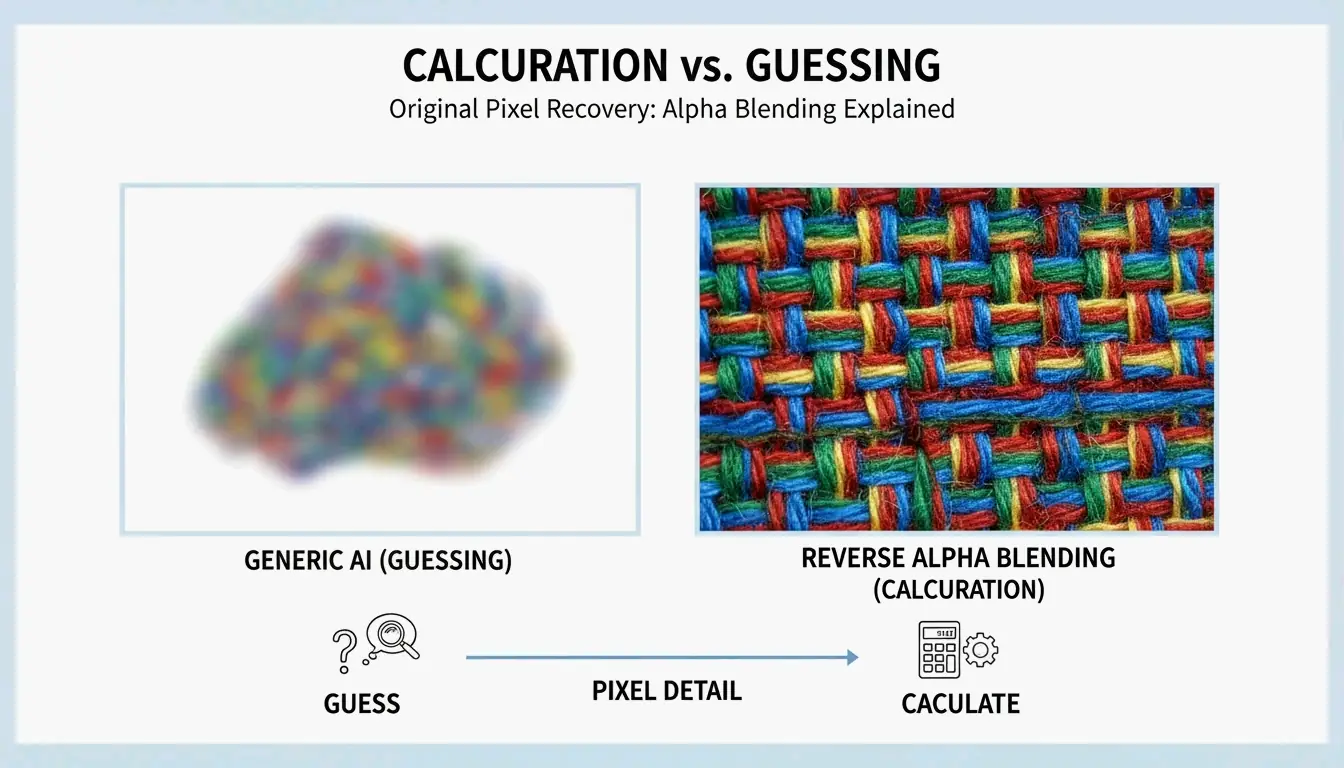
Pixelation occurs because standard resizers use interpolation, which can only approximate new pixels and cannot create genuine new detail. While downscaling (making an image smaller) is safe and maintains clarity, upscaling (making it larger) will inevitably lead to blurriness. For professional results, you should always start with the highest resolution source possible or use specialized AI-based upscaling tools.

How can I resize an image to a specific file size (KB) for email?

To hit a target KB limit, first resize the pixel dimensions to a web-appropriate width (such as 800px or 1200px). Next, adjust the “Quality” slider—usually 70-80% is the sweet spot for compression. Finally, export the file in AVIF or WebP format, as these modern formats provide much better compression-to-quality ratios than traditional JPEGs.

作者

SJ

SectoJoy

独立开发者

我是一名独立开发者,专注于构建 iOS 和 Web 应用程序,致力于打造实用的 SaaS 产品。我擅长 AI SEO,不断探索智能技术如何推动可持续增长和效率提升。

Table of Contents