Kostenlos automatisch skalieren: Die besten browserbasierten Tools für sofortige Bild- und Videooptimierung
Inhaltsverzeichnis
Stand April 2026 kannst du mit browserbasierten Tools wie BIRME oder FastTool kostenlos automatisch skalieren. Diese Plattformen nutzen Client-seitige Verarbeitung (WASM), um 100 % Privatsphäre und null Qualitätsverlust zu gewährleisten. Bilder werden lokal verarbeitet — ohne Registrierung, ohne Wasserzeichen, ohne Server-Upload — und liefern sofortige, sichere Ergebnisse.
Wie du mit Client-seitiger Verarbeitung kostenlos automatisch skalierst
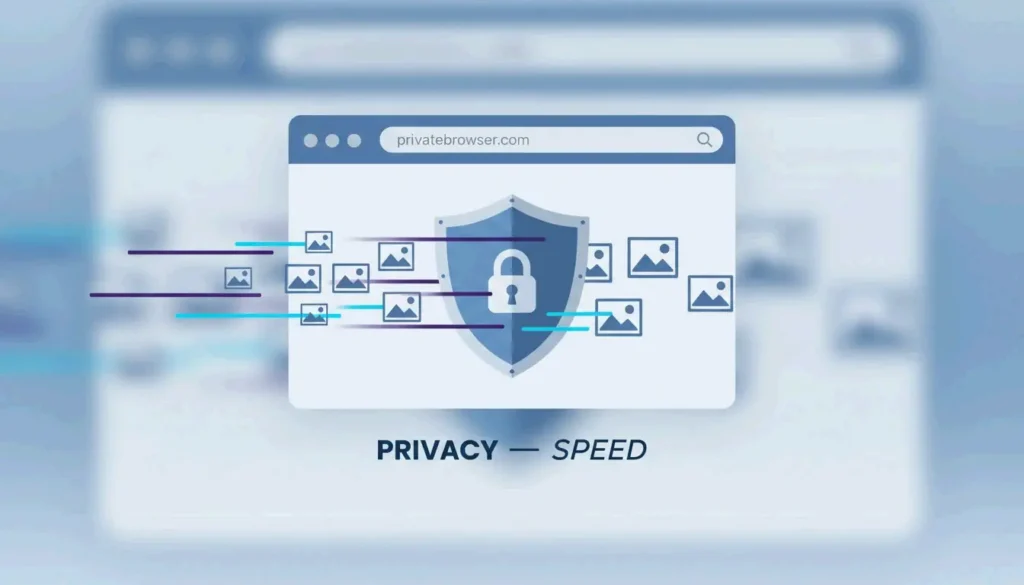
Bis 2026 hat sich die Bildverarbeitung grundlegend verändert. Du musst private Dateien nicht mehr auf entfernte Server hochladen. Moderne Tools verwenden Client-seitige Verarbeitung, das heißt, die gesamte Arbeit erfolgt im Speicher deines Browsers. Laut BIRME bedient dieser datenschutzfirstige Ansatz monatlich über 50.000 Nutzer seit April 2026 und hält Bilder sicher auf dem jeweiligen Gerät jedes Nutzers.
Geschwindigkeit und Sicherheit stammen aus WebAssembly (WASM). Wie FastTool erklärt, ermöglicht WASM Web-Tools, Geschwindigkeiten auf Desktop-Software-Niveau zu erreichen. Es nutzt optimierte Bibliotheken, um rechenintensive Operationen — hochwertiges Resampling, Massenbearbeitung — sofort auf allem zu bewältigen, von leistungsstarken Desktops bis hin zu einfachen Smartphones.
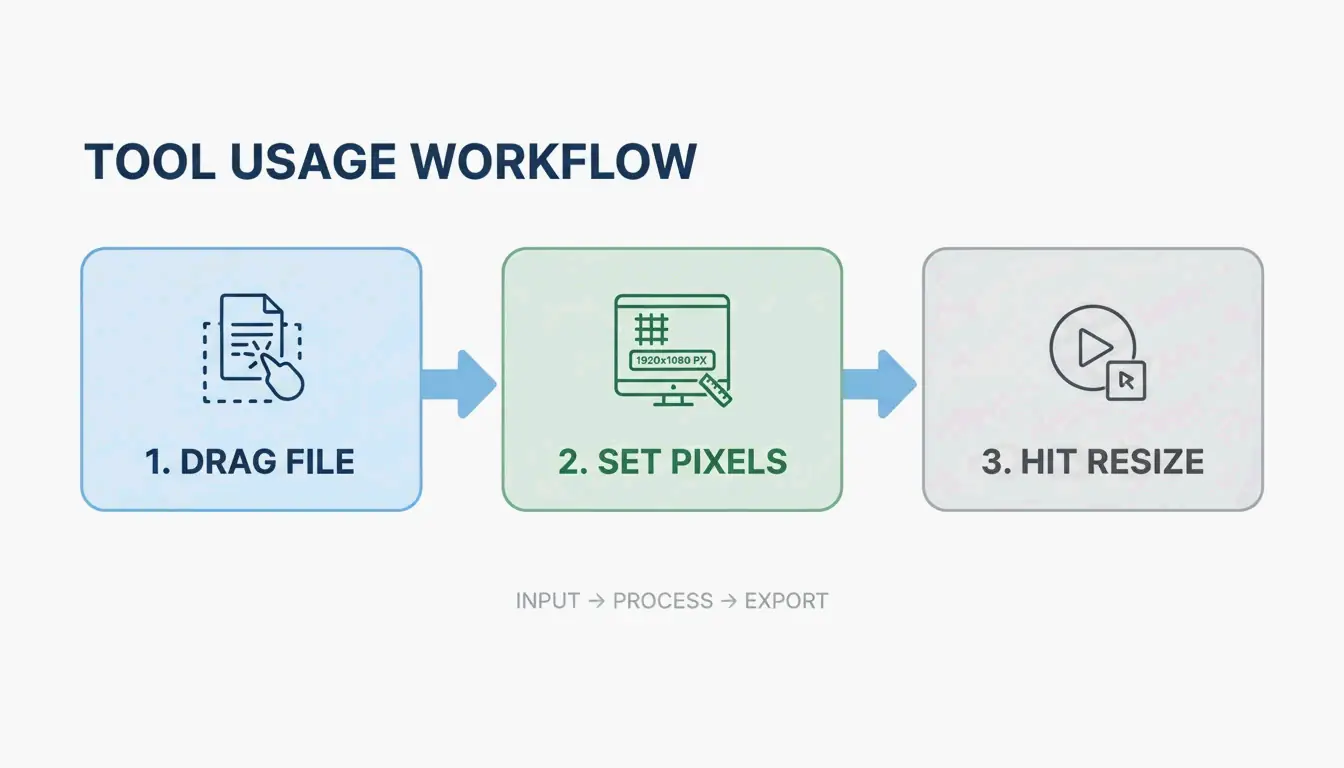
Das 3-Schritte-Ausführungsframework
- Eingabe: Ziehe deine Dateien (JPG, PNG, WebP, AVIF oder MP4) direkt in das Browserfenster.
- Konfiguration: Gib deine gewünschten Pixelmaße ein oder wähle einen Prozentwert. Stelle sicher, dass „Seitenverhältnis sperren” aktiviert ist, um ein Verzerren oder Stauchen zu verhindern.
- Export: Klicke auf „Skalieren”, um die WASM-Engine zu starten. Die Dateien stehen sofort zum Download bereit, bei der Stapelverarbeitung typischerweise als ZIP-Archiv.
Warum modernes SEO im Jahr 2026 AVIF- und WebP-Formate erfordert
Für jeden, der online veröffentlicht, geht es beim Skalieren um mehr, als ein Bild in einen Container passen zu lassen — es beeinflusst direkt die Seitengeschwindigkeit und die Suchrankings. Im Jahr 2026 konzentrieren sich die SEO-Standards stark auf Core Web Vitals und erfordern den Wechsel von Legacy-Formaten wie JPG und PNG zu AVIF und WebP. AVIF ist besonders effektiv, da es die visuelle Schärfe bewahrt und gleichzeitig die Dateigröße drastisch reduziert.
| Format | Kompressionseffizienz | Browser-Unterstützung (2026) | Am besten für |
|---|---|---|---|
| AVIF | Höchste (50-60 % vs. JPEG) | ~93 % | Maximale Kompression |
| WebP | Hoch (25-34 % vs. JPEG) | ~97 % | Balance aus Größe und Kompatibilität |
| JPEG | Basiswert | 100 % | Universelle Kompatibilität |
| PNG | Niedrig für Fotos | 100 % | Transparenz, scharfe Kanten |
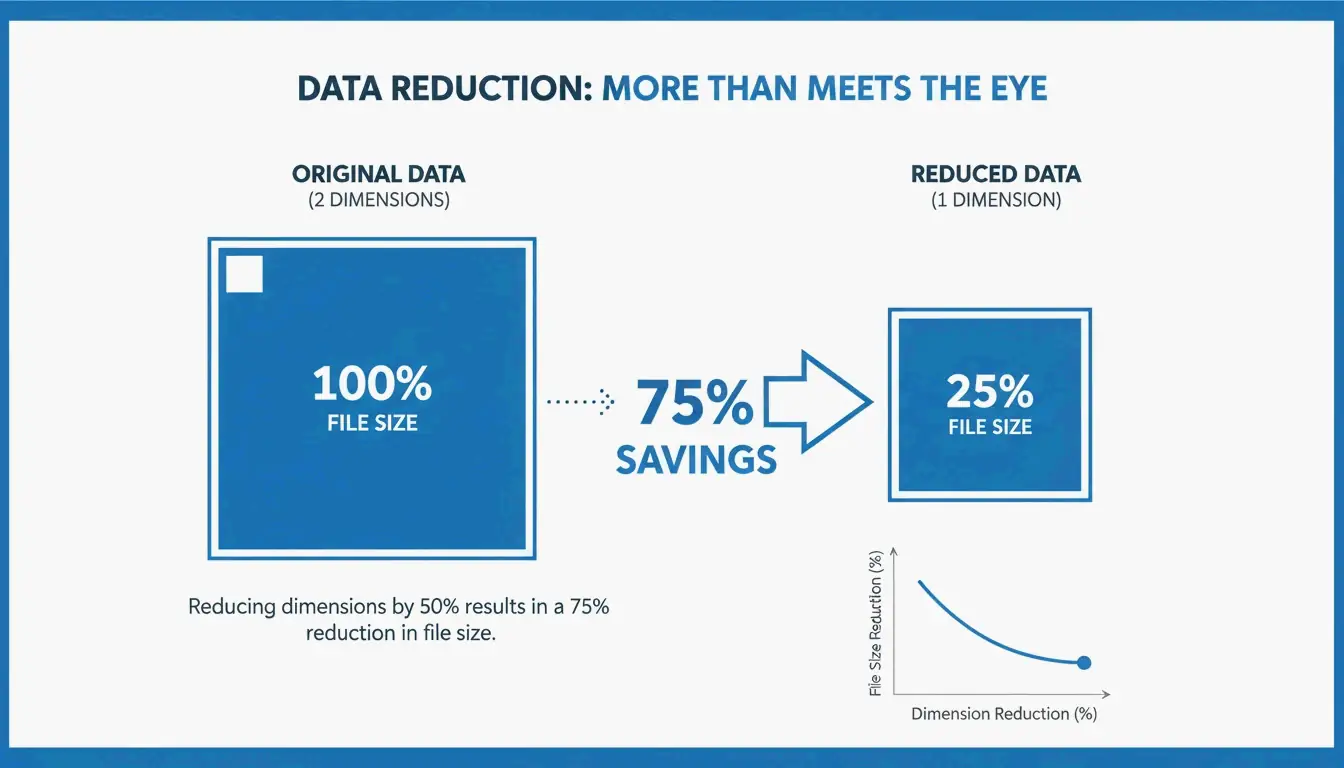
Die Abmessungen haben größeren Einfluss auf die Dateigröße, als viele erkennen. Laut Utilko kann das Halbieren der Bildabmessungen (z. B. von 4000×3000 auf 2000×1500) die Dateigröße um etwa 75 % reduzieren. Da sich Breite und Höhe gleichzeitig verkleinern, nimmt die Gesamt-Datenmenge schnell ab, was die Ladezeiten auf Mobilgeräten deutlich verbessert.
Social-Media-Presets: Ein-Klick-Optimierung für jede Plattform
Markenkonsistenz über Plattformen hinweg erfordert das Befolgen spezifischer Social-Media-Presets. Instagram, TikTok und YouTube setzen strenge Maßanforderungen durch. Nicht konforme Bilder werden von der Plattform automatisch komprimiert, was häufig zu Unschärfe oder falschem Zuschnitt führt.
| Plattform | Format | Abmessungen |
|---|---|---|
| Instagram Quadrat | Feed-Beitrag | 1080 x 1080 px |
| Instagram Reels | Kurzes Video | 1080 x 1920 px |
| YouTube Thumbnails | Video-Miniatur | 1280 x 720 px |
| Shopify Produktraster | E-Commerce | 800 x 800 px |
Professionelle Tools wenden eine Seitenverhältnis-Sperre an, sodass das Ändern der Breite automatisch die Höhe proportional anpasst. Fortgeschrittene Tools wie BIRME nutzen zudem eine automatische Brennpunkterkennung (smartcrop), um den wichtigsten Teil des Fotos zu identifizieren — typischerweise ein Gesicht — und sicherzustellen, dass er beim Skalieren nicht abgeschnitten wird. Das ist besonders wertvoll für Shopify-Händler, die 800×800-Quadrat-Passungen für ein einheitliches Produktraster verwenden.
Effizienz im großen Maßstab: Stapelverarbeitung-Skalieren für professionelle Workflows meistern
Für Projekte mit hohem Volumen ist Stapelverarbeitung-Skalieren der einzige praktische Ansatz. Moderne Browser-Tools können lange Bild-Warteschlangen verarbeiten, ohne einzufrieren, indem sie „Dirty-Row-Tracking” und Offscreen-Rendering verwenden, um eine flüssige Performance aufrechtzuerhalten.
Die Qualität skalierter Bilder hängt vom Resampling-Algorithmus ab. FastTool stellt fest, dass Lanczos-Resampling im Allgemeinen überlegene Ergebnisse für Fotos im Vergleich zu Standard-Bilinear-Methoden liefert, da es einen breiteren Pixelbereich auswertet, um die Schärfe zu bewahren.
| Resampling-Methode | Qualität | Geschwindigkeit | Am besten für |
|---|---|---|---|
| Lanczos | Hoch | Mittel | Fotos, detailreiche Bilder |
| Bilinear | Mittel | Schnell | Schnelle Vorschauen |
| Nearest Neighbor | Niedrig | Am schnellsten | Pixel-Art |
Zusätzlich verwenden viele Profis im Jahr 2026 EXIF-Metadaten-Bereinigung, um versteckte Daten — wie GPS-Koordinaten — zu entfernen, bevor Bilder live gehen. Das fügt sowohl für Urheber als auch für Kunden eine zusätzliche Sicherheitsebene hinzu.
Fazit
Automatisches Skalieren im Jahr 2026 dreht sich um Privatsphäre, Geschwindigkeit und die Wahl der richtigen Formate wie AVIF. Client-seitige WASM-Technologie ermöglicht die sichere Handhabung sensibler Dateien und hochauflösender Medien ohne Datenexposition. Für optimale Ergebnisse verwende ein lokales Tool wie BIRME oder FastTool, halte dein Seitenverhältnis gesperrt und exportiere in AVIF, um die SEO-Performance zu steigern. Dieser Workflow hält deine visuellen Inhalte scharf, sicher und bereit für das moderne Web.
FAQ
Ist es sicher, private Dokumente oder Fotos mit Online-Tools zu skalieren?
Ja, aber nur wenn das Tool ausdrücklich Client-seitige Verarbeitung (WASM oder JavaScript) verwendet. In diesem Modus werden deine Fotos vollständig in deinem Browser verarbeitet und niemals auf einen entfernten Server hochgeladen. Prüfe vor der Nutzung jedes Tools die Labels „Kein Upload”, „100 % Client-seitig” oder „Lokale Verarbeitung”, um die Privatsphäre deiner Daten zu verifizieren.
Warum sieht mein Bild nach dem Skalieren auf eine größere Größe pixelig aus?
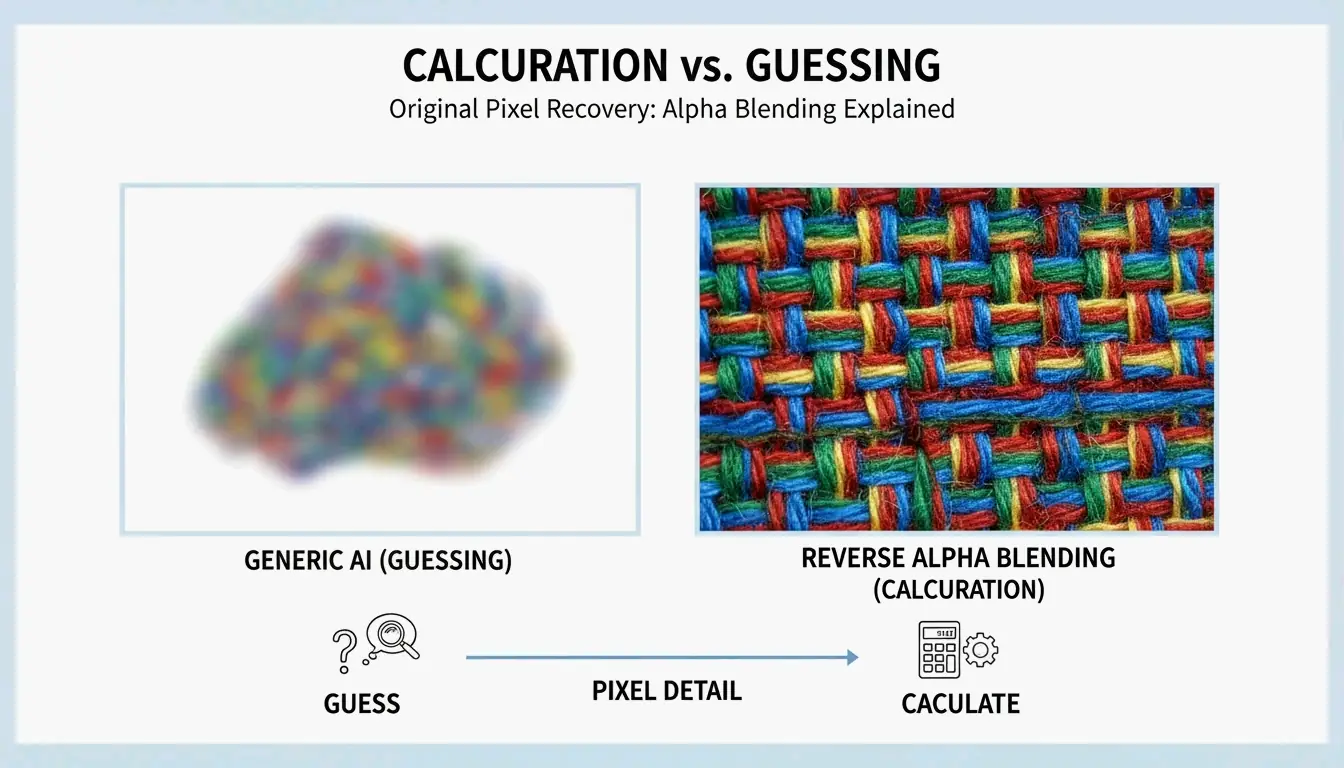
Pixelung entsteht, weil Standard-Skalierer Interpolation verwenden, die neue Pixel nur annähern kann, anstatt echte Details zu erzeugen. Verkleinern (ein Bild kleiner machen) ist sicher und bewahrt die Klarheit. Vergrößern führt unvermeidlich zu Unschärfe. Für professionelle Ergebnisse starte immer mit der höchstverfügbaren Quellauflösung oder verwende spezielle KI-basierte Upscaling-Tools.
Wie kann ich ein Bild auf eine bestimmte Dateigröße (KB) für E-Mail skalieren?
Um ein Ziel-KB-Limit zu erreichen: Skaliere zuerst die Pixelabmessungen auf eine webgerechte Breite (800px oder 1200px). Als Nächstes passe den Qualitätsregler an — normalerweise ist 70-80 % der optimale Bereich. Exportiere abschließend im AVIF- oder WebP-Format, da diese modernen Formate deutlich bessere Kompressions-zu-Qualität-Verhältnisse liefern als herkömmliche JPEGs.
Über den Autor
Indie-Hacker & EntwicklerIch bin ein Indie-Hacker, der iOS- und Webanwendungen entwickelt, mit Fokus auf die Erstellung praktischer SaaS-Produkte. Ich spezialisiere mich auf AI SEO und erkunde ständig, wie intelligente Technologien nachhaltiges Wachstum und Effizienz fördern können.
Zuletzt geprüft 1. Juli 2026. Dieser Artikel wird auf Richtigkeit geprüft und aktualisiert, wenn sich Tooling oder Plattformverhalten ändern.
Redaktionsrichtlinien
Wie ImageLean veröffentlichte Leitfäden recherchiert, testet und aktualisiert.
Werbeoffenlegung
Wie wir Werbung, Sponsoring und Monetarisierung auf der Website handhaben.
Datenschutzansatz
Warum unsere Tools datenschutzfirst sind und wie browserbasierte Verarbeitung funktioniert.