How to Compress HEIC Files Without Losing Quality (2026 Guide)
Table of Contents
To compress HEIC files in 2026, you can use browser-based tools like ConvertMinify or Adobe Express, or use the native “Quick Actions” feature on macOS. By setting the quality slider to 80-85%, you can shrink file sizes by up to 80% while keeping visual clarity and EXIF metadata intact. This ensures your iPhone photos meet upload limits without looking blurry.
The Fastest Ways to Compress HEIC Online and Offline
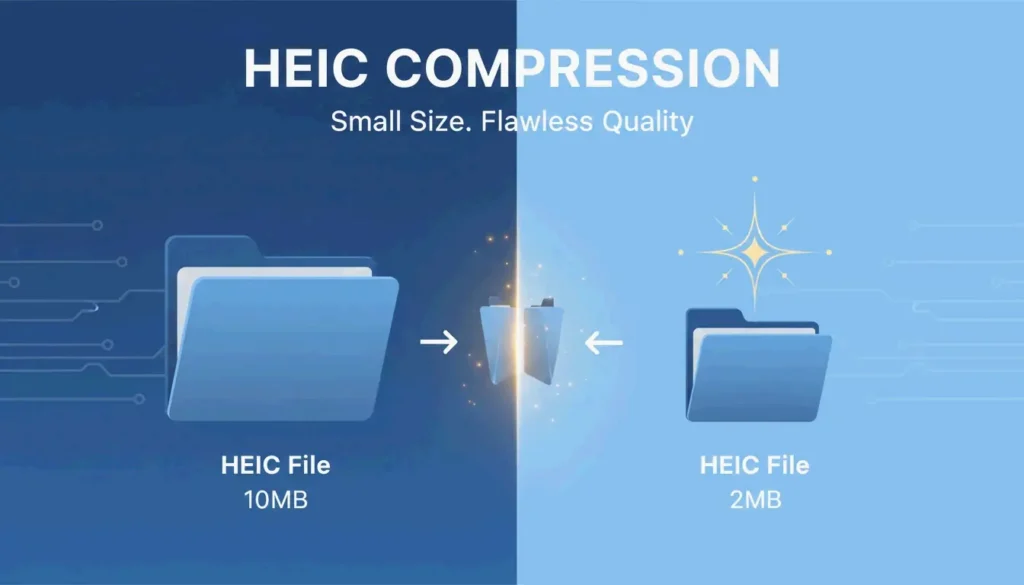
High-resolution photography is great, but it creates a constant battle between image quality and storage space. While the High Efficiency Image Container (HEIC) is built to be lean, modern hardware like the iPhone 15 Pro produces 48MP images. According to ConvertMinify, these files typically range from 5–8 MB, which can easily trigger email attachment limits or slow down a website.
Option 1: Privacy-First Browser Tools (No Upload Required)
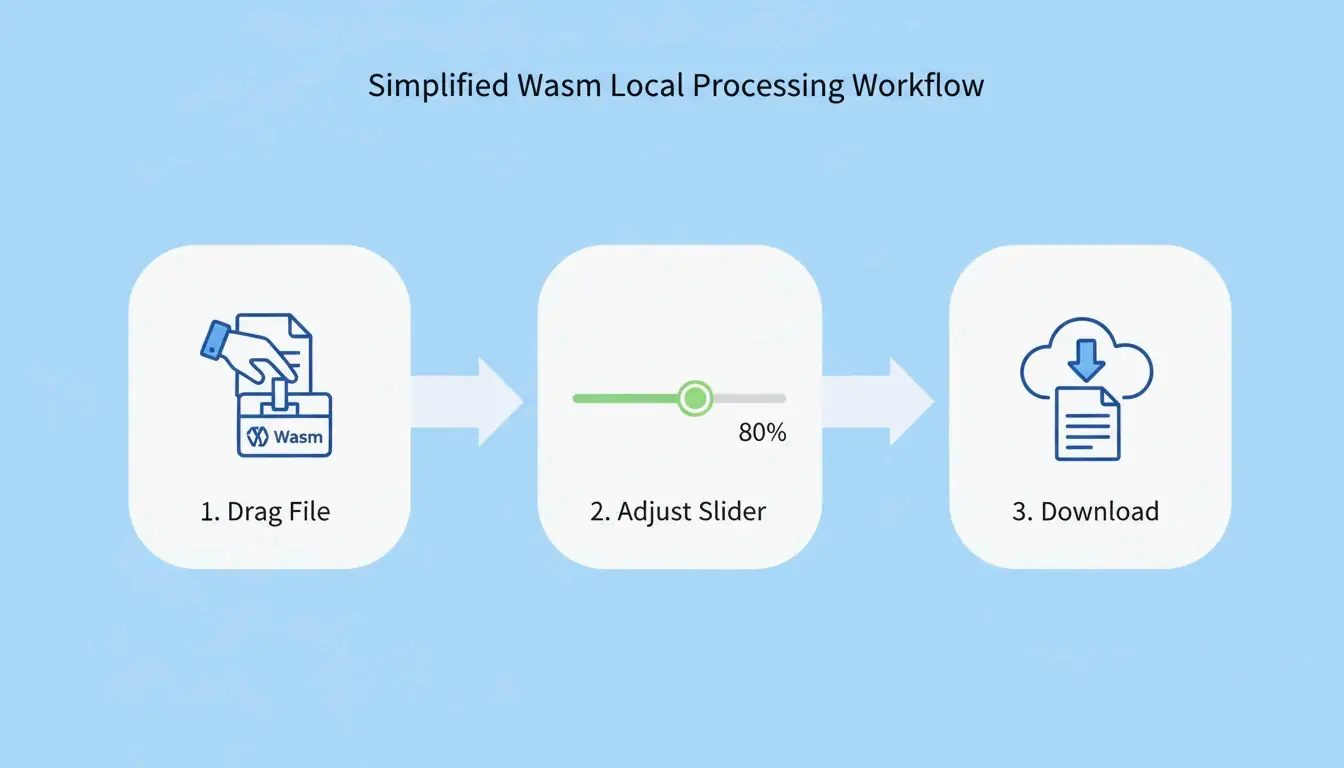
You no longer need to “upload” files to a mysterious server to shrink them. Modern web standards now allow your browser to do the heavy lifting locally. Tools using WebAssembly (Wasm) and HTML5 Canvas, such as FreeToolio, process images right on your device.
- Pick Your Tool: Open a Wasm-based site like ConvertMinify or FreeToolio.
- Find the “Sweet Spot”: Move the quality slider to 80-85%. This is the standard setting to keep 10-bit color depth while significantly cutting the file size.
- Process Locally: Drag and drop your HEIC files. Because the logic runs via Wasm, your photos stay on your computer, ensuring 100% privacy.
- Save: Download your optimized files immediately.
Option 2: Native macOS & Windows Methods
If you prefer to stay away from the browser entirely, your computer already has built-in tools that don’t require any new software.
- macOS Quick Actions: Highlight your HEIC files in Finder, right-click, and go to Quick Actions > Convert Image. Choosing Small, Medium, or Large will trigger an instant local compression.
- Windows Photos App: Windows users will need the “HEIF Image Extensions” from the Microsoft Store first. Once installed, open an image in the Photos app, select “Save As,” and use the quality slider to reduce the size.
- Dedicated Local Apps: For pros handling hundreds of photos at once, native apps like ClearCut or Zipic offer offline processing. These allow for specific CRF (Constant Rate Factor) controls that can shrink files by as much as 90%.
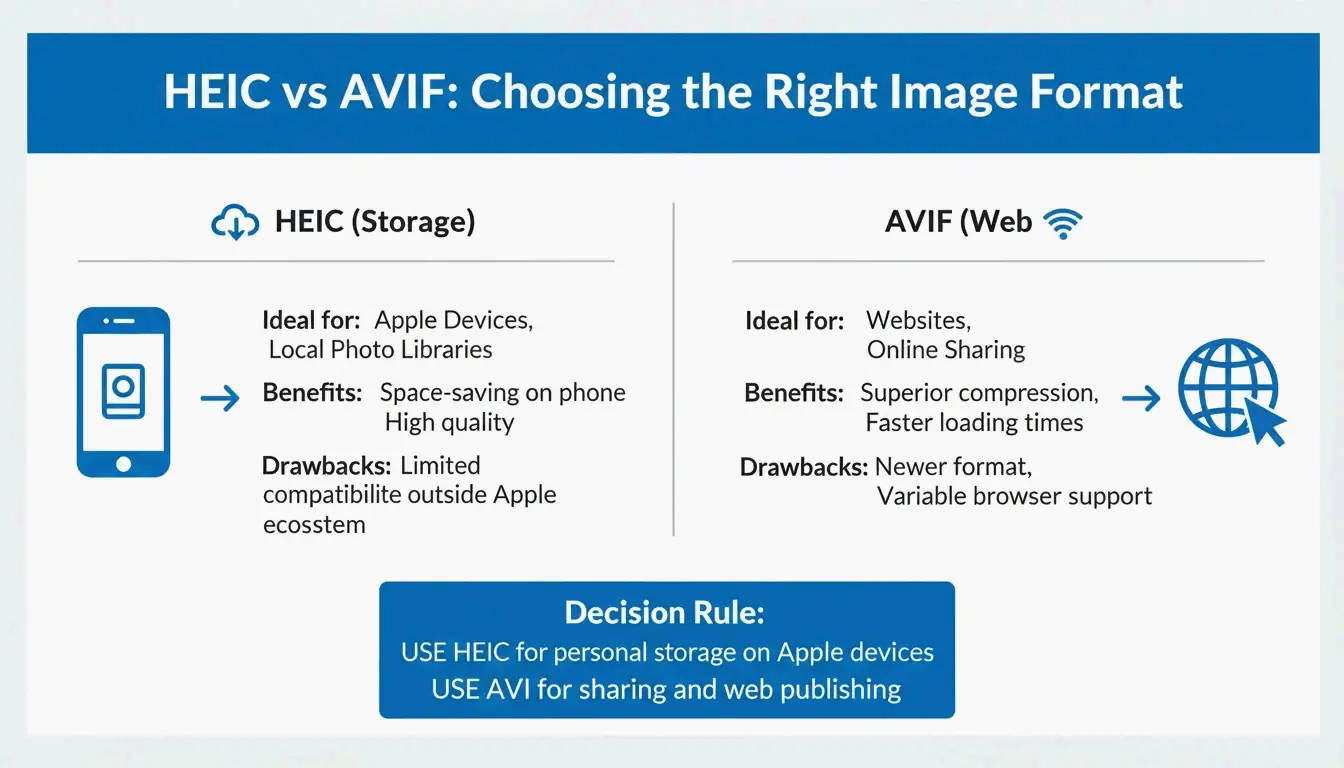
Modern 2026 Workflow: HEIC for Storage vs. AVIF for Web
Choosing the right format depends on where the photo is going. HEIC is still the best “master” format for Apple users (iOS 11+) because it supports Live Photos and non-destructive editing.
However, for sharing on the web, AVIF (AV1 Image File Format) is the new standard. DEV Community notes that AVIF reached about 93% global browser support by 2026. While HEIC is perfect for your phone’s storage, it still isn’t natively supported by browsers like Chrome or Firefox, making it a poor choice for direct web uploads.
The main downside to AVIF is speed. Data from Pixotter shows that AVIF encoding can be 47x slower than WebP or JPEG. For high-traffic sites, the wait is usually worth it because of the massive bandwidth savings and better performance scores.
How Does HEIC Compression Work?
HEIC is based on the HEVC (H.265) video standard. As Utilko points out, it is 50% more efficient than JPEG at the same quality level. This allows it to hold 10-bit color and HDR data in a file half the size of an old 8-bit JPEG.
Understanding Lossy vs. Lossless Compression
- Lossy Compression: This is the default for iPhone photos. It uses “intra-frame prediction” to remove data the human eye can’t actually see.
- Lossless Compression: Reserved for archives or medical imaging where every pixel must be perfect. These files are larger than lossy versions but still smaller than TIFF or BMP files.
Does Compressing HEIC Remove GPS and EXIF Data?
Compression itself doesn’t delete metadata, but many “lite” online tools strip EXIF data (like your camera settings, GPS, and timestamps) to shave off an extra 50-200 KB. Professional tools like Zipic give you a toggle to keep or remove this info. If you’re posting a photo publicly, stripping the GPS data is actually a smart privacy move.
Professional Privacy Checklist: Is Your Compressor Safe?
When you compress HEIC files, security is the most important factor. In 2026, the best practice is to keep everything local.
- The Offline Test: Open the tool, then turn off your Wi-Fi. If it still works, it’s using Wasm or HTML5 Canvas and is safe to use.
- Cloud vs. Local: Be careful with tools that “upload” your files unless they have a clear, verified policy for deleting them. Native apps like ClearCut are 100% local and don’t even require an account.
- Core Web Vitals: For developers, make sure your compressor doesn’t strip color profiles. If it does, images can look “washed out,” which hurts the user experience and your site’s metrics.

Conclusion
Compressing HEIC is a necessity for managing high-res iPhone storage. By 2026, tools have advanced enough to let you do this right in your browser without any privacy risks. Whether you’re trying to fit a photo into an email or optimizing a portfolio, you can reduce the file size without losing the 10-bit depth that makes HEIC so good. For the best results, stick to a Wasm-based compressor at about 82% quality to get the best balance of size and clarity.
FAQ
Why are my iPhone HEIC photos so large even though they are ‘High Efficiency’?
High-resolution sensors, such as the 48MP lenses on the latest iPhones, generate massive amounts of raw data. Additionally, the inclusion of HDR data and 10-bit color depth increases file complexity. According to ConvertMinify, these factors can result in individual files reaching 8 MB despite the efficient codec.
Can I compress HEIC files on Windows without installing third-party software?
Yes. You can use the built-in Windows Photos app to “Save As” or “Resize” the image, though you must first ensure the “HEIF Image Extensions” are installed from the Microsoft Store. Alternatively, use a browser-based tool like FreeToolio that processes the file locally using your browser’s resources.
Does compressing HEIC images remove GPS and EXIF metadata?
It depends entirely on the tool you select. Most native macOS and iOS compression methods preserve metadata by default. However, many third-party web tools provide a toggle to strip EXIF data to further reduce file size or protect user privacy before social media uploads.
About the Author
Indie Hacker & DeveloperI'm an indie hacker building iOS and web applications, with a focus on creating practical SaaS products. I specialize in AI SEO, constantly exploring how intelligent technologies can drive sustainable growth and efficiency.
Last reviewed April 18, 2026. This article is reviewed for accuracy and updated when tooling or platform behavior changes.