SVG to GIF: Convert Static and Animated SVGs Free
Table of Contents
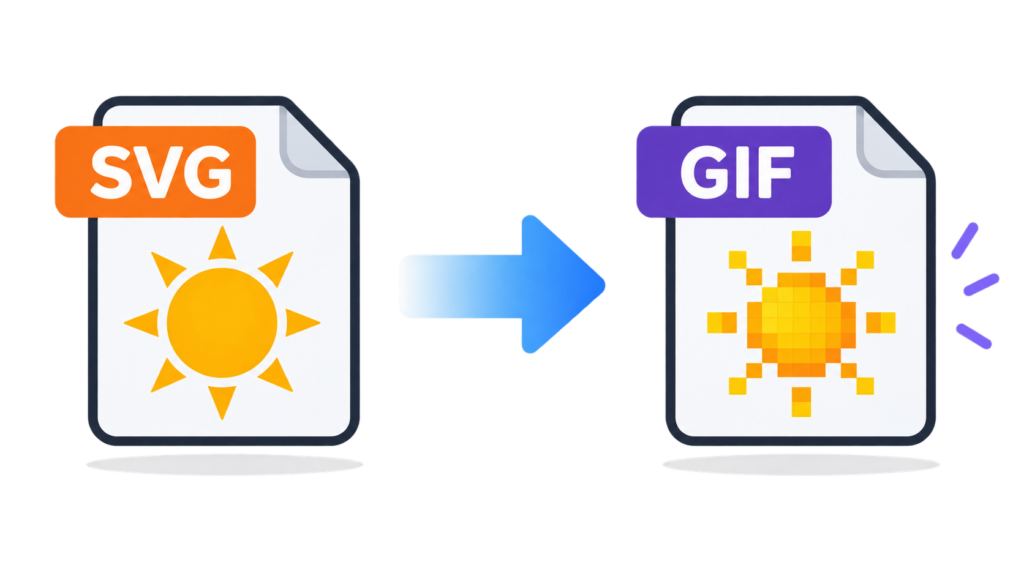
To convert SVG to GIF, upload your .svg file to a free browser-based SVG to GIF converter, pick GIF as the output, then set the dimensions, colors (2–256), dithering and transparency before you download. If your SVG is animated, render the frames first — most converters only export the first static frame.
How to Convert SVG to GIF Online in 3 Steps
The most common SVG to GIF mistake isn’t a bad conversion. It’s downloading the wrong file type. Plenty of pages that call themselves “SVG converters” are actually built around a different output format. The CoolUtils SVG to JPG page, for example, is titled and marketed as a JPG converter. GIF shows up only as one option in a dropdown list, sitting alongside JPEG, BMP, TIFF, ICO, PNG and PDF. Click convert without checking the format selector, and you’ll end up with a .jpg — something you may only notice after the download.
The workflow below is short, but each of the three steps locks in a decision you can’t undo later.
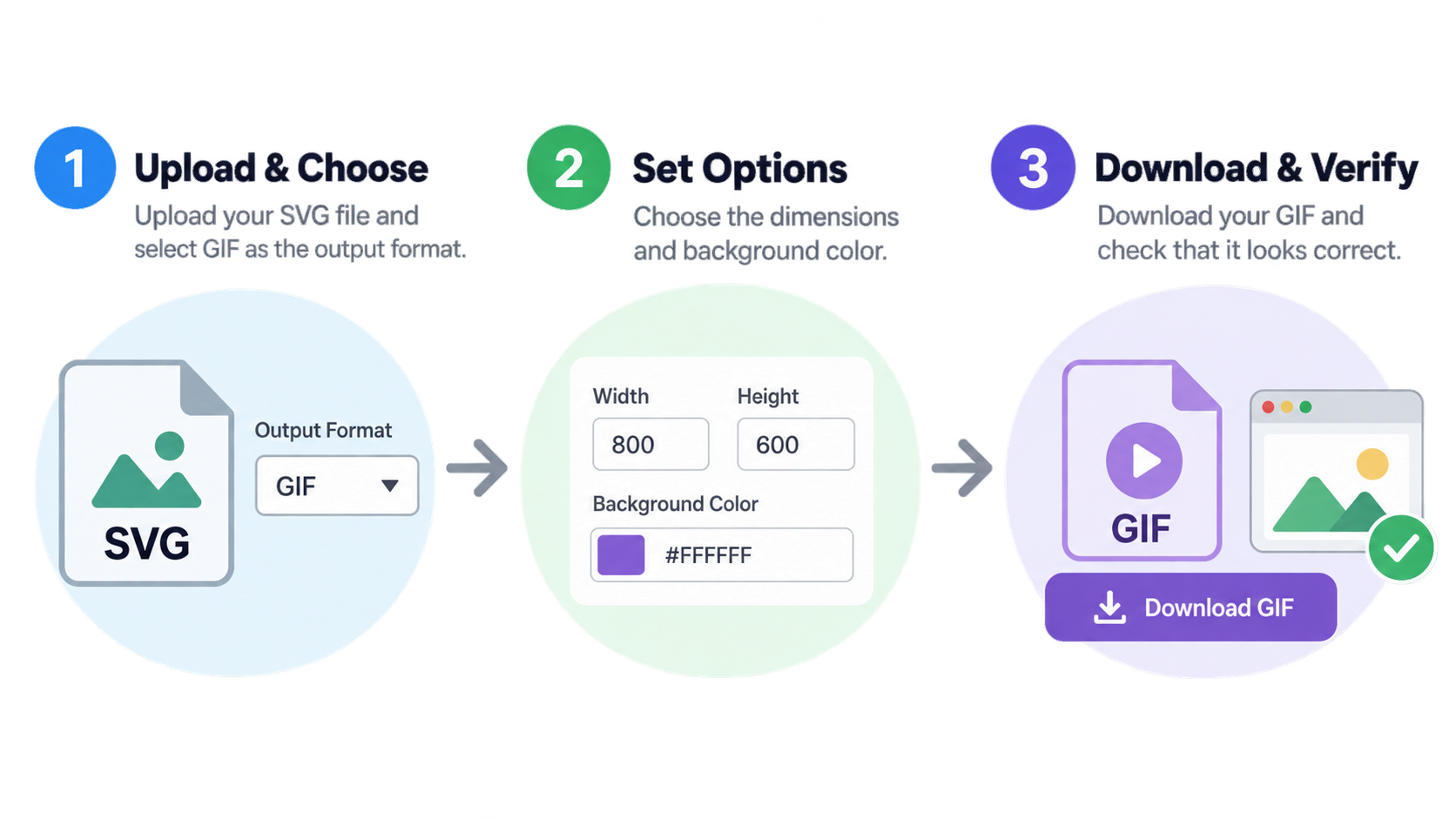
Step 1: Upload the .svg and Make Sure GIF Is the Output Format
Drop your .svg file into the converter’s upload area. Some tools also accept the compressed .svgz variant, which CoolUtils lists as an associated SVG file extension.
The key move here is choosing the format yourself. Open the output format control and select GIF — don’t assume the tool will guess what you want from the input. On several interfaces, GIF is tucked into a secondary “More formats” menu while the default stays on JPG or PNG. Before you hit convert, check two things: the file you uploaded really ends in .svg, and the format field says GIF, not JPEG.
Step 2: Set Dimensions, Colors, Dithering and Transparency
GIF is not a neutral container. What you set here decides how the image looks, and no later step can bring back what you leave out.
A free browser converter like ToFormat’s SVG to GIF tool gives you a typical set of controls: output dimensions, number of colors (2–256), a dithering toggle, and a transparency color. For animated output, it adds frame delay and loop count. Those six values are the whole quality surface of the conversion.
Set the pixel dimensions to match where the GIF will actually appear, pick a color count that suits the artwork, and decide whether you need a transparent background at all. Section 4 walks through the trade-offs behind each setting.
Step 3: Download the .gif and Verify It Before You Ship It
Save the file, open it right away, and check two things before you use it anywhere.
First, does it animate? If the source SVG had an animation and the result sits frozen on a single frame, you’ve hit the static-snapshot limitation described in section 3, and you’ll need a different workflow. Second, where does the tool say your file goes? Retention policies vary a lot and are worth writing down. ToFormat states that files auto-delete after 10 minutes. The CoolUtils page says files are deleted within 24 hours in one section, but another section on the same page says both the SVG and the result are deleted automatically after conversion. That’s a good reason to verify any retention claim on the live page instead of trusting your memory.
A 30-second self-check before you ship the GIF:
- Are the shape’s edges clean, or is there a white halo or hard stair-stepping?
- Does a gradient show visible bands instead of a smooth ramp?
- If it should be animated, does it actually move — and does it loop the way you want?
If something looks off, fix it in the parameters — running the same conversion again with the same settings won’t help.
Why the Result Looks Different: Rasterization and GIF’s Four Hard Limits
Most converters don’t tell you what they’re about to give up. This section turns the format mechanics into what you’ll actually see, so you can predict the outcome instead of discovering it after you download.
Rasterization Picks a Pixel Size You Can’t Undo
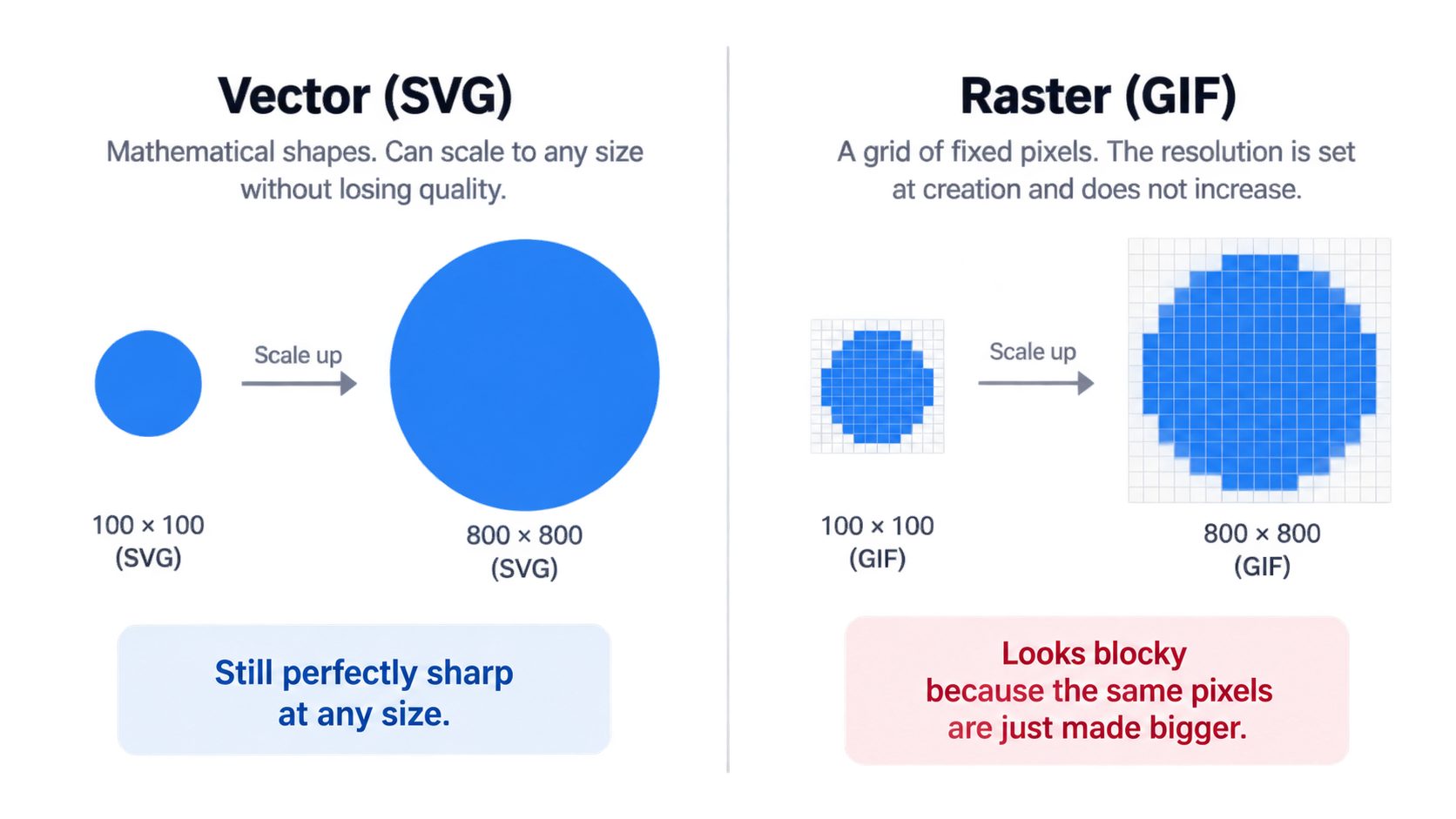
SVG is an XML-based vector format. It describes an image with drawing commands — paths, shapes, strokes, fills, text — rather than pixels. According to the MDN image format guide, SVG has no maximum dimension limit because it isn’t bound to a pixel grid.
GIF is the opposite: a raster format where every pixel holds a fixed value. So converting SVG to GIF requires rasterization — rendering the vector at one specific width and height so it becomes a pixel image. As reaConverter’s technical note on its SVG to JPG page puts it, SVG “describes geometry rather than pixels, so it has no inherent resolution.” The size you choose during conversion “is final: enlarging the JPG afterwards will not recover the sharpness.”
That’s the first decision you can’t reverse. Pick the output size as if it were permanent — because it is.
256 Colors, One Transparent Index, and Dithering Artifacts
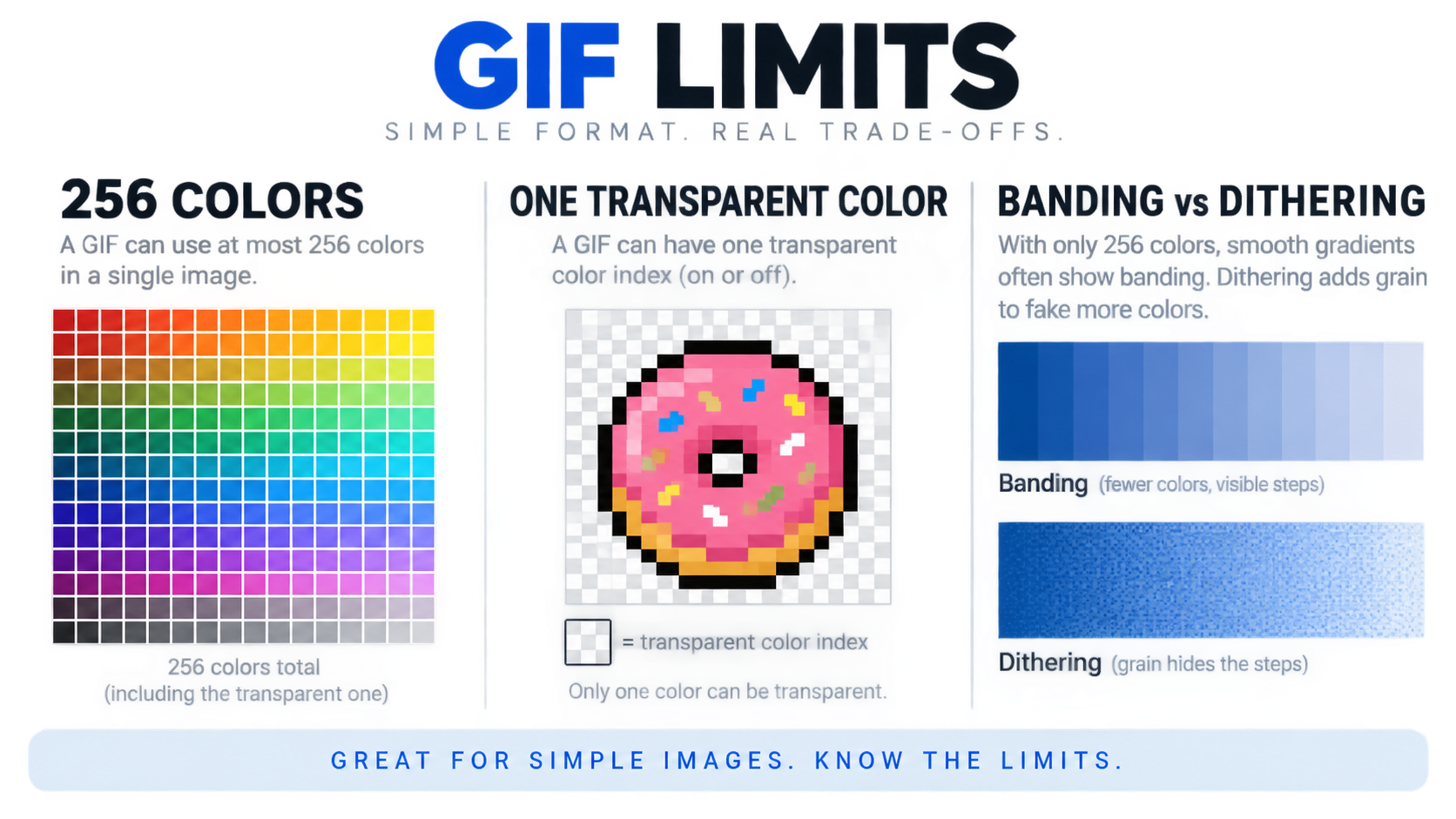
GIF’s color model is behind most visual complaints. Per MDN, GIF is an 8-bit indexed color format: each pixel is a single 8-bit value pointing into a palette of 24-bit colors, and the palette length is always a power of two — 2, 4, 8, 16, 32, 64, 128 or 256 entries. There’s no true color mode.
For a flat two-tone icon, 256 entries are more than enough. For an SVG with a gradient fill, a drop shadow, or an embedded raster image, 256 colors aren’t enough — and the missing values show up as color banding, visible steps where the source had a smooth transition. To simulate more colors than the palette holds, MDN notes that dithering is generally used. That’s the trade: banding, or noise.
Transparency works the same way. MDN states that GIF pixels “are opaque, unless a specific color index is designated as transparent, in which case pixels colored that value are entirely transparent.” There’s no alpha channel — no partial transparency. This matters because vector renderers draw smooth, antialiased edges built from semi-transparent pixels. GIF can’t store a half-transparent pixel, so every edge pixel has to resolve to either fully opaque or fully transparent. What you see is a white or colored fringe around curved shapes, or a jagged edge where the antialiasing used to be.
Dithering isn’t a fix — it’s a trade. Turn it on when a gradient shows obvious banding and the noise texture is acceptable. Leave it off for flat icons, logos and line art, where it adds grain without solving anything.
MDN’s guidance for the format is blunt: GIF is a “good choice for basic images and animations,” but “converting full color images to GIF can result in unsatisfactory dithering.” MDN recommends preferring PNG for lossless and indexed still images, and considering WebP, AVIF or APNG for animation sequences. Worth remembering before you commit to GIF at all.
The 65,536-Pixel Ceiling and File Size Trade-offs
GIF’s maximum dimensions are 65,536 × 65,536 pixels, according to MDN. For icons, logos and UI assets, that ceiling doesn’t matter. For large print-oriented artwork, it’s a real constraint that pushes you toward a different format.
The bigger practical issue is size. GIF uses LZW, a lossless compression method, so there’s no quality dial you can turn down to shrink the file. The only levers are dimensions, palette size, and — for animation — frame count and frame rate. GIF was also one of the first two graphics formats supported by HTML, alongside XBM. That’s exactly why it survives: compatibility, not efficiency.
Four decisions that follow from these limits:
- If your SVG is a flat icon, keep the color count low and dithering off — the limits barely apply.
- If your SVG has gradients or shadows, start with a high color count, then turn dithering on only if banding shows up.
- If your SVG needs a transparent background over a colored page, expect an edge halo and consider a matte color instead.
- If your SVG needs smooth transparency, small file size, or more than 256 colors, GIF is the wrong target format — see section 6.
How to Convert an Animated SVG to an Animated GIF (Without Losing the Motion)
Converting a static SVG is a one-click job. Converting an animated one isn’t — and this is where most SVG to GIF instructions stop short.
Why Some Converters Only Capture the First Frame
SVG animation is a stable, widely supported feature. The MDN <animate> reference documents the element as Baseline widely available, supported across browsers since January 2020, and standardized in SVG Animations Level 2 (the MDN page was last modified September 11, 2026).
The gap is on the tool side. In its own FAQ, CoolUtils states plainly that JavaScript and CSS animations are “rendered in their initial state,” and that the converter “outputs a static snapshot of the SVG as it appears before any animations run.” It adds that dynamic SVG effects are not captured.
Framing matters here. That’s one vendor describing its own online converter — not a statement about every SVG tool, since some converters do handle animation. But it does explain the most common complaint in this workflow: you convert an animated SVG and get back a still image. The format supports motion; the pipeline doesn’t.
So before you invest time in a converter, test it with a known animated SVG and check whether the output moves. If it doesn’t, no setting in the interface will fix it.
Step A: Render SMIL and CSS Animations into a PNG Frame Sequence
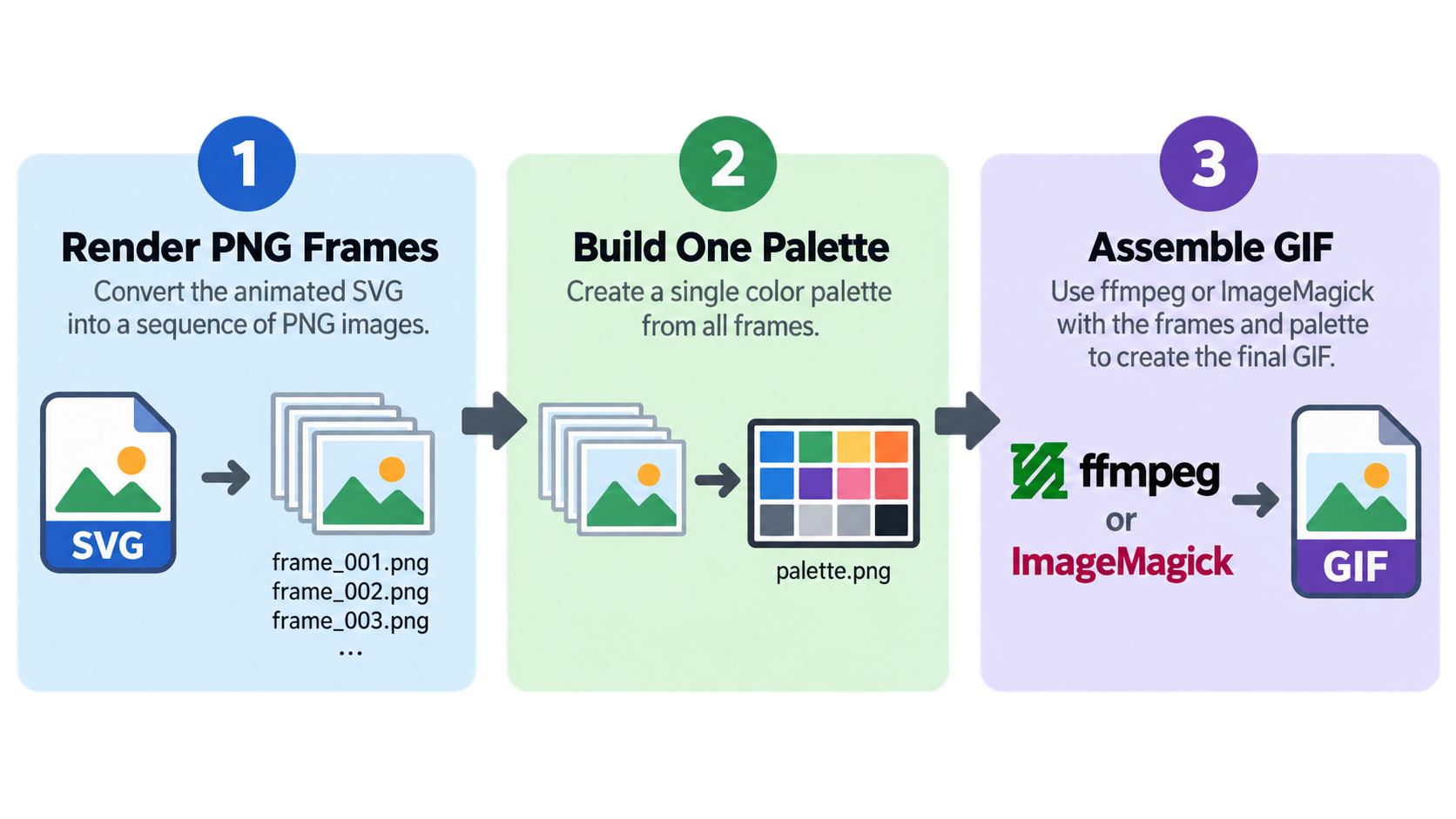
Animated GIF needs a sequence of raster frames. Animated SVG produces continuous motion at render time. Something has to bridge the two, and that bridge is a PNG frame sequence.
Three routes work:
- Headless browser screenshots. Drive a browser programmatically, step the animation clock to a specific timestamp, capture a screenshot, and repeat for each frame. This gives you exact control over frame timing and output size.
- Browser rendering with timed capture. Open the SVG in a browser tab, play the animation, and grab screenshots at fixed intervals. Simpler to set up, but less precise on timing.
- Desktop editors. Open the SVG in Inkscape, Photoshop or GIMP and export frames one at a time. Slowest of the three, but no scripting needed, and you can inspect each frame.
Whichever route you pick, set the raster output size before exporting. Every frame inherits the rasterization decision from section 2 — and so does the final GIF.
Step B: Assemble the Frames with ffmpeg or ImageMagick
Once you have numbered PNG frames, assemble them with a palette-based encoder. Here’s why: because of the 256-color limit, a naive conversion re-quantizes every frame on its own, which causes flicker. A two-pass approach builds one palette from the whole sequence and applies it to every frame.
With ffmpeg, that’s the standard palettegen / paletteuse pair:
ffmpeg -i frame_%04d.png -vf "palettegen" palette.png
ffmpeg -i frame_%04d.png -i palette.png -lavfi "paletteuse" output.gif
Add a max-colors value to the first pass if you want a smaller palette, and adjust frame rate and loop behavior on the second pass.
With ImageMagick, the equivalent controls are -colors for palette size, -delay for frame timing, -loop for repeat count, and -dispose to control how each frame replaces the previous one.
Starting parameters that work for most icon- and logo-style animations:
- Frame rate: 12–25 fps is enough. Higher rates multiply file size without adding visible smoothness for this kind of artwork.
- Color count: 32–128. Match it to the complexity of the artwork instead of defaulting to 256.
- Loop count:
0means infinite; a finite number gives viewers an exit. - Dispose method: matters for animations where frames don’t repaint the full canvas — the wrong setting leaves trails.
After assembly, go back to section 2 and check the result against all four GIF limits. Animated files grow fast — if the GIF is too large, reduce dimensions or cut the frame rate before touching anything else.
If you’d rather skip the command line, there’s a limited middle route: ToFormat lets you select multiple SVGs — up to 20 — and combine them into a single animation with controllable frame delay and loop count. That’s a different operation from converting one animated SVG, but it covers cases like building a frame-based sequence from separately drawn SVG files.
Accessibility: Flashing Frames and prefers-reduced-motion
Per the MDN <animate> documentation, blinking and flashing animation can be a problem for people with cognitive conditions such as ADHD, and certain kinds of motion can trigger vestibular disorders, epilepsy, migraine and scotopic sensitivity.
MDN’s recommended mitigations include giving users a way to pause or disable the animation, and honoring the reduced motion media query (prefers-reduced-motion) or the equivalent Sec-CH-Prefers-Reduced-Motion client hint. A GIF runs on its own with no pause control, so the equivalent step is to check the output before publishing: reduce flashing frequency, keep the loop short, or offer a static version alongside it.
Output Settings That Actually Matter: Size, Colors, Dithering, Transparency, Delay and Loop
Every control in the converter maps to a visible consequence. Think of these as trade-offs, not labels.
Color Count and Dithering: Fixing Banding Without Adding Noise
Color count is limited by GIF’s 8-bit indexed palette, which tops out at 256 entries, per MDN. Within that ceiling, match the count to the artwork: flat icons and simple logos generally hold up well at 16–32 colors. Anything with a gradient, soft shadow or photographic content should start at 128 and only go to 256 if the result still bands. Because the palette length is always a power of two, intermediate values like 100 get rounded to 64 or 128 anyway.
Dithering hides banding by scattering pixels from adjacent palette entries. The cost is grain. MDN notes that dithering is generally used to simulate more than 256 colors, and separately warns that converting full-color images to GIF can produce unsatisfactory dithering — so it’s a mitigation, not a cure. Turn it on only when you can see banding; turn it off for flat graphics, where it adds visible noise for no benefit.
Ordered (pattern-based) dithering tends to produce a more uniform texture than random or error-diffusion methods, which matters for small icons where individual pixels are visible.
Transparency and the Edge Halo Problem
GIF stores exactly one transparent color index — not an alpha channel. Every pixel is either fully opaque or fully transparent.
SVG artwork, however, is antialiased: the renderer blends edge pixels between the shape color and the background so curves look smooth. When those blended pixels hit GIF, each one has to pick a side. You’ll see it as a light fringe around dark shapes on a colored page, or ragged edges around circles and text.
Three practical options:
- Composite onto a matte. Add a solid background rectangle to the SVG in the same color as the page the GIF will sit on, so the antialiased edges blend into something real.
- Reduce edge complexity. At small output sizes, simple straight-edged shapes survive the transparency limit better than curved or stroked artwork.
- Avoid transparency entirely. If the destination has a predictable background, a solid background is often cleaner than a bad transparent one.
Also worth knowing: in a converter that exposes a “transparency color” setting, you’re choosing which palette entry becomes the transparent index. If your artwork happens to contain that color, those pixels will vanish too.
Frame Delay, Loop Count and Shrinking the File
Frame delay is usually expressed in hundredths of a second per frame in the GIF format itself, and many interfaces show milliseconds. Delay values that are too small can be clamped by some players, which makes a carefully tuned animation play back at a different speed than you intended. Test in the actual destination — email client, chat app, browser — not just in a preview window.
Loop count of 0 means infinite repetition. A finite count lets a long or detailed animation stop after a few cycles instead of looping forever.
File size responds best to a specific order of operations:
- Reduce output dimensions — this is the largest single lever.
- Reduce the color count to the smallest palette that still looks right.
- Cut the frame rate or drop frames.
- Adjust dithering last, since it has a modest size effect relative to the first three.
A ToFormat conversion, for instance, exposes dimensions, a 2–256 color range, dithering, a transparency color, plus frame delay and loop count for animation — a fair checklist of everything you can control, and everything that affects the result.
Which SVG to GIF Converter Should You Use? Online, Desktop or Browser-Local
There’s no single best converter, because the deciding factors are file size limits, whether your file leaves your machine, animation support, and batch capability. Compare on those criteria, not on marketing copy.
Converter Comparison Table (File Limits, Upload Policy, Animation Support)
Limits and retention statements below were checked on 2026-10-03 and are vendor self-descriptions. Treat the live page as authoritative — these values change.
| Tool | Type | Stated input limit | Where files go | Animation | Notes |
|---|---|---|---|---|---|
| ToFormat | Browser, free | Not stated in the page summary | Uploaded; auto-delete in 10 minutes | Combines up to 20 SVGs into one animation; frame delay and loop count | 2–256 colors, dithering, transparency color, ZIP download |
| CoolUtils online | Browser, free | 50 MB | Uploaded; page says deletion within 24 hours in one section and automatic deletion after conversion in another | Only the initial static state, per its own FAQ | Page updated 6 September 2026; GIF is one of several output formats |
| IntoConvert | Browser, free | 150 MB | Uploaded; deleted when the download is sent, not stored | No SVG animation path documented | Publishes public conversion guides; ffmpeg-based GIF workflows documented for video |
| Innerscene | Browser, free | 200 MB (adapts to device memory) | Never uploaded — parsed and exported in the browser tab | Not documented for animation | No signup, no watermark; useful for NDA or client material |
| reaConverter Lite | Desktop, Windows 10/11, free | No limit stated | Local — nothing uploaded | Not documented for SVG animation | Batch, right-click conversion, offline; vendor page lists an average user rating of 4.8, last updated September 12, 2026, v8.0.250; the page’s primary target is SVG → JPG |
| Svgtopng.com | Browser, free | Up to 20 files at once | Uploaded | Not documented | Returns single files or a ZIP; also handles EPS and JPG |
| CloudConvert | Browser / API | Not stated | Uploaded | Not documented | Supports 200+ formats and offers APIs for bulk conversion |
| Canva | Browser | Not stated | Uploaded | Not documented | Conversion plus built-in editing tools |
A note on what this table can and can’t tell you: most of these pages describe themselves, and the animation column reflects what each vendor documents, not exhaustive testing. CoolUtils and reaConverter are both built mainly around static image conversion, so if animation is your requirement, verify before committing.
Which Option Fits Which User
- One-off static icon or logo, nothing sensitive: any free online converter works. Pick one whose retention policy you actually read.
- Animated SVG: skip the general-purpose online converters unless the tool explicitly documents animation support. Plan on the frame-sequence route in section 3.
- Confidential or client-restricted artwork: use a browser-local tool such as Innerscene, or a desktop converter such as reaConverter Lite. Nothing leaves your machine.
- Hundreds of icons with identical settings: use a desktop batch converter or a command-line pipeline. Online tools cap out — ToFormat at 20 files, Svgtopng.com at 20 files per upload — which is why section 7 exists.
Server-Side Conversion and MIME Types
If you’re converting on a server rather than in a browser, two headers matter. Per MDN, SVG’s MIME type is image/svg+xml and GIF’s is image/gif. Serve the source with the correct type so the renderer treats it as an image, and set the output Content-Type to image/gif — a GIF served as application/octet-stream will download instead of display, and one served as image/svg+xml will fail to render.
Check caching and compression policy alongside the headers. SVG source compresses well in transit or as .svgz, while GIF’s LZW data doesn’t benefit much from further compression, so caching is the more useful lever for repeated requests.
When You Actually Need a GIF — and When APNG or WebP Is the Better Answer
GIF’s 256-color palette and one-bit transparency are real costs. The question is whether your target environment leaves you any choice.
Scenarios Where GIF Is Still the Only Option
These are the environments that reject SVG outright — which is where GIF earns its place. The CoolUtils SVG to JPG page lists several: most email clients don’t render SVG images inline; inserting SVG into older Office versions produces unpredictable results; Twitter, LinkedIn and Instagram reject SVG uploads; and some CMS media libraries only accept raster formats in their uploader.
In each of those cases, the format isn’t a preference — it’s a compatibility floor. GIF’s historical support across Chrome, Edge, Firefox, IE, Opera and Safari, plus its status as one of the first two graphics formats supported by HTML, is exactly why it still works where newer formats don’t.
GIF vs APNG vs WebP: A Neutral Comparison
MDN’s format guide gives GIF a qualified endorsement: “Good choice for basic images and animations. Prefer PNG for lossless and indexed still images, and consider WebP, AVIF or APNG for animation sequences.”
The technical differences explain that recommendation:
| GIF | APNG | WebP | AVIF | |
|---|---|---|---|---|
| Color depth | 8-bit indexed, max 256 colors | Multiple color depths supported | Higher color depths than PNG/JPEG | Higher color depths, HDR, wide gamut |
| Transparency | Single transparent color index | Full alpha | Alpha supported | Alpha supported |
| Max dimensions (MDN) | 65,536 × 65,536 | 2,147,483,647 × 2,147,483,647 | 16,383 × 16,383 | 2,147,483,647 × 2,147,483,647 |
| Compression | Lossless (LZW) only | Lossless | Lossy and lossless | Lossy and lossless |
| Browser support | All versions of Chrome, Edge, Firefox, Opera, Safari | Chrome, Edge, Firefox, Opera, Safari | All versions of Chrome, Edge, Firefox, Opera, Safari | Chrome, Edge, Firefox, Opera, Safari |
Two notes on performance. MDN states that lossy WebP images are on average 25–35% smaller than JPEG images of visually similar compression levels, and that lossless WebP images are typically about 26% smaller than the same images in PNG format. For AVIF, MDN reports that lossy AVIF images run roughly 50% smaller than JPEG at comparable visual quality, and cites a median compression advantage over WebP of about 50% versus 30% on the same JPEG set. APNG’s specific edge over GIF, per MDN, is that it supports a variety of color depths “whereas animated GIF supports only 8-bit indexed color.”
The judgment rule: if the destination environment accepts anything, don’t use GIF — APNG, WebP or AVIF will give you better transparency and smaller files, and MDN recommends providing a <picture>-based fallback where browser support isn’t universal. If the destination only accepts GIF, use GIF and push the four limits from section 2 as hard as they’ll go.
Batch Converting a Folder of SVG Icons to GIF
Icon libraries hit online converter limits fast. ToFormat caps a combined animation at 20 SVG files, and Svgtopng.com accepts up to 20 files at once — fine for a handful of assets, not for a 300-icon design system.
Desktop route. A batch-capable desktop converter processes an entire folder in one pass. reaConverter Lite offers batch conversion, right-click conversion from Windows Explorer, and fully offline processing, with a vendor-stated average user rating of 4.8 as of the September 12, 2026 page update. Alternatively, export PNGs from Inkscape’s command line and assemble them in a batch step.
Command-line route. ImageMagick’s mogrify and convert can loop over a directory and apply identical settings to every file — -resize for output dimensions, -density for render resolution, and -colors for palette size. For animated sequences, an ffmpeg palette pipeline run per file keeps the encoding consistent across the set.
Consistency rules for icon sets. Lock these in before you start the batch, not after: one output pixel size, one color count, one dithering setting, one naming convention. Mixed palettes and mixed edge treatment are immediately visible when a set of icons sits side by side in a UI — and fixing them one file at a time costs far more than setting them once across the folder.
Conclusion
SVG to GIF is really two different jobs. Converting static art is a one-click rasterization bounded by decisions you make once — output size, color count, dithering, transparency. Converting an animated SVG is a pipeline: render frames, then assemble them with a shared palette, because most simple converters hand you only the first frame.
Start by testing whether your converter preserves motion at all. If it doesn’t, go the frame-sequence route. If it does, tune in the order that actually moves file size: dimensions first, then color count, then frame rate, and dithering last. Use a local or desktop tool when the files are sensitive or the set is large. And before you commit, check section 6 — if the destination accepts APNG, WebP or AVIF, GIF is rarely the right answer.
FAQ
Can I convert an animated SVG to an animated GIF for free, or do I need desktop software?
Free online conversion is possible, but only if the tool genuinely supports animation. Some converters document that they output a static snapshot of the animation’s initial state — CoolUtils states this about its own converter — so verify with a test file. The free fallback is to render PNG frames in a browser and assemble them with ffmpeg’s palettegen/paletteuse pair.
Why did my SVG lose its transparent background, or look dithered, after converting to GIF?
GIF has no alpha channel. Per MDN, pixels are opaque unless one specific palette color index is designated transparent, so the antialiased semi-transparent edges of an SVG must resolve to fully opaque or fully transparent — producing a halo or jagged edges. Dithering is typically the converter’s automatic attempt to cover 256-color banding, and it adds visible grain.
Is my SVG file uploaded to a server when I convert it to GIF online?
It depends on the tool. Most online converters upload your file; a few, such as Innerscene, state that parsing and export run entirely in the browser tab and nothing is transmitted — ImageLean’s SVG to GIF converter is built on the same browser-based privacy model. Retention policies also vary, and the same page can contain inconsistent statements — the CoolUtils page describes both 24-hour deletion and deletion immediately after conversion. Check the live page for anything sensitive.
Can I convert GIF back to SVG?
Not in any real sense. GIF is a raster bitmap and SVG is vector, so the geometry is lost during rasterization — it cannot be recovered. Automatic tracing produces only an approximation, with distorted edges and approximated colors. If you need a scalable version, go back to the original SVG source file rather than reconstructing one from a GIF.
Is GIF still a good choice for web animation in 2026, or should I use APNG or WebP instead?
Where the environment is unconstrained, APNG, WebP and AVIF generally deliver smaller files and better transparency. MDN’s format guide advises preferring PNG for lossless and indexed still images and considering WebP, AVIF or APNG for animation sequences. GIF’s remaining advantage is the broadest historical compatibility — email clients, social platforms and older software — so use it there and choose a newer format elsewhere.
How do I batch-convert a whole folder of SVG icons to GIF offline?
Online tools cap uploads — ToFormat combines up to 20 SVGs, and Svgtopng.com accepts up to 20 files at once — so a full icon library will exceed them. Use a desktop batch converter with offline processing, or export PNGs from Inkscape’s command line and process the directory with ImageMagick or ffmpeg, applying identical size, color count and dithering settings to every file.
About the Author
Indie Hacker & DeveloperI'm an indie hacker building iOS and web applications, with a focus on creating practical SaaS products. I specialize in AI SEO, constantly exploring how intelligent technologies can drive sustainable growth and efficiency.
Last reviewed October 3, 2026. This article is reviewed for accuracy and updated when tooling or platform behavior changes.