How to Change Photos Size Fast – 2026 Guide for Web, iOS, and Android
目錄
Changing photos size in 2026 is fastest with free web-based tools like BIRME or Img2Go for bulk processing, or native tools like the updated iOS “Preview” and Android “Google Photos.” Upload your image, set target pixels or percentage, lock the aspect ratio, and download the optimized file.
Quick Ways to Change Photos Size Without Quality Loss
When you need to change photos size, first decide between Pixels vs. Percentage:
| Method | Best For | Example |
|---|---|---|
| Resize by pixels | Exact dimensions for web forms, social headers | Set width to 1080px |
| Scale by percentage | Quick proportional shrinking of large files | Reduce to 50% |
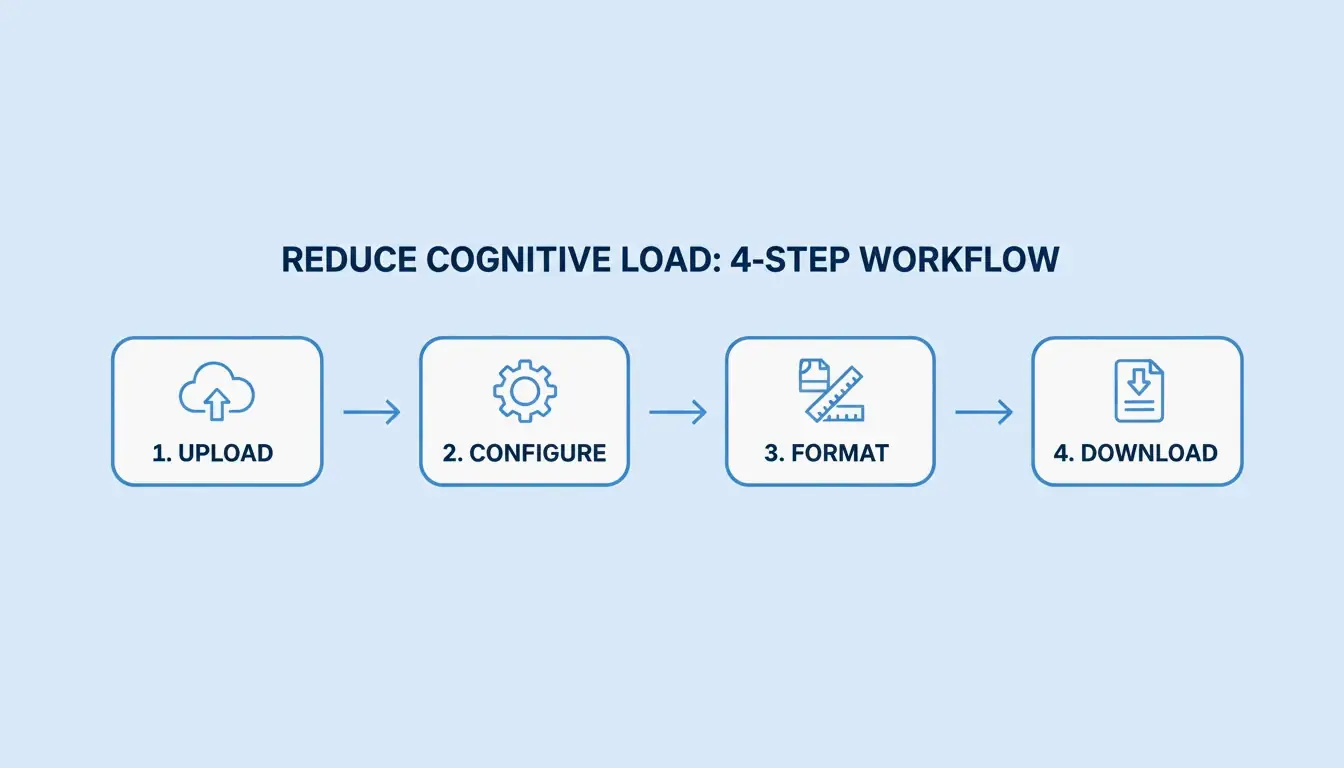
Standard 4-step resizing process:
| Step | Action | Detail |
|---|---|---|
| 1. Upload | Select source file | JPG, PNG, WebP, or AVIF |
| 2. Define Constraints | Enter width/height or scale | Lock aspect ratio |
| 3. Format Selection | Choose output format | WebP for better compression |
| 4. Download | Save optimized file | Check file size meets target |

BIRME recommends an 80% quality balance as the “golden rule” for web optimization. This setting cuts file size significantly while maintaining visual quality that helps pages load faster on mobile devices.
Why Maintaining Aspect Ratio is Non-Negotiable
Locking the Aspect Ratio ensures width and height adjust proportionally. Without this lock, images appear “squashed” or stretched. Modern tools like Toolnox include an aspect ratio lock by default.
How to Batch Resize Multiple Images Efficiently
Batch Resize / Bulk Resizing tools handle large volumes efficiently. BIRME serves over 50,000 monthly users (2026) and processes hundreds of images at once with a single rule set — essential for online stores and professional portfolios.
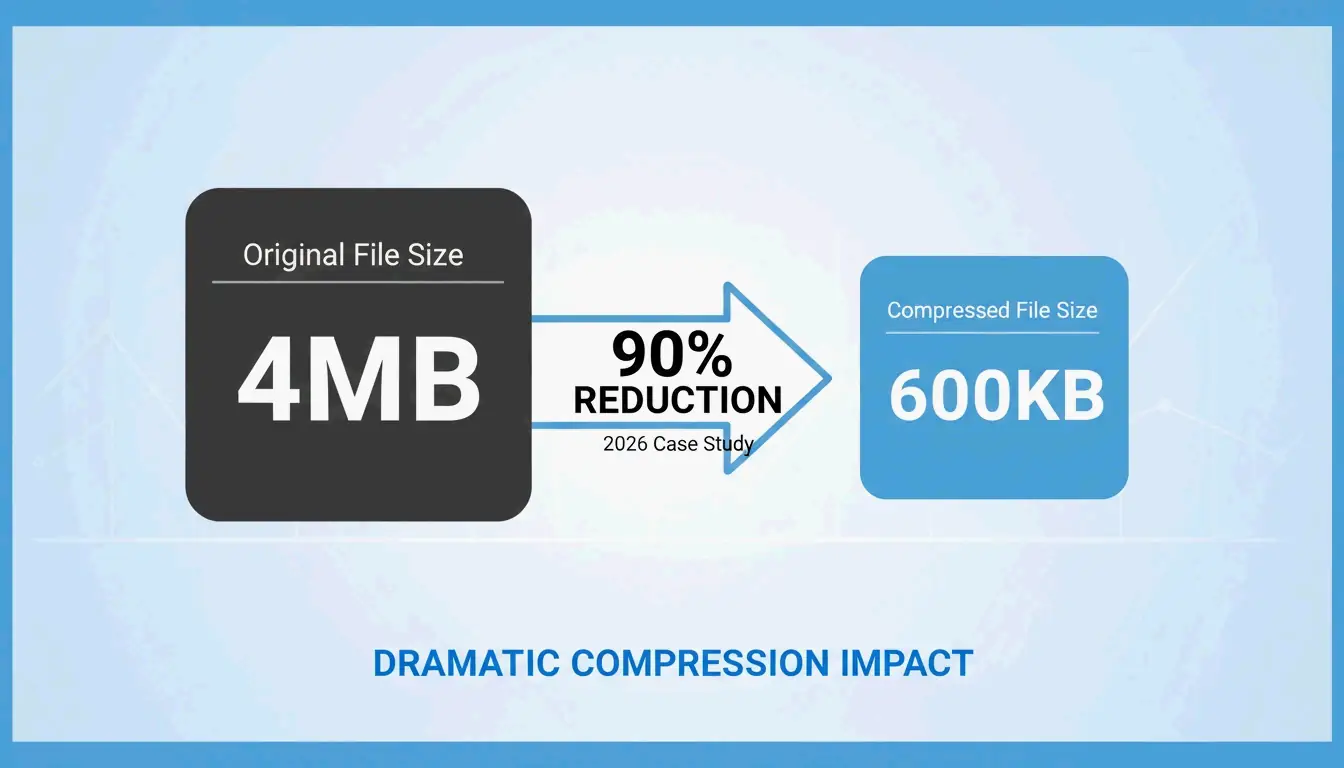
Compression alongside resizing manages File Size (KB/MB) effectively. In a 2026 case study, users of Photo and Picture Resizer achieved a 90% file size reduction, shrinking 4MB high-res photos to approximately 400KB — well under the 5MB attachment limits of most email services.
| Metric | Before | After |
|---|---|---|
| File size | 4MB | ~400KB |
| Reduction | — | 90% |
| Email-compatible | No (over 5MB combined) | Yes |

Native 2026 Methods: Resizing on iOS and Android
Mobile devices now handle resizing without extra apps:
iOS 2026 Updates:
– The iOS Preview app (built into Files) supports direct resizing
– Select an image in Files, tap “Quick Actions,” and pick dimensions
– No need to email photos to yourself to trigger size prompts
Android 2026 Updates:
– Google Photos uses AI for image size management
– “AI Enhance” and “Auto Frame” help recompose shots
– Always choose “Save as copy” to preserve originals
Manage your EXIF Data carefully. Apps like Image Size — Photo Resizer let you keep or remove metadata like GPS location and camera settings to protect your privacy.
Does Google Photos Preserve Quality?
Google Photos uses smart compression to maintain visual quality. Key behavior:
- Save overwrites the original file
- Save as copy creates a new file alongside the original
- The “AI Enhance” feature (US availability, 2026) suggests multiple resized versions so you can pick the clearest one
2026 Image Dimension Cheat Sheet for Social and E-Commerce
| Platform | Content Type | Dimensions | Aspect Ratio |
|---|---|---|---|
| Amazon/eBay | Product photos | 2000x2000px | 1:1 (square) |
| Feed posts | 1080x1080px | 1:1 (square) | |
| Portrait posts | 1080x1350px | 4:5 | |
| TikTok/Instagram | Reels | 1080x1920px | 9:16 (vertical) |
| Cover photo | 820x312px | 205:78 | |
| Company page | 1128x191px | ~6:1 | |
| YouTube | Banner | 2048x1152px | 16:9 |
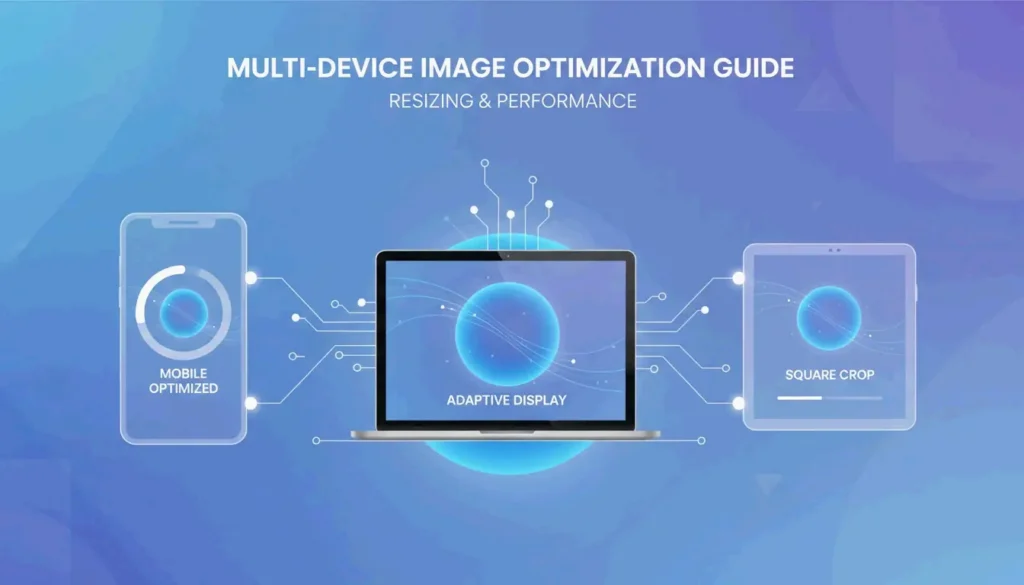
Smart Cropping / Auto Focal Point technology uses “smartcrop” libraries to identify the most important parts of a photo — faces, textures, key subjects — and keeps them centered while trimming less important edges.
AI Upscaling vs. Traditional Resizing: When to Use What
| Method | Direction | Quality | Use Case |
|---|---|---|---|
| Traditional resizing | Downscale only | High | Web optimization, thumbnails |
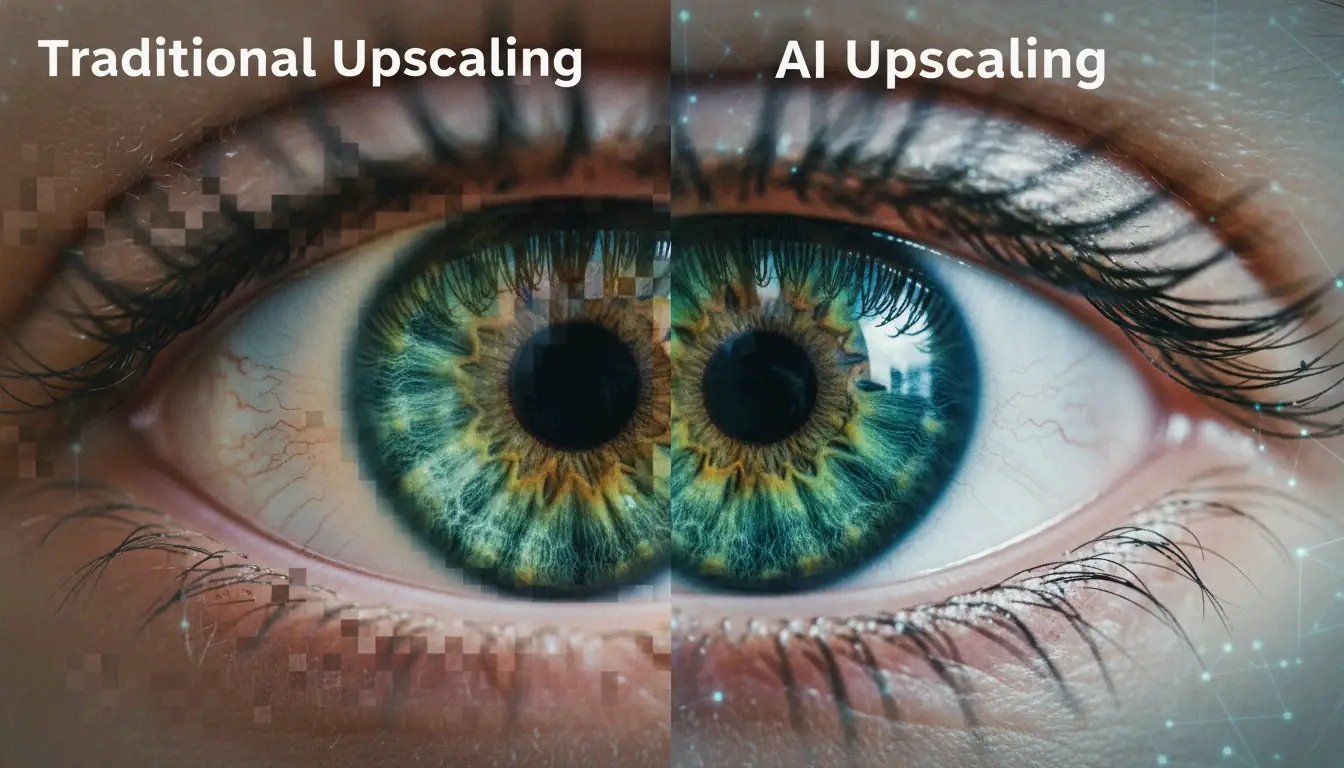
| Traditional resizing | Upscale | Low (pixelated) | Avoid |
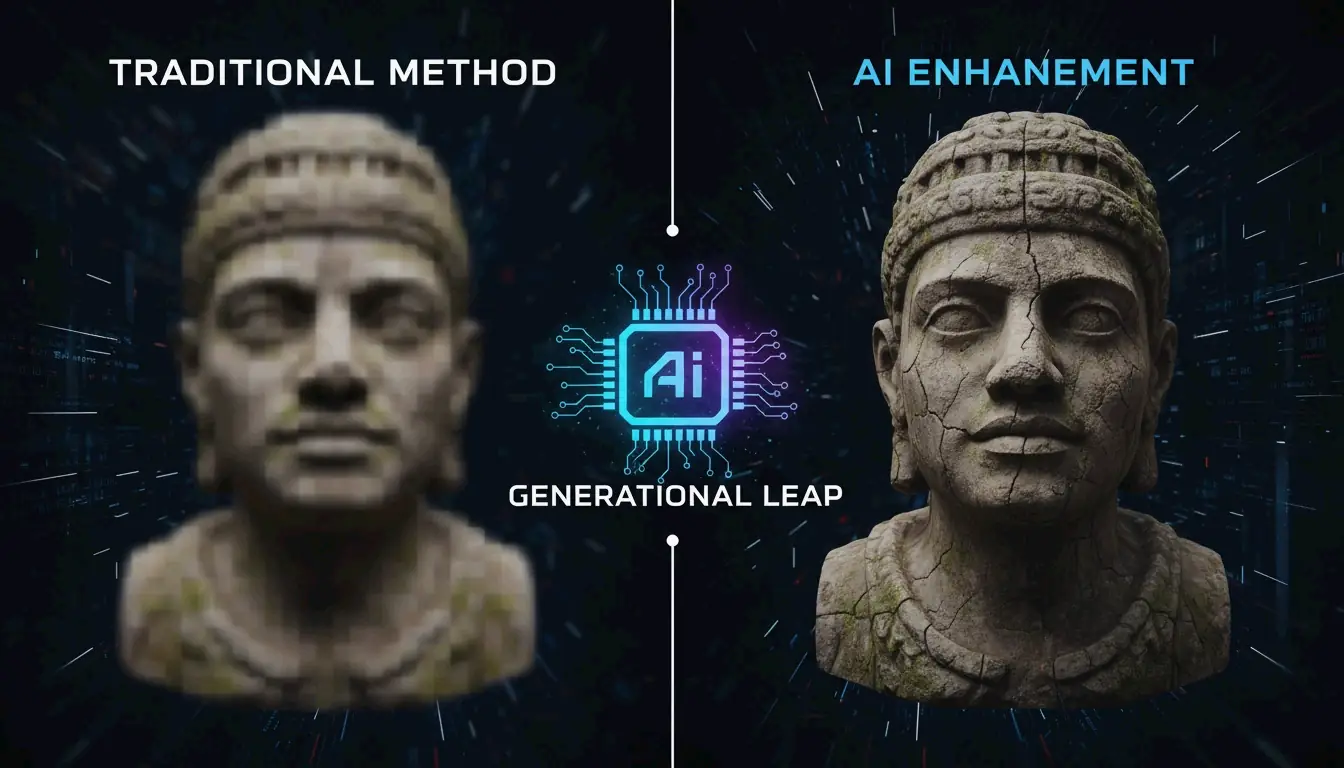
| AI Super-resolution | Upscale | High (generative fill) | Enlarging small images |
| AI Uncrop/Generative Fill | Expand borders | High (invented data) | Changing aspect ratio, extending scenes |
Standard resizing cannot create new image data — it only stretches existing pixels, producing “interpolation artifacts.” The 2026 industry standard for enlarging images is Generative Fill and AI Uncrop, which fill in new data to expand borders or boost resolution.
The BIRME Developer advises using an AI “superpixel” tool when photos look blurry after enlargement. Tools like Airbrush can transform a portrait into a wide landscape by generating a realistic matching background.

Conclusion
Changing photo size in 2026 comes down to three principles: maintaining the correct aspect ratio, using modern formats like WebP or AVIF, and picking the right tool for your device. Whether using iOS Preview features, Google Photos AI tools, or bulk web processors like BIRME, the goal is lighter files without sacrificing visual quality.
For web developers, the 80% quality rule keeps sites fast. For mobile users, 2026 native updates make space-saving possible without extra apps. By matching dimensions to current platform standards, content stays sharp and professional on every screen.
FAQ
How do I resize photos on iPhone without installing a third-party app?
In 2026, use the built-in Files app. Open the app, find your image, long-press it, and select “Quick Actions,” then “Resize.” Choose from Small, Medium, or Large presets, or enter custom pixel dimensions. The Shortcuts app also supports creating an automated resizing tool for your entire Photos library.
What is the recommended image quality (JPG/WebP) for fast website loading?
For most websites, 80% quality offers the best balance between visual fidelity and file size. Use WebP or AVIF formats for better compression ratios. Target under 200KB for large hero images and under 30KB for small thumbnails to keep your site fast and mobile-friendly.
Why do my photos look pixelated or blurry after I increase their size?
Standard resizing cannot create new image data — it only stretches existing pixels, producing “interpolation artifacts.” This is most noticeable when enlarging beyond the original dimensions. To enlarge images without losing clarity, use AI Super-resolution or upscaling tools that employ generative AI to fill in missing details.