How to Change Photos Size Fast: 2026 Guide for Web, iOS, and Android
目录
To change photos size in 2026, use free web-based tools like BIRME or Img2Go for bulk processing, or use the updated native “Preview” tool on iOS and “Google Photos” on Android. Simply upload your image, set your target pixels or percentage, lock the aspect ratio to avoid stretching the image, and download your optimized file.
Quick Ways to Change Photos Size Without Quality Loss
When you need to change photos size, you first need to decide between Pixels vs. Percentage. Resizing by pixels is best when you need to meet exact dimensions for web forms or social media headers. On the other hand, scaling by percentage is a faster way to shrink large files while keeping everything proportional.
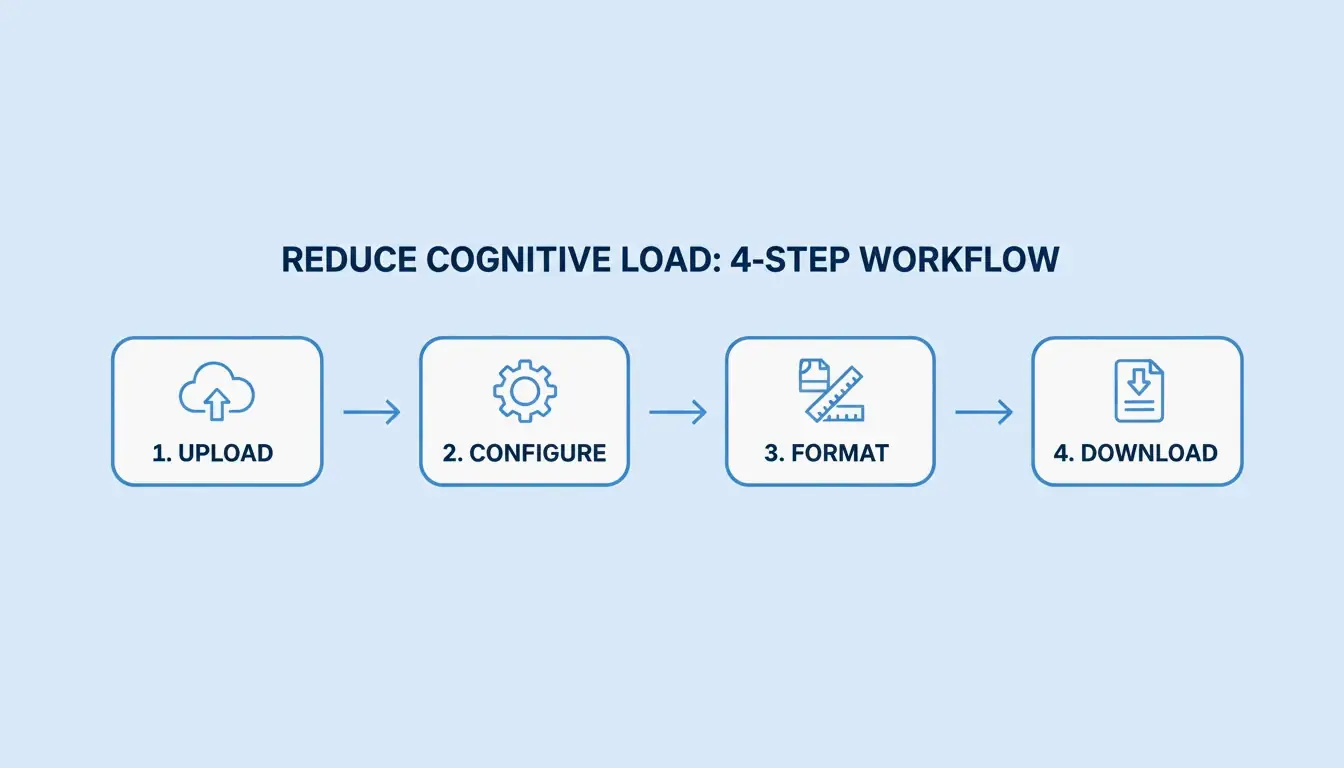
Most high-quality resizing follows a simple four-step process:
- Upload: Pick your source file (JPG, PNG, WebP, or AVIF).
- Define Constraints: Enter the width and height you want, or choose a scale.
- Format Selection: Pick a modern format like WebP to get better compression.
- Download: Save your optimized file.

If you are optimizing for the web, you have to balance image clarity with loading speed. BIRME suggests an 80% quality balance (2026) as the “golden rule.” This setting cuts down the file size significantly, but the image still looks great to the human eye. This helps pages load faster and perform better on mobile devices.
Why Maintaining Aspect Ratio is Non-Negotiable
Locking the Aspect Ratio is vital. It ensures that when you change the width, the height adjusts automatically (and vice versa). Without this lock, your images will look “squashed” or unnaturally stretched. Modern tools like Toolnox include an aspect ratio lock by default to keep your proportions intact.
How to Batch Resize Multiple Images Efficiently?
If you have a lot of work to do, Batch Resize / Bulk Resizing tools are the way to go. BIRME, which is used by over 50,000 monthly users (2026), lets you process hundreds of images at once. By setting one rule for the whole batch, you can make sure every image has a consistent size—something that is essential for online stores or professional portfolios.
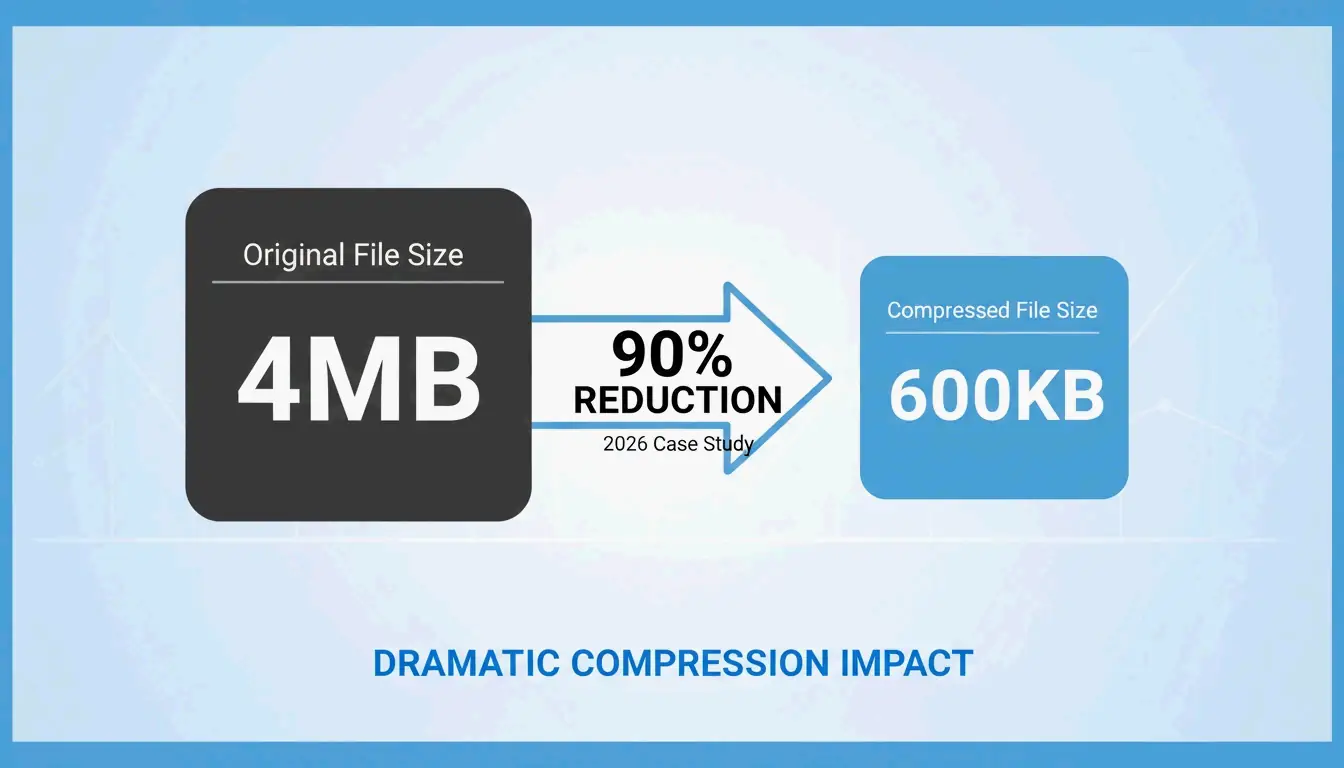
Image Compression usually happens alongside resizing to help manage File Size (KB/MB). In a 2026 case study, users of the Photo & Picture Resizer app managed a 90% file size reduction. They successfully shrank 4MB high-res photos down to about 400KB. This is a huge help when you’re trying to stay under the 5MB attachment limits used by most email services.

Native 2026 Methods: Resizing on iOS and Android
Mobile phones have improved quite a bit and can now handle resizing without needing extra apps. New for 2026, the iOS Preview app (now built into the Files app) supports direct resizing. You no longer have to email a photo to yourself just to trigger a size prompt. Now, you can just select an image in Files, tap “Quick Actions,” and pick your new dimensions.
On Android, Google Photos uses AI to help manage image sizes. While you can still crop manually, the app now features “AI Enhance” and “Auto Frame” to help recompose your shots. When you save your work, it’s best to choose “Save as copy” so you don’t lose your original high-res version. You should also consider your Exif Data; apps like Image Size – Photo Resizer let you choose whether to keep or remove metadata like GPS location and camera settings to protect your privacy.
Does Google Photos Preserve Quality?
Google Photos keeps visual quality high by using smart compression. Just remember that hitting “Save” will overwrite your original file, while “Save as copy” creates a new one. In 2026, the “AI Enhance” feature (currently available in the US) can even suggest different versions of a resized photo so you can pick the clearest one.
2026 Image Dimension Cheat Sheet for Social & E-commerce
To keep your content looking professional, your images need to fit the specific requirements of each platform. High-res cameras often take photos that are much larger than necessary, which can lead to slow uploads or bad automatic cropping.
- Amazon & eBay: Product photos usually need a square 1:1 ratio.
- Instagram & TikTok: Vertical 9:16 is the standard for Reels, while 1080×1080 is still the go-to for standard posts.
- YouTube Banners: The 2048×1152 pixel standard is still the rule for 2026.
Modern tools now use Smart Cropping / Auto Focal Point tech. As BIRME explains, this uses “smartcrop” libraries to find the most important parts of a photo—like faces or textures—and keeps them centered while trimming away the less important edges.
AI Upscaling vs. Traditional Resizing: When to Use What?
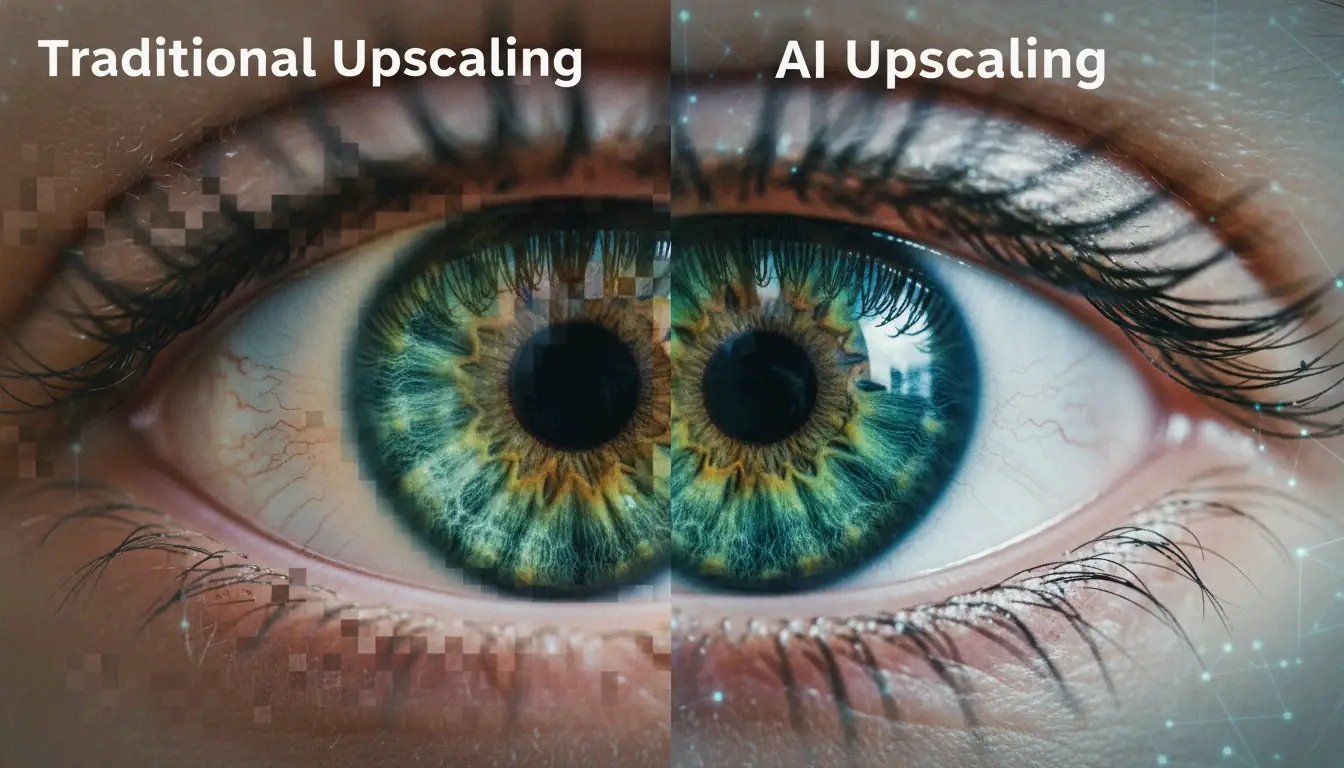
Standard resizing is great for making images smaller, but making them larger usually makes them look pixelated. Traditional tools just stretch the existing pixels, which creates a blurry effect known as “interpolation artifacts.”
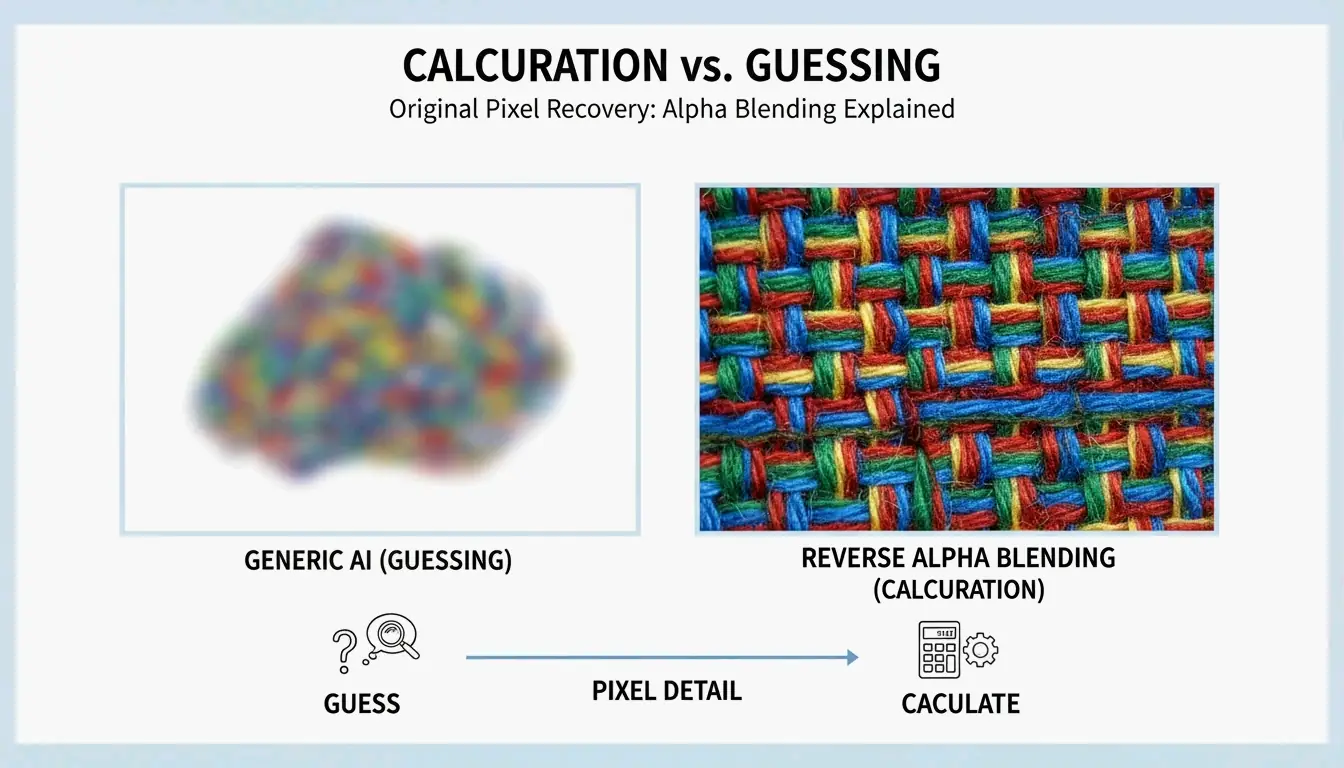
By 2026, the industry has moved toward Generative Fill and AI Uncrop. These tools don’t just stretch pixels; they actually “fill in” new data to expand borders or boost resolution. As the BIRME Developer points out, if your photos look blurry after you enlarge them, you probably need an AI “superpixel” tool. Tools like Airbrush can even turn a portrait photo into a wide landscape by generating a realistic background that matches the original scene.

Conclusion
Changing photo size in 2026 comes down to three things: keeping the right aspect ratio, using modern formats like WebP or AVIF, and picking the right tool for your device. Whether you use the new iOS Preview features, the AI tools in Google Photos, or a bulk web processor like BIRME, the goal is to make the file lighter without losing visual quality.
For web developers, sticking to the 80% quality rule is the best way to keep your site fast. For mobile users, the 2026 native updates make it easy to save space without downloading extra apps. By matching your dimensions to current social and e-commerce standards, your content will stay sharp and professional on every screen.
FAQ
How do I resize photos on iPhone without installing a third-party app?
In 2026, you can use the built-in Files app. Open the app, find your image, and long-press it to see “Quick Actions.” Select “Resize” to choose from Small, Medium, or Large presets, or enter your own pixel dimensions. You can also use the Shortcuts app to create an automated resizing tool for your entire Photos library.
What is the recommended image quality (JPG/WebP) for fast website loading?
For most websites, a quality setting of 80% offers the best balance between looks and speed. Use WebP or AVIF formats because they offer better compression. Try to keep large hero images under 200KB and small thumbnails under 30KB to ensure your site stays fast and mobile-friendly.
Why do my photos look pixelated or blurry after I increase their size?
Standard resizing cannot create new image data; it just stretches the pixels you already have, which leads to “interpolation artifacts.” This is very noticeable if you try to make an image larger than its original size. To enlarge images without losing clarity, you need to use AI Super-resolution or upscaling tools that use generative AI to “fill in” the missing details.