如何转换并压缩照片格式:2026 提升网页性能指南
目录
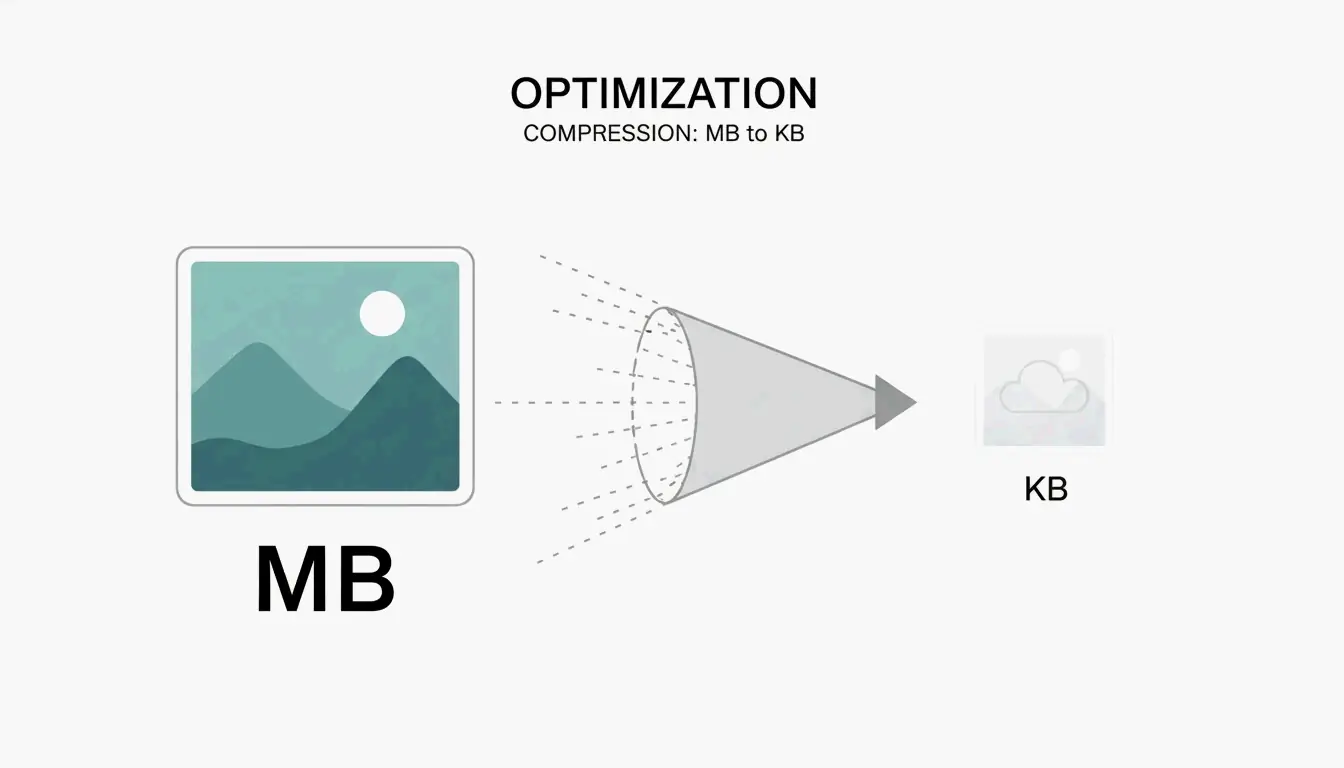
在 2026 年转换并压缩照片格式,可使用 PixConvert 等浏览器原生工具,或 Adobe Photoshop 等专业软件。只需上传图片,选择 AVIF 或 WebP 等下一代格式,并将质量滑块设为 70-80%。这一过程能在保持专业用途所需清晰度的同时缩小文件体积,满足 Core Web Vitals 标准。
如何转换并压缩照片格式:3 步工作流
优化数字图片的关键,在于找到小文件体积与清晰画面之间的「最佳平衡点」。这也是一项业务必需:根据 Salsify 2025 的报告,如果商品图片缺失或质量低下,42% 的购物者会放弃购买。
第 1 步:选择转换工具(本地 vs. 在线)
首先,决定你想在哪里处理文件。如果你处理的是敏感文档,Adobe Photoshop 甚至 Microsoft Paint 等本地软件能将一切保留在硬盘上,安全性最高。但如果你更看重网页的便利性,PixConvert 和 ToolPix 等工具现在使用 WebAssembly 技术。这意味着它们直接在你的浏览器内存(RAM)中处理图片 —— 你的照片实际上从不上传到云服务器。
| 工具类型 | 示例 | 隐私级别 | 速度 |
|---|---|---|---|
| 桌面软件 | Adobe Photoshop, MS Paint | 最高(离线) | 中等 |
| WASM 浏览器工具 | PixConvert, ToolPix | 高(本地 RAM) | 快 |
| 云端工具 | 各类在线转换器 | 较低(上传到服务器) | 最快 |
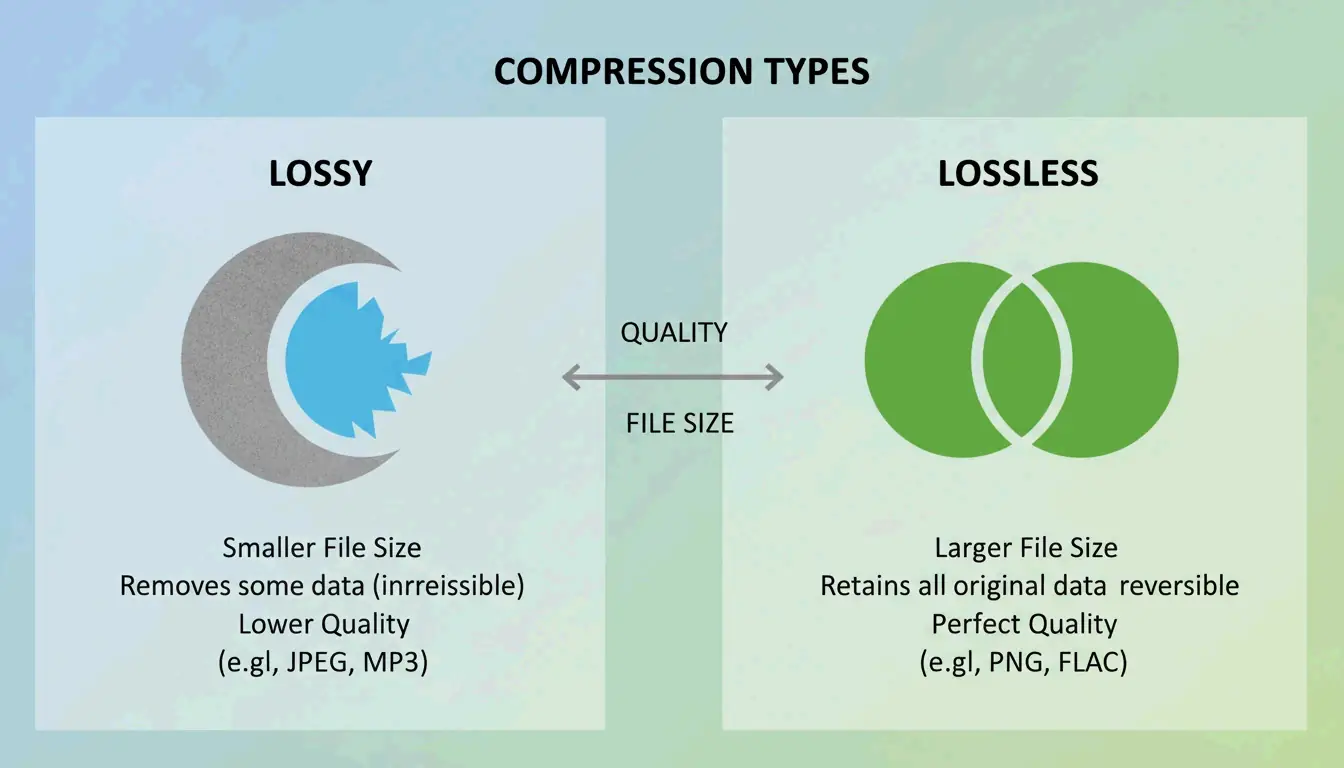
第 2 步:选择有损还是无损压缩
理解这两种方法的区别,有助于你维持专业标准:
- 有损压缩(Lossy) :这会剥离人眼几乎看不见的像素数据。它能生成更小的文件,是 JPEG/JPG 和下一代格式的标准选择。
- 无损压缩(Lossless) :这在不删除任何数据的情况下缩小文件。它是 Logo 或你打算稍后再次编辑的图片的最佳选择。
- 70-80% 法则 :对大多数网站而言,将质量设在 70% 到 80% 之间最为理想。如果降到 60% 以下,你就很可能开始看到「伪影」 —— 图片中那些难看的模糊或颗粒斑块。
为什么 WebP 和 AVIF 对 2026 的 SEO 至关重要
到 2026 年,搜索引擎排名与你网站的用户体验紧密相关。Google 的 Core Web Vitals (LCP) 要求主要内容在 2.5 秒内加载完成。由于沉重的图片通常是拖慢页面的元凶,改用下一代格式是达到这一速度目标最快的方法之一。
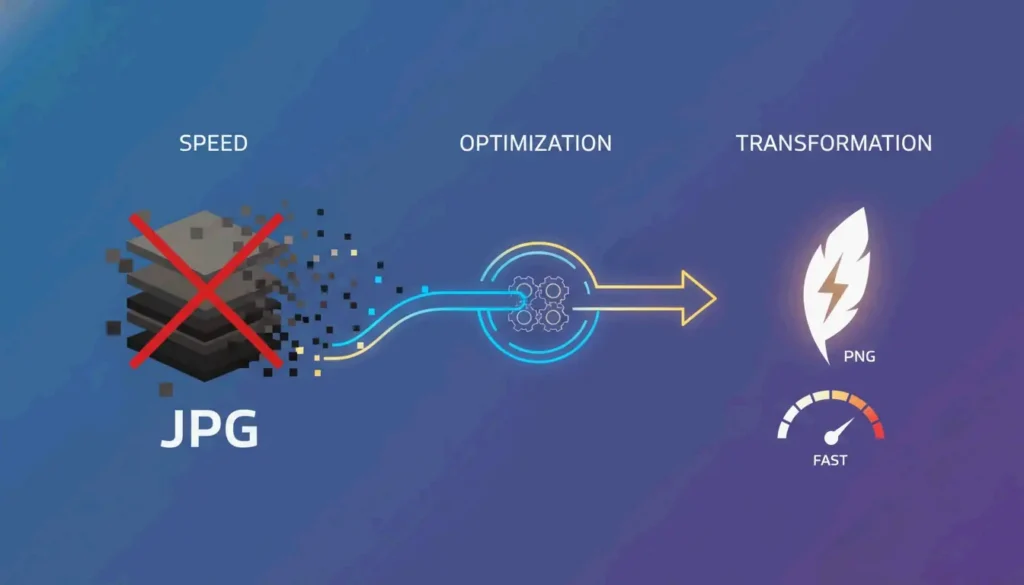
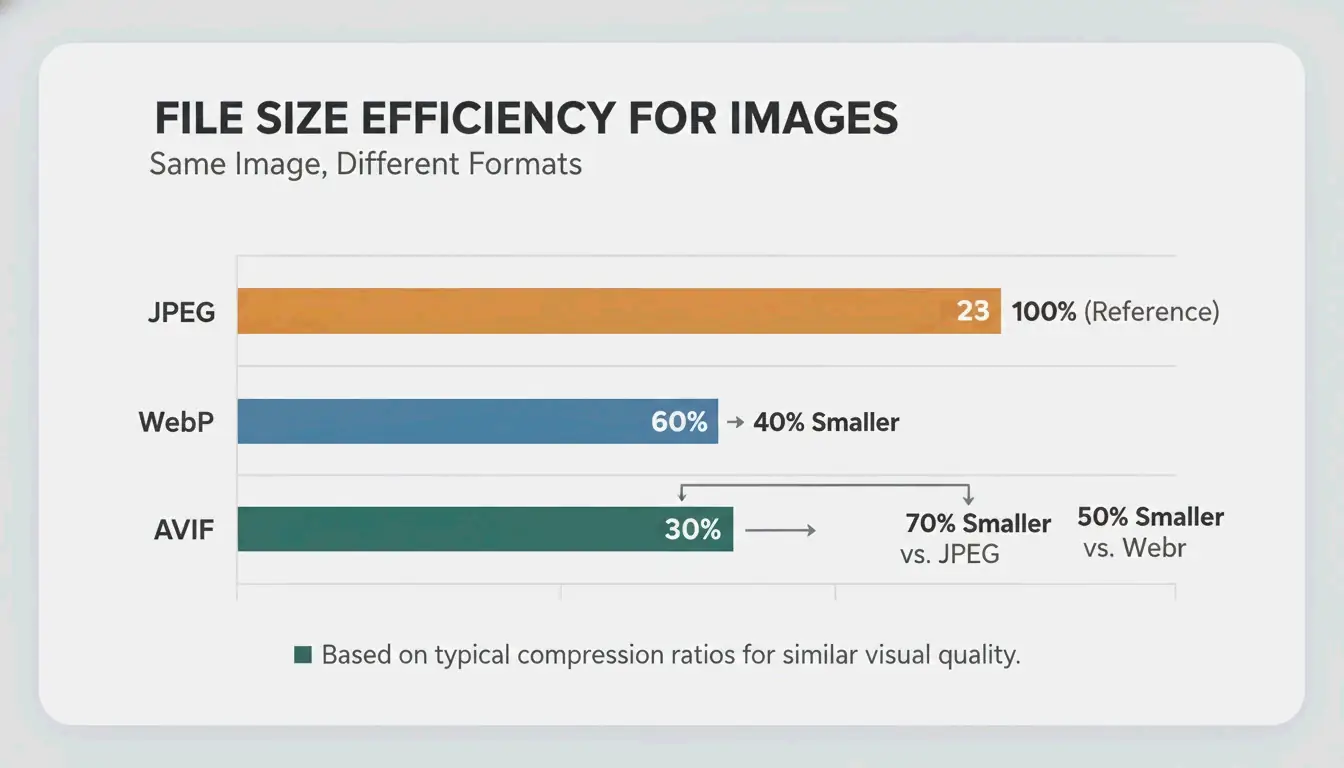
AVIF 已成为 2026 年的首选。它的压缩效果远好于 WebP 或老派的 JPEG。虽然 WebP 仍是一个很好的升级选择,但 AVIF 通常能在不影响观感的情况下,再把文件体积再压缩 20-30%。
| 格式 | 相比 JPEG 的压缩 | 浏览器支持(2026) | 透明度 | 最佳用途 |
|---|---|---|---|---|
| JPEG | 基准 | 100% | 否 | 通用兼容 |
| WebP | 小 25-35% | 97%+ | 是 | 常规网页优化 |
| AVIF | 小 50-70% | 93%+ | 是 | 现代网站的最大压缩 |
| PNG | 比 JPEG 大 | 100% | 是 | Logo、文字图形 |
这些技术调整带来的回报是实实在在的。Illustrate Digital 的 2023 全球页面速度报告发现,B2B 网站在 1 秒内加载的转化率,比加载需要 10 秒的网站高出五倍。如今,几乎所有浏览器都支持 AVIF 和 WebP,不过 WordPress 用户可能仍希望使用 Imagify 这样的插件来处理针对非常旧浏览器版本的「兜底」方案。
批量处理:同时转换数千张图片
如果你是电商经理或摄影师,你没有时间一张张点击图片。现代工具现在利用你电脑的 CPU 和 GPU 来快速处理繁重的工作负载。
HitPaw 的数据显示,专业转换器可以每分钟批量处理 200-333 张图片。这意味着你可以在不到五分钟内优化一个超过 1,000 张照片的图库。对于站长,Imagify 插件通过在你上传图片到媒体库的那一刻就自动优化来实现这一点,让服务器在后台完成繁重的工作。
批量处理性能:
| 工具 | 每分钟图片数 | 输入格式 | 输出格式 |
|---|---|---|---|
| Adobe Photoshop(批量) | 50-100 | 所有主流格式 | 所有主流格式 |
| HitPaw Image Converter | 200-333 | JPG, PNG, WebP, AVIF | JPG, PNG, WebP, AVIF |
| Imagify(WordPress) | 上传时自动 | JPG, PNG | WebP, AVIF |
| Microsoft PowerToys | 100+ | JPG, PNG | JPG, PNG |
专业工具:Adobe Photoshop vs. WebAssembly 方案
你的工作流通常归结为在重型桌面软件与快速、注重隐私的网页工具之间做选择。
Adobe Photoshop 仍是追求完全掌控的黄金标准。通过使用「Export As」功能,你可以调整 DPI(每英寸点数,Dots Per Inch) —— 网页标准化为 72 DPI,打印为 300 DPI —— 并在你移动质量滑块时实时查看预估文件体积的变化。
另一方面,像 PixConvert 这样的 WebAssembly 工具无需月度订阅即可提供速度。其中许多工具包含「Target File Size」功能:你告诉工具你需要一个 50KB 的文件,它的引擎就会自动算出最佳的尺寸和质量组合来满足你。
目标体积速查表:Amazon、Shopify 和政府门户
| 平台 | 推荐格式 | 体积限制 | 关键操作 |
|---|---|---|---|
| Shopify / Amazon | WebP / AVIF | 200 KB 以下 | 优先保证 LCP 速度 |
| 政府门户(如 SSC/UPSC) | JPG | 20 KB — 50 KB | 使用「Target Size」工具 |
| 专业打印 | TIFF / JPG | 300 DPI | 禁用有损压缩 |
| 社交媒体 | WebP / AVIF | 平台特定 | 使用批量转换器 |
结论
在 2026 年,改用 AVIF 等下一代格式并保持合理的压缩比,是兼顾 SEO 和用户体验的最佳做法。摆脱旧 JPEG 有助于你满足 Google 的 Core Web Vitals,达到 2.5 秒的加载目标。要开始动手,先检查你当前的网站速度,然后使用批量处理器或 WebAssembly 工具,以 75% 的质量将你的图库转换为 AVIF。这个简单的改变,能在留住访客和提升转化率方面带来显著效果。
常见问题
维持图片质量的最佳压缩级别是多少?
对大多数网页图片而言,70-80% 是「最佳平衡点」。这个范围能在显著缩小文件体积的同时,让人眼看不见视觉伪影。如果降到 60% 以下,你很可能会看到色带或噪点。使用 AVIF 时,你通常可以降到 50-60%,并且仍能获得比高质量 JPG 更好的视觉效果。
如何把照片压缩到特定体积,比如 50KB?
你应该使用带有「Target File Size」功能的工具,例如 IMG Size Reducer。这些工具使用二分搜索逻辑自动调整质量滑块,直到文件满足你精确的 KB 要求。如果在 50KB 时质量变得太差,可在进一步压缩前先尝试缩小像素尺寸(宽度和高度)。
在线图片压缩工具对私密文档安全吗?
将文件上传到服务器的标准云端工具可能存在隐私风险。对于敏感数据,请寻找「Client-Side」或基于 WebAssembly 的工具,如 PixConvert 或 ToolPix,它们在你浏览器内存中本地处理图片。或者,使用 Adobe Photoshop 或 Microsoft Paint 等本地软件,确保你的文件永远不会离开你的设备。