Best Photo Resize Tools and Methods for 2026: Maintain Quality with AI & Bulk Processing
To get the best photo resize results in 2026, you need […]
To get the best photo resize results in 2026, you need tools that balance speed and image integrity. Use Birme for fast, bulk resizing in your browser, Overchat AI to expand aspect ratios without cropping, and iLoveIMG for cloud-based tasks. For mobile users, the Image Size app remains the top choice for precise pixel control.
How to Choose the Best Photo Resize Method for Your Needs
The right resizing method usually comes down to three things: how fast you need it done, the final image quality, and how private you want your data to be. In 2026, professional photos are all about specific Pixel Dimensions (Width/Height) designed for high-density screens, so being precise is more important than ever.
Traditional resizing is still the standard for making images smaller—like turning a 4000px photo into an 800px version for a blog post. This method is quick and keeps the image sharp as it shrinks. However, if you need to make a photo larger or change its shape, standard tools often fall short. Data from Birme, which serves over 50,000 users monthly, shows that Privacy/Browser-based Processing is a huge deal for creators today. By using client-side JavaScript, your sensitive photos never actually leave your computer.
The Decision Matrix: Traditional Pixel Control vs. AI Expansion
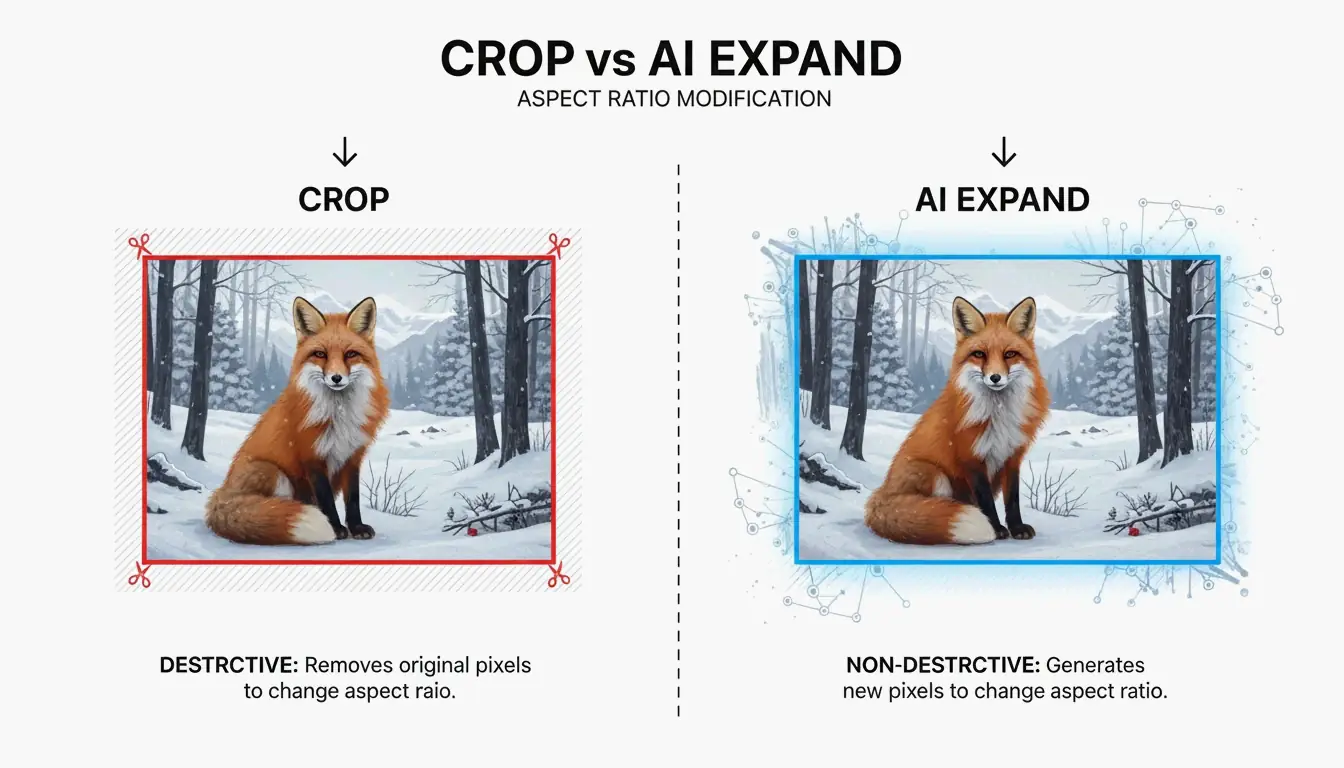
Your choice depends on your end goal. Stick with traditional pixel control (like ImageResizer.com) if you have a specific resolution in mind and don’t want to change the actual content of the photo. On the other hand, AI expansion is better when your target aspect ratio is different from the original. While traditional cropping just cuts off the edges to make a photo fit, AI generative fill “imagines” and draws new pixels to extend the scene, so you don’t lose the main subject.

Best Photo Resize Tools for Bulk Processing and Privacy
If you’re dealing with a lot of content, Bulk/Batch Resizing is a lifesaver. Resizing hundreds of photos one by one is a waste of time and leads to mistakes. Tools like Birme let you set a single aspect ratio and apply it to an entire gallery at once.
For batch work, picking the right format is key for website speed. In 2026, JPEG, PNG, WebP, and AVIF are the main formats supported by browsers. Birme suggests aiming for an 80%-90% quality balance for WebP or JPEG exports. This is the “sweet spot” where the photo looks great but the file size stays small enough for fast page loads.
How to Batch Resize Without Losing Quality?
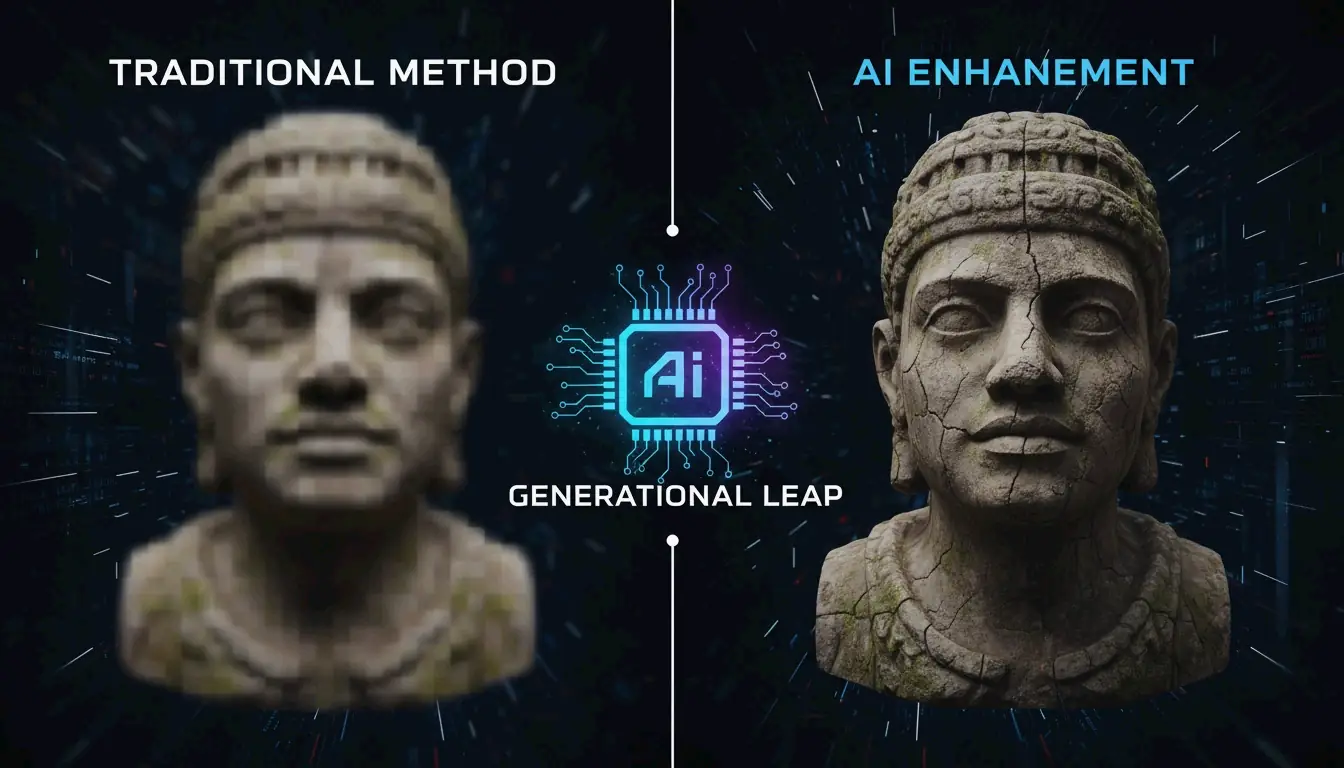
To keep your images looking sharp, always resize downward from a high-resolution original. If you absolutely have to upscale, use a tool with a “High Quality Resize Method” or an AI engine to prevent that blurry, pixelated look. For most web use, an 80% quality setting is plenty. If you use cloud storage, iLoveIMG connects directly with Google Drive and Dropbox, so you can pull, resize, and save everything back to the cloud in one go.
AI Aspect Ratio Expansion: Resizing Beyond the Frame
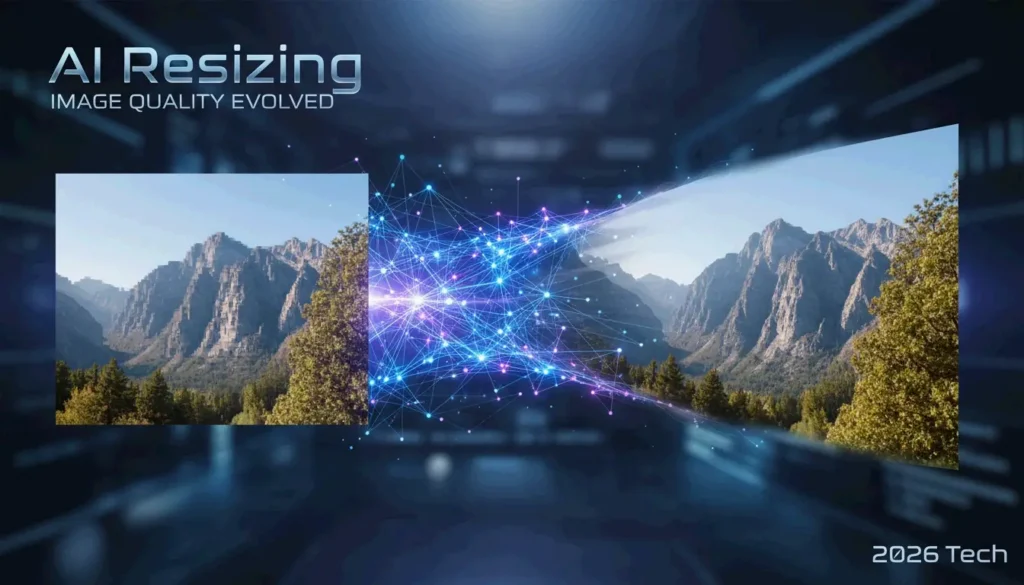
The biggest change in 2026 is the AI Image Resizer/Extender, which allows for “uncropping.” Instead of cutting off the edges, AI models reconstruct the scene to fit new sizes. This is perfect for turning a vertical 9:16 smartphone photo into a wide 16:9 cinematic header for a website or YouTube.
Andrew Dyuzhov, a technology writer at AI Hub, explains it this way: “AI image resizers differ from traditional ones by generating new content to extend images, rather than cropping or stretching—allowing aspect ratio changes without losing any original content.” Modern tools like Overchat AI, which uses the Seedream 5.0 model, can rebuild backgrounds so accurately that you can’t tell where the original photo ends and the AI begins.
The ‘Uncrop’ Revolution: How AI Fills the Gaps
The “Uncrop” process uses Smart Cropping and generative fill to figure out the focal point of a photo. If you change a horizontal photo to a vertical one, traditional cropping might lose 80% of the scene. AI avoids this by “imagining” what should be outside the frame based on the existing textures and lighting. The Seedream 5.0 engine supports over 10 different aspect ratios, letting you take one photo and resize it for Instagram, LinkedIn, and ultrawide monitors without ruining the composition.
2026 Social Media Cheat Sheet: What Are the Correct Instagram Image Sizes?
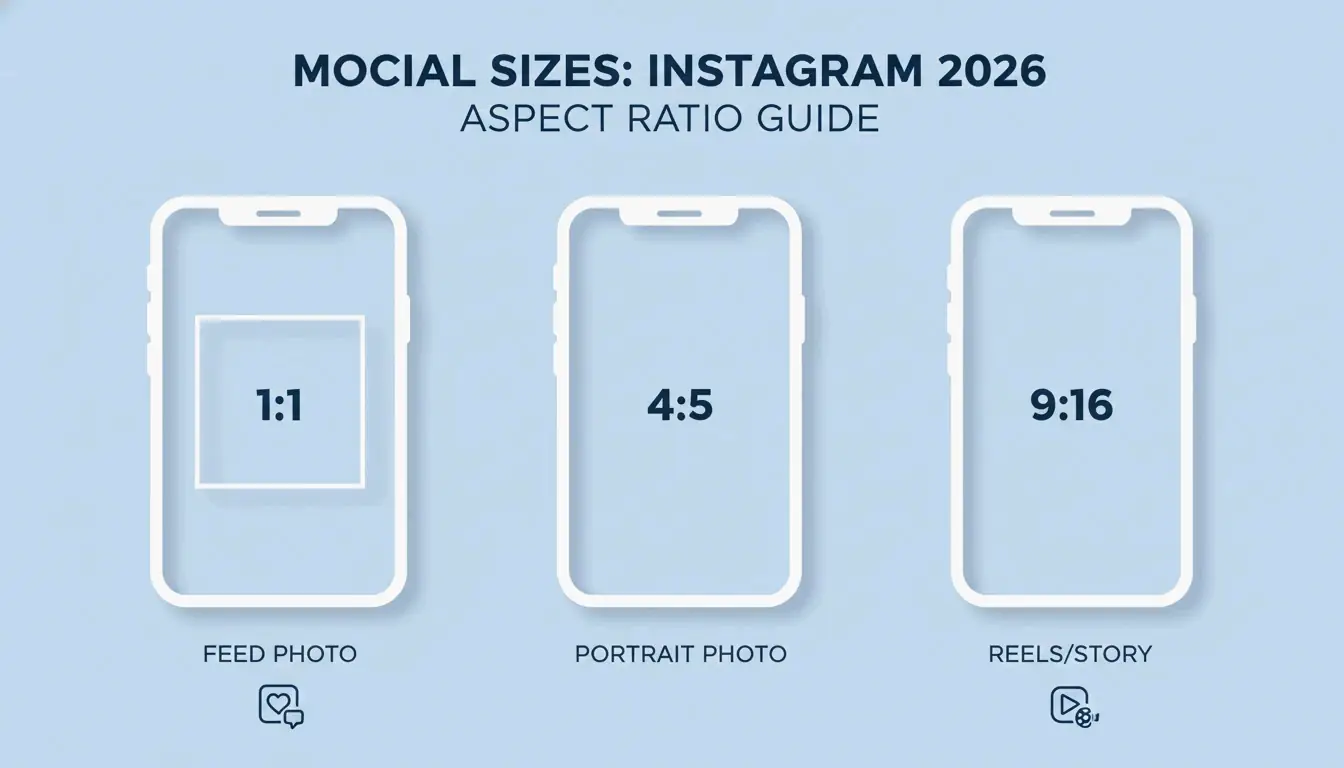
Social media platforms have strict rules. If you don’t follow them, the app will compress your photo automatically, often making it look blurry. Stick to these Instagram Image Sizes for 2026 to keep your content sharp:
- Instagram Feed (Portrait): 1080 x 1350 px (4:5 ratio) – Best for taking up more screen space.
- Instagram Feed (Square): 1080 x 1080 px (1:1 ratio).
- Instagram Stories & Reels: 1080 x 1920 px (9:16 ratio).
- LinkedIn Banners: 1128 x 191 px.

With AVIF support becoming standard for web optimization in 2026, many pros are using it for social media to get better colors at smaller file sizes. Also, if you’re printing your photos, remember that DPI (Dots Per Inch) is what matters. You need 300 DPI for high-quality prints, while 72-96 DPI is fine for screens.
Conclusion
The best resizing strategy in 2026 is a mix of two things: traditional local tools for fast bulk work, and AI tools for creative layout changes. For daily social media posts or private photos, use a browser-based tool like Birme since it processes images on your device. For professional work where you need to change a photo’s shape without losing the edges, AI extenders like Overchat AI are the way to go. By picking the right tool for the job—whether you need exact pixel control or AI expansion—you’ll keep your visuals looking professional everywhere.
FAQ
What is the difference between resizing and cropping?
Resizing changes the total pixel count or the physical scale of the image, effectively making the file smaller or larger while keeping the entire scene intact. Cropping, however, involves removing the outer parts of the image to change the focus or the aspect ratio. While resizing preserves all original content, cropping intentionally discards pixels to fit a specific shape.
How can I resize a photo for Instagram without losing quality?
To maintain the highest quality, use a 4:5 aspect ratio (1080×1350 pixels) for feed posts, as this occupies the most screen space. Always export your final file at 80-90% JPEG quality. This “sweet spot” prevents Instagram’s aggressive server-side algorithms from over-compressing your image, which is the primary cause of blurriness after uploading.
Is it safe to use online image resizers for private photos?
It is safe only if the tool utilizes “client-side” or “browser-based” processing. Tools like Birme use JavaScript to process images directly on your computer; your photos are never uploaded to a server. You should avoid uploading sensitive data to platforms that require a “cloud upload” unless they provide a clear, verifiable policy regarding immediate data deletion.
Why do my photos look pixelated or blurry after resizing?
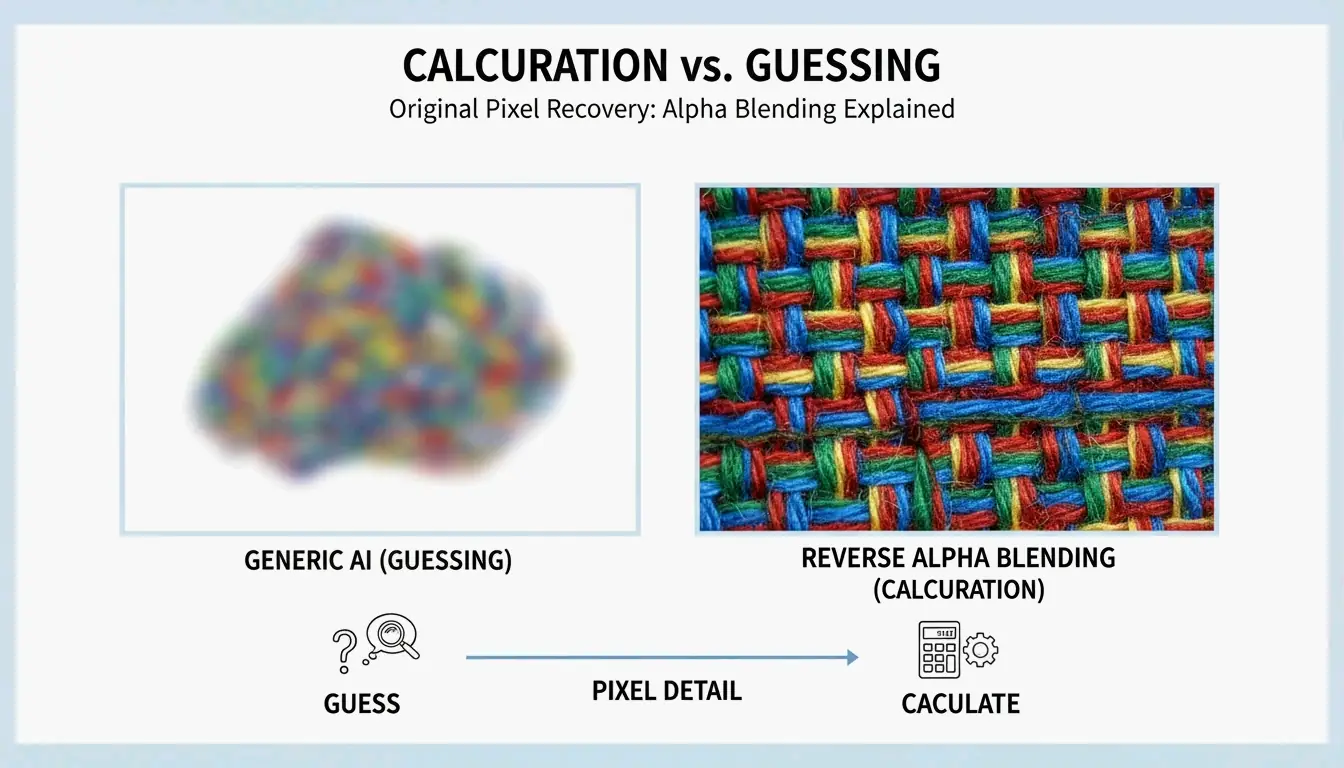
Pixelation typically occurs when you upscale a small image beyond its original resolution, forcing the software to “guess” missing data. To avoid this, keep the new dimensions within 150% of the original size. If you must go larger, use an AI Upscaler, which uses machine learning to reconstruct details rather than simply stretching existing pixels.
作者
SectoJoy
独立开发者我是一名独立开发者,专注于构建 iOS 和 Web 应用程序,致力于打造实用的 SaaS 产品。我擅长 AI SEO,不断探索智能技术如何推动可持续增长和效率提升。