写真を圧縮して容量を節約する:2026 ストレージ最適化の究極ガイド
目次
2026 年に写真を圧縮して容量を節約するには、iPhone の HEIC 形式や Google Photos の「Storage Saver」などの組み込み設定から始めます。最大の効率を得るために、AI ツールを使って画像を WebP や AVIF に変換し、75-85% の品質で非可逆圧縮を行い、視覚的な鮮明さを保ちながらファイルサイズを最大 80% 削減できます。
すぐに効果のある方法:あらゆるデバイスで写真を圧縮して容量を節約するには
デジタルライブラリを小さくするには、デバイスがファイルをキャプチャして保存する方法を変えることから始めます。Business.com によると、最新の圧縮ツールは、標準的な JPEG のサイズを、見た目の品質を落とさずに 40-60% 削減できます。いくつかのシステムレベルの設定により、ストレージの肥大化を未然に防ぐことができます。
モバイル:高効率フォーマットを有効にする
iPhone(HEIC):
1. Settings > Camera > Formats を開く
2. High Efficiency を選択
3. 新しい写真は自動的に HEIC として保存される
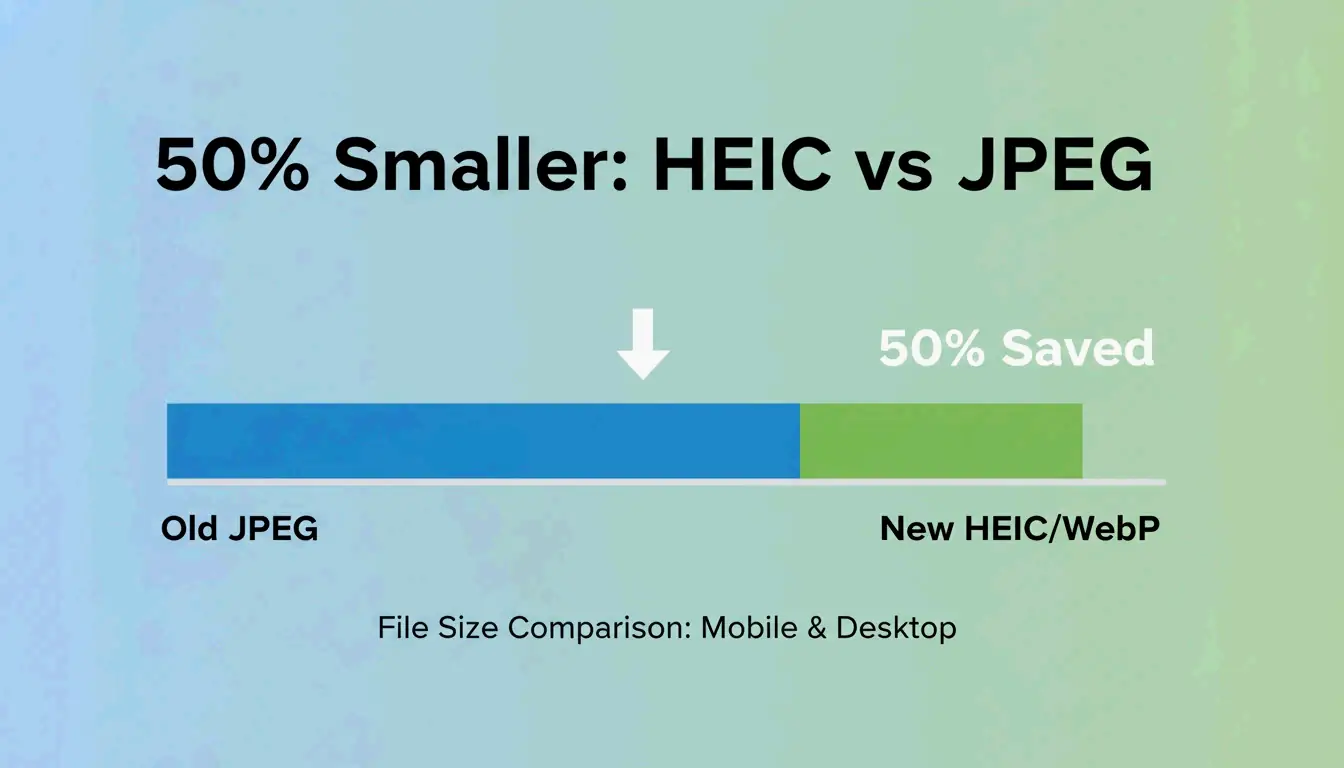
Popular Outdoor Sports が指摘するように、同等の視覚品質において、HEIC ファイルは従来の JPEG より約 50% 小さくなります。
Android(Google Photos Storage Saver):
1. Google Photos アプリの設定を開く
2. Storage Saver を有効にする
3. Google がアップロードされた画像を自動的に「High Quality」レベルに圧縮する
Android カメラアプリの「Advanced Picture Options」を確認し、高効率フォーマットの切り替えスイッチがあるかチェックしてください。
デスクトップ:追加アプリなしで素早くリサイズ
| OS | ツール | 手順 |
|---|---|---|
| Windows | Microsoft Paint | 画像を開き、「Resize」をクリック、パーセンテージまたはピクセルを下げ、JPEG として保存 |
| macOS | Preview app | 写真を開き、Tools > Adjust Size に移動して縮小し、File > Export で品質スライダーを使用 |
スマートなストレージクリーンアップ:クラウドのサブスクリプション等級をダウングレード
現在のライブラリをクリーンアップすることで、2TB のクラウドプランをはるかに安い 200GB の等級に下げることができます。この戦略の焦点は、「肥大化した」写真、つまりスクリーンショット、誤って撮影した連写、重複ファイルを見つけることです。
クイッククリーンアッププロセス:
| ステップ | 操作 | ツール |
|---|---|---|
| 1. ゴミを見つける | ピンボケの写真や大容量動画を特定 | Google Photos / iCloud「Review and Delete」 |
| 2. 肥大化を削除 | スクリーンショットや重複を削除 | 組み込みのクリーンアップツール |
| 3. 一括圧縮 | 残りのライブラリを圧縮 | Ashampoo Image Compressor |
| 4. 節約效果を確認 | 使用した合計ストレージを確認 | クラウドダッシュボード |
Popular Outdoor Sports の Alice は、クラウドストレージのコストが上昇する中、大容量ファイルの管理が必需品になりつつあると指摘しています。Ashampoo Image Compressor は数千枚の画像のドラッグ&ドロップによる一括処理に対応し、合計サイズを最大 80% 削減できます。
非可逆 vs. 可逆:どの圧縮方法を選ぶべきか?
| 方法 | 仕組み | サイズ削減 | 最適な用途 |
|---|---|---|---|
| 非可逆 | 人間の目に見えないデータを削除 | 50-80% | ソーシャルメディア、クラウドバックアップ、JPEG、HEIC |
| 可逆 | すべてのピクセルを保持し、冗長性を削除 | 20-40% | ロゴ、テキストグラフィック、PNG、TIFF、アーカイブ |
PDFFlare の報告によると、非可逆設定は、ソーシャルメディアやクラウドバックアップにとって許容できる視覚品質を保ちながら、ストレージ容量の 50-80% を節約できます。
品質はビジネスの成果に直接影響します。Salsify の 2025 消費者調査レポート は、画像が欠けていたり低品質に見えたりする場合、42% の買い物客が購入を取りやめることを発見しました。2026 年には、WebP と AVIF が JPEG よりもはるかに優れた圧縮対品質比を提供します。
2026 フォーマット比較:
| フォーマット | 圧縮効率 | 視覚品質 | 使用例 |
|---|---|---|---|
| JPEG | ベースライン | 良好 | 汎用互換性 |
| HEIC | JPEG より約 50% 小さい | JPEG と同等 | Apple エコシステム |
| WebP | JPEG より 25-30% 小さい | JPEG より優れている | Web パフォーマンス |
| AVIF | JPEG より 30-50% 小さい | クラス最高 | モダン Web、最大の節約 |
AI 強化圧縮:2026 の技術革命
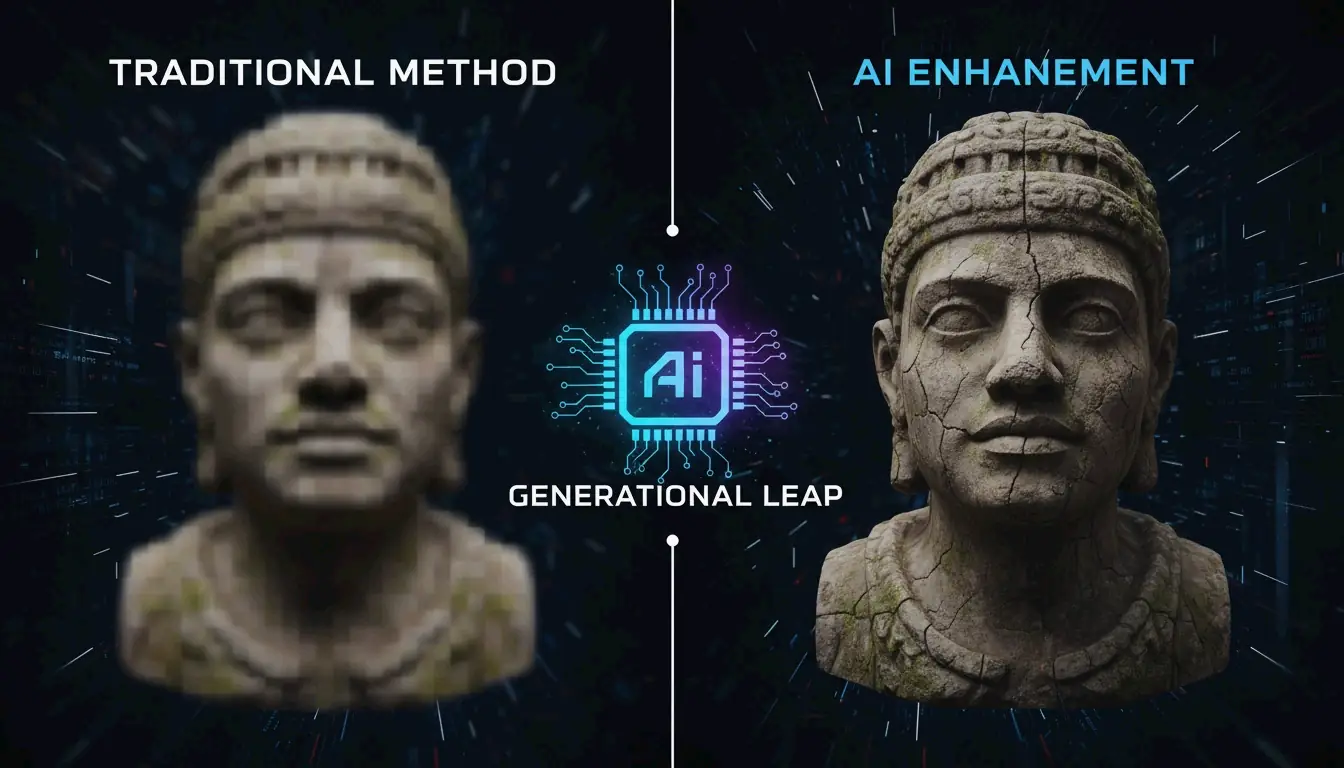
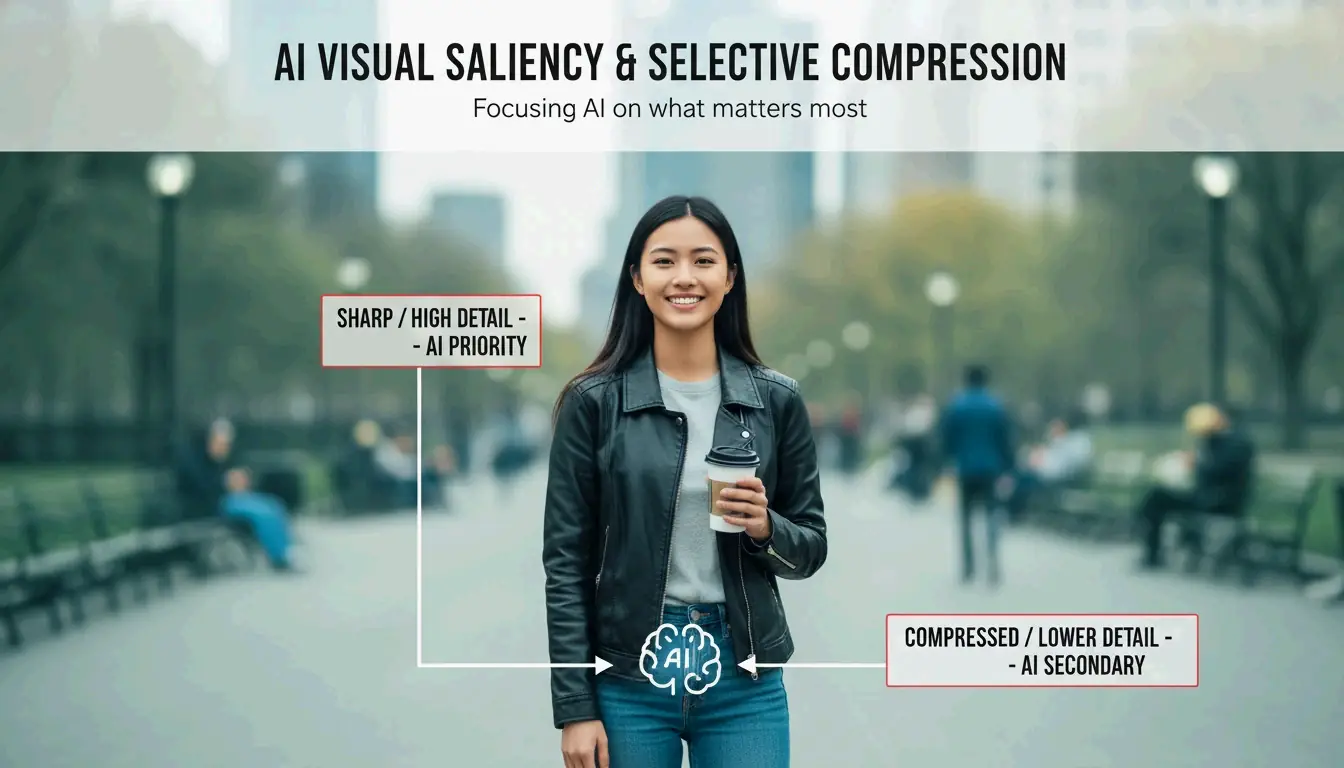
2026 年の大きな転換点は Visual Saliency(視覚顕著性)AI です。画像全体を一律に圧縮する従来のアルゴリズムとは異なり、AI ツールは画像の最も重要な部分、つまり顔や前景の被写体を特定し、それらの領域を鮮明に保ちながら、アーティファクトが目立ちにくい背景を積極的に圧縮します。
AI 圧縮ツールの状況(2026):
| ツール | タイプ | 主な機能 |
|---|---|---|
| Adobe Photoshop | プロフェッショナル | 正確な Web 最適化のための Neural filters |
| Ashampoo Image Compressor | コンシューマー/一括 | 大容量の DSLR 写真(1 枚あたり 50-75MB)をコンパクトなファイルに処理 |
AI 圧縮は、50-75MB の DSLR 写真を元のサイズのごく一部にまで縮小しつつ、「核となる」要素、つまり被写体、重要なディテール、写真の視覚的なインパクトを保持できます。
特定のニーズに合わせた圧縮:Web、メール、フォーム
プラットフォームによって、異なる圧縮戦略が必要です:
Web SEO
Google の Core Web Vitals (LCP) 基準を満たすには、画像を高速に読み込む必要があります。Illustrate Digital の報告によると、B2B サイトで 1 秒の読み込み時間は、10 秒かかるサイトと比べてコンバージョン率が五倍高いことが分かっています。
| 対象 | 推奨設定 |
|---|---|
| ヒーロー画像 | 200KB 以下、WebP または AVIF |
| サムネイル | 30KB 以下 |
| 品質 | 75-85% |
政府フォーム
公式サイトは厳しい制限を設けています。IRCC Canada のガイドラインでは、ファイルを 2MB 以下にするよう求めており、スキャン解像度は 96 DPI を推奨しています。
メール添付ファイル
品質を 70-80% に保ち、個々の画像を 1MB 以下にして、一般的な 25MB の添付制限を大きく下回るようにします。
| 使用例 | 品質 | DPI | 最大ファイルサイズ |
|---|---|---|---|
| Web SEO | 75-85% | 72 | 200KB 以下(ヒーロー) |
| 政府フォーム | 80% | 96 | 2MB 以下 |
| メール | 70-80% | 72 | 画像 1 枚あたり 1MB 以下 |
結論
写真の圧縮において、もはや品質とサイズのどちらかを選ぶ必要はありません。HEIC のようなモダンなフォーマットと AI ベースのツールは、両方をもたらしてくれます。WebP と AVIF に切り替えることで、視覚的なディテールを失うことなく、ストレージの必要性を最大 80% 削減できます。まずスマートフォンのカメラ設定で「High Efficiency」を有効にし、次に AI 一括圧縮ツールを使ってクラウドストレージを監査しましょう。これらの小さな変更が、毎月のサブスクリプション費用を節約し、新しい写真のための余裕を確保してくれます。
よくある質問
写真を圧縮すると印刷品質は低下しますか?
はい、攻撃的な非可逆圧縮を使用する場合は低下します。物理印刷の場合は、高い解像度、少なくとも 300 DPI を維持してください。可逆圧縮、または高品質の JPEG 設定(90%+)を使用して、印刷された画像が鮮明で、ピクセル化アーティファクトがないことを確認しましょう。
Mac で複数の写真を一括圧縮するにはどうすればよいですか?
Finder のネイティブな Quick Actions 機能を使用します:
1. 圧縮するすべての写真を選択
2. 右クリックして Quick Actions > Convert Image に移動
3. 「Small」または「Medium」サイズを選択
4. 好みのフォーマットを選択
これにより、別のアプリケーションを開くことなく、すぐに大きな容量を節約できます。
ストレージにおいて HEIC と JPEG の違いは何ですか?
HEIC(High Efficiency Image Format)は HEVC エンコーディングを使用し、同等の視覚品質で JPEG より約 50% 小さいファイルを生成します。JPEG は古いソフトウェアとの互換性が広いですが、HEIC はモダンな Apple や Android のエコシステムにおいてストレージ効率を最大化するための推奨標準です。
著者について
インディーハッカー & デベロッパー私はiOSアプリとウェブアプリケーションを開発するインディーハッカーで、実用的なSaaS製品の創造に注力しています。AI SEOを専門とし、インテリジェントな技術が持続可能な成長と効率をどのように促進できるかを常に探求しています。
最終レビュー 2026年7月2日. この記事は正確性を確認し、ツールやプラットフォームの動作が変更された際に更新されます。