Fast Online Image Resizer: Resize JPG, PNG, and WebP Without Quality Loss (2026)
Table of Contents
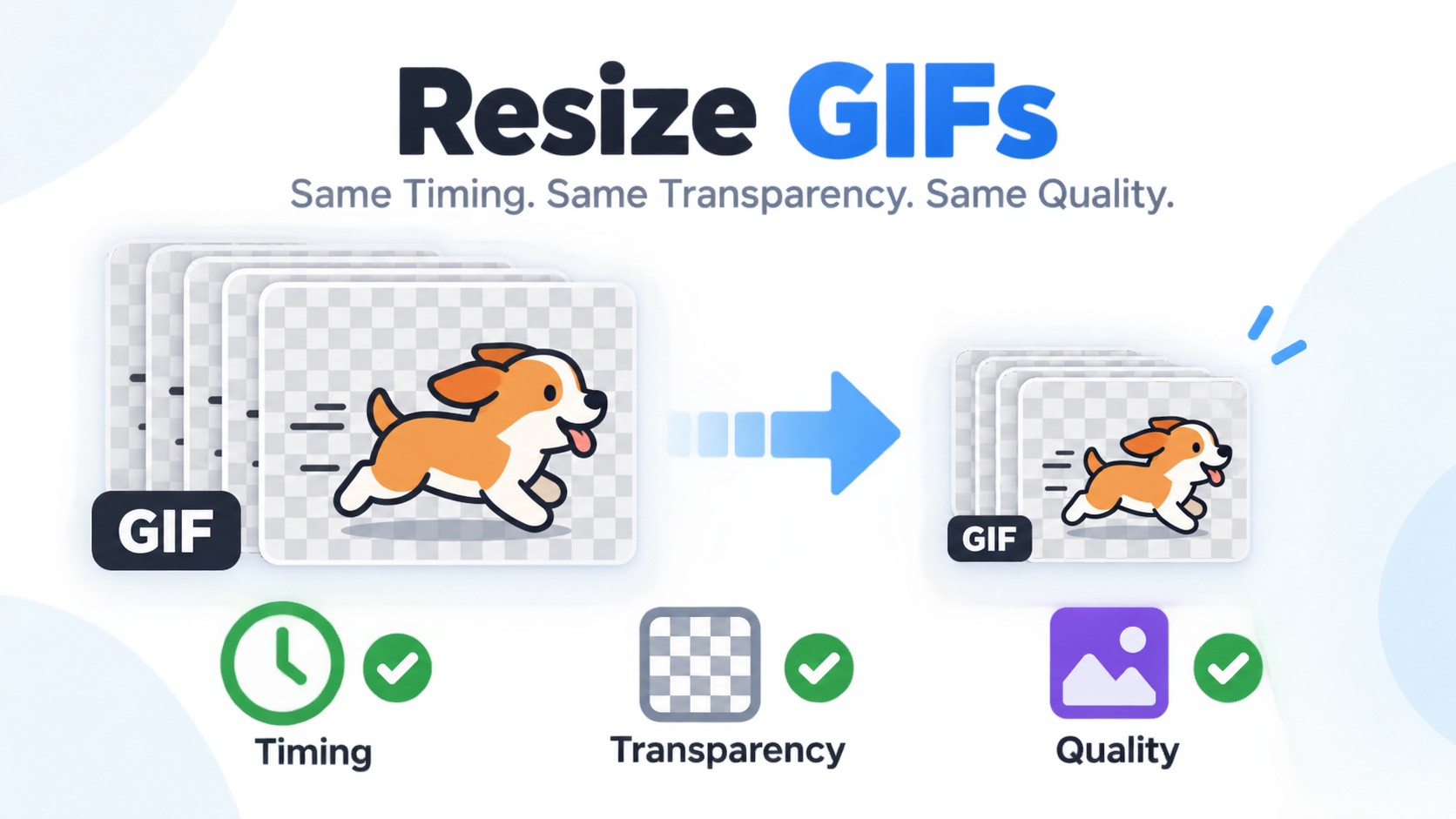
Resizing images in 2026 is a browser-based operation. Upload your file to a client-side image resizer, set the pixel dimensions, lock the Aspect Ratio to prevent distortion, and download the result. Modern tools process images locally on your device for full privacy and support next-gen formats like AVIF and iPhone HEIC without requiring an account.
How to Use an Image Resizer Without Losing Quality
Getting a sharp, professional result depends on precision and where the processing happens. According to FreeImageResizer.net, a platform that has processed over 2.3 million images as of April 2026, the recommended approach is using tools that work directly in your browser. Client-side processing means your files never reach a third-party server, delivering zero lag and total privacy.
Developer Masroor Alam notes that modern utilities aim to “eliminate the complexity of professional editing.” These tools handle the difficult parts — complex scaling, compression, and format conversion — on your own device.
Step 1: Choose Your Dimensions or Percentage
Most quality resizers offer two input modes: exact pixel values (such as 1920×1080) or a percentage slider. For a high-res photo destined for a blog, scaling down to 50% is often more reliable than guessing the width. For government forms or e-commerce listings, exact pixels ensure compliance with strict upload requirements.
Step 2: Why Lock Aspect Ratio is Non-Negotiable
The Lock Aspect Ratio setting prevents distortion. When enabled, changing the width automatically adjusts the height so proportions stay consistent. Without this lock, images end up stretched or squashed.
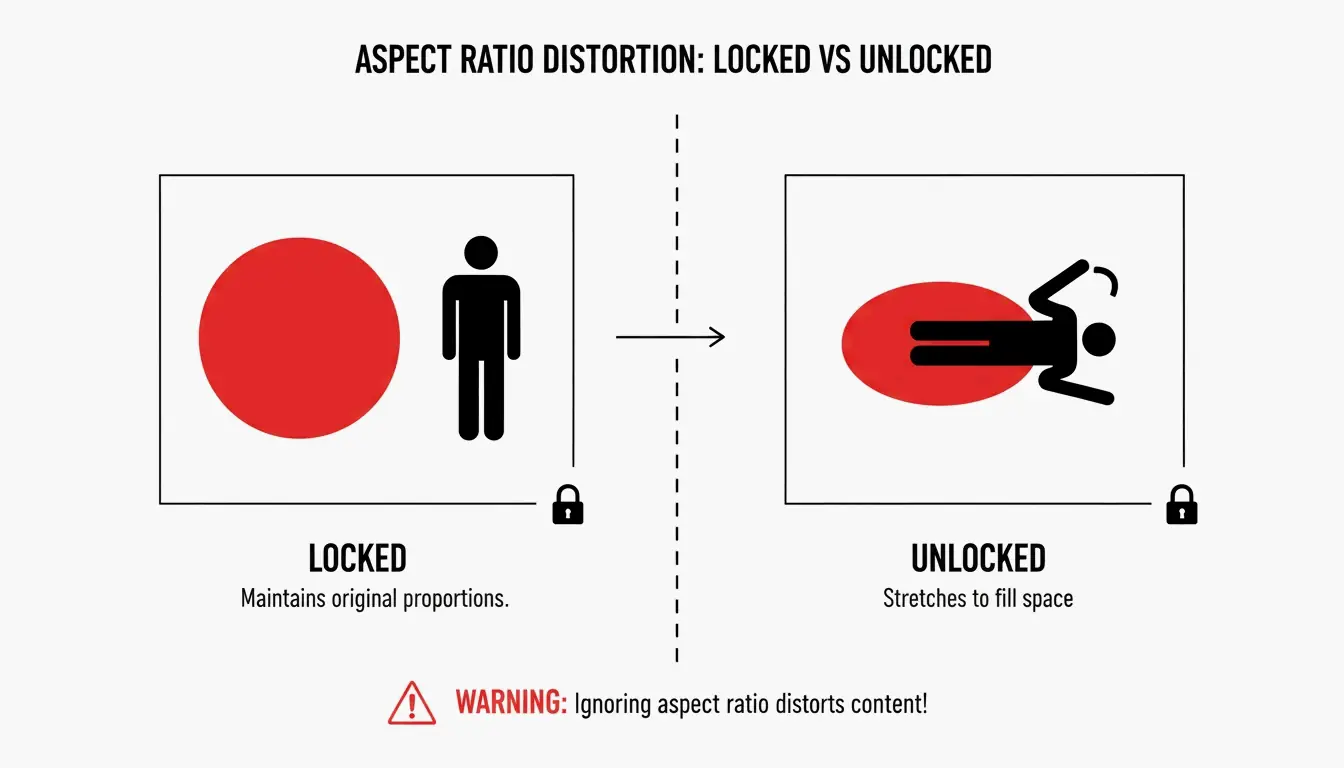
This was the exact problem BIRME was built to solve after its creator observed too many WordPress sites with poorly cropped uploads.
The 2026 Standard: Resizing AVIF, HEIC, and Modern Image Formats
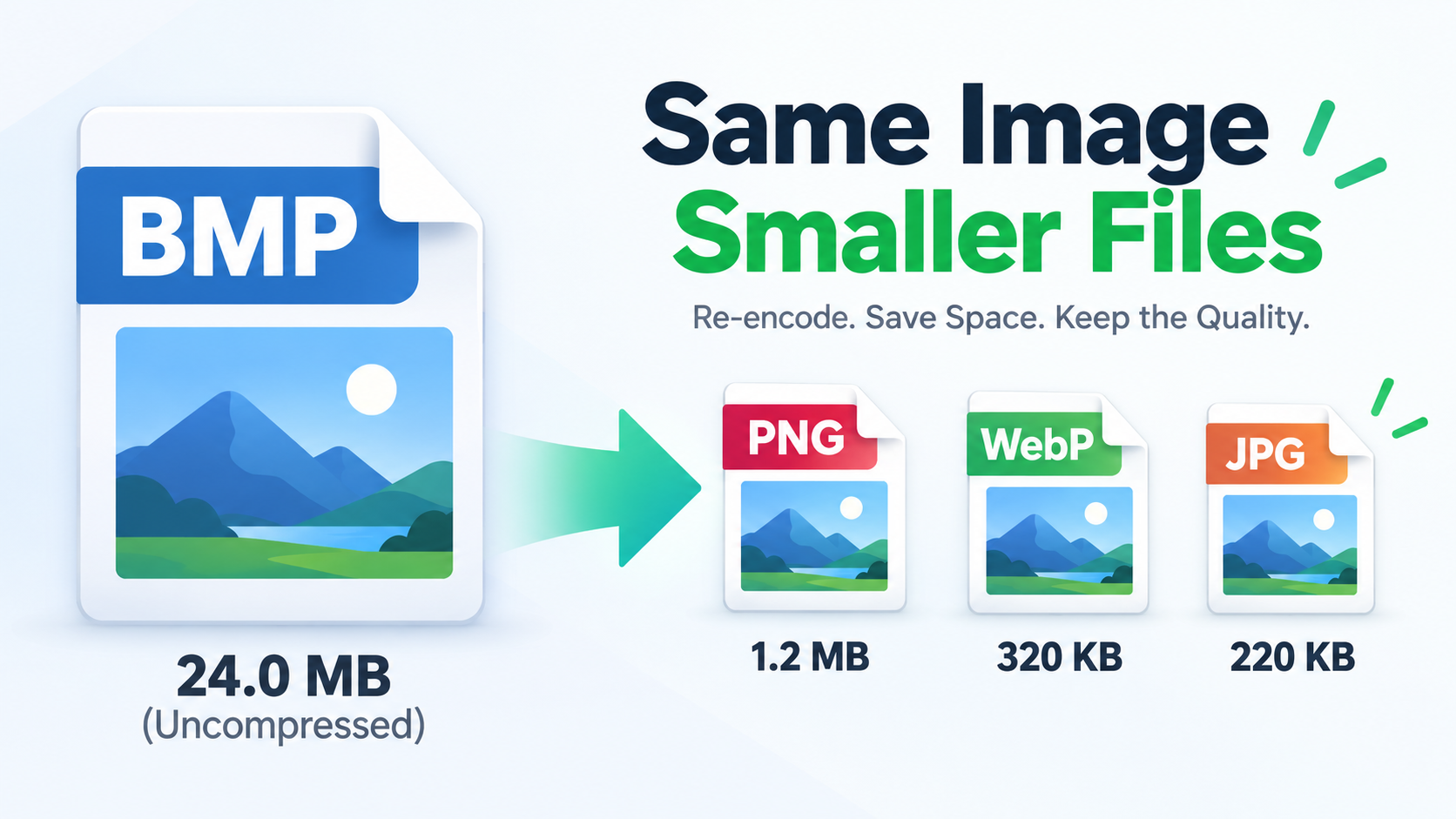
By 2026, the web has shifted toward faster next-gen formats. AVIF is the top choice for performance, compressing files significantly more effectively than WebP or JPEG while preserving detail. Tools like FreeConverto let you resize and convert directly into AVIF to help websites load faster.
The iPhone HEIC challenge remains relevant. iPhones capture photos in HEIF/HEIC format, which often fail to open on Windows or older applications. Modern resizers now include built-in HEIC support, allowing you to drop an iPhone photo into your browser and save it as a standard JPG or WebP within seconds.
Target File Sizes: Passport Apps, Shopify, and Email Limits
Sometimes file size (KB) matters more than dimensions. Here is a quick reference for common targets:
| Use Case | Size Requirement | Recommended Approach |
|---|---|---|
| Passport / Visa Applications | Under 50-100 KB | Resize to exact pixel spec, then compress at 80% quality |
| Shopify / Amazon Product Pages | High res (2048px+), optimized file | Resize to 2048px width, convert to WebP |
| Email Attachments | Under 20-25 MB per message | Batch resize entire folder to 1000px width |
Efficiency at Scale: How to Handle Batch Resizing
For content creators and online shop managers, resizing photos one by one is impractical. Batch processing lets you load 20 to 100 images into a tool at once. BIRME, which serves over 50,000 users per month with bulk tasks, recommends combining resizing with Smart Cropping for maximum efficiency.
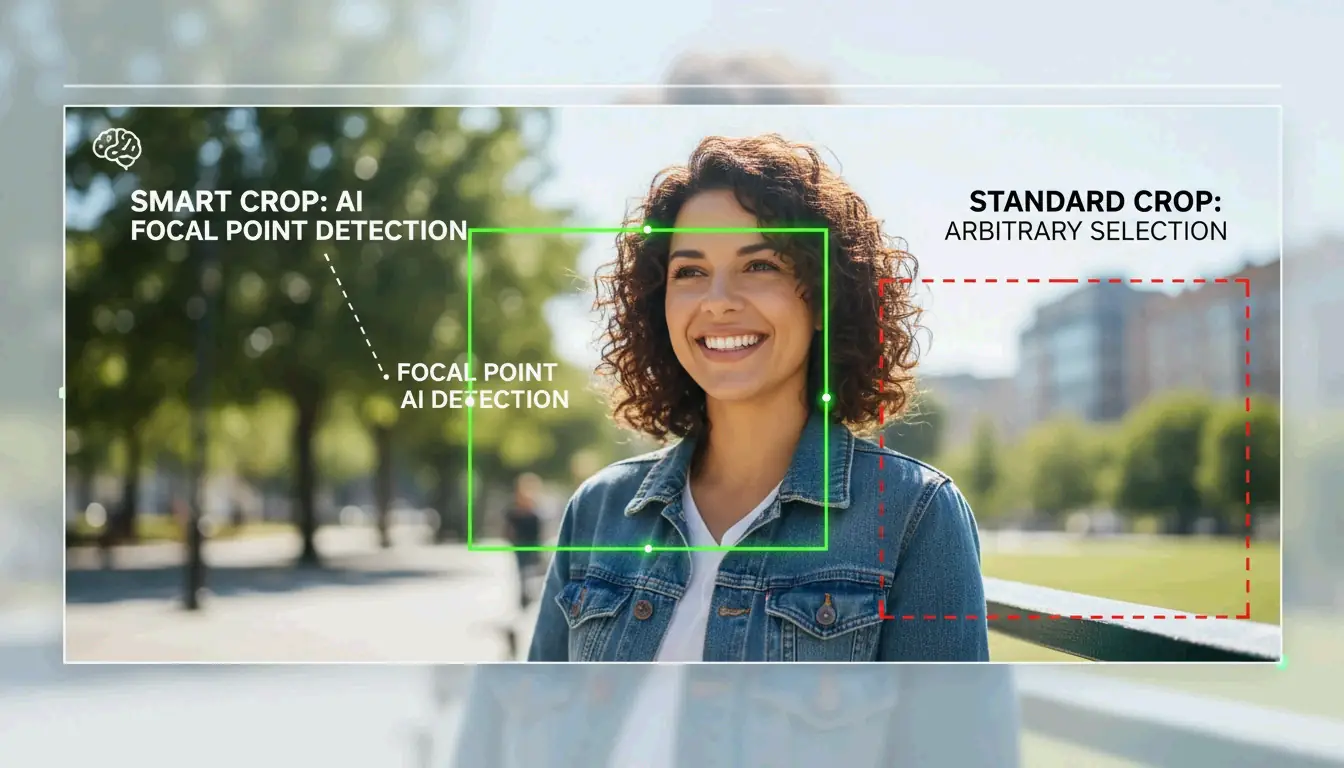
Smart Cropping uses auto focal point detection to identify the most important part of a photo — a person’s face, a specific texture, or a product. The tool then centers the crop on that point. This ensures that when a wide photo is converted to a square, the key subject stays in frame.
Social Media Presets: Quick Reference Dimensions (2026)
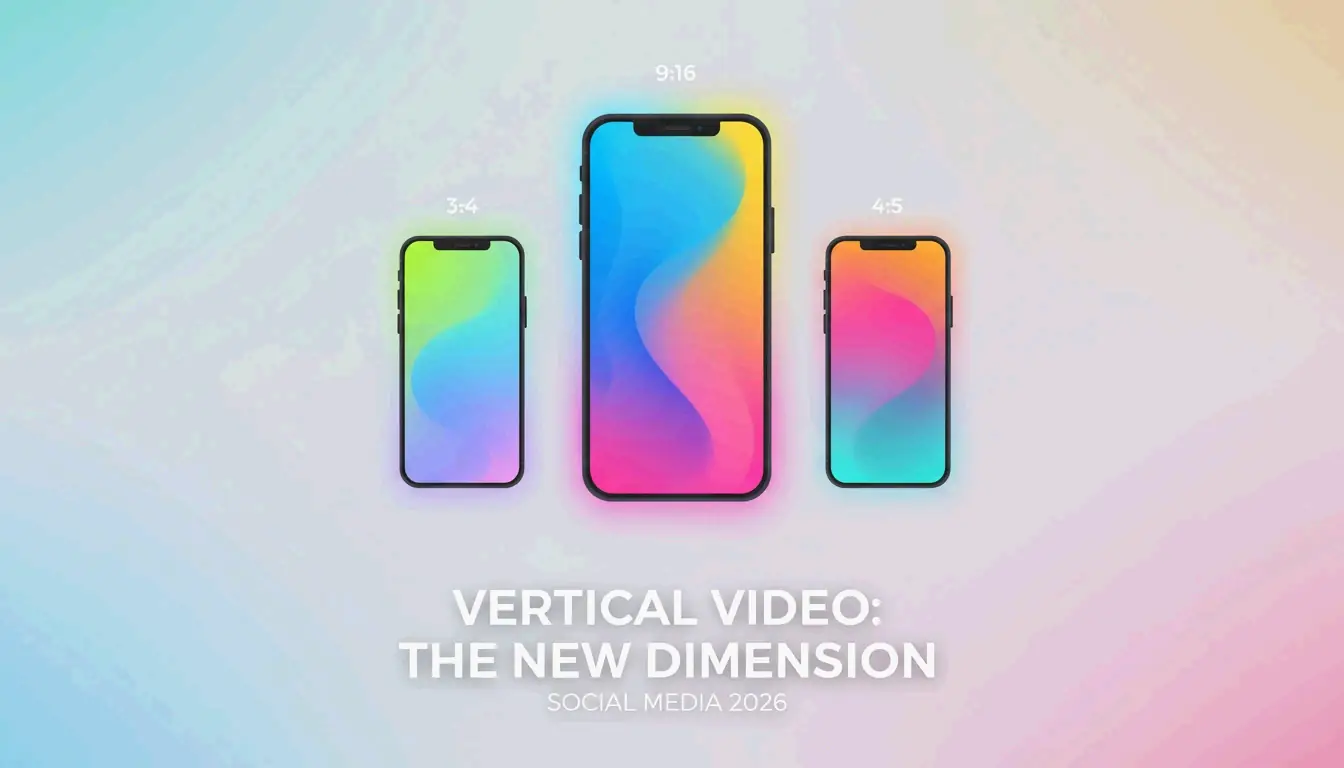
Matching the platform’s preferred size prevents blurry uploads. If an image is too small, the platform stretches it (interpolation), causing pixelation. If it is too large, aggressive platform compression can degrade quality.
| Platform | Usage | Dimensions (Pixels) | Aspect Ratio |
|---|---|---|---|
| Square Post | 1080 x 1080 | 1:1 | |
| Story / Reels | 1080 x 1920 | 9:16 | |
| Shared Post | 1200 x 630 | 1.91:1 | |
| YouTube | Video Thumbnail | 1280 x 720 | 16:9 |
| Profile Banner | 1584 x 396 | 4:1 |
Conclusion
Modern image resizers do more than change pixel counts. In 2026, the best tools are browser-based, privacy-first utilities that process everything locally. Whether you are optimizing bulk product shots for Shopify, converting iPhone HEIC files for Windows, or adopting AVIF for performance, the workflow is straightforward: always lock your Aspect Ratio and use smart cropping to keep the subject centered. For the sharpest results, start with the highest-quality original available and use social media presets to maintain a professional feed.
FAQ
Is it safe to use an online image resizer without my photos being uploaded to a server?
Yes. Look for tools labeled as “browser-based” or “client-side.” These utilities use JavaScript to process images directly on your device’s hardware. Because the data never leaves your computer or phone, your privacy is fully protected and there is no risk of your photos being stored on a third-party server.
What is the difference between Auto Fit, Fill and Crop, and Stretch modes?
Auto Fit shrinks the image to fit within your target dimensions while adding padding (letterboxing) to keep the entire image visible. Fill and Crop scales the image to cover the entire area, cutting off edges if the proportions do not match. Stretch forces the image to the new dimensions regardless of its original shape, which usually produces a distorted or squashed appearance.
Why do my photos look pixelated or blurry after I increase their size?
Resizing an image upward requires interpolation, where the software attempts to create new pixels to fill gaps. Standard resizers cannot add detail that was not captured in the original photo. For significant enlargement, use an AI Upscaler, as standard resizing will always result in a loss of sharpness when upscaling.
About the Author
Indie Hacker & DeveloperI'm an indie hacker building iOS and web applications, with a focus on creating practical SaaS products. I specialize in AI SEO, constantly exploring how intelligent technologies can drive sustainable growth and efficiency.
Last reviewed May 16, 2026. This article is reviewed for accuracy and updated when tooling or platform behavior changes.