How to Compress Image Without Losing Quality (2026): Resize, Compress, Convert
Table of Contents
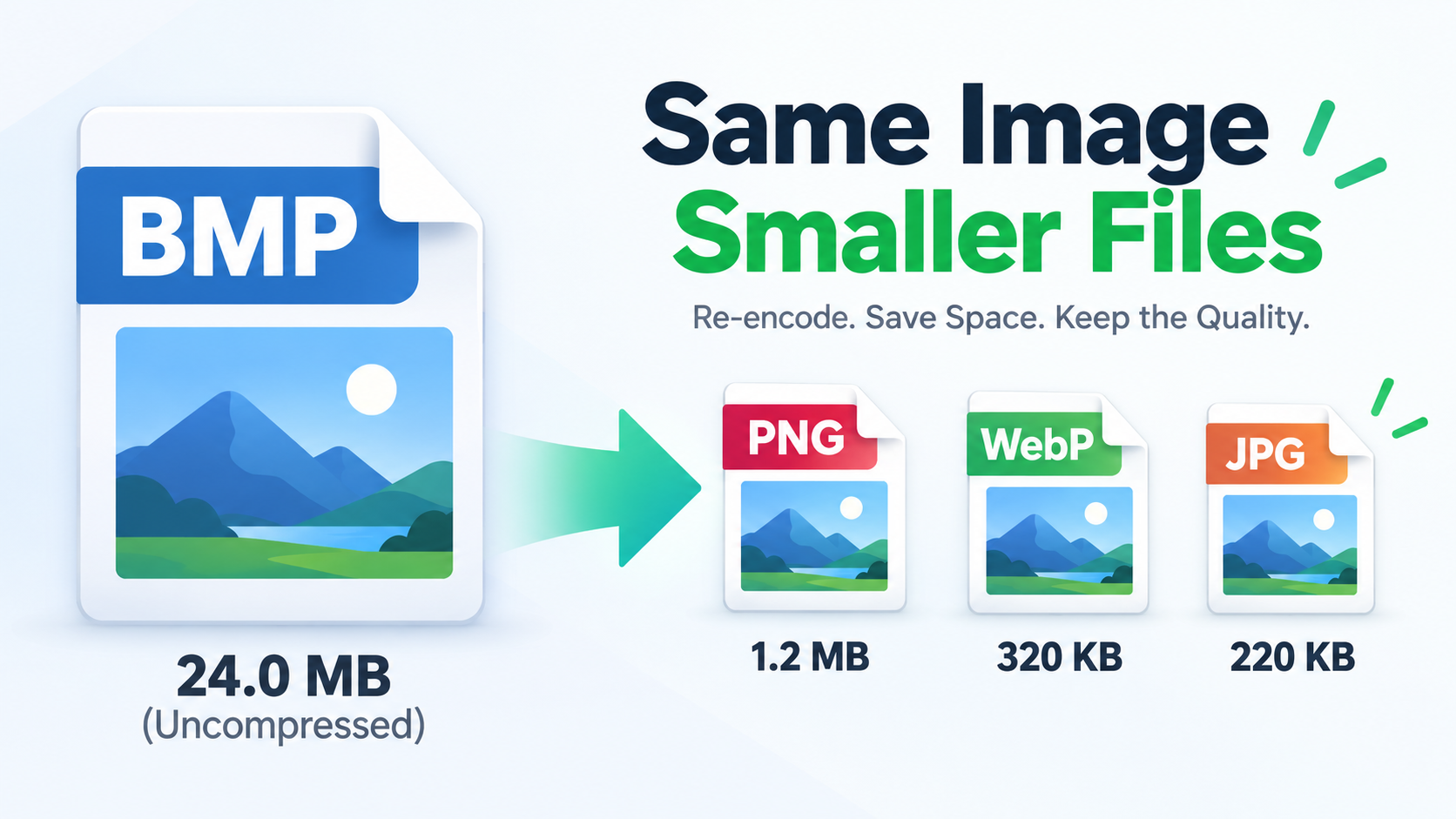
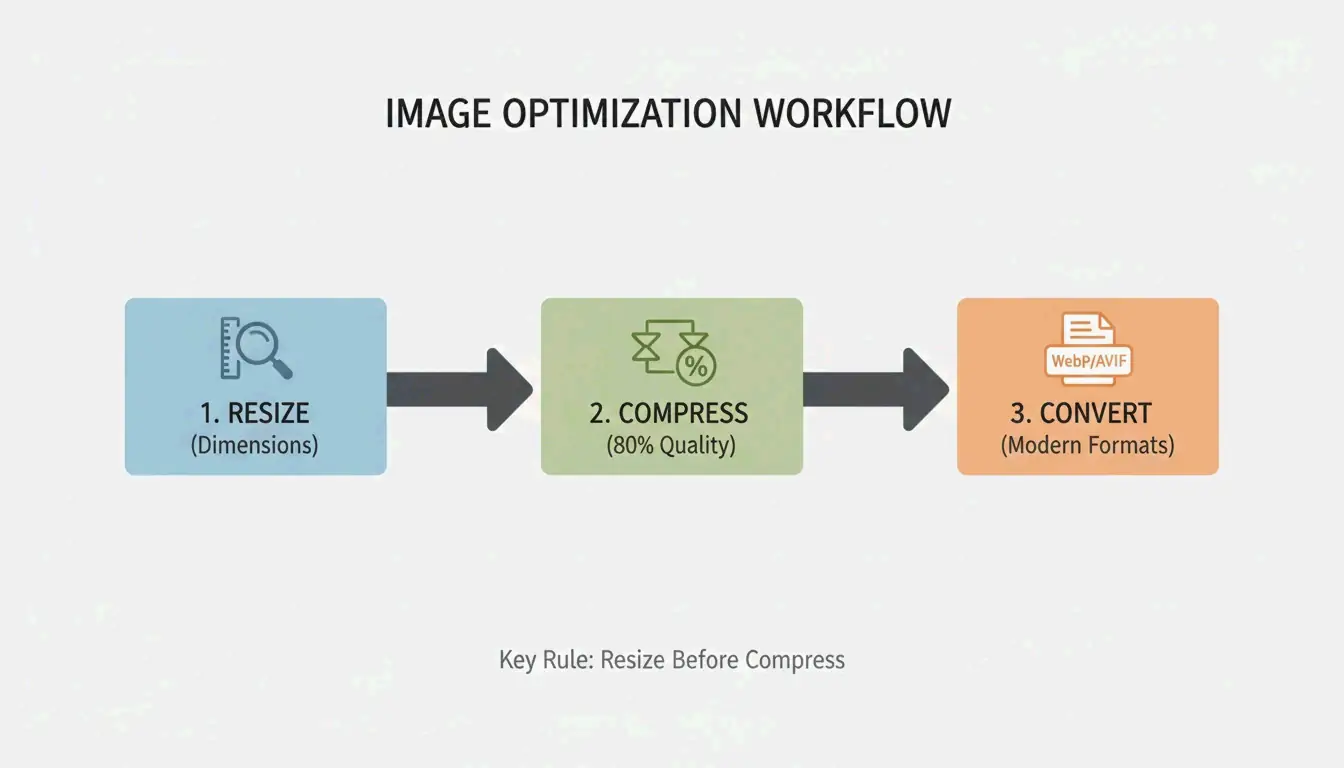
Resize to display dimensions, compress at 75-85% quality, convert to WebP or AVIF. This 3-step workflow delivers up to 90% file size reduction with no perceptible quality loss. Here is the complete 2026 method.
3-Step Workflow: Resize → Compress → Convert
Step 1: Resize to Display Dimensions
The largest single optimization is matching pixel dimensions to display size. Modern phones shoot 4000-6000px wide — far beyond web needs. As G Saunders demonstrates, scaling from 18,000px to 800px achieved a 99% file size reduction before any compression.
| Use Case | Recommended Width | Typical File Size After Resize |
|---|---|---|
| Blog hero image | 1200px | 200-400 KB |
| Product photo | 800px | 80-200 KB |
| Thumbnail | 300-400px | 20-50 KB |
| Social media | 1080px | 100-300 KB |
Step 2: Apply Lossy Compression at 75-85%
After resizing, apply lossy compression using encoders like MozJPEG. The 75-85% quality range is the sweet spot. Per Intellure, dropping from 100% to 85% quality cuts file size by 60% with virtually no visible difference.
| Quality Setting | File Size Reduction | Visual Impact |
|---|---|---|
| 90-100% | 10-20% | Identical to original |
| 75-85% | 50-70% | Imperceptible to human eye |
| 50-70% | 70-85% | Slight artifacts on close inspection |
| Below 50% | 85%+ | Visible banding and softness |
Step 3: Convert to WebP or AVIF
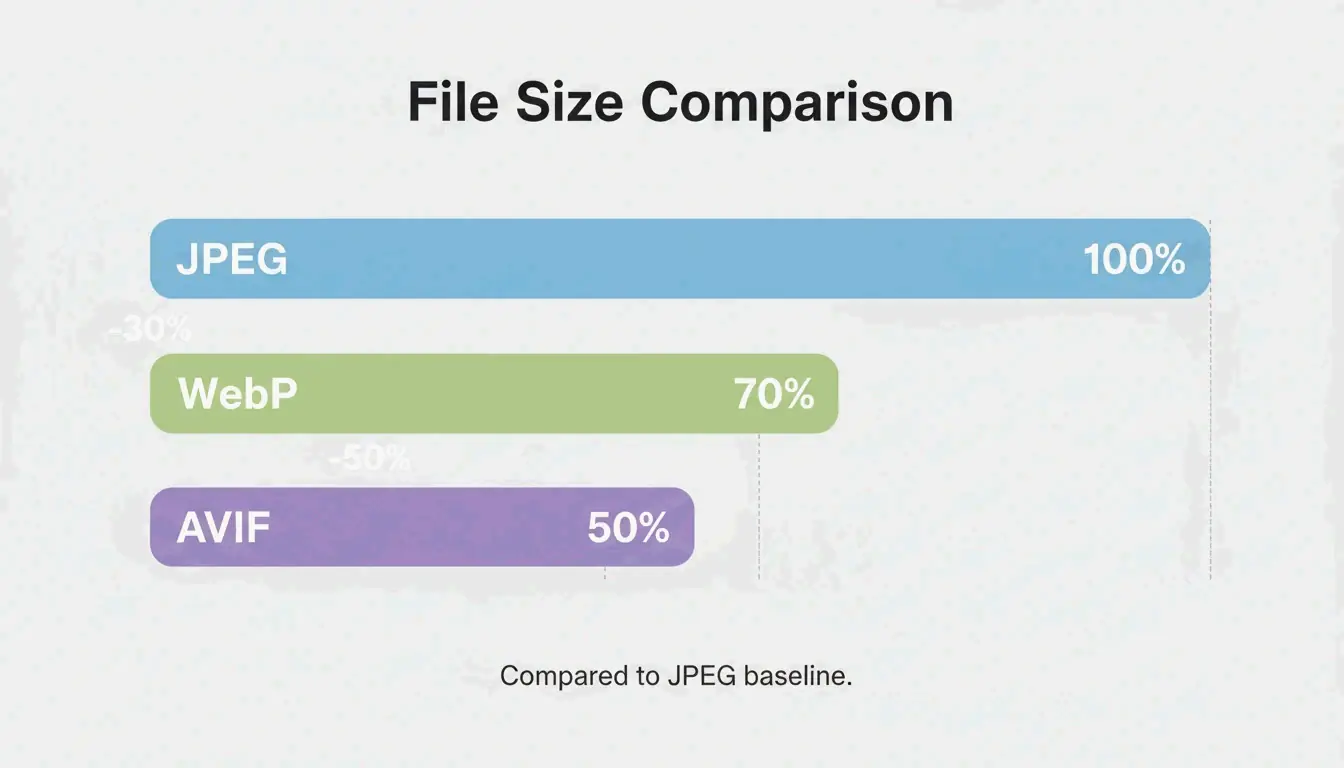
| Format | Size vs. JPEG | Browser Support (2026) | Best For |
|---|---|---|---|
| WebP | 25-34% smaller | 97%+ | General web use, LCP images |
| AVIF | Up to 50% smaller | 92%+ | Maximum compression |
| JPEG | Baseline | 100% | Universal fallback |
Data from Google Developers confirms WebP is 25-34% smaller than JPEG at equivalent quality. AVIF pushes further with up to 50% better compression.
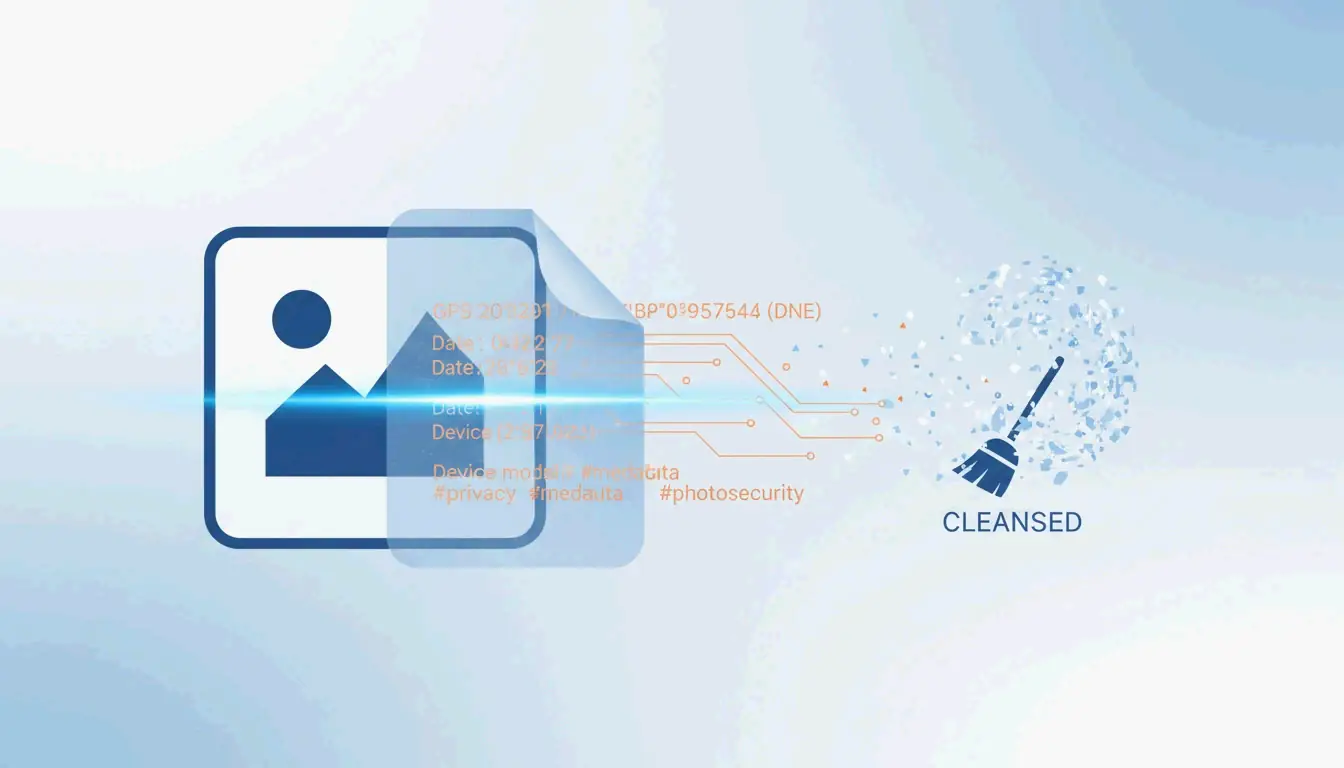
Also strip non-essential EXIF metadata (GPS, camera settings, timestamps) — saves 5-50 KB per file and protects privacy.
Lossy vs. Lossless: When to Use Each
| Mode | How It Works | Savings | Use For |
|---|---|---|---|
| Lossless (PNG, OptiPNG) | Preserves every pixel | 5-30% | Logos, icons, text screenshots, sharp edges |
| Lossy (JPEG, WebP, AVIF) | Removes imperceptible data | 50-80% | Photos, hero images, product shots |
For web photographs and complex images, lossy at 75-85% quality is the standard. For logos and text-heavy graphics, use lossless to preserve sharpness.
SEO Impact: Core Web Vitals and LCP
Google’s Core Web Vitals use Largest Contentful Paint (LCP) as a ranking signal. Images account for approximately 70% of all LCP elements (web.dev).
| Metric | Impact |
|---|---|
| 53% of mobile users leave if load exceeds 3 seconds | Bounce rate directly tied to image weight |
| LCP threshold: 2.5 seconds | Heavy hero images are the #1 cause of failure |
| Page speed is a confirmed ranking factor | Optimized images = higher search position |
Quality Verification Checklist
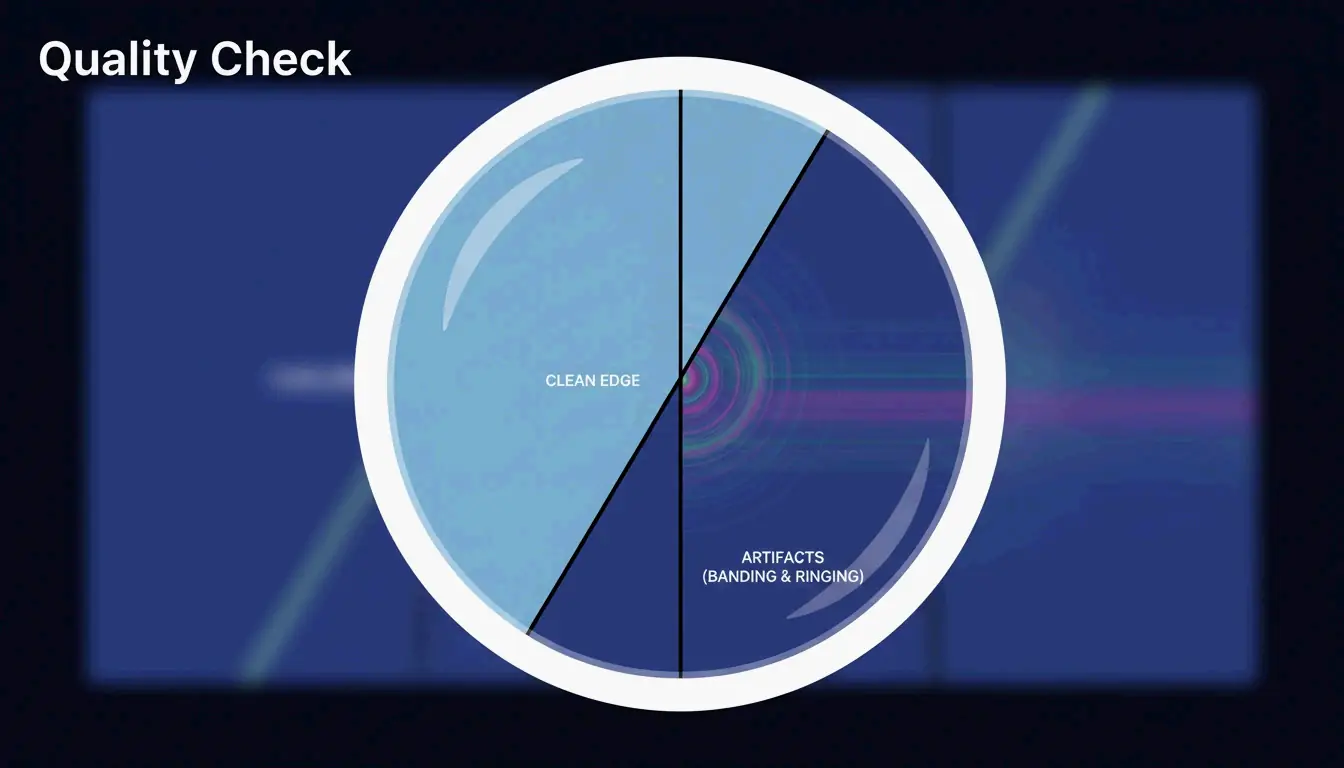
After compression, zoom to 100% and check for three artifacts:
| Artifact | What to Look For | Cause |
|---|---|---|
| Banding | Stepped color transitions in gradients (e.g., sky) | Quality set too low |
| Ringing | Halos around text or high-contrast edges | Over-compression |
| Softness | Fine details (hair, fabric) turned to blur | Excessive lossy reduction |
For privacy-conscious workflows, tools like Pixotter and SammaPix use WebAssembly (WASM) for in-browser processing — files never leave your device.
Conclusion
Compress images in three steps: resize to display width, apply lossy at 75-85% quality, convert to WebP or AVIF. This workflow delivers up to 90% size reduction with no visible quality loss. Audit your 10 most visited pages — convert hero images to AVIF and target under 200 KB per file.
FAQ
Can I compress a PNG without losing any data?
Yes. Tools like OptiPNG and oxipng optimize the internal DEFLATE algorithm and strip metadata without altering pixels. Savings are modest (5-20%) compared to lossy methods, but pixel-perfect fidelity is preserved.
Does image compression affect SEO rankings?
Yes. Page speed is a confirmed Google ranking factor. Images are typically the heaviest page elements. Optimized images improve LCP scores, which directly impacts Core Web Vitals performance and search visibility.
Is it safe to upload personal photos to online compression tools?
Use tools with client-side WASM processing — compression happens in your browser, files never touch a server. If using a server-side tool, verify the service deletes files immediately after processing.
About the Author
Indie Hacker & DeveloperI'm an indie hacker building iOS and web applications, with a focus on creating practical SaaS products. I specialize in AI SEO, constantly exploring how intelligent technologies can drive sustainable growth and efficiency.
Last reviewed May 16, 2026. This article is reviewed for accuracy and updated when tooling or platform behavior changes.