كيفية ضغط الصور وتوفير المساحة: الدليل النهائي لتحسين التخزين لعام 2026
جدول المحتويات
يبدأ ضغط الصور لتوفير المساحة في عام 2026 بالإعدادات المدمجة مثل تنسيق HEIC على iPhone أو ميزة Storage Saver في Google Photos. للحصول على أقصى كفاءة، استخدم أدوات AI لتحويل الصور إلى WebP أو AVIF، مع تطبيق الضغط الفاقد بجودة 75-85% لتقليل حجم الملفات بنسبة تصل إلى 80% مع الحفاظ على الوضوح البصري.
مكاسب سريعة: كيفية ضغط الصور وتوفير المساحة على أي جهاز
تبدأ عملية تقليص مكتبتك الرقمية بتغيير طريقة التقاط الأجهزة للملفات وتخزينها. وفقاً لـ Business.com، يمكن لأدوات الضغط الحديثة تقليل أحجام JPEG القياسية بنسبة 40-60% دون فقدان جودة مرئي. تمنع بعض الإعدادات على مستوى النظام انتفاخ التخزين قبل بدئه.
الجوال: تفعيل التنسيقات عالية الكفاءة
iPhone (HEIC):
1. افتح Settings > Camera > Formats
2. اختر High Efficiency
3. سيتم حفظ الصور الجديدة تلقائياً بصيغة HEIC
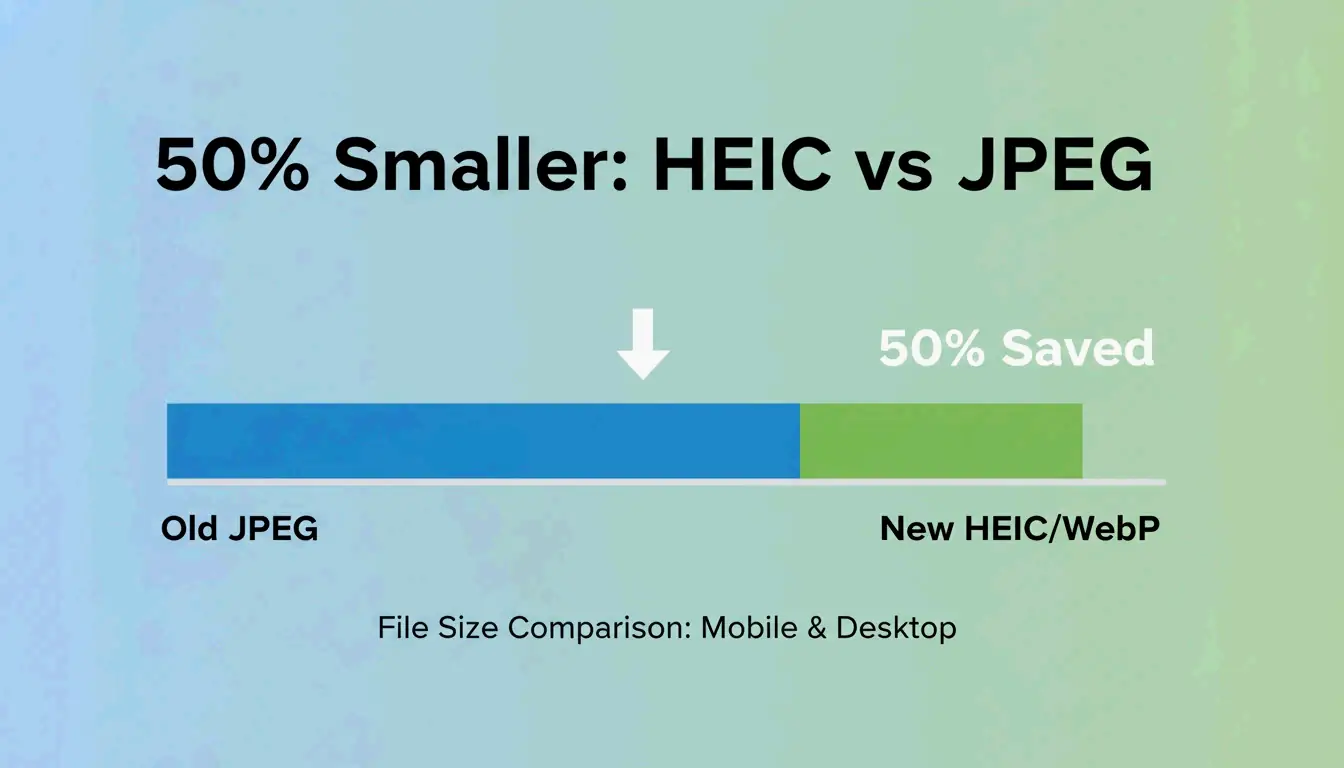
كما يشير Popular Outdoor Sports، فإن ملفات HEIC أصغر بنحو 50% من ملفات JPEG التقليدية عند نفس الجودة البصرية.
Android (Google Photos Storage Saver):
1. افتح إعدادات تطبيق Google Photos
2. فعّل Storage Saver
3. سيقوم Google بضغط الملفات المرفوعة تلقائياً إلى مستوى “High Quality”
تحقق من خيار “Advanced Picture Options” في تطبيق كاميرا Android الخاص بك للعثور على مفتاح تبديل التنسيق عالي الكفاءة.
سطح المكتب: تغيير الحجم السريع دون تطبيقات إضافية
| OS | الأداة | الخطوات |
|---|---|---|
| Windows | Microsoft Paint | افتح الصورة، انقر على “Resize”، اخفض النسبة المئوية أو البكسل، احفظ بصيغة JPEG |
| macOS | Preview app | افتح الصورة، اذهب إلى Tools > Adjust Size، قلّص الحجم، ثم File > Export باستخدام شريط تمرير الجودة |
تنظيف ذكي للتخزين: خفض مستوى اشتراك التخزين السحابي
يمكن أن يؤدي تنظيف مكتبتك الحالية إلى خفض خطة التخزين السحابي من 2TB إلى فئة 200GB الأرخص بكثير. تركز هذه الاستراتيجية على إيجاد الصور “المنتفخة” — لقطات الشاشة، ولقطات الانفجار العرضية، والملفات المكررة.
عملية التنظيف السريعة:
| الخطوة | الإجراء | الأداة |
|---|---|---|
| 1. العثور على الفضلات | تحديد اللقطات الضبابية والفيديوهات الكبيرة | Google Photos / iCloud “Review and Delete” |
| 2. حذف الانتفاخ | إزالة لقطات الشاشة والملفات المكررة | أدوات التنظيف المدمجة |
| 3. الضغط الدفعي | ضغط المكتبة المتبقية | Ashampoo Image Compressor |
| 4. التحقق من التوفير | فحص إجمالي التخزين المستخدم | لوحة معلومات السحابة |
تشير Alice من Popular Outdoor Sports إلى أن إدارة الملفات الضخمة أصبحت ضرورة مع ارتفاع تكاليف التخزين السحابي. يدعم Ashampoo Image Compressor معالجة دفعية بالسحب والإفلات لآلاف الصور، مما يقلل الحجم الإجمالي بنسبة تصل إلى 80%.
الفاقد مقابل غير الفاقد: أي طريقة ضغط يجب أن تختار؟
| الطريقة | كيف تعمل | توفير الحجم | الأنسب لـ |
|---|---|---|---|
| فاقد | يزيل البيانات غير المرئية للعين البشرية | 50-80% | وسائل التواصل الاجتماعي، النسخ الاحتياطي السحابي، JPEG، HEIC |
| غير فاقد | يحافظ على كل بكسل، يزيل التكرار | 20-40% | الشعارات، الرسومات النصية، PNG، TIFF، الأرشفة |
تشير تقارير PDFFlare إلى أن إعدادات الضغط الفاقد يمكن أن توفر 50-80% من مساحة التخزين مع الحفاظ على جودة بصرية مقبولة لوسائل التواصل الاجتماعي والنسخ الاحتياطي السحابي.
تؤثر الجودة بشكل مباشر على نتائج الأعمال. وجد تقرير Salsify لأبحاث المستهلكين 2025 أن 42% من المتسوقين يتخلون عن الشراء إذا كانت الصور مفقودة أو تبدو منخفضة الجودة. في عام 2026، يقدم WebP وAVIF نسب ضغط إلى جودة أفضل بكثير من JPEG.
مقارنة تنسيقات 2026:
| التنسيق | كفاءة الضغط | الجودة البصرية | حالة الاستخدام |
|---|---|---|---|
| JPEG | خط الأساس | جيدة | توافق شامل |
| HEIC | أصغر بنحو 50% من JPEG | مكافئة لـ JPEG | نظام Apple البيئي |
| WebP | أصغر بنسبة 25-30% من JPEG | أفضل من JPEG | أداء الويب |
| AVIF | أصغر بنسبة 30-50% من JPEG | الأفضل في فئته | الويب الحديث، أقصى توفير |
الضغط المعزز بالذكاء الاصطناعي: ثورة التقنية لعام 2026
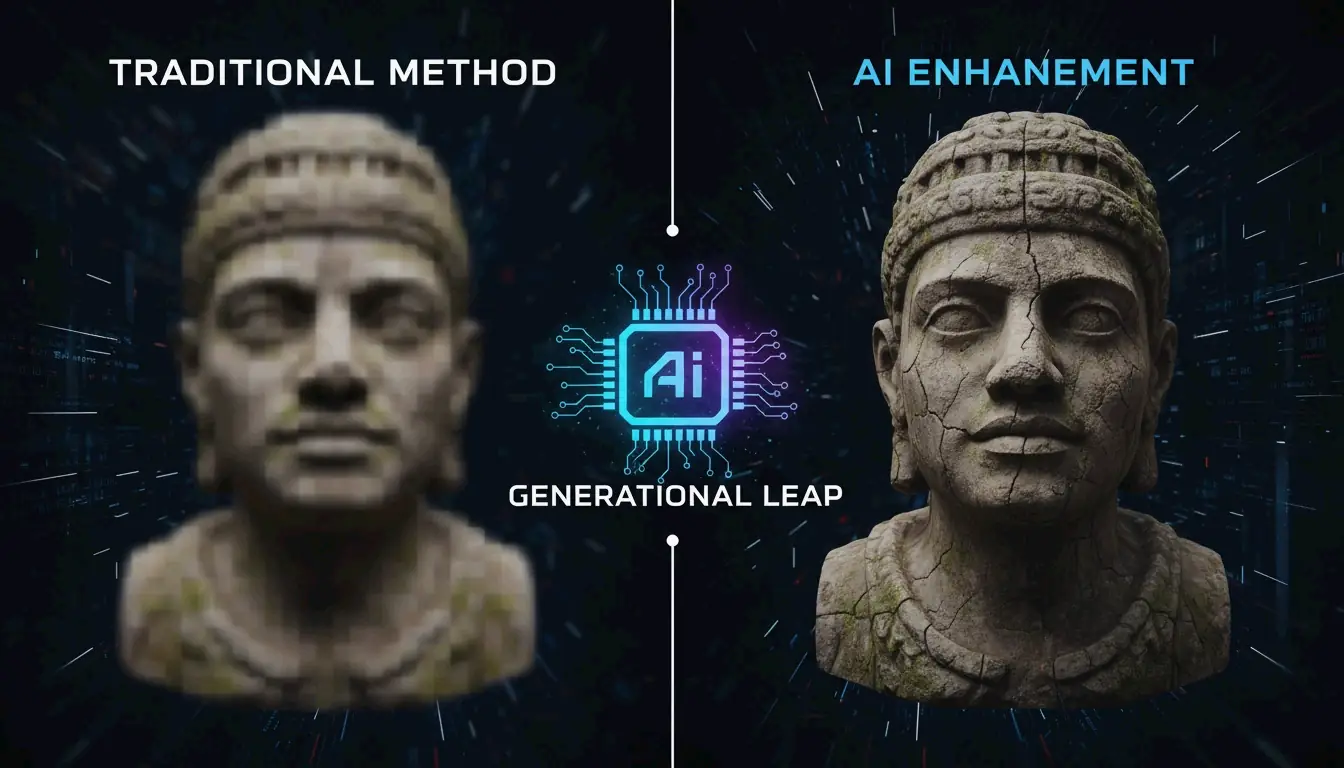
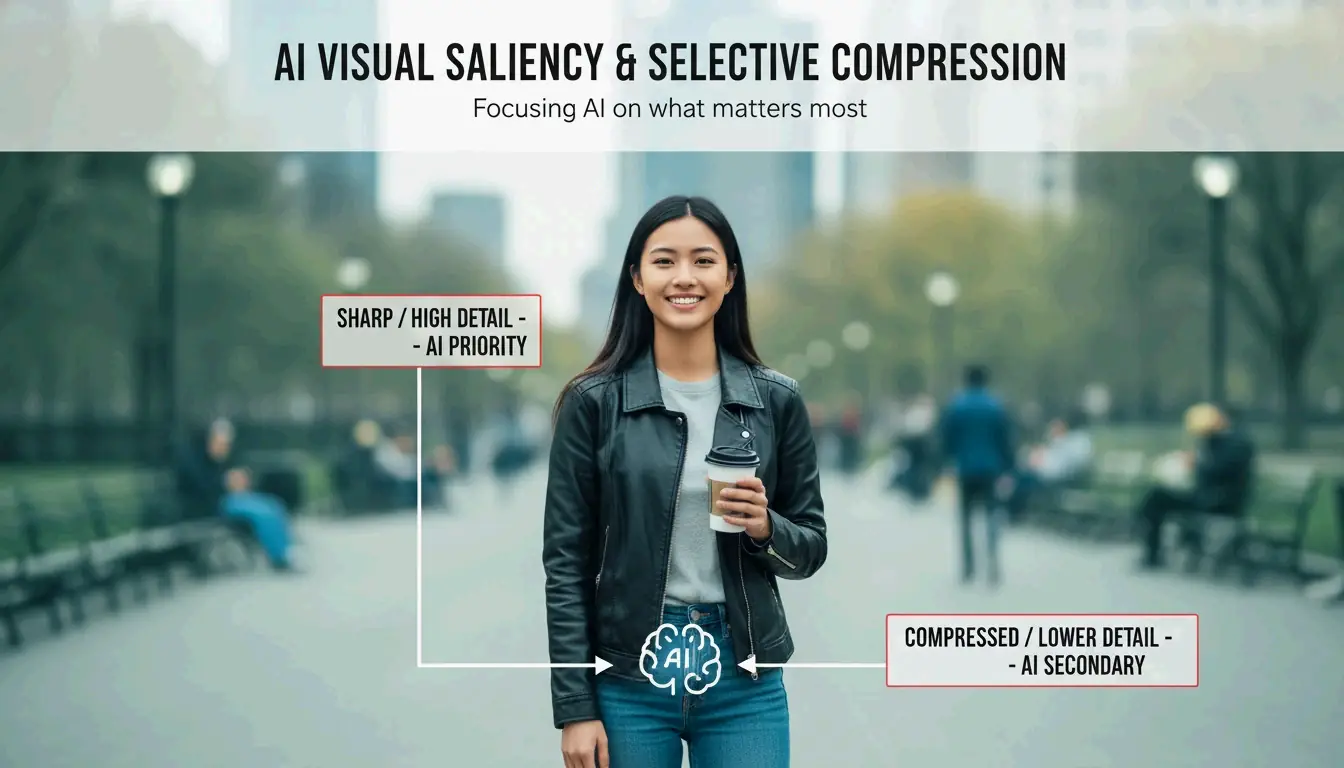
التحول الرئيسي في عام 2026 هو ذكاء Visual Saliency الاصطناعي. على عكس الخوارزميات التقليدية التي تضغط الصورة بأكملها بشكل موحد، تحدد أدوات AI الأجزاء الأكثر أهمية — الوجوه، والموضوعات الأمامية — وتبقي تلك المناطق حادة بينما تضغط الخلفيات بشكل عدواني حيث تكون التشوهات أقل وضوحاً.
مشهد أدوات ضغط AI (2026):
| الأداة | النوع | الميزة الرئيسية |
|---|---|---|
| Adobe Photoshop | احترافي | Neural filters لتحسين الويب الدقيق |
| Ashampoo Image Compressor | مستهلك/دفعي | يعالج صور DSLR الضخمة (50-75MB لكل منها) إلى ملفات مدمجة |
يمكن للضغط عبر AI تقليص صور DSLR بحجم 50-75MB إلى جزء صغير من حجمها الأصلي مع الحفاظ على العناصر “البطلة” — الموضوع، والتفاصيل الرئيسية، والتأثير البصري للقطة.
الضغط لاحتياجات محددة: الويب والبريد الإلكتروني والنماذج
تتطلب المنصات المختلفة استراتيجيات ضغط مختلفة:
تحسين محركات البحث للويب
للتوافق مع معايير Core Web Vitals (LCP) من Google، يجب أن يتم تحميل الصور بسرعة. تفيد تقارير Illustrate Digital أن وقت تحميل مقداره 1 ثانية على مواقع B2B يؤدي إلى معدلات تحويل أعلى بخمس مرات من المواقع التي تستغرق 10 ثوانٍ.
| الهدف | الإعداد الموصى به |
|---|---|
| صور البطل | أقل من 200KB، WebP أو AVIF |
| الصور المصغرة | أقل من 30KB |
| الجودة | 75-85% |
النماذج الحكومية
تفرض المواقع الرسمية قيوداً صارمة. تتطلب إرشادات IRCC Canada ملفات أقل من 2MB، وتوصي بدقة المسح عند 96 DPI.
مرفقات البريد الإلكتروني
حافظ على الجودة عند 70-80% لإبقاء كل صورة فردية أقل من 1MB، مما يبقيك ضمن حد المرفقات الشائع البالغ 25MB بفارق كبير.
| حالة الاستخدام | الجودة | DPI | أقصى حجم للملف |
|---|---|---|---|
| تحسين الويب SEO | 75-85% | 72 | أقل من 200KB (صورة البطل) |
| النماذج الحكومية | 80% | 96 | أقل من 2MB |
| البريد الإلكتروني | 70-80% | 72 | أقل من 1MB لكل صورة |
الخلاصة
لم يعد ضغط الصور يتطلب الاختيار بين الجودة والحجم. توفر التنسيقات الحديثة مثل HEIC والأدوات المعتمدة على AI كليهما. بالتحويل إلى WebP و AVIF، يمكنك تقليل احتياجات التخزين بنسبة تصل إلى 80% دون فقدان التفاصيل البصرية. ابدأ بتفعيل “High Efficiency” في إعدادات كاميرا هاتفك، ثم استخدم أداة ضغط دفعية AI لمراجعة تخزينك السحابي. هذه التغييرات الصغيرة توفر المال في الاشتراكات الشهرية وتضمن مساحة للصور الجديدة.
الأسئلة الشائعة
هل يقلل ضغط الصورة من جودة الطباعة؟
نعم، عند استخدام الضغط الفاقد العدواني. للطباعة المادية، حافظ على دقة عالية — 300 DPI على الأقل. استخدم الضغط غير الفاقد أو إعدادات JPEG عالية الجودة (90%+) لضمان بقاء الصورة المطبوعة حادة وخالية من تشوهات البكسلة.
كيف أقوم بضغط عدة صور دفعياً على Mac؟
استخدم ميزة Quick Actions الأصلية في Finder:
1. حدد جميع الصور المراد ضغطها
2. انقر بزر الماوس الأيمن وانتقل إلى Quick Actions > Convert Image
3. اختر حجم “Small” أو “Medium”
4. اختر التنسيق المفضل لديك
يوفر هذا مساحة كبيرة على الفور دون فتح تطبيق منفصل.
ما الفرق بين HEIC و JPEG من حيث التخزين؟
يستخدم HEIC (High Efficiency Image Format) ترميز HEVC لإنتاج ملفات أصغر بحوالي 50% من ملفات JPEG عند نفس الجودة البصرية. يوفر JPEG توافقاً أوسع مع البرامج القديمة، بينما يعد HEIC المعيار المفضل للأنظمة البيئية الحديثة من Apple و Android لزيادة كفاءة التخزين إلى أقصى حد.
عن المؤلف
مطور مستقلأنا مطور مستقل أقوم ببناء تطبيقات iOS وتطبيقات الويب، مع التركيز على إنشاء منتجات SaaS عملية. أتخصص في AI SEO، وأستكشف باستمرار كيف يمكن للتقنيات الذكية أن تدفع النمو المستدام والكفاءة.
آخر مراجعة 2 يوليو 2026. تتم مراجعة هذه المقالة للدقة وتحديثها عند تغير الأدوات أو سلوك المنصة.