How to Crop Pics Fast: 2026 Guide for Mobile, Desktop, and AI Bulk Tools

How to Crop Pics Fast: 2026 Guide for Mobile, Desktop, and AI Bulk Tools

5 min read

To crop pics in 2026, you can use built-in apps like Wi […]

To crop pics in 2026, you can use built-in apps like Windows Photos or macOS Preview for quick, everyday edits. For mobile users, Google Photos now features AI Enhance for smart framing. If you need to handle many images at once without compromising privacy, client-side tools like BIRME or Pixotter allow you to batch crop locally in your browser so no files ever hit a server.

How to Crop Pics on Windows and Mac Using Built-in Tools?

Cropping is the simple act of trimming away the edges of an image. Whether you want to fix a messy composition or fit a specific aspect ratio, your computer’s native apps are often the best choice. They are fast, keep your data private, and won’t degrade your image quality.

Windows Photos App: The Fastest Offline Method

If you’re on a PC, the Windows Photos app is your go-to. To crop a pic, just double-click the file to open it. Click the Edit image icon (or hit Ctrl+E) to enter the editor. You’ll see cropping handles appear on the corners and sides immediately. You can drag these manually or pick a standard size like “Square” or “16:9” from the Aspect ratio menu. A quick tip from Pixotter: always use “Save as copy.” Once you close the app, you can’t undo a crop on the original file, so it’s safer to keep a backup.

macOS Preview: Precision Cropping with Shortcuts

Mac users can skip the extra software and use Preview. Open your image and click the Markup Toolbar (the pencil icon) or press Shift+Cmd+A. Use the Selection tool to draw a box over the part of the photo you want to keep, then hit Cmd+K to cut everything else away. According to IT@UMN, if you are prepping images for a website, try to keep them under 600 pixels wide. This helps your pages load faster and keeps the layout clean.

AI Auto-Cropping vs. Manual Control: The 2026 Mobile Standard

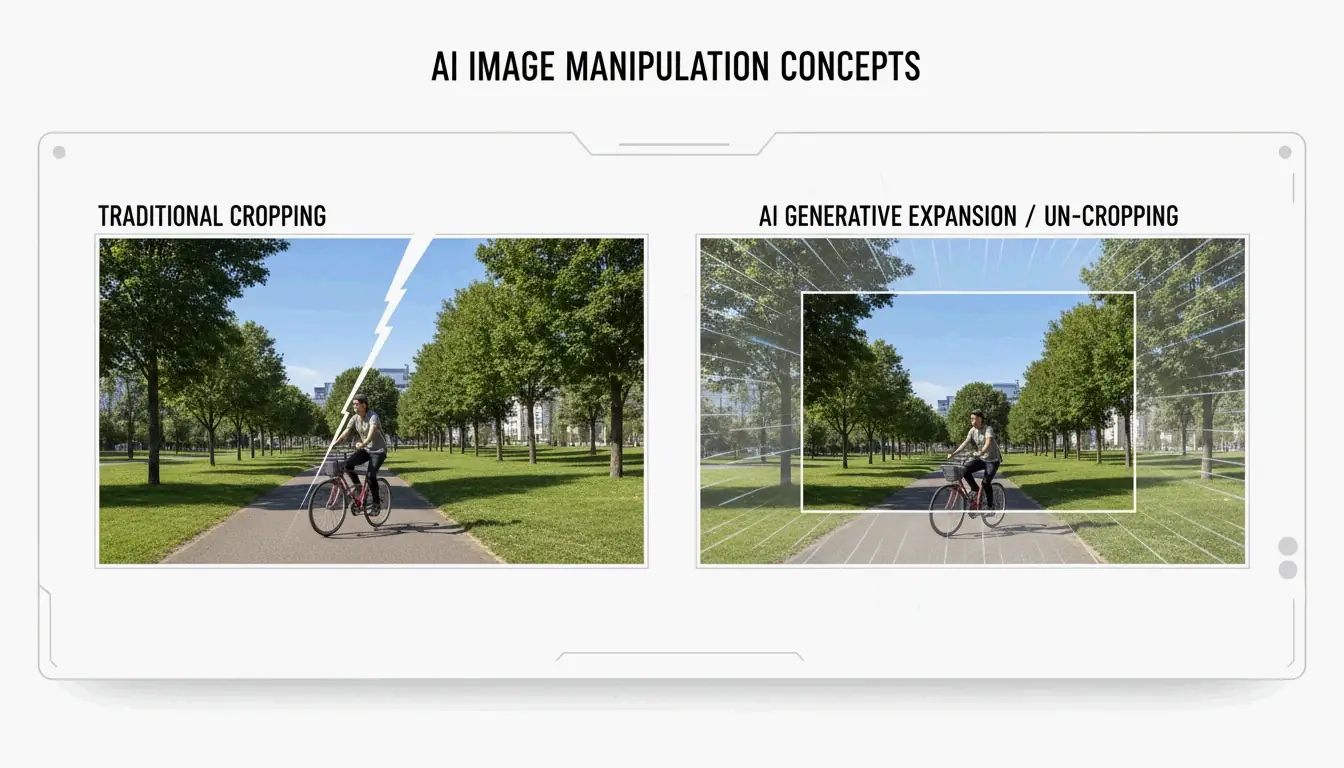
Phone photography has moved past basic manual editing. Today’s AI tools don’t just cut edges; they understand what’s in the photo and can even “un-crop” or expand the background if you cut things too close.

A comparison of traditional cropping vs AI generative expansion

Using Google Photos AI to Auto-Frame Your Shots

Following the April 2026 rollout reported by ZDNET, the AI Enhance button in Google Photos has become a staple. When you tap it, the app analyzes the main subject and suggests three different framing options. It tries to fix lighting and sharpness at the same time it crops. Just keep an eye on it—as ZDNET points out, AI can sometimes be a bit too aggressive, cutting out background details you actually wanted to keep for the “vibe” of the photo.

Batch Cropping for Social Media: 2026 Aspect Ratio Cheat Sheet

If you’re a creator with 50 photos to post, doing them one by one is a waste of time. Batch cropping lets you apply the same dimensions to an entire folder at once, which is the easiest way to keep your Instagram grid or portfolio looking consistent.

The 2026 Social Media Dimension Guide

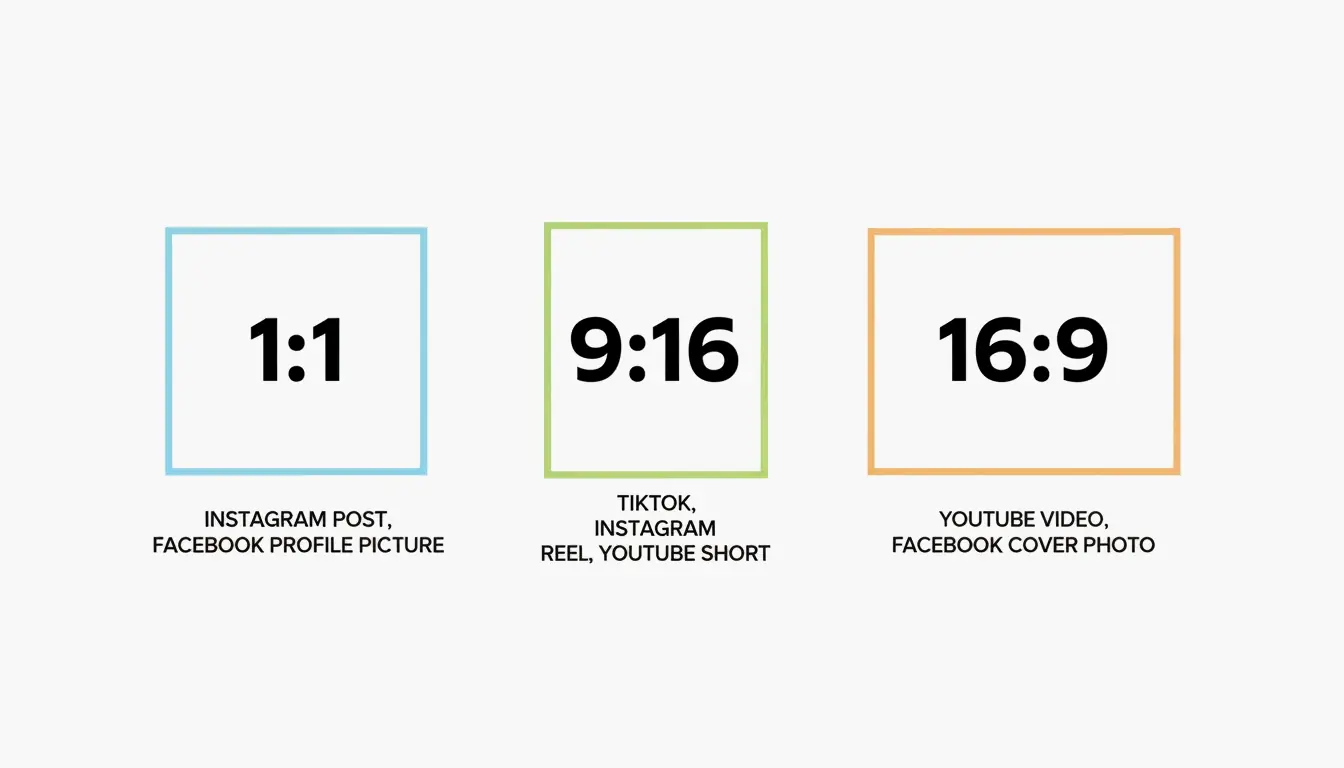
Every platform has its own rules. To avoid weird stretching or having the app cut off someone’s head, use a tool like BIRME or Private Convert to lock in these ratios:

Ratio Platform / Use Case
1:1 Instagram Posts, Profile Pictures
9:16 TikTok Covers, Instagram Stories
16:9 YouTube Thumbnails, LinkedIn Banners
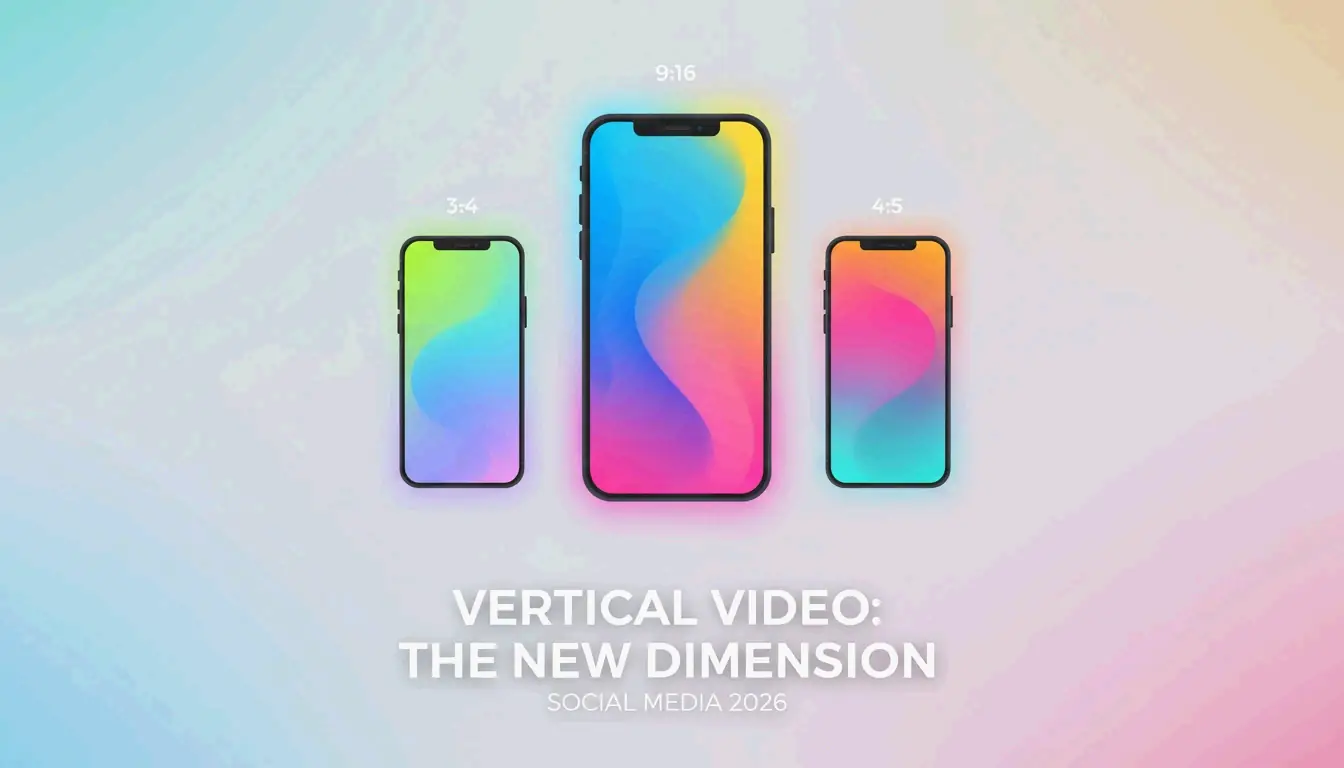
4:5 Instagram Portrait Posts
1.91:1 Facebook Open Graph (Link Previews)

A visual guide of common aspect ratios (1:1, 9:16, 16:9)

Why Browser-Based Tools are Now Safer Than Ever

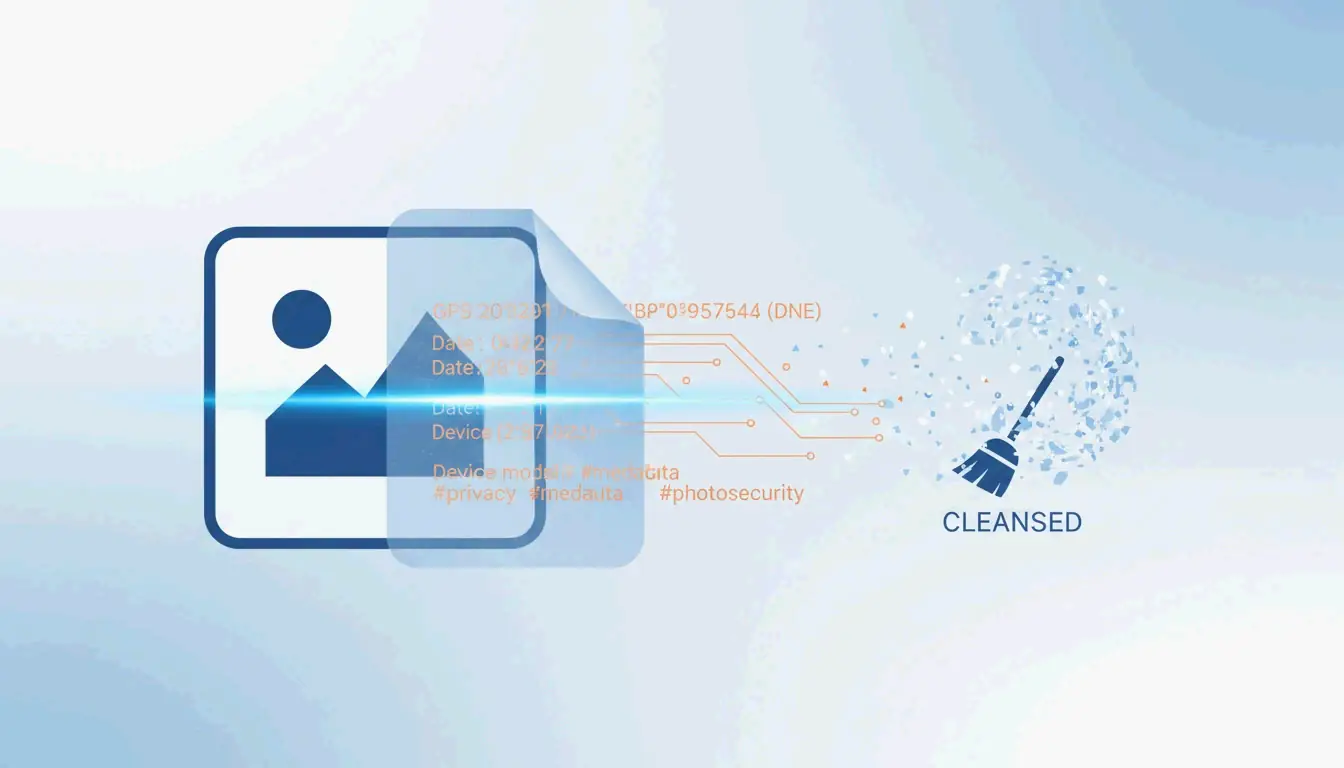
You might be wary of “online” editors, but modern tools have changed. Sites like BIRME use Client-side processing (WASM/Canvas). This means the actual work happens inside your browser’s memory, and your photos never leave your hard drive. As the BIRME Team notes, when you’re saving images for the web, setting the quality to 80% is usually perfect—it keeps the image sharp while making the file small enough for fast browsing.

Advanced Techniques: ImageMagick for Power Users

If you’re a developer or someone managing thousands of files, clicking buttons isn’t fast enough. ImageMagick is the pro standard for command-line editing. Using a simple command like convert input.jpg -crop 800x600+50+100 output.jpg, you can tell your computer exactly where to cut. This allows you to automate hours of work into a few seconds of processing.

Conclusion

In 2026, cropping pics is about more than just moving corners. You have a choice between the smart, generative framing of Google Photos and the privacy-focused speed of client-side tools like BIRME. For a quick one-off edit, stick to the app already on your computer or phone. But if you’re prepping a whole set for social media, a dedicated batch editor will save you time and keep your data safe.

FAQ

Does cropping an image reduce its quality?

Cropping itself doesn’t lower quality, but it reduces the total pixel count of the image. Aggressive cropping can make an image look pixelated if it is later enlarged beyond its new dimensions. To maintain the best results, always save your crop as a copy to preserve the original high-resolution file.

How can I crop a photo to exact pixel dimensions (e.g., 1200×630)?

Use a tool like BIRME or Pixotter where you can manually input “Fixed Dimensions.” Simply set the width to 1200 and the height to 630. These tools allow you to adjust the focal point within that specific box before saving, ensuring the most important part of the image is captured.

作者

SJ

SectoJoy

独立开发者

我是一名独立开发者,专注于构建 iOS 和 Web 应用程序,致力于打造实用的 SaaS 产品。我擅长 AI SEO,不断探索智能技术如何推动可持续增长和效率提升。

Table of Contents