Best Change Image Size App Options for 2026: Resize Pixels and KB Instantly
To change image size in 2026, the most reliable methods […]
To change image size in 2026, the most reliable methods are using the “Image Size” app on iOS/Android for pixel-perfect adjustments or BIRME.net for bulk processing. Just upload your photo, set your new dimensions while keeping the aspect ratio locked, and save. For official document uploads, aim for 96-150 DPI to keep file sizes under 2MB.
How to Use a Change Image Size App: The 3-Step Framework
Choosing the right change image size app usually comes down to what device you’re using and how many photos you have. If you’re on your phone, dedicated apps like “Image Size — Photo Resizer” (iOS and Android) give you exact control over pixels, millimeters, or inches. If you’re on a computer, browser-based tools like BIRME are often faster because they process images locally, which also keeps your data private.
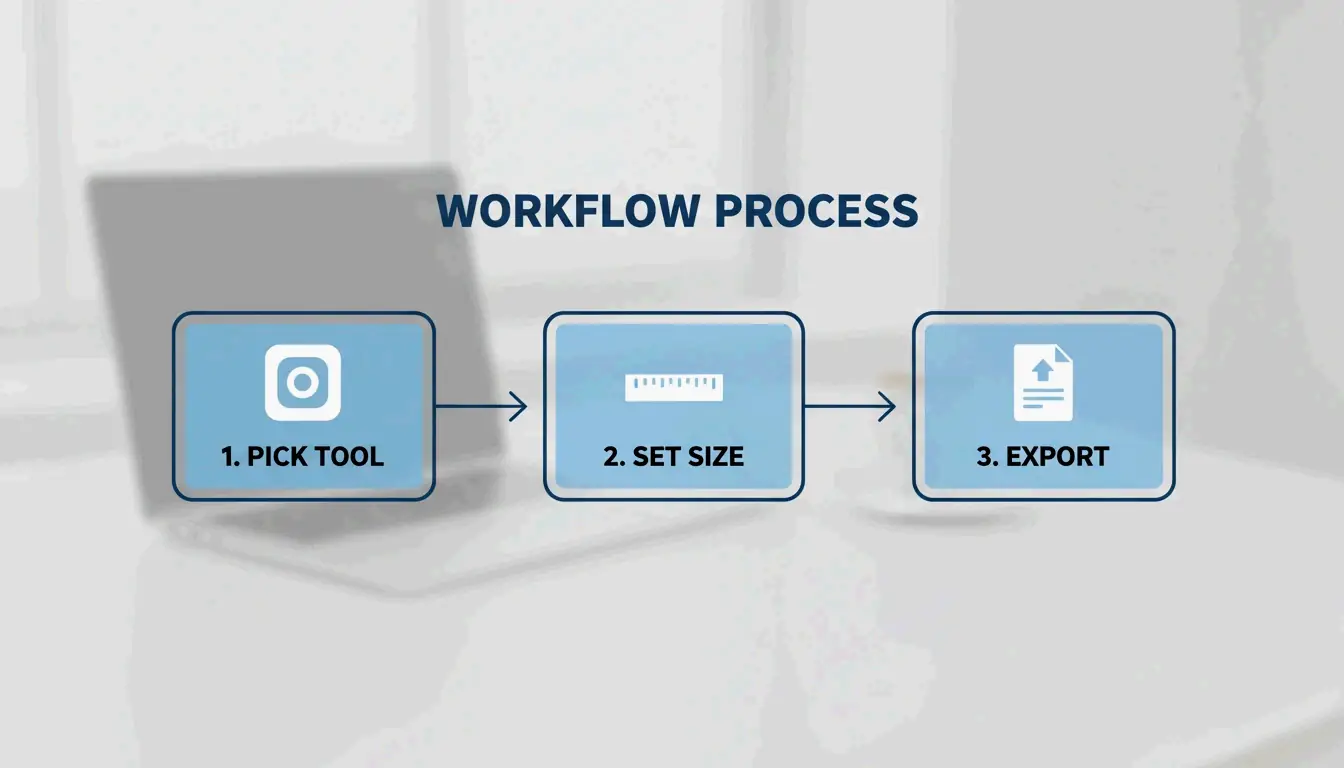
The process usually follows these three steps:
- Pick Your Tool: Use a mobile app for a quick single edit, or a web-based batch tool if you have dozens of photos to resize at once.
- Set Your Dimensions: Type in the width or height you need. Make sure the aspect ratio—often shown as a small chain link icon—is locked. This prevents your image from looking stretched or “squashed.”
- Choose the Format: Pick your output file type. JPEG, JPG, and PNG are still the standard go-tos, but WebP is becoming the favorite for websites because it makes files much smaller without losing quality.

The developer of BIRME points out that finding the right balance between clarity and file size is key. An 80% quality setting is usually the “sweet spot” for web use; you rarely need to go above 90% unless you need perfect high-fidelity prints.
Maintaining Aspect Ratio to Prevent Distortion
To keep your photos looking right, always lock the aspect ratio before you touch the dimensions. In the “Image Size” app, tapping the chain icon between the width and height boxes ensures that if you change one number, the other adjusts automatically. If you skip this, you might end up with distorted images—a frequent headache noted by the creator of BIRME when users upload “squeezed” photos to WordPress sites.
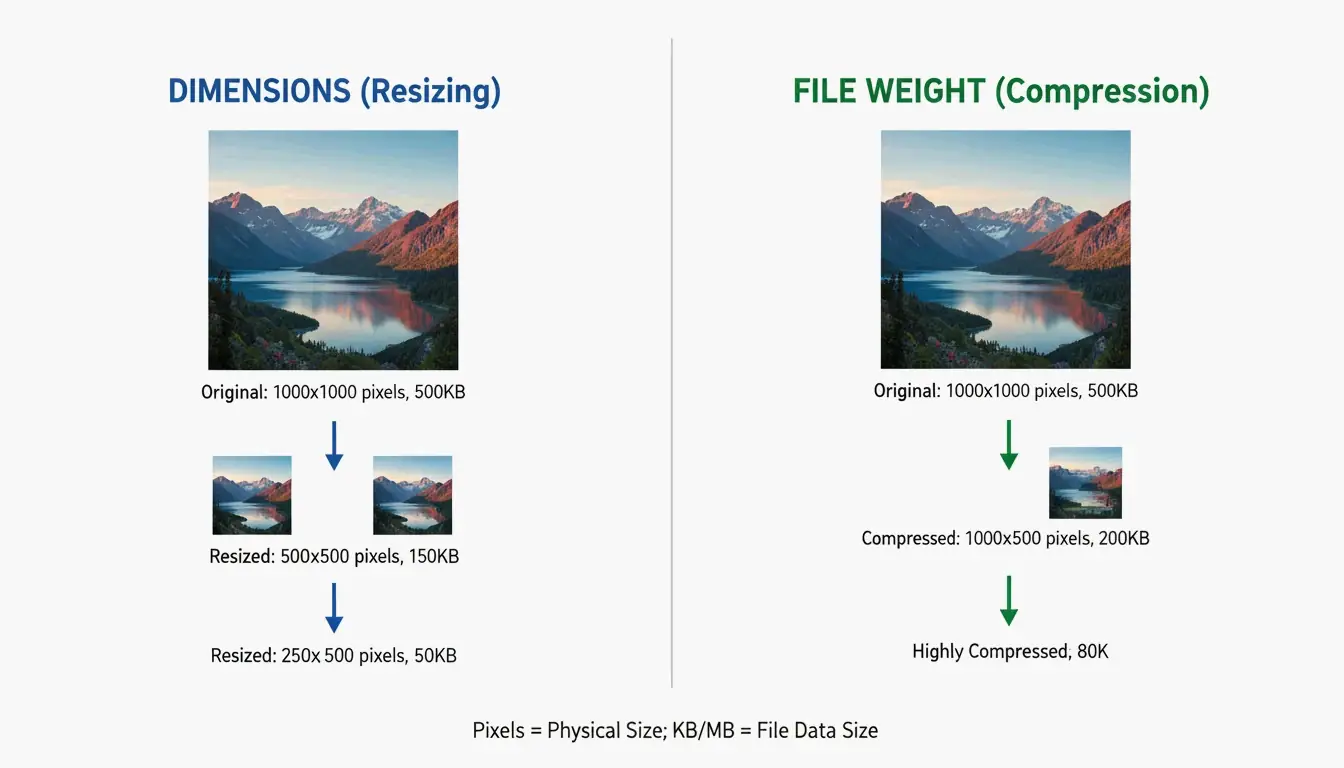
The Decision Matrix: Resize Pixels vs. Compress KB/MB
Knowing whether to change the physical dimensions (pixels) or the file weight (KB/MB) is important for meeting specific upload rules. You should resize pixels when you’re prepping images for social media or app designs so they fit the layout perfectly. On the other hand, you’ll need to focus on the KB/MB target size for things like email attachments or government portals that have strict file size limits.

Your Resolution (DPI) also affects the final file size. According to Canada IRCC, official document uploads often have a 2MB limit. They suggest scanning documents at a lower resolution, like 96 DPI or 150 DPI. This keeps the file small enough to upload while ensuring the text stays clear and readable.
Why Batch Processing is Essential for Efficiency?
When you have hundreds of images to deal with, Batch Processing is a lifesaver. Tools like BIRME (which handles over 50,000 users a month according to BIRME.net) let you drop an entire folder of photos into your browser and apply the same settings to all of them at once.
Modern batch tools now use Smart Cropping (or Auto Focal detection). This technology uses libraries like “smartcrop” to scan an image for important details like faces, lines, or curves. It identifies the “focal point” so that when the image is resized or cropped to a new shape, the most important part of the photo stays centered and doesn’t get cut off.
No-App Methods: Resizing on iOS 26 and Android Native Tools
By 2026, you can often resize images without downloading a separate change image size app by using the tools already on your phone. On iOS 26, the Shortcuts app is a powerful built-in option. You can set up a “Resize Image” shortcut to process files directly from your photo gallery’s share menu.
Android’s native Gallery and the iOS “Preview” tool also offer basic resizing. However, many people still prefer dedicated apps because native tools sometimes lack the ability to set a specific KB target or handle 50 photos at once. A classic “Mail app trick” still works too: email a photo to yourself, and your phone will ask if you want to send it as “Small, Medium, or Large,” which shrinks the file size instantly.
Next-Gen Formats: Support for WebP and AVIF
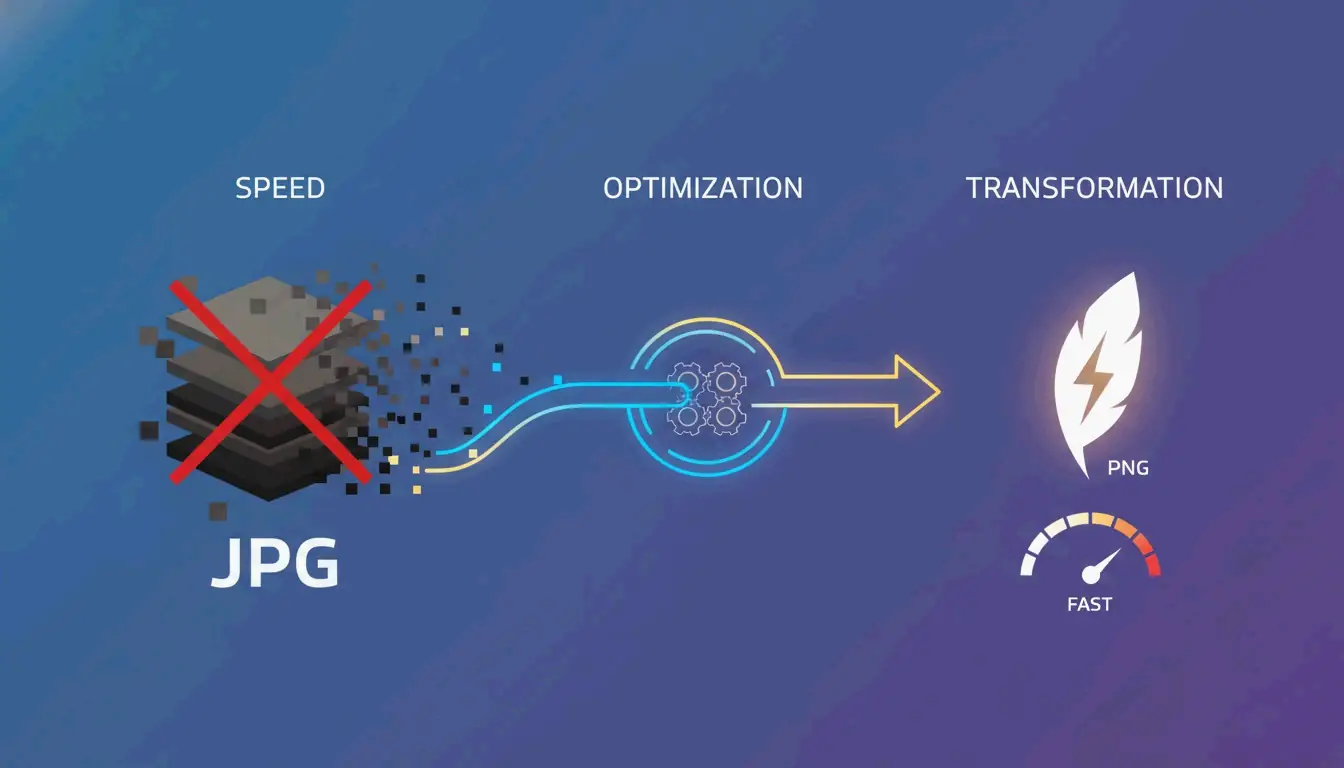
The way we save images is changing. While JPEG, JPG, and PNG work everywhere, WebP and AVIF are the new standards for high performance. AVIF is particularly impressive, offering much smaller file sizes than JPEG while looking just as sharp. Most top-rated resizing apps in 2026 now let you convert old files into these next-gen formats to help websites load faster and save space on your phone.
Conclusion
The best change image size app for you depends on what you’re trying to do: do you need exact pixel dimensions, bulk processing, or a tiny file for a document upload? For a quick edit on your phone, a dedicated tool like the “Image Size” app offers the best precision for pixels and aspect ratio. For professional web work or large batches, a tool like BIRME.net is the most efficient choice—it’s fast, keeps your files private, and doesn’t require uploading anything to a server. Just remember to start with your highest-quality original and keep your quality settings around 80% for the best results.
FAQ
Why do my photos look pixelated after resizing?
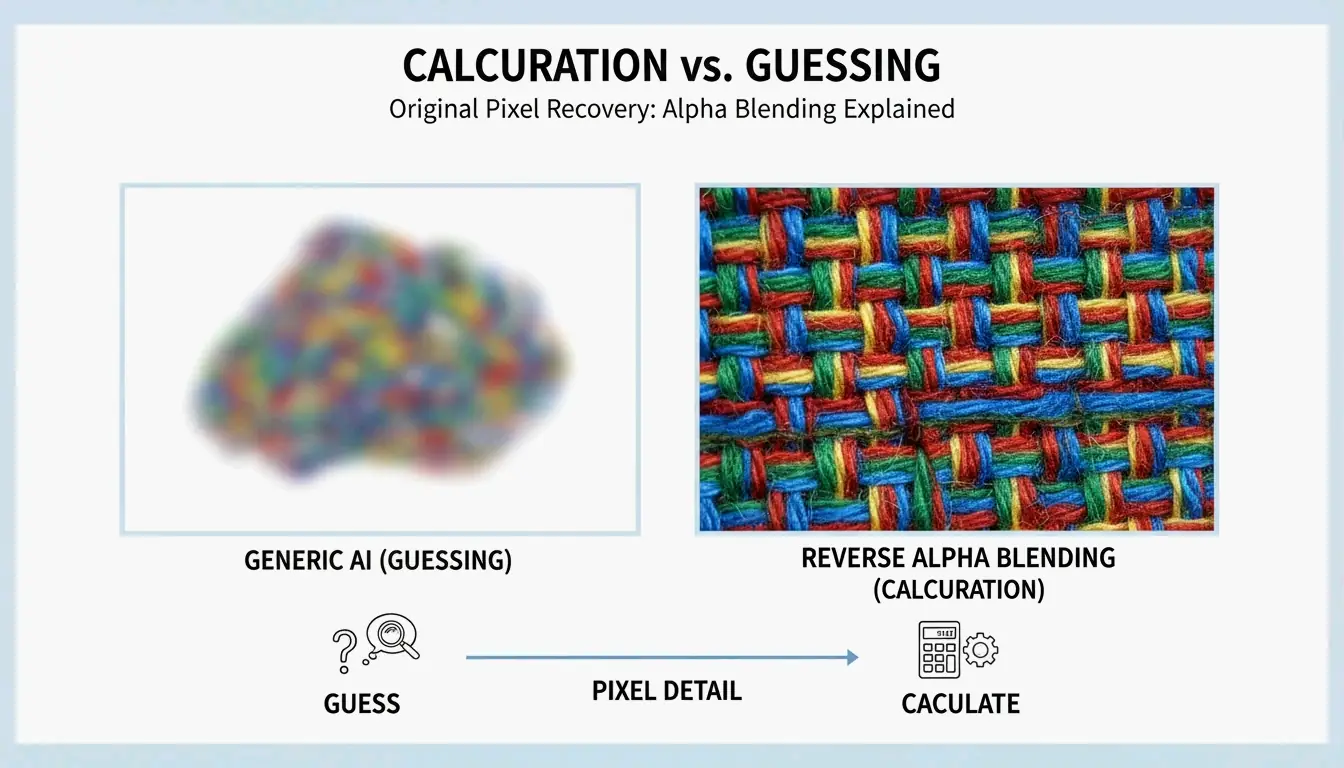
Pixelation usually happens when you try to “upscale” a small image (making it bigger than it originally was). The software has to “guess” where to put new pixels, which creates a blurry or blocky look. According to BIRME, setting the quality too low—well below 80%—can also ruin the fine details. To avoid this, always try to start with the highest-resolution original file you have.
Is it safe to use online image resizers for private photos?
It is safe as long as you use “client-side” or “local” tools like BIRME. On these sites, your images never actually leave your computer; the resizing happens right inside your browser using JavaScript. You should avoid sites that force you to upload your files to a remote server, especially if you are handling IDs or sensitive documents.
How can I resize an image on iPhone without downloading a third-party app?
The easiest way is to use the “Mail” app: email the photo to yourself and choose a smaller size (Small, Medium, or Large) when the prompt appears. You can also use the “Shortcuts” app to build a custom “Resize Image” tool. Another quick trick is to use the “Print” preview—if you pinch out on the print preview screen, you can save that version as a new, often smaller, PDF or image.
作者
SectoJoy
独立开发者我是一名独立开发者,专注于构建 iOS 和 Web 应用程序,致力于打造实用的 SaaS 产品。我擅长 AI SEO,不断探索智能技术如何推动可持续增长和效率提升。