2026年に写真と動画を一括リサイズする方法:プライバシー優先ガイド
目次
2026年に写真と動画を一括リサイズするには、画像には BIRME や FastTool などのブラウザベースのツールを、動画ファイルにはローカル API プラットフォームを使用するのが最も効率的な方法です。バッチをアップロードし、アスペクト比をロックしたままサイズを設定し、圧縮品質を 80-90% に調整して、最適化された結果を ZIP ファイルとしてダウンロードします —— データがデバイスから一切離れません。
2026年の写真と動画一括リサイズの標準
2026年までに、メディア処理は「ローカル優先」のアプローチへと移行しています。プライベートなファイルを遠くのサーバーへ送る代わりに、コンピューターがブラウザ内で直接処理を行います。これは Canvas API と HTML5 Canvas によって実現されており、これらはモダンブラウザがネイティブソフトウェアに匹敵する速度で重い画像編集を処理できるようにします。
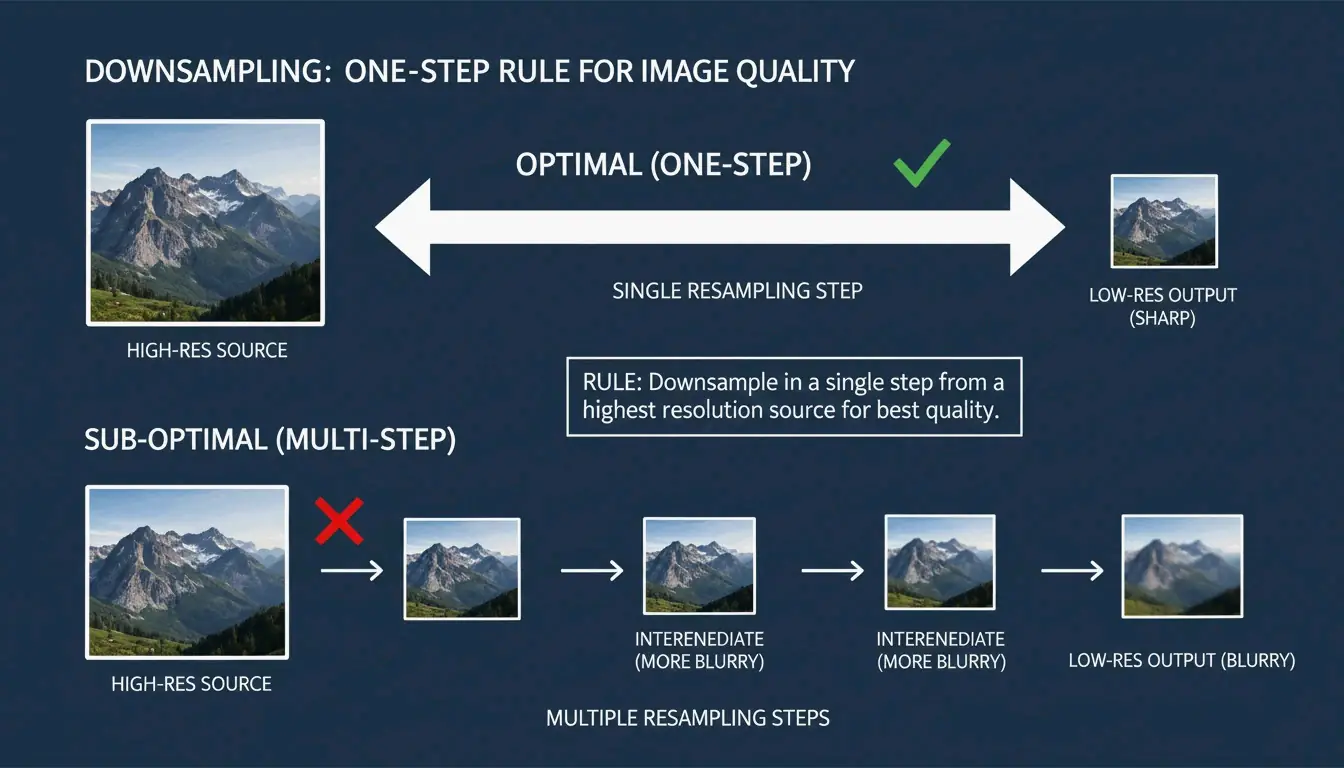
FastTool エンジニアリングチームは、画像をシャープに保つための重要なルールを強調しています:常に一段階でダウンサンプリングすること。2048px の画像を 512px に縮小する必要がある場合、一段階で行う方が、複数回(例えば 2048 から 1024、さらに 512 へ)リサイズするよりも綺麗な結果が得られます。後者はしばしば「リンギング」やぼやけたアーティファクトを引き起こします。
ステップ 1:バッチ処理ツールの選択
あなたの選択は、ファイルの数とプライバシーをどの程度重視するかによって異なります。
| シナリオ | 推奨ツール | 理由 |
|---|---|---|
| プライバシー優先、100 枚未満の画像 | BIRME または FastTool | ブラウザローカル処理、ファイルがデバイスから離れない |
| 大規模バッチ(数百枚の高解像度ファイル) | ConvertFT | サーバーサイドの C++ エンジンがブラウザのフリーズを防ぐ |
| モバイルでの外出先編集 | ネイティブ iOS/Android ツール | インストール不要 |
ステップ 2:アスペクト比を維持するための制約設定
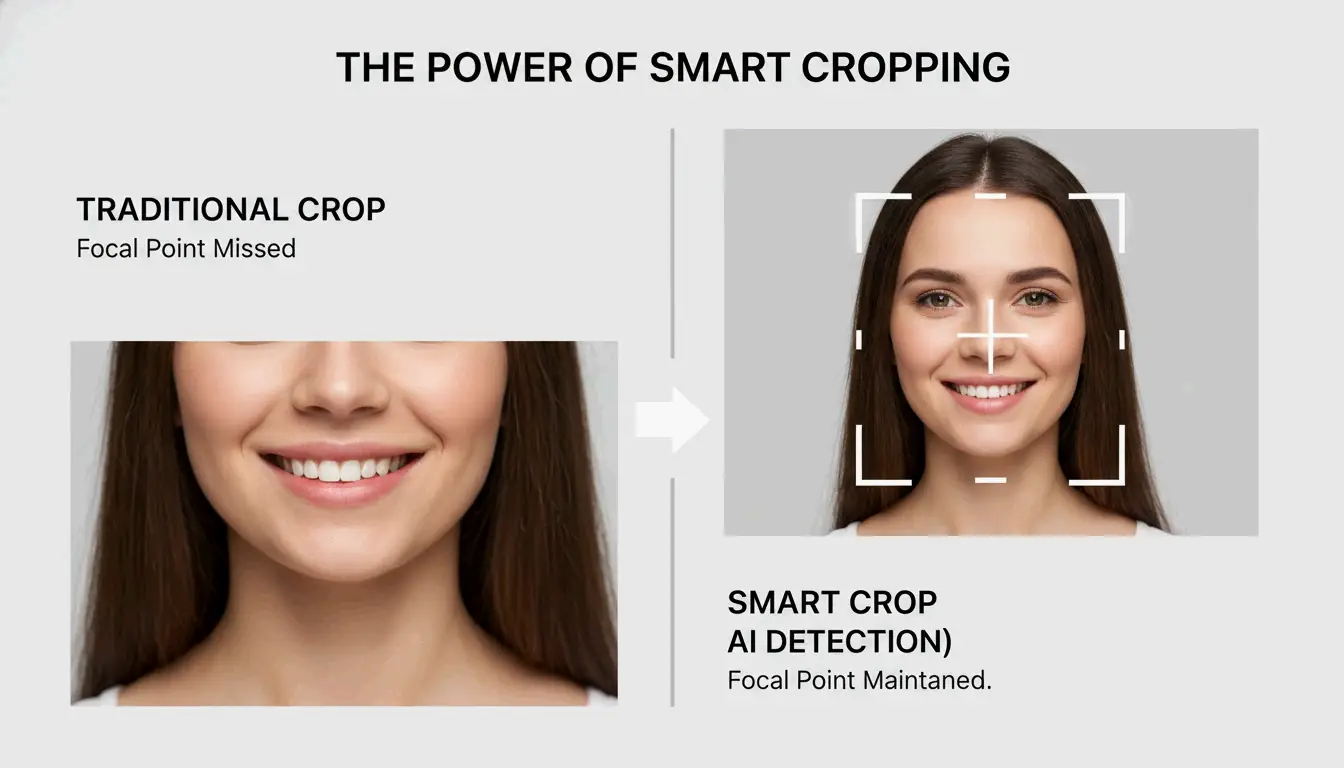
誰も「つぶれた」や引き伸ばされた写真を望みません。必ずアスペクト比をロックしてください。2026年のほとんどのツールでは、固定幅(例えば 1200px)を設定すると自動的に正しい高さが計算されます。正方形の Instagram 投稿など特定の形状に向けて画像を準備する場合は、「スマートクロップ」を探してください —— この機能は写真の焦点を見つけ出し、誰かの頭を誤って切り取らないようにします。
一般的なアスペクト比設定:
| プラットフォーム | 比率 | ピクセル寸法 |
|---|---|---|
| Instagram フィード(正方形) | 1:1 | 1080 x 1080px |
| Instagram Reels / TikTok | 9:16 | 1080 x 1920px |
| YouTube サムネイル | 16:9 | 1280 x 720px |
| Facebook カバー | ~2.7:1 | 820 x 312px |
ステップ 3:即時ローカルエクスポート
開始をクリックすると、ブラウザは canvas.toBlob を使用してメディアを再エンコードします。2026年の標準は、すべてを単一の ZIP ファイルとしてエクスポートすることです。これは、通常は一度に数十個の個別ファイルをダウンロードすることをブロックするブラウザの制限を回避する巧妙な方法であり、ワンクリックでライブラリ全体を保存できます。
動画と写真:バッチワークフローでのギャップを埋める
写真のバッチ処理は主にピクセルと寸法に関するものですが、動画はもう一つのレイヤー、つまりビットレート管理を追加します。動画のファイルサイズは、実際の解像度よりもビットレート(1 秒あたりに処理されるデータ量)に大きく依存します。動画を一括でリサイズする際、ツールは新しいサイズに合わせてエンコーディングを調整する必要があります。そうしないと、巨大で不要なファイルサイズを持つままの小さな 480p 動画になりかねません。
解像度とビットレート:動画リサイズが実際に意味すること
4K から 1080p へ動画を縮小しても、ビットレートが同じままであれば、Web サイトの読み込みは速くなりません。Resize Now! のようなモダンなアプリは、特定の出力フォーマットとアスペクト比(TikTok 用の 9:16 など)を選択しながら、これらのバックグラウンド設定を管理できます。MP4、MOV、WebM のどれを使うにせよ、目標は投稿先に合った一貫した解像度を得ることです。
モダンな標準:2026年の AVIF と HEVC の採用
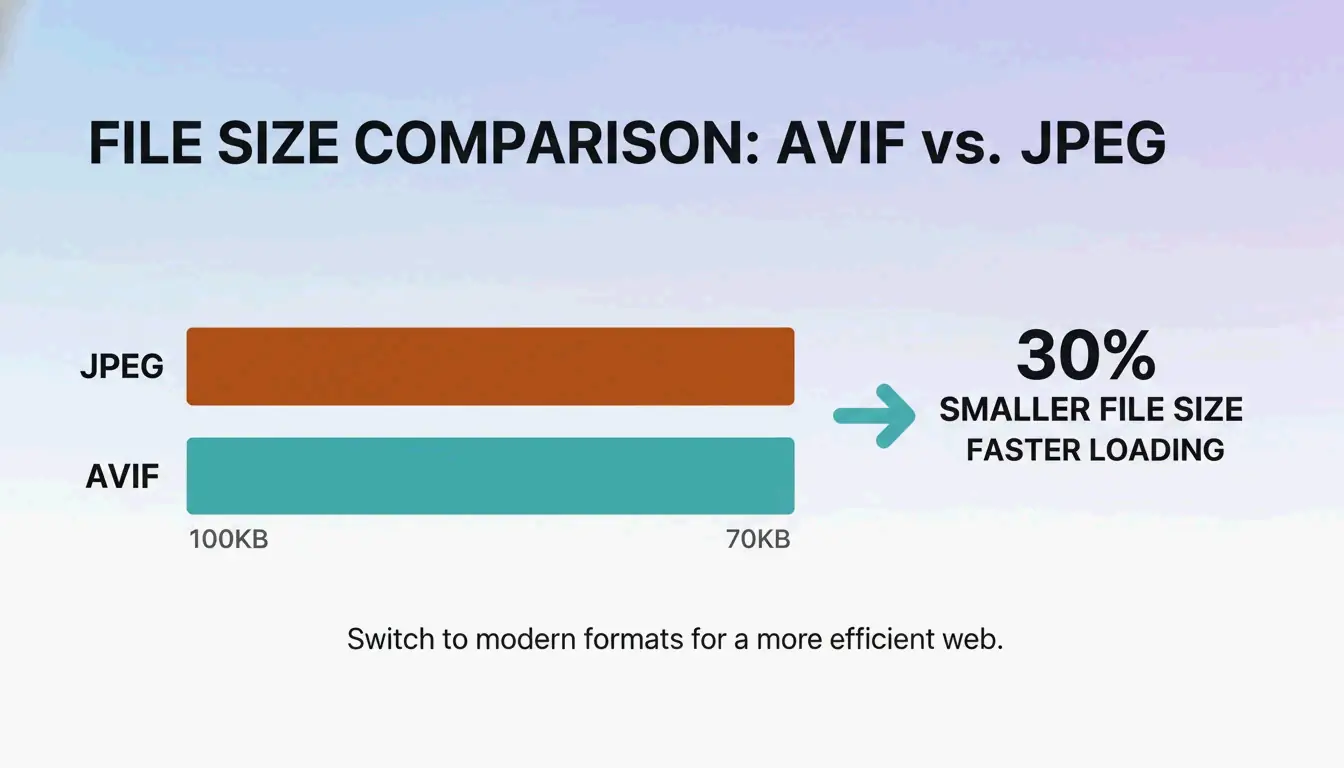
2026年において、従来の JPEG はより効率的なフォーマットに席を譲りつつあります。FastTool は、WebP と AVIF フォーマットが、同じ品質の JPEG や PNG よりも通常 25-35% 小さいと指摘しています。ライブラリをリサイズする際、AVIF(画像)や HEVC(動画)に変換することで、コンテンツが最新のスマートフォンと高速ネットワークで即座に読み込まれることが保証されます。
| フォーマット | タイプ | JPEG 比の削減率 | 最適な用途 |
|---|---|---|---|
| AVIF | 画像 | 30-50% | Web 写真、ヒーロー画像 |
| WebP | 画像 | 25-35% | 一般的な Web 用途 |
| HEVC (H.265) | 動画 | H.264 比で 40-50% 削減 | 4K/8K 動画配信 |
シャープさを失わずに圧縮品質を最適化する
圧縮品質の「スイートスポット」を見つけることが、プロ品質のファイルを得る秘訣です。ほとんどの Web サイトでは、80% から 90% の間の設定が理想的です。BIRME のガイドラインでは、90% を超える設定は人間の目にはめったにより良く見えないが、ファイルサイズを著しく増大させると述べられています。
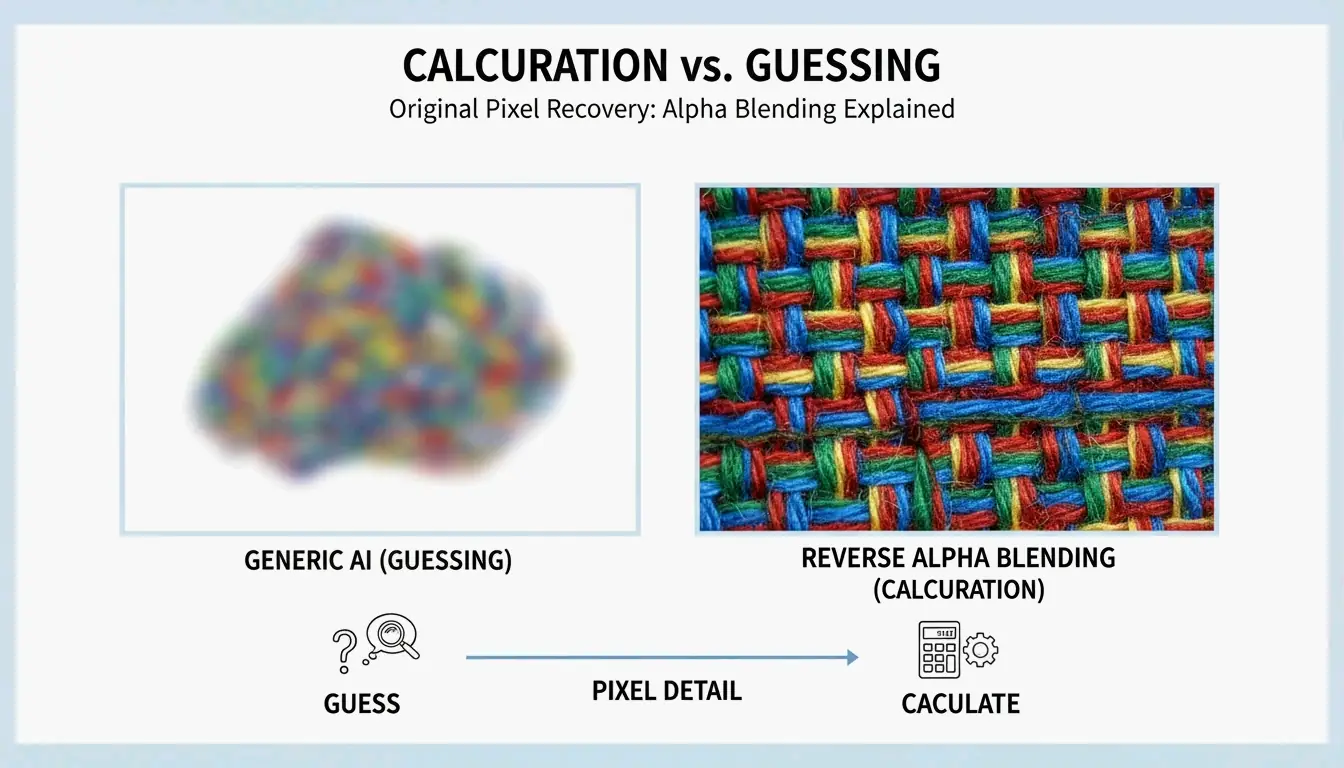
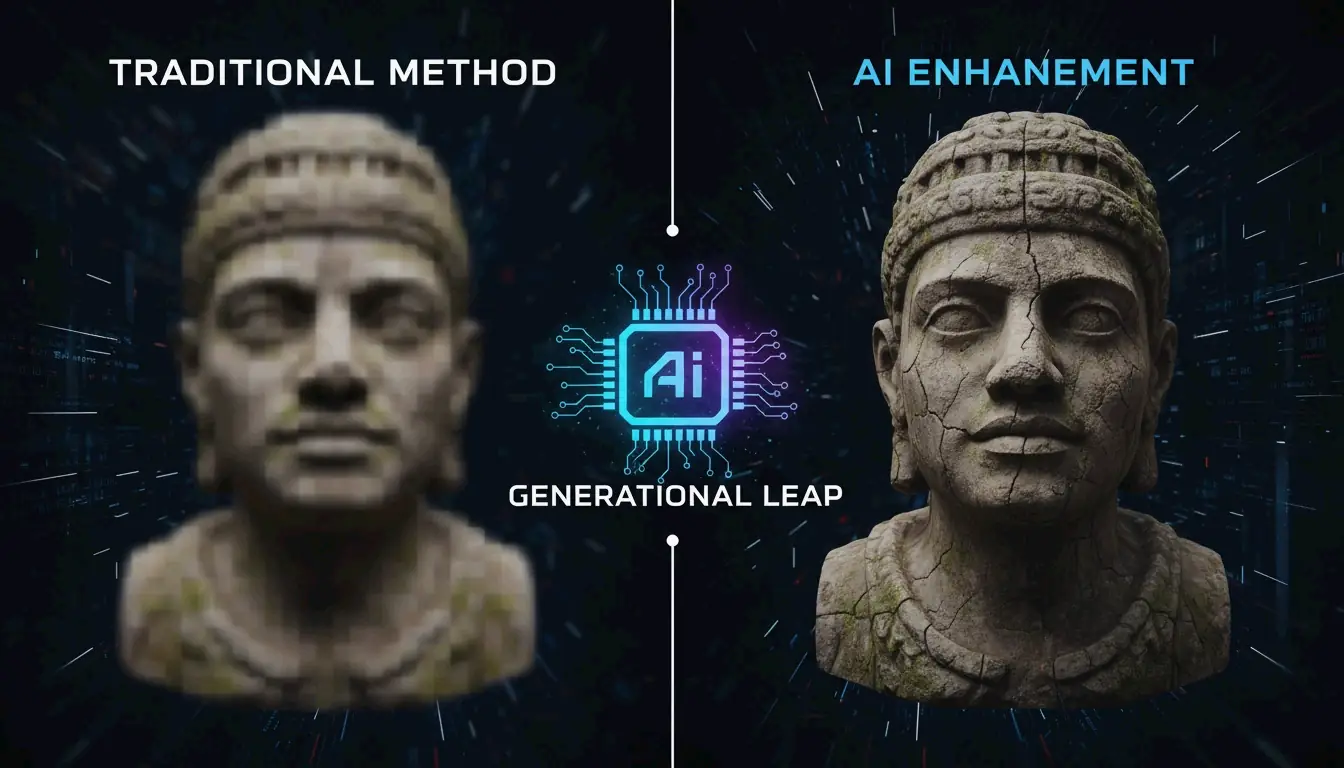
画像を縮小する際にシャープさを保つため、2026年のツールは Lanczos やバイキュービックリサンプリングのような高度なアルゴリズムを使用します。これらのアルゴリズムは、安価なエディタで見られる「ソフト」またはぼやけたエッジを防ぐ方法で新しいピクセルデータを計算します。
圧縮品質の参考:
| 品質設定 | ファイルサイズへの影響 | 視覚的差異 | 最適な用途 |
|---|---|---|---|
| 90-100% | 非常に大きい | 85% に対するほぼ感知不能な向上 | 印刷、アーカイブ |
| 80-90% | 中程度 | ほとんど気付かない程度の劣化 | Web、Eコマース |
| 70-80% | 小さい | 近距離で見るとわずかにソフト化 | サムネイル、モバイル |
| 60% 未満 | 非常に小さい | 目立つアーティファクト | プロ用途には避けるべき |
ケーススタディ:Shopify ストアの速度最適化
FastTool のある事例で、アパレルストアのオーナーが 24 メガピクセルで撮影された 240 枚の商品写真を持っていました。それらを幅 2048px、85% の JPEG 品質へ一括リサイズすることで、ストアの読み込み時間は 4.8 秒からわずか 1.9 秒へと短縮されました。この速度向上は、まさに次の四半期により多くの売上をもたらしました。
| 指標 | 以前 | その後 | 変化 |
|---|---|---|---|
| 画像寸法 | 6000 x 4000px | 幅 2048px | -66% 幅 |
| 品質 | 100%(オリジナル) | 85% JPEG | -15% 品質 |
| ページ読み込み時間 | 4.8 秒 | 1.9 秒 | -60% |
| 画像の総容量 | ~1.4 GB | ~45 MB | -97% |
高度な機能:焦点検出とメタデータ
1 つのバッチで縦構図と横構図のショットを混在して処理することは、かつては頭痛の種でした。モダンなツールは今や焦点検出を使ってこれを解決します。
混在する向きの問題を解決する
2026年のツールは、単にすべての画像の中心をクロップする(商品や人物の顔が切り取られる可能性があります)代わりに、Smartcrop ライブラリを使用します。この技術は画像を分析して興味深い形状や線を探し、写真の中で最も重要な部分を見つけ出し、そこに自動的にクロップの中心を合わせます。
プライバシー優先:2026年の EXIF メタデータの扱い
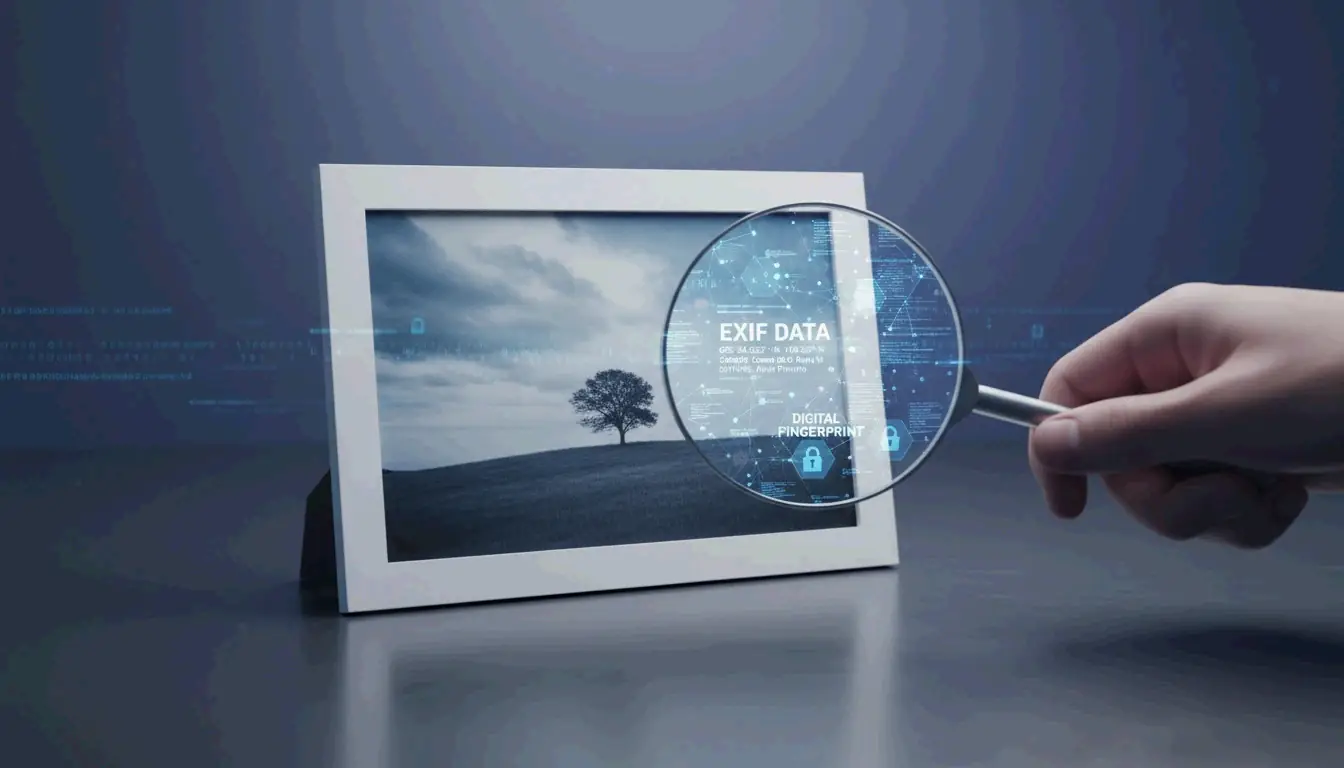
すべてのスマートフォン写真には EXIF メタデータが含まれています —— 本質的には、GPS 位置情報、写真の撮影時刻、スマートフォンのモデルを含むデジタル指紋です。
- 除去すべき時: ソーシャルメディアや公開ギャラリーでは、このデータを除去するのが賢明なプライバシー対策です。
- 保持すべき時: プロの写真家は著作権を保護したりカメラの設定を記録するために、EXIF データを保持することがよくあります。
モダンなリサイズツールは通常、プライバシーのために「メタデータを除去」するか、プロの仕事のために「EXIF を保持」するかのシンプルな切り替えを提供します。
結論
2026年までに、一括リサイズは進化しました。もはや単に数字を変えることではなく、プライバシーのバランスを取り、AVIF のようなモダンなフォーマットを使用し、スマート検出を使って、あらゆる画面で品質が高く保たれるようにすることです。ブラウザローカル処理を堅持することで、リモートサーバーでのデータ漏洩を心配することなく、機密性の高いメディアを処理できます。
アクションプラン: まず現在のファイルをチェックし、どれが速度を遅くしているかを確認しましょう。ブラウザローカルツールを使っていくつかのサンプルをテストし、ライブラリ全体を更新する前に、最適な圧縮対品質比(通常は 80-85%)を見つけましょう。これは小さな一歩ですが、SEO と訪問者に大きな違いをもたらします。
よくある質問
リサイズ後、なぜ写真がピクセル状に見えるのですか?
ピクセル化は通常、画像をオリジナルの寸法を超えて拡大しようとした場合に発生します。また、不正確なリサンプリングアルゴリズムを使用した場合にも発生します。最良の結果を得るために、常に拡大ではなく縮小し、ツールが単純な線形スケーリングではなく Lanczos やバイキューピックフィルタリングを使用するようにしてください。
機密性の高い顧客写真をオンラインのリサイズツールにアップロードするのは安全ですか?
ツールのアーキテクチャによります。最大の安全性を保証するために、Canvas API を使用する「サーバーレス」または「ローカルのみ」のツール(BIRME や FastTool など)を探してください。これらのツールは完全にブラウザ内で画像を処理するため、ファイルがデバイスから離れることも、リモートサーバーに保存されることもありません。
著者について
インディーハッカー & デベロッパー私はiOSアプリとウェブアプリケーションを開発するインディーハッカーで、実用的なSaaS製品の創造に注力しています。AI SEOを専門とし、インテリジェントな技術が持続可能な成長と効率をどのように促進できるかを常に探求しています。
最終レビュー 2026年7月1日. この記事は正確性を確認し、ツールやプラットフォームの動作が変更された際に更新されます。