How to Crop Pics Fast: 2026 Guide for Mobile, Desktop, and AI Bulk Tools
Table of Contents
To crop pics in 2026, you can use built-in apps like Windows Photos or macOS Preview for quick everyday edits. For mobile users, Google Photos now features AI Enhance for smart framing. For bulk work without compromising privacy, client-side tools like BIRME or Pixotter allow you to batch crop locally in your browser so no files ever reach a server.
How to Crop Pics on Windows and Mac Using Built-in Tools
Cropping trims away the edges of an image to fix composition or fit a specific aspect ratio. Your computer’s native apps are often the best starting point — they are fast, keep your data private, and preserve image quality.
Windows Photos App: The Fastest Offline Method
The Windows Photos app handles basic cropping without any additional software. Double-click the file to open it. Click Edit image (or press Ctrl+E) to enter the editor. Cropping handles appear on the corners and sides immediately. Drag them manually or pick a standard ratio like “Square” or “16:9” from the Aspect ratio menu.
A practical tip from Pixotter: always use “Save as copy.” Once you close the app, you cannot undo a crop on the original file, so keeping a backup is the safer approach.
| Windows Photos Shortcut | Action |
|---|---|
| Ctrl+E | Open Edit mode |
| Aspect ratio menu | Select preset ratios (1:1, 16:9, etc.) |
| Save as copy | Preserve original file |
macOS Preview: Precision Cropping with Shortcuts
Mac users can skip extra software and use Preview. Open the image and click the Markup Toolbar (pencil icon) or press Shift+Cmd+A. Use the Selection tool to draw a box over the area you want to keep, then press Cmd+K to crop.
According to IT@UMN, images destined for websites should stay under 600 pixels wide. This helps pages load faster and keeps the layout clean.
AI Auto-Cropping vs. Manual Control: The 2026 Mobile Standard
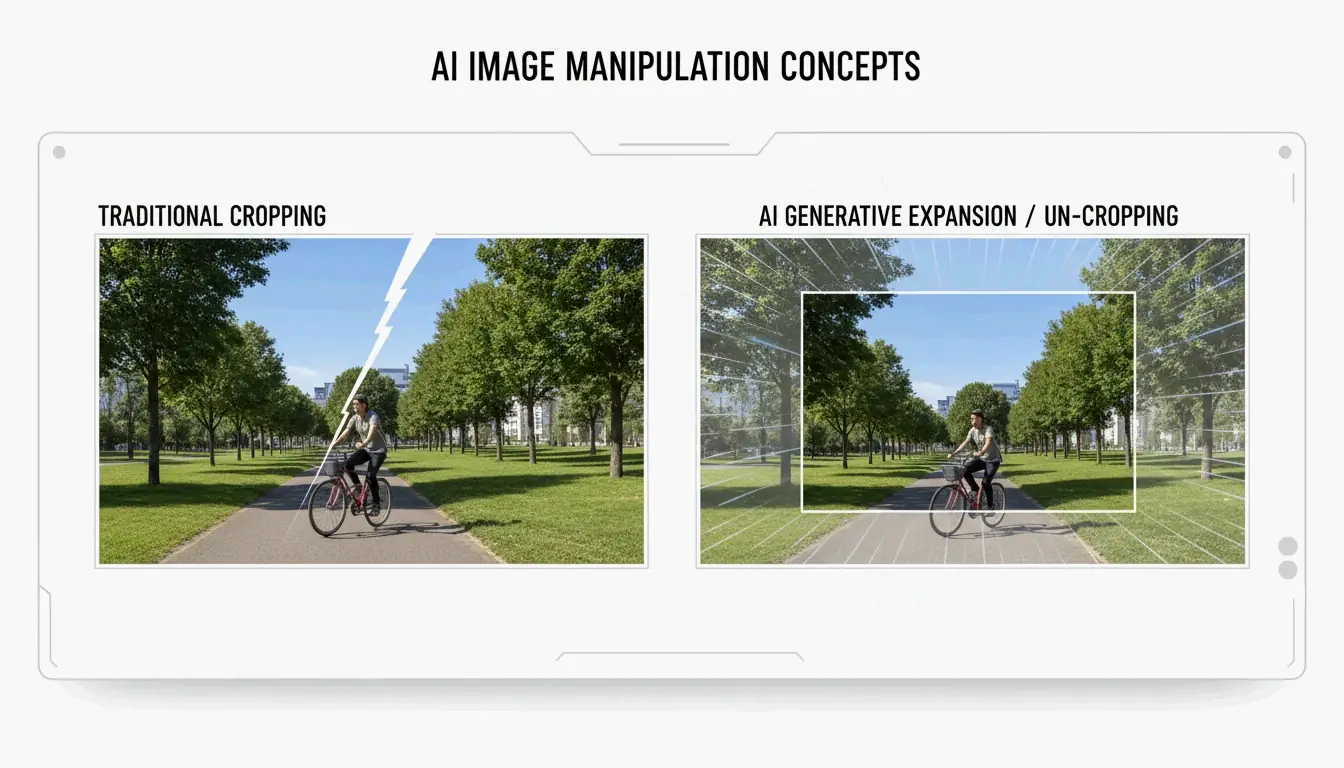
Phone photography has advanced beyond basic manual editing. Modern AI tools do not just cut edges — they understand photo content and can even “un-crop” or expand the background.
Using Google Photos AI to Auto-Frame Your Shots
Following the April 2026 rollout reported by ZDNET, the AI Enhance button in Google Photos has become a standard feature. When tapped, the app analyzes the main subject and suggests three framing options while simultaneously adjusting lighting and sharpness.
Note that AI can sometimes be too aggressive, cutting out background details you actually wanted to preserve. Always review the suggested crop before accepting it.
Batch Cropping for Social Media: 2026 Aspect Ratio Cheat Sheet
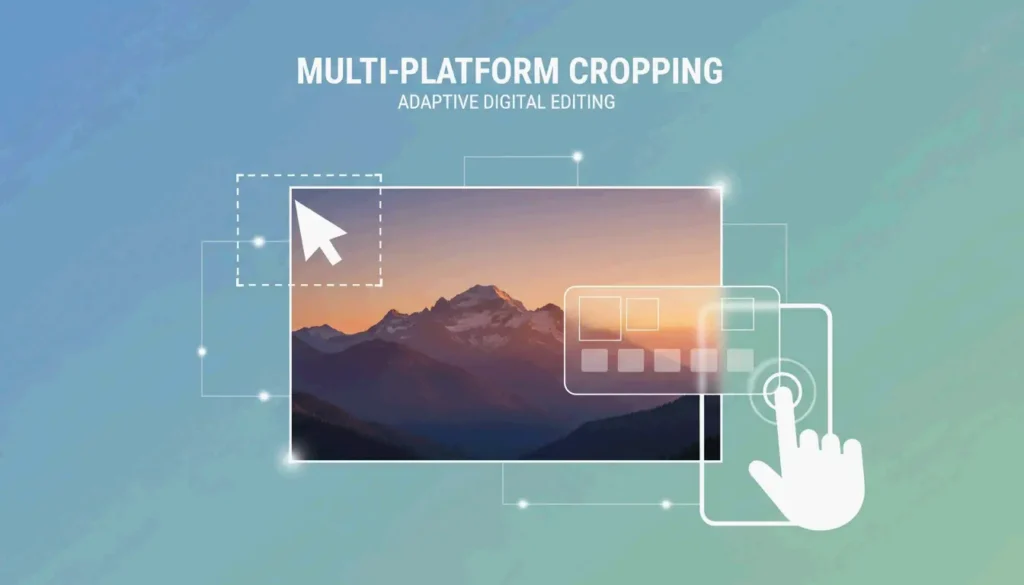
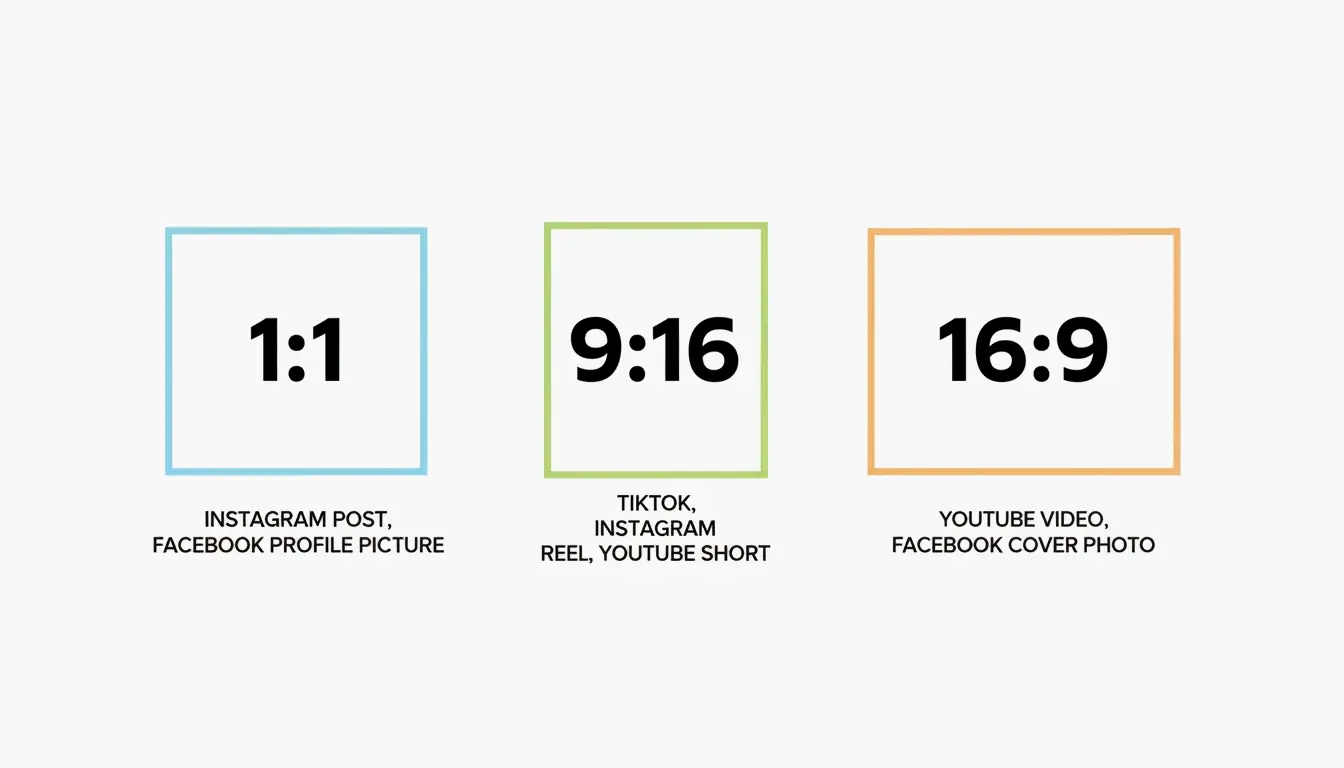
If you are preparing dozens of photos, batch cropping applies the same dimensions to an entire folder at once. This is the most efficient way to keep an Instagram grid or portfolio visually consistent.
The 2026 Social Media Dimension Guide
Use a tool like BIRME or Private Convert to lock in these standard ratios:
| Ratio | Platform / Use Case | Pixel Dimensions |
|---|---|---|
| 1:1 | Instagram Posts, Profile Pictures | 1080 x 1080 |
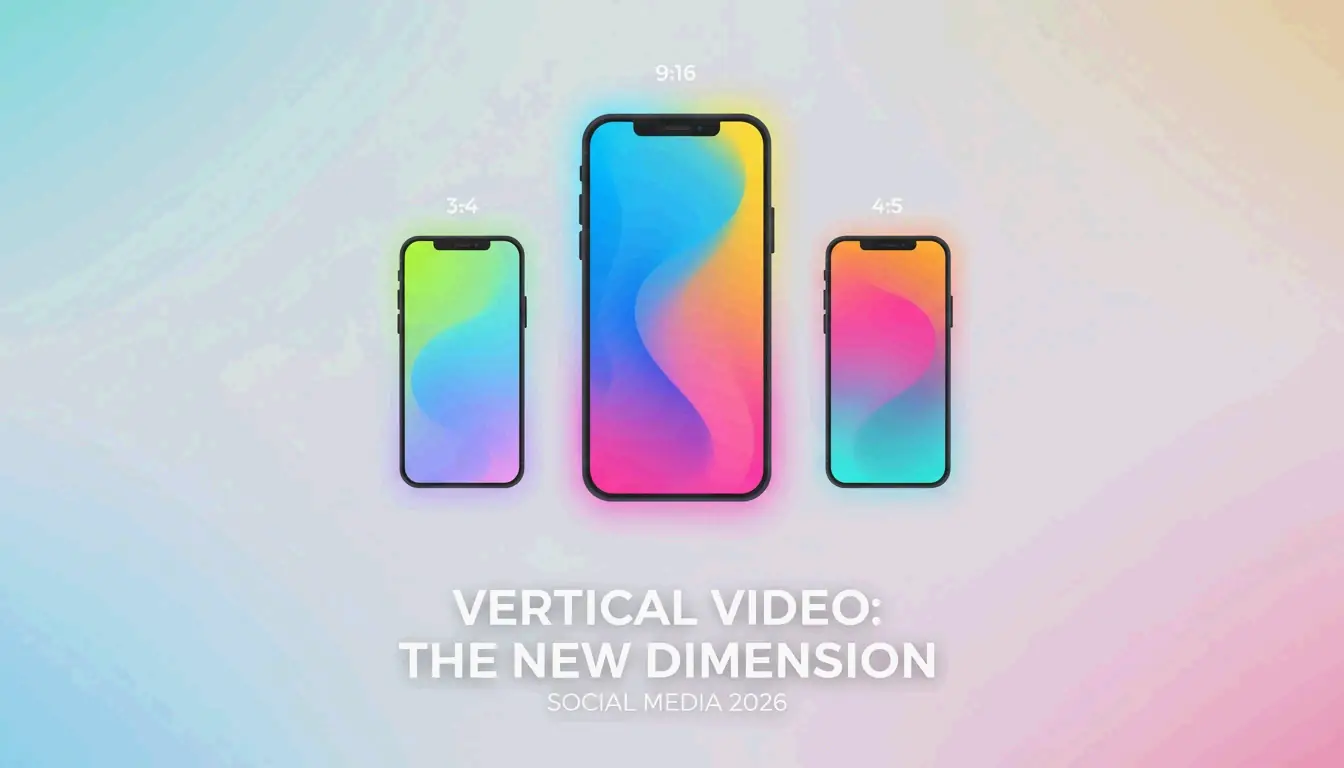
| 9:16 | TikTok Covers, Instagram Stories | 1080 x 1920 |
| 16:9 | YouTube Thumbnails, LinkedIn Banners | 1920 x 1080 |
| 4:5 | Instagram Portrait Posts | 1080 x 1350 |
| 1.91:1 | Facebook Open Graph (Link Previews) | 1200 x 630 |
Why Browser-Based Tools Are Now Safer Than Ever
Modern tools like BIRME use Client-side processing (WASM/Canvas). The actual work happens inside your browser’s memory, and your photos never leave your hard drive. For web exports, setting quality to 80% is typically optimal — the image stays sharp while the file size remains small enough for fast loading.
Advanced Techniques: ImageMagick for Power Users
For developers or anyone managing thousands of files, ImageMagick is the professional standard for command-line editing. A single command crops with pixel-perfect precision:
convert input.jpg -crop 800x600+50+100 output.jpg
This syntax specifies width (800), height (600), X offset (50), and Y offset (100). Automating with ImageMagick turns hours of manual work into seconds of processing.
Conclusion
In 2026, cropping is about choosing the right tool for the job. For a quick one-off edit, the app already on your computer or phone works well. For smart, generative framing, Google Photos AI offers automated suggestions. For bulk social media prep, a dedicated batch editor like BIRME saves time and keeps your data private with client-side processing.
FAQ
Does cropping an image reduce its quality?
Cropping itself does not lower quality, but it reduces the total pixel count. Aggressive cropping can make an image look pixelated if it is later enlarged beyond its new dimensions. Always save your crop as a copy to preserve the original high-resolution file.
How can I crop a photo to exact pixel dimensions (e.g., 1200×630)?
Use a tool like BIRME or Pixotter where you can manually input fixed dimensions. Set the width to 1200 and the height to 630. These tools allow you to adjust the focal point within that specific box before saving, ensuring the most important part of the image is captured.
Can I batch crop photos without uploading them to a server?
Yes. Browser-based tools like BIRME use client-side processing via WebAssembly and Canvas. All cropping happens in your browser’s memory — no files leave your device. This is both faster and more private than server-based alternatives.
About the Author
Indie Hacker & DeveloperI'm an indie hacker building iOS and web applications, with a focus on creating practical SaaS products. I specialize in AI SEO, constantly exploring how intelligent technologies can drive sustainable growth and efficiency.
Last reviewed May 16, 2026. This article is reviewed for accuracy and updated when tooling or platform behavior changes.